

Understanding the Event Participation report
How full your events were: registrations against capacity for each event, which events have happened, and how to see the ones still ahead.
The Event Participation report shows how full your events were: for each event, how many people registered against how many spots it had. You find it under Reports → Event Participation.
What the report shows
Each row is one event: a clinic, an open play, a league, a tournament or another event. Court bookings are not in this report.
| Column | What it means |
|---|---|
| Name | The event and its type. |
| Status | Whether the event has happened. See the next section. |
| Date & Time | When the event starts. An event with sessions at several times shows a clock icon: hover it to see every session. |
| Participation | People registered, out of the event's capacity, and that as a percent. |
An event is in the period when one of its sessions starts in it. An event with several sessions, such as a weekly league, is one row and counts once.
What Completed, In progress and Upcoming mean
| Status | When |
|---|---|
| Completed | Every session of the event has ended. |
| In progress | The first session has started, and the last one has not ended yet. A league in its third week is in progress. |
| Upcoming | The first session has not started yet. |
An event that is in progress counts as one that has happened.
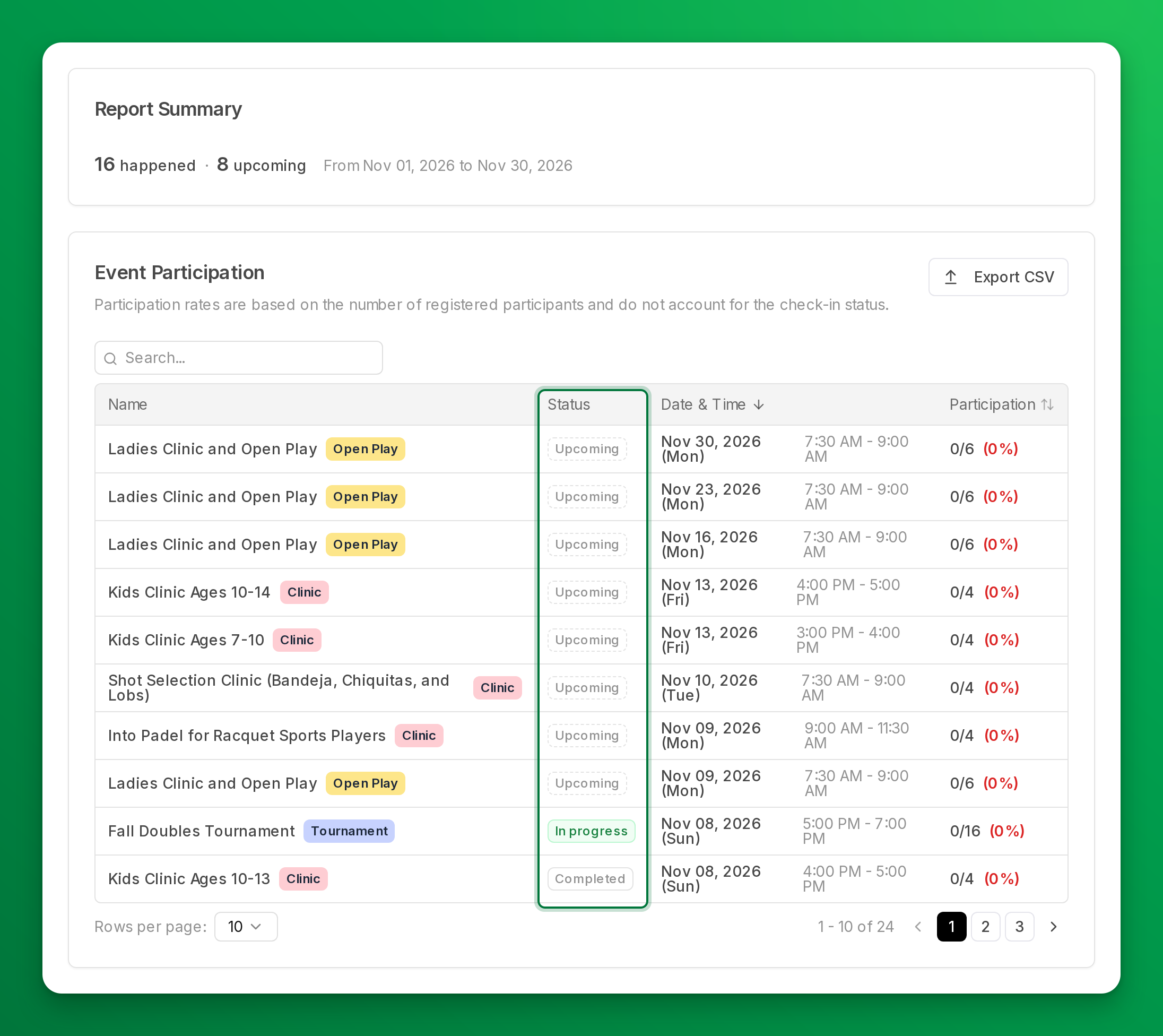
Why upcoming events are hidden at first
A period such as This month runs to the last day of the month, and you schedule events ahead. So the period holds events that have happened and events that have not. To keep the two apart, the report opens with upcoming events hidden:
- The summary counts only the events that have happened, for example 16 happened.
- A line under it says how many upcoming events the period holds, for example 8 upcoming events not shown.
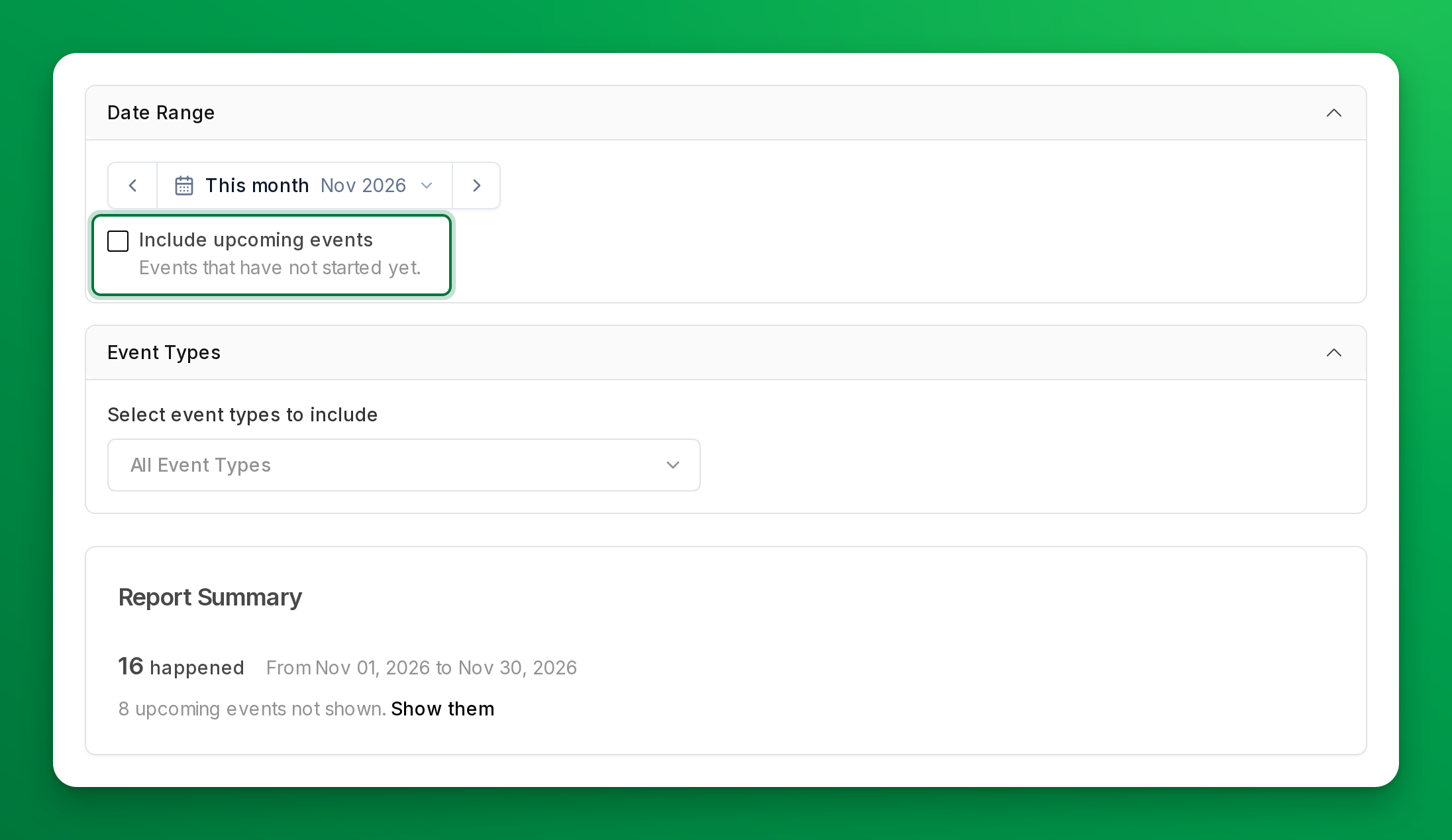
See the events still ahead
To check how full your upcoming events are, tick Include upcoming events under the date range, or click Show them in the summary.
The table then lists the upcoming events with their status, and the summary shows the two counts apart: 16 happened · 8 upcoming. The report never adds them into one total.
If you pick a period that has not started yet, such as next month, the table says No events have happened in this period yet and how many upcoming events it holds. Click Show upcoming events to see them.
Export the report
Export CSV downloads the events the table shows, on every page, in the table's order: it keeps your search and the column you sorted by. The file has a Status column. With Include upcoming events off, it has no upcoming events.
If something looks wrong
- An event you expected is missing. It may be upcoming: tick Include upcoming events. Or it may be a type you filtered out under Event Types.
- A league or a multi-day tournament says In progress for weeks. That is expected: it is in progress from its first session until its last session ends.
- Participation looks low for an event that was full on the day. The report counts people who registered, not check-ins. People who were removed from the event are not counted.
Related
How OpenCourt calculates your sales numbers
The rules behind Net Sales, Net Collected and the dashboard's net sales figure: which day a sale counts on, what is left out, and how club credit, gift cards, passes and refunds are treated.
Branded App
Set up and maintain your company's own branded app — also known as a white-label app — on the App Store and Google Play.