

Creating and Managing Promo Codes
Promo codes let clubs offer discounts on court reservations, events, coach lessons, store products, and booking-pass packages. You control what a code applies to, how big the discount is, when it can be redeemed, and how many times.
Creating a Promo Code
-
Go to Promo Codes in the admin panel.
-
Click Add New Promo.
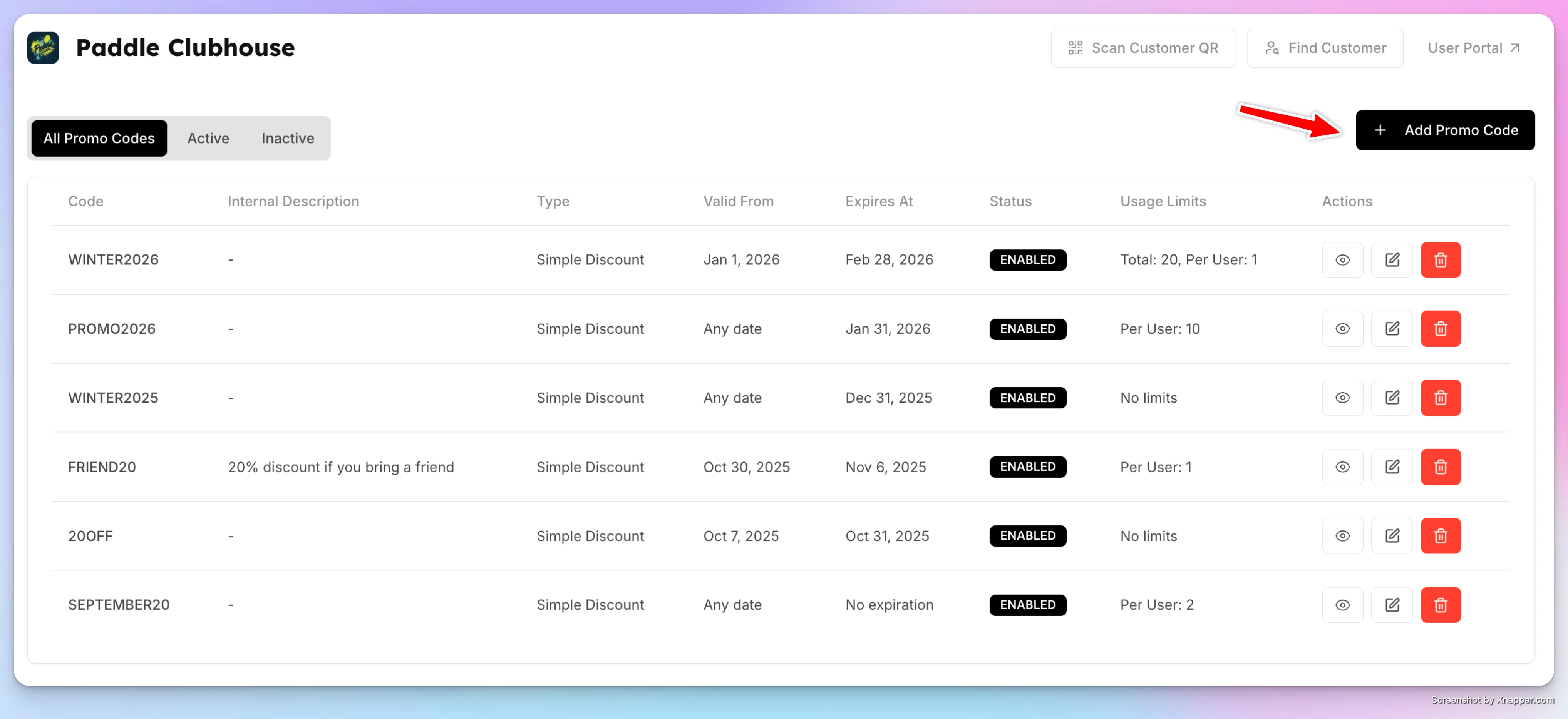
-
Enter the Promo Code (for example,
WINTER2026). -
Toggle Enabled to make the promo code active.
-
(Optional) Add an Internal Description (for admin use only).
-
Add a User-Facing Description—this is what players see at checkout.
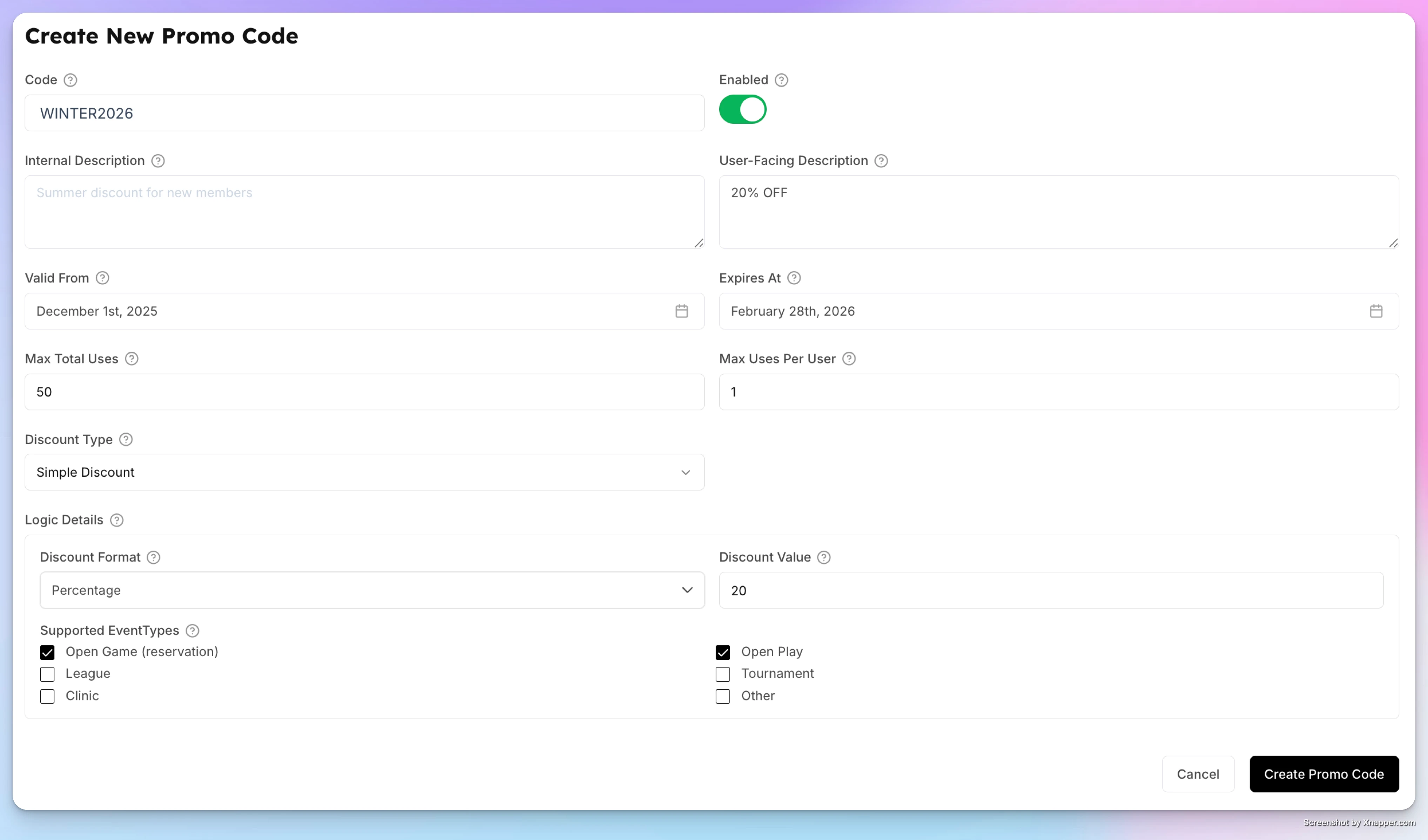
Set Validity & Usage Limits
- Valid From / Expires At
Define the date range when the promo code can be used. - Maximum Total Uses
Limit how many times the code can be used in total (e.g., first 100 redemptions). - Max Uses Per User
Limit how many times a single user can redeem the code (e.g., once per user). - Bookings from / Bookings until
Limit which booking dates the code discounts, separately from when it can be redeemed. See Limit a promo code to specific booking dates.
Leave limits empty to allow unlimited usage.
Choose the Discount Type
Under Discount Configuration, pick a Discount Format:
- Percentage — a share off the total (for example, 20% off).
- Fixed Amount — a flat sum off the total (for example, $5 off).
- Free Hours — free court time instead of money off (for example, one free hour). Orders codes only; it is not offered for a Memberships & subscriptions code, because a recurring charge has no court time to give away.
Then enter the Discount Value: the percentage, the dollar amount, or the number of hours.
Select Where the Promo Applies
First answer What kind of code is this?:
- Orders — discounts court time, events, coach lessons, store products, and booking-pass packages. This is the usual choice.
- Memberships & subscriptions — discounts a recurring membership charge instead.
For an Orders code, What this code applies to is a required choice with five independent opt-ins. A code with nothing ticked is refused when you save, with a message telling you to pick at least one. There is no implicit "applies to everything".
| Opt-in | What it covers |
|---|---|
| Court reservations | Standalone court bookings. The label follows your club's own word for a court or bay. |
| Events & programs | Everything on the schedule. Narrow it further — see below. |
| Store products | Goods sold through the club store. Gift cards are never discountable. You can optionally limit the code to particular categories or products. |
| Booking-pass packages | Bundles of court time sold up front. All-or-nothing — you cannot target individual packages. |
| Coach lessons | Lessons booked on a coach's page or from the coach Agenda tab, paid at booking or later. You can optionally limit the code to particular coaches or services — see below. |
Ticking Events & programs opens a three-way choice:
- All events — every category, including any added to OpenCourt later.
- By event category — tick from Open Play, Tournament, League, Clinic, Lesson, and Other.
- By event tag — pick from your club's event tags.
These three are mutually exclusive, and switching between them clears the previous answer rather than leaving it set out of sight.
Limit a code to some coaches or services
Ticking Coach lessons opens two pickers, Coaches and Services. Services are grouped by coach. Leave both empty and the code applies to every coach lesson. A lesson matches if its coach or its service is picked. The pickers offer coaches who are not archived and their active services.
If you archive a coach or service the code names, or turn off Active on a service (it then shows as Inactive), the code stops applying to it. The pick stays on the code, marked (unavailable), until you remove it. Removing every pick asks you to confirm, because the code then applies to every coach lesson.
A coach lesson code works with booking passes and usage limits like this:
- A booking pass applies first. The code discounts only what the pass leaves to pay. If a pass covers the whole lesson, the code is refused with a message that it doesn't change the price of this lesson.
- Limits count every use. Maximum Total Uses and Max Uses Per User count lesson uses together with every other use of the code.
Save and Share
Click Create Promo Code to save.
Once created, share the code with your players. When they apply it at checkout, the discount will be calculated automatically and reflected in the total.
This is how your players can apply it:
Example
Promo Code: WINTER2026
Discount: 20% off
Valid: January 1 – February 28 2026
Usage: 1 time per user, up to 20 total redemptions
Applies to: Court reservations and Open Play
Players who apply this code at checkout will instantly receive 20% off.
Editing Promo Codes
Promo codes can be edited at any time:
- Open the Promo Codes page.
- Click View Promo Code next to the promo you want to update.
- Make changes to discount rules, validity dates, limits, or eligibility.
- Save your updates — changes apply immediately.
You can also disable a promo code at any time by toggling it off.

Turning a Promo Code On or Off
The Promo Codes list has an Active column with a toggle on every row, so you can switch a code on or off without opening it. The change takes effect immediately.
Turning a code off is not the same as deleting it: the code keeps its settings and its usage history, and you can turn it back on at any time.
A code stops working when either you switch Active off or its Expires At date passes.
Viewing Promo Code Details & Usage Reports
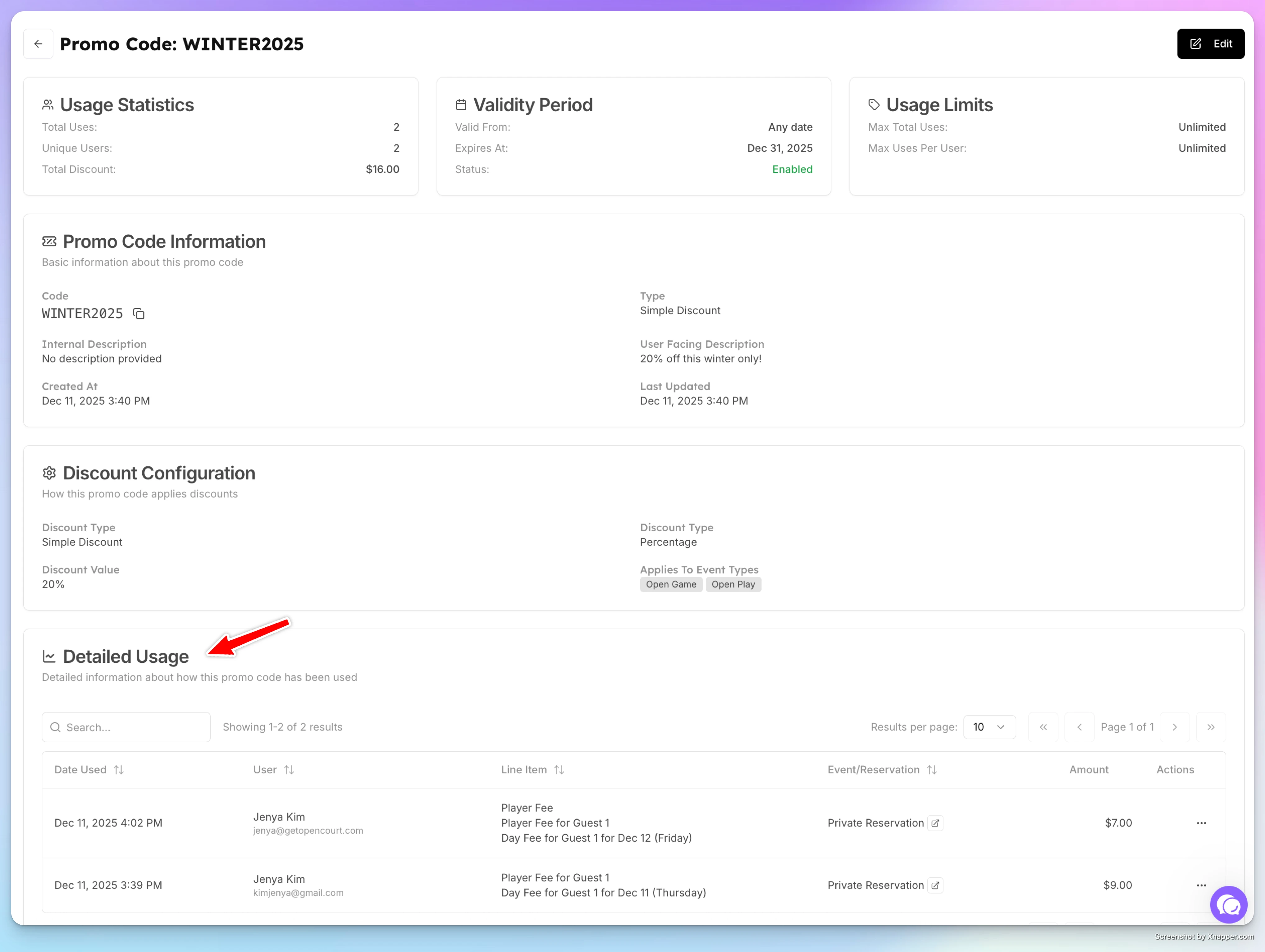
When you click View Promo Code, you can:
- See all promo settings (discount type, value, eligibility, and dates).
- Review a detailed usage report, including:
- Each time the promo code was applied
- The user who used it
- Date and time of use
- The reservation or event it was applied to (with a direct link)
- Discount amount applied
This gives full visibility into how each promo code is performing.
Promo codes give clubs a flexible way to run promotions, reward players, and boost participation—while keeping full control over limits and eligibility.
Booking Upsells
The Booking Upsells feature lets your club offer add-on products and services during court reservations or event sign-ups. It’s a great way to increase revenue while improving player experience — whether you’re renting paddles, selling balls, or offering food and beverage packages.
Limit a promo code to specific booking dates
Set a booking-date window so a promo code discounts only reservations, events, and coach lessons that start on the dates you choose, separately from the dates the code itself can be redeemed.