

Set up a TV schedule display for your lobby
Mount a TV in your lobby or pro shop and show a live, full-screen view of every court — reservations, classes, and events — updating itself all day.
Mount a TV in your lobby or pro shop and show a live, full-screen view of every court — reservations, classes, and events — updating itself all day. Members glance up, see what's open and what's next, and your front desk gets fewer "what court/bay/field am I on?" questions.
What it looks like
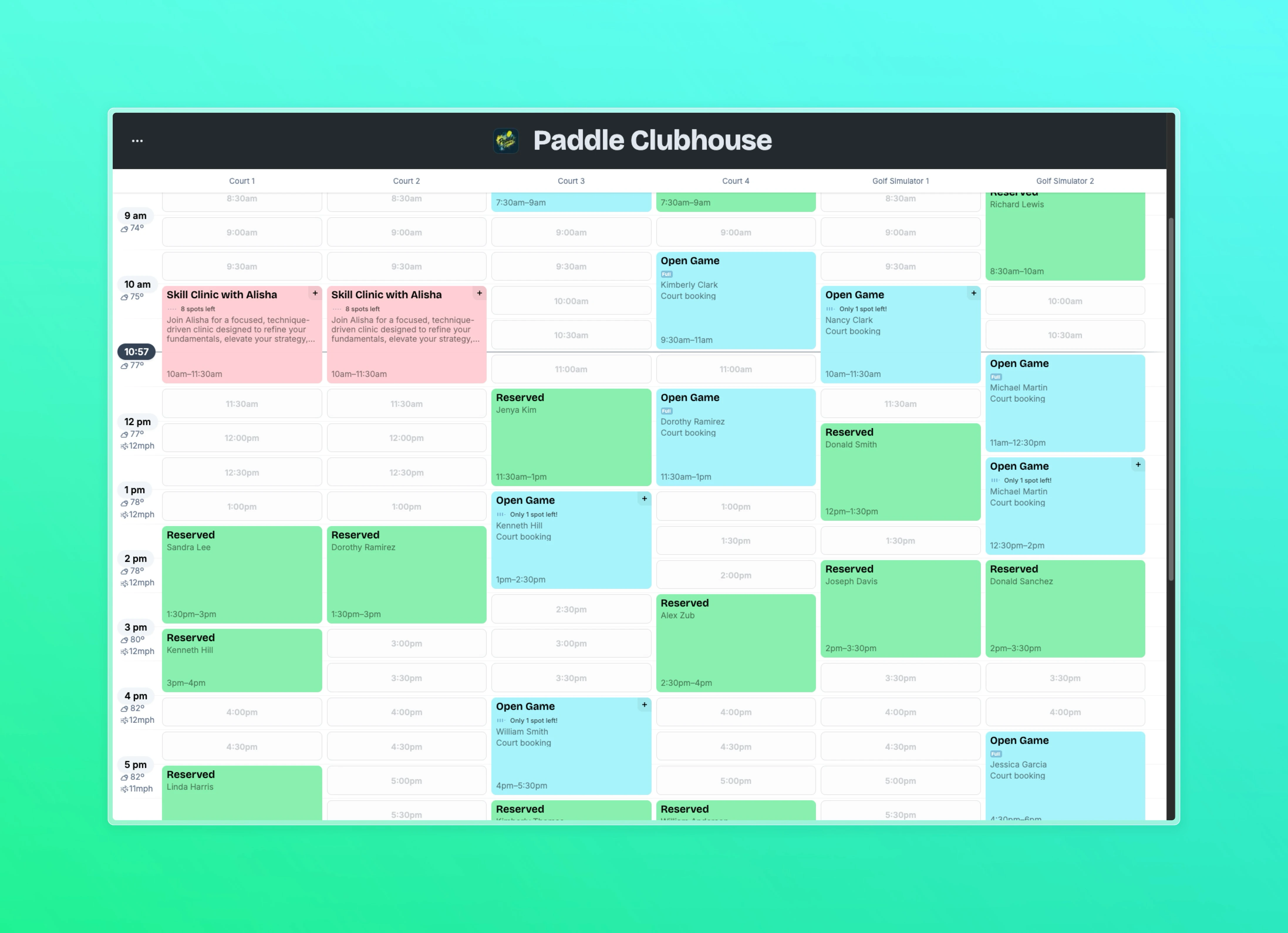
A dark, high-contrast schedule grid sized for a TV viewed from across a room:
- Your club logo and name in the header
- Every court as a column, today's hours running down the side
- Reservations, events, and classes drawn in their time slots
- A line that marks the current time and auto-scrolls down through the day
- No login screen, no menus, no admin chrome
The display refreshes every minute, so a reservation booked from a phone shows up on the TV within about 60 seconds.
Set it up
- Get the link. In the admin panel, go to Settings → Links & Embeds. Find the TV Schedule Display card. Copy the URL.
- Open it on your TV. Any device with a browser works: a smart TV's built-in browser, an Amazon Fire Stick or Chromecast with Google TV, an Apple TV with a browser app, or a small PC/Mac mini wired to an HDMI input. Paste or type in the URL.
- Go fullscreen. Open the menu in the top-left corner of the display and tap Fullscreen. Done.
The link is public — no login required — so you don't need to sign in on the TV.
On-screen controls
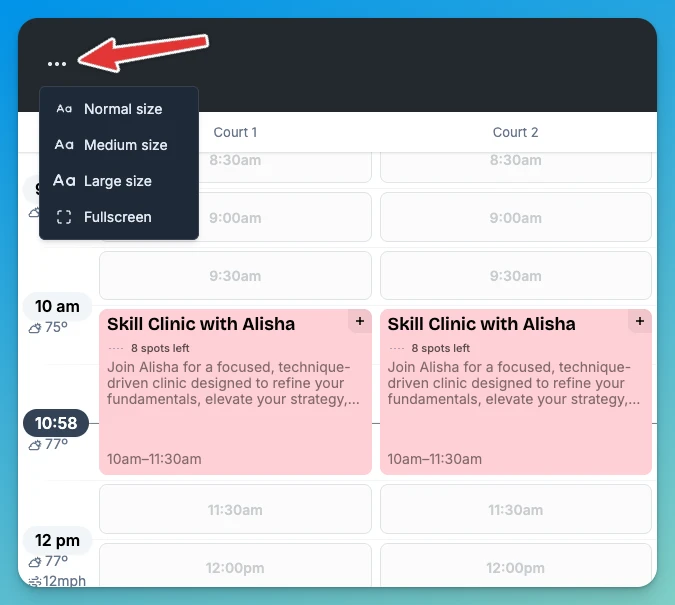
A small menu lives in the top-left corner of the TV view. Use a USB mouse, an air remote, or your TV's pointer:
| Control | What it does |
|---|---|
| Zoom (Normal / Medium / Large) | Scales the whole view up. Use Large for TVs viewed from across a wide room. |
| Fullscreen | Hides the browser's address bar and tabs. |
| Autoscroll | On by default. Keeps the current-time line near the top of the screen as the day progresses. Toggle off if you want a fixed view. |
If someone touches or scrolls the screen, autoscroll pauses so they can look around — re-enable it from the same menu when they're done.
Tips for a great display
- Disable screen sleep on the TV or streaming device so the schedule stays on during business hours.
- Use a dedicated browser tab. Don't share the tab with another task — a stray click takes the TV offline.
- Wire it instead of Wi-Fi when you can. Ethernet to the streamer or PC keeps the display from going stale during Wi-Fi blips.
- Refresh once a day. A nightly power cycle prevents long-running browser quirks. The display also reloads itself automatically when the day rolls over.
Embedding OpenCourt into your website
There are several ways you can link to or embed OpenCourt on your website to give your visitors direct access to your club’s schedule and events.
How OpenCourt sends your club's emails (overview)
The three parts of your email identity — sender name, From address, and reply-to — and where a customer's reply goes.