

Connect UniFi Access to your club
Connect your club's UniFi Access console so every booking gets its own door code and you can unlock mapped doors from the OpenCourt app.
Connect your club's UniFi Access console so every booking gets its own door code automatically, and so you and your customers can unlock a mapped door from the OpenCourt app. (About 5 minutes. You'll need admin access, your console reachable from the internet, and a scoped UniFi Access API token.)
What you get with UniFi Access
Customers get in two ways, and both go through OpenCourt. A club can use either one, or both.
- A door code for each booking. Each booking gets its own PIN on the mapped door, valid only around the booking. This needs a keypad reader — check yours in Which UniFi readers accept booking codes.
- The Unlock button in the OpenCourt app (remote unlock). Customers and admins open the door from their phone. This works only on a door that is bound to a UniFi Access hub.
What you'll need (and who sets it up)
UniFi Access is a complete access-control system, not a single device — neither a hub nor a reader alone will open a door. For one door you'll typically need:
- A UniFi console that can run the UniFi Access application — see the warning below, because not every UniFi console can.
- An Access Control Hub — the door controller the reader and lock connect to. Ubiquiti sells several: Door Hub, Door Hub Mini (the compact single-door one), Gate Hub, Elevator Hub, Enterprise Access Hub (up to 8 doors), and Retrofit Hub. Pick by application, not by price — a gate needs the Gate Hub, not a Door Hub.
- A reader with PIN support — see the table below. This is the one choice that decides whether booking codes work at all, so don't let it be made on price.
- An electric lock or strike, plus the usual door hardware.
- Networking — the hubs and readers are PoE-powered, and some hubs need the higher PoE++ standard rather than ordinary PoE, so a suitable switch or injector may be required. Your installer will size this; you don't need to work it out yourself.
- A way for OpenCourt to reach the console (the next section).
Which UniFi readers accept booking codes
| Accepts PIN codes ✅ | No PIN ❌ |
|---|---|
| G6 Pro Entry | G6 Entry |
| G3 Reader Pro · G2 Reader Pro | G3 Reader · G2 Reader |
| G3 Reader Fingerprint | Access Ultra |
| Reader Flex | Reader Lite |
| Intercom · G3 Intercom | Retrofit Reader |
| Retrofit Reader Fingerprint | — |
How OpenCourt reaches your console
UniFi Access runs entirely on your own console — there is no UniFi cloud for door control. So unlike Seam or RemoteLock, where you just sign in to an account, something has to give OpenCourt a route to a box sitting in your building. Sort this out before you connect, because it produces the address you'll paste in later.
There are two supported ways. We recommend a port-forward, and the reason is reliability rather than convenience: it adds nothing to your building that can quietly stop working.
| Port-forward ✅ recommended | Cloudflare Tunnel | |
|---|---|---|
| What it is | Open port 12445 on your firewall, pointing at the console | A helper program makes an outbound-only connection to Cloudflare |
| Setup time | ~10 minutes | ~30 minutes, one time |
| You need | A static IP from your ISP, or free DDNS (built into UniFi gateways) | A Cloudflare account, a domain hosted on Cloudflare, and a computer that is always on |
| Extra equipment | None | An always-on device — a NAS running Docker, a mini-PC, a Raspberry Pi |
| Open inbound ports | Yes — port 12445 | None |
| Works behind CGNAT | ❌ No | ✅ Yes |
| Your installer already knows it | Almost certainly | Often not |
Why we recommend the port-forward
It adds no new hardware and no software that has to keep running. Once the rule is in place, the only things that need to stay up are your internet connection and the console itself — and if either of those is down, your club has bigger problems than door codes.
A tunnel needs a computer that is powered on and running the helper program at all times. That machine becomes a part of your access-control system that nobody thinks of as part of your access-control system. When it reboots without restarting the helper, or its drive wears out, or an update stops the container, door codes stop and nothing appears to have changed. That is a much harder problem to spot than a firewall rule someone edited.
Choose the Cloudflare Tunnel instead if any of these are true
- Your ISP uses CGNAT. Then a port-forward is impossible, not merely inadvisable. This is common on fixed
wireless, mobile broadband and Starlink. The test: if your router's WAN address starts
100.64.through100.127., you are behind CGNAT. (A WAN address starting192.168.,10.or172.16.–172.31.is different: it means your ISP's own modem or router sits in front of yours. That is fixable — see step 2 below.) - Your organisation's IT policy is not to open inbound ports. Some clubs inside a larger business or a landlord's network have this rule set for them.
- You already run an always-on NAS or server and are comfortable maintaining it. Then the main drawback largely goes away.
→ Make your UniFi console reachable (Cloudflare Tunnel)
Setting up the port-forward
Four steps, all on your side. Your installer can do this in about ten minutes.
- Give the console a fixed local IP address, or a DHCP reservation for it. Do this first. If the console's local address ever changes, the forwarding rule points at nothing.
- Make your public address stable — a static IP from your ISP, or DDNS. ⚠️ Check before you buy anything:
most business connections already have a public address, and what you might need to purchase is a static
one so it stops changing. If your address changes, DDNS is free and fixes it: it gives you a hostname
(from a provider such as Cloudflare or DuckDNS) that follows your address, and you paste that hostname as the
Console address instead of an IP. UniFi gateways have DDNS built in at Settings → Internet → your WAN →
Dynamic DNS. Two things to check:
- DDNS only works if your router holds the public address itself. If your ISP's modem or router sits in front of it, ask the ISP to put that box in bridge mode. Until then, both DDNS and the port-forward in step 3 fail. If your UniFi console sits behind a router from another brand, use that router's DDNS setting instead.
- Pick a provider that never expires. Some free plans (No-IP's, for example) stop working unless someone confirms them every month. When that lapses, door codes stop.
- Forward TCP port
12445to the console's local IP. - Test it from outside your network before connecting — use the token self-test below, run from a phone on cellular rather than on the club's Wi-Fi. A rule that works from inside the building proves nothing.
Before you begin
- You have a UniFi Access console (for example, a Dream Machine Pro Max) running the UniFi Access application, with at least one door connected through an Access Control Hub and a PIN-capable reader (see the table above). Remote unlock only works on a door bound to a hub.
- Your console is NOT enrolled in UniFi Identity Enterprise. That mode turns off the local API OpenCourt connects to. Standard UniFi Access is what you want. (If it's already on Identity Enterprise, you'd need to move it back to standalone UniFi Access before connecting.)
- Your console is reachable from the internet, by either a port-forward on 12445 or a Cloudflare Tunnel — see How OpenCourt reaches your console above. Either way, you come out of it with the Console address you'll paste in below.
- Your console is running UniFi Access 1.9.2 or later — the version that introduced the API OpenCourt uses.
- You have a scoped UniFi Access API token. Creating one takes a minute — see the next section.
Create the API token
-
In the console, open the Access application, then go to Settings → General.
-
Scroll to the bottom of the page. API Token is the last row, below Data Retention and Network. Click Create New.
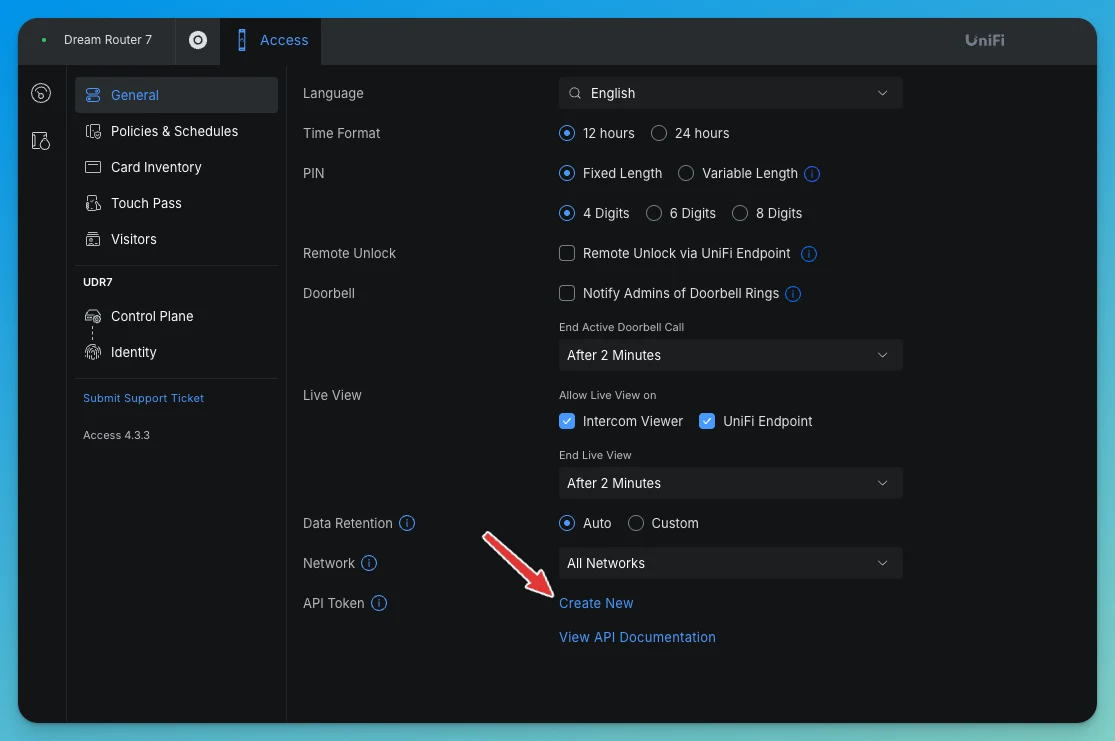
[!TIP] There's no "Advanced" section to look for — the token sits directly at the foot of the General page. Older Access versions placed it under Settings → Security → Advanced, so check there if your console is behind.
-
Fill in the dialog:
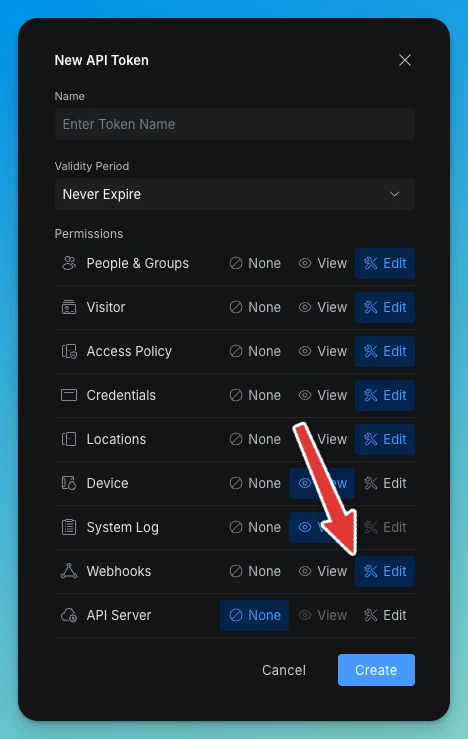
The screenshot above shows the finished state — Never Expire, and Webhooks on
Edit. Everything else is exactly as the dialog opened.Field What to set Name Anything you'll recognise later — OpenCourt Integrationis a good choice.Validity Period Never Expire. See the warning below — this one matters. Permissions Leave every row at its default, then change WebhooksfromNonetoEdit. -
Click Create, then copy the token immediately — see the warning below.
About those permissions
The dialog opens with sensible defaults, and Webhooks is the only one you have to change. It defaults to
None, and OpenCourt uses it to receive door events from your console, so the connection won't work without it.
For reference, this is what OpenCourt actually uses each one for:
| Permission | Needed? | Why |
|---|---|---|
| People & Groups | Default (Edit) | Bookings are added as time-limited visitors alongside your own people. |
| Visitor | Default (Edit) | Each booking becomes a visitor, valid only for its time window, then removed. |
| Access Policy | Default (Edit) | Scopes each booking's access to the right door. |
| Credentials | Default (Edit) | Issues and revokes the booking's PIN code. |
| Locations | Default (Edit) | Reads your doors so they appear in OpenCourt, and unlocks them on request. |
| Device | Default (View) | Reads hub and reader status. |
| System Log | Default (View) | Not used by OpenCourt. Harmless to leave as-is. |
| Webhooks | ⚠️ Change to Edit | Door events. Defaults to None — this is the one to change. |
| API Server | Default (None) | Not used by OpenCourt. Leave it off. |
Optional: have your installer test the token first
This is worth 30 seconds, because it tells you which side a problem is on before you involve anyone. Your installer runs it from any computer on the same network as the console, replacing the address and the token:
curl -i -k 'https://CONSOLE-IP:12445/api/v1/developer/users' \
  -H 'Authorization: Bearer YOUR_TOKEN'
"code": "SUCCESS"with a list of users — the console, the API and the token are all good. Any later failure is about reachability from the internet, not about UniFi.HTTP 401withCODE_UNAUTHORIZED— the token is wrong, was deleted, or has expired. Create a new one.- Nothing connects at all — UniFi Access isn't installed on that console, or the address or port is wrong.
Run the same test from outside the club (port-forward only)
Once the forward is in place, repeat the command using your public address and from a connection that is not the club's Wi-Fi — a phone hotspot works:
curl -i -k 'https://your-host.example.com:12445/api/v1/developer/users' \
  -H 'Authorization: Bearer YOUR_TOKEN'
This is the check that matters. A forward that works from inside the building proves nothing at all, because traffic never leaves your network. If this succeeds, OpenCourt can reach your console.
Steps
-
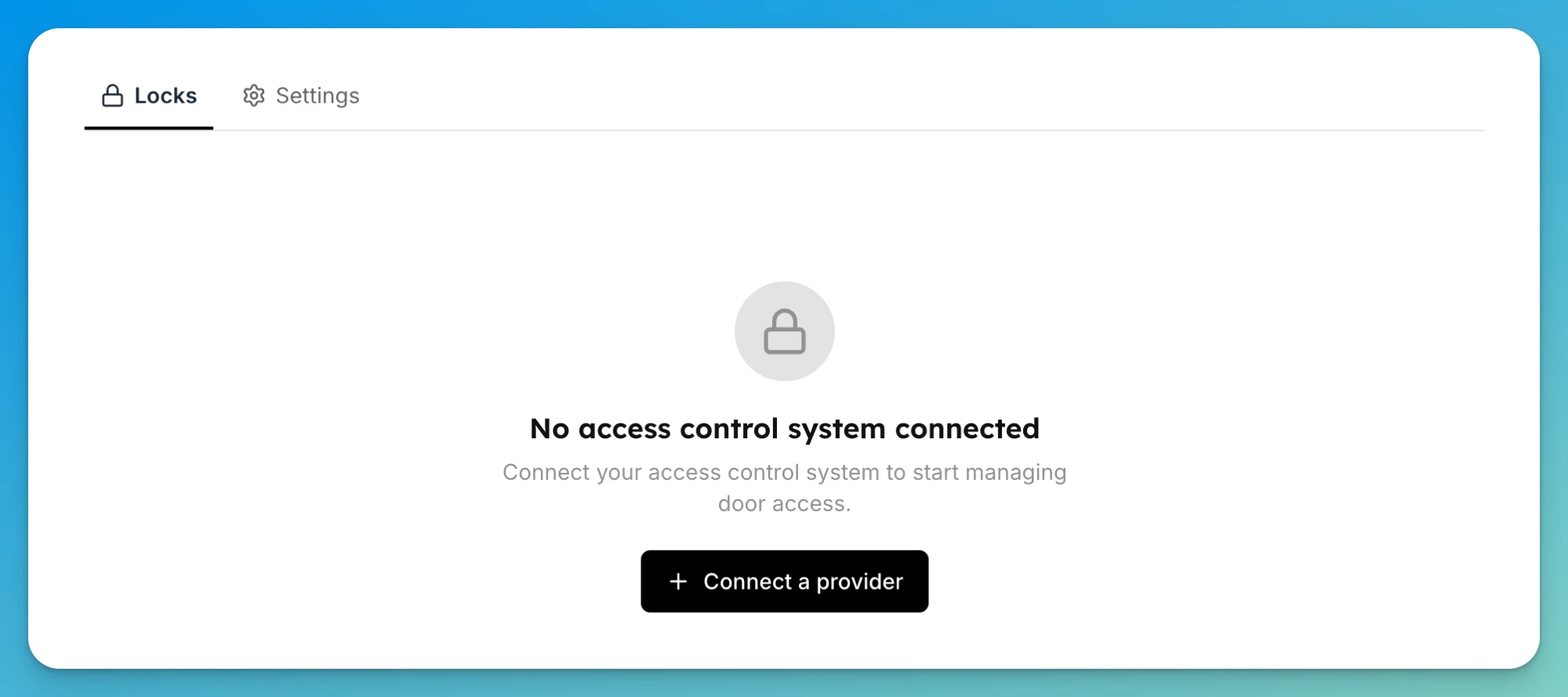
In the admin app, go to Settings → Access Controls. You land on the Locks tab. With nothing connected yet you'll see No access control system connected.
-
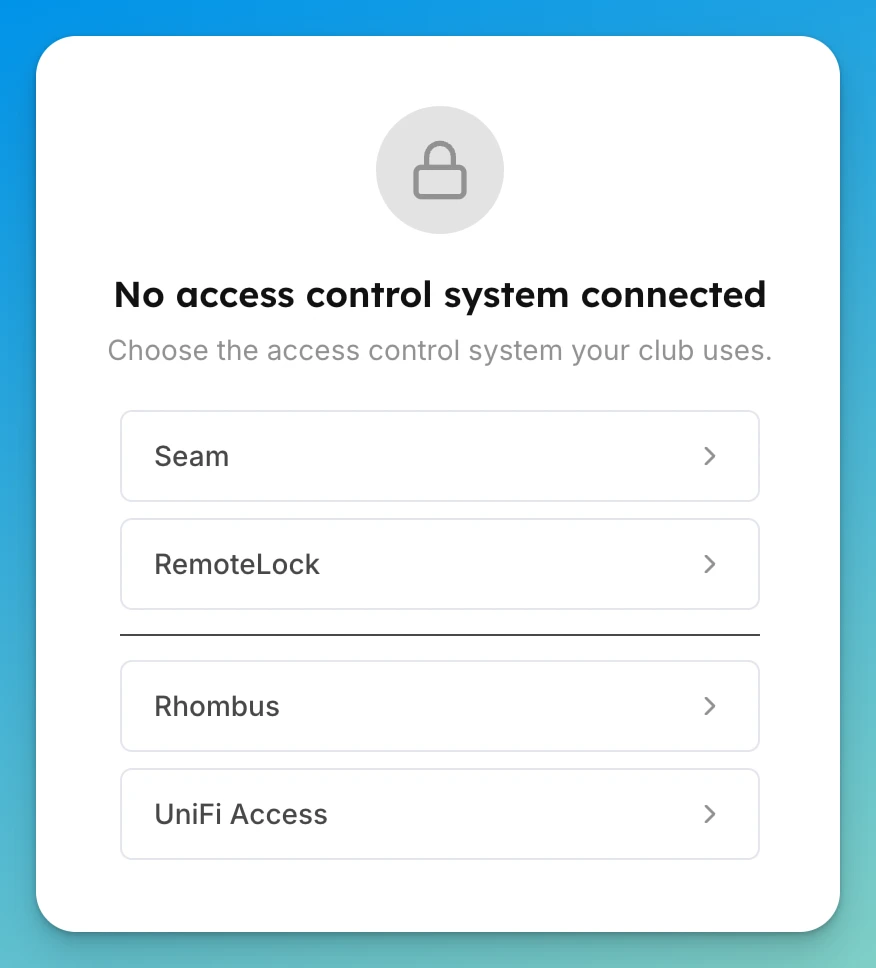
Click Connect a provider, then choose UniFi Access. A dialog opens.
-
Under How is the console reached?, pick the one that matches what you actually set up — Direct / port-forward (recommended) or Cloudflare Tunnel.
[!NOTE] Pick the one you built, not the one marked recommended. Choosing the wrong option here is the most common reason a correct address and a valid token still fail to connect, because the two verify your console's certificate in different ways.
-
In Console address, paste your console's address. For a port-forward that's the full address including the port (for example
https://your-host.example.com:12445); for a tunnel it's just the hostname (for exampleaccess.yourclub.com). -
In API token, paste the scoped token you created, then click Connect.
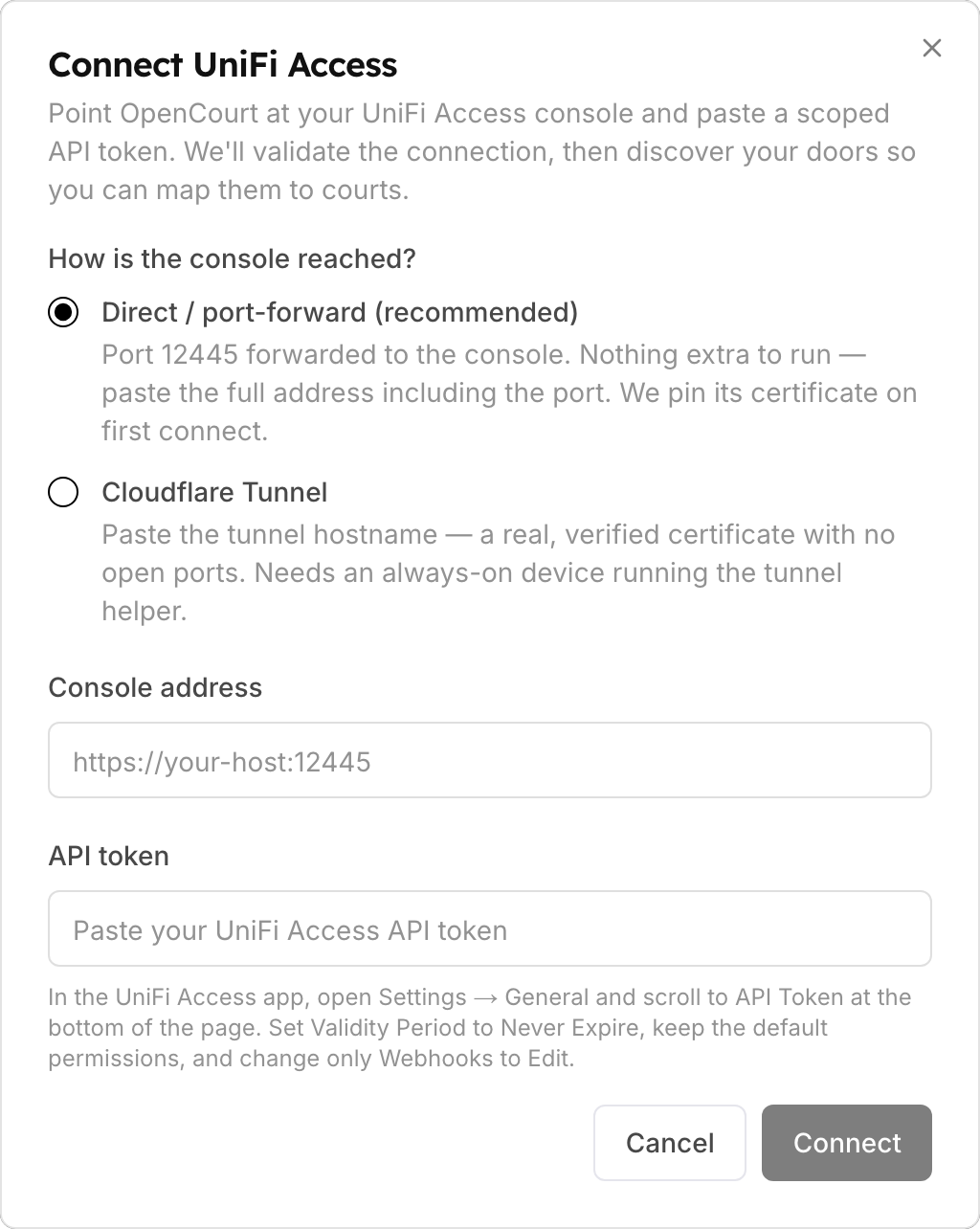
The dialog summarises the difference: Direct / port-forward (recommended) — "Port 12445 forwarded to the console. Nothing extra to run" — versus Cloudflare Tunnel — "no open ports. Needs an always-on device running the tunnel helper."
-
OpenCourt validates the token against your console, sets up push notifications for door events, and discovers your doors. You return to the Locks tab, which now shows Connected and one card for each door it found. Each card shows whether the door is Online, and a PIN codes and a Remote unlock badge for what it supports. The Access Codes and Unlock History tabs appear next to Locks.
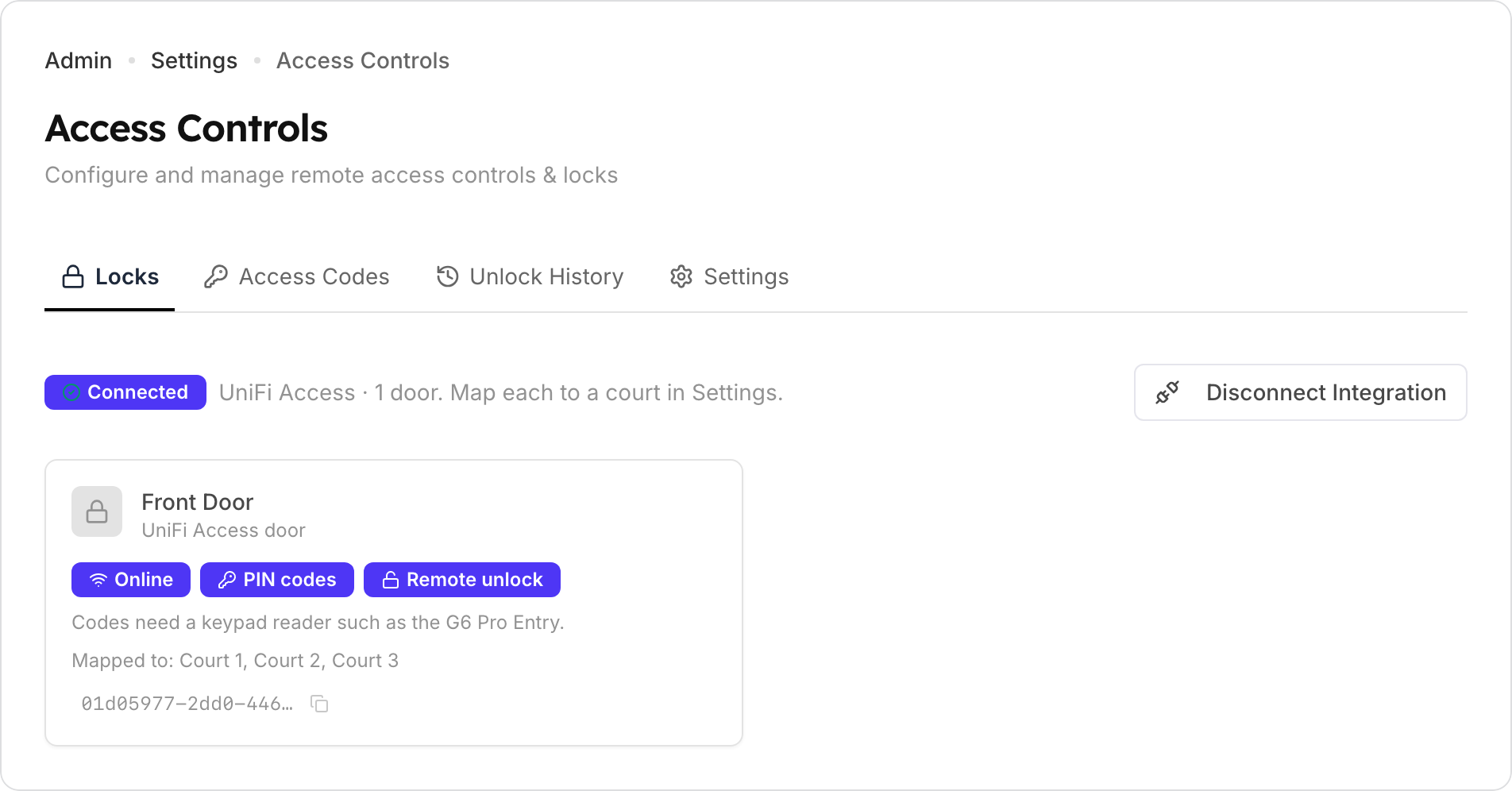
Click a door card to open its page. It has an Unlock button (on a door bound to a hub), the Door access rules, Lock Activity, and the door's Access Codes.
-
Map each door to a space. Switch to the Settings tab and find Court-to-Lock Mapping — the heading follows your club's wording. Choose a door for each space and click Save. This is what tells OpenCourt which door belongs to which space, so the right codes and unlock permissions apply.
[!TIP] The door names in this list come straight from UniFi, and they're longer than what your installer typed. UniFi builds each label as console name → floor or location → door name, so a door someone named
OpenCourt Doorshows up here asDream Router 7 - 1F - OpenCourt Door.Two things follow from that. Name doors after the space they serve —
Bay 1,Court 3,Front Entrance— never leaving a default likeDoor c84b. And name your floors and locations in UniFi sensibly too, because they appear in every label here and are what tells two similar doors apart.Renaming a door in UniFi later is safe and the mapping survives. Deleting a door and recreating it is not — the new one has to be mapped again.
-
Choose who can unlock, and when. Open a door and use its Door access section to control who can unlock it from the app and during which times. See Set who can unlock doors from the app.
What happens next
When a customer books a mapped space, OpenCourt creates a door code on your console that works only for that booking's time window, then removes it afterward — nothing to hand out or revoke. If the booking is deleted, the code is cancelled. The code appears on the booking in the admin app by itself, within about 30 seconds of booking. On doors bound to a hub, you can also unlock a mapped door yourself from its page in the admin app, and customers can unlock from the OpenCourt app during their booking (according to the access rules you set). The door opens momentarily and then relocks on its own.
Everything OpenCourt creates is added alongside your console's own setup — your existing cards, PINs, and policies keep working exactly as before, and OpenCourt only ever removes the codes it created.
Each booking's code shows in UniFi under the customer's name. In UniFi Access → Visitors, the code appears as a visitor named after the customer who booked, with OpenCourt as the company. Any other event, such as a clinic or a league night, uses the event's name. Open a visitor to see its Remark: the booking's date, time and space, and a link to the booking in OpenCourt. Search the visitor list by the customer's first or last name. A reschedule updates the visitor in place.
Door activity shows in OpenCourt. The Unlock History tab, and Lock Activity on each door's page, list every PIN entered at the keypad (granted and denied), card and QR entries, and in-app unlocks with the name of the customer or admin who tapped. A granted booking code links to its booking. Your console sends these events to OpenCourt as they happen, so activity appears only while the console can reach OpenCourt.
Keep it working
Most UniFi connections that stop working do so because one of these changed. Check them after any network or console work:
- Keep TCP port
12445forwarded to the console (port-forward setups). - Keep the console's local IP fixed with a DHCP reservation, so the forward never points at nothing.
- Keep your public address stable — a static IP or DDNS.
- Don't delete the OpenCourt API token, and don't let it expire. Use Never Expire, or reconnect with a new token before the old one runs out.
- Stay off UniFi Identity Enterprise. It switches off the local API that OpenCourt uses.
- Reconnect after a factory reset. A reset gives the console a new certificate, and OpenCourt stops connecting until you reconnect on the Access Controls page. A normal firmware update does not do this.
- Let the console reach OpenCourt. Door activity in OpenCourt comes from events your console sends. If the console can't send them, codes and unlocking still work, but new activity doesn't appear.
If something goes wrong
Narrow it down first — three questions
Answering these before you check anything saves most of the work:
- Is it one customer, or everyone? One customer is almost always their booking or their code, not your setup. Everyone means the connection between OpenCourt and your console.
- Is it one door, or all doors? One door points at that door's hardware or its mapping. All doors points at the console or the connection.
- Did anything change? A new router, an internet outage, a UniFi firmware update, an IT visit, a console reset. Access control breaks far more often because something else changed than on its own.
The five-minute self-check
Work down this list. It's ordered by how often each one turns out to be the cause.
- ✅ Is the API token still there? This is the most common cause by far. Open UniFi Access → Settings → General and look at the API Token row. If the token you created for OpenCourt is missing, it was deleted — by another admin, by a console restore, or by someone tidying up. If it's listed but shows an expiry date that has passed, it's dead too. Either way: create a new one (Never Expire, and remember Webhooks → Edit), then reconnect in OpenCourt with the new token.
- ✅ Is the console online? Check it in UniFi, or at
unifi.ui.com. A console that's rebooting for a firmware update is briefly unreachable and needs nothing from you but a few minutes. - ✅ Is the club's internet up? Nothing reaches your console without it.
- ✅ Does the door still exist in UniFi Access, and is it still bound to its hub? If the door was deleted and recreated, it's a new door as far as OpenCourt is concerned and needs re-mapping.
- ✅ Is the right reachability option still selected in OpenCourt? If your setup changed from a tunnel to a port-forward, or the other way, the option in OpenCourt has to change with it.
- ✅ Port-forward only — has your public address changed? Compare what a "what's my IP" search shows against the Console address saved in OpenCourt. If they differ, that's your answer, and a static IP or DDNS is the permanent fix.
- ✅ Tunnel only — is the always-on device still running the tunnel helper? Check that the machine is powered on and the helper is running, and that the tunnel shows Healthy in Cloudflare. A machine that rebooted without restarting the helper is the usual culprit.
Specific symptoms
- "This console runs UniFi Identity Enterprise, which disables the local API" — the console is enrolled in UniFi Identity Enterprise, which turns off the local API OpenCourt uses. Move the console back to standalone UniFi Access, then connect again.
- "Couldn't connect — check the API token and its scopes" — the token was rejected. Confirm you copied the
whole token and that it hasn't passed its validity period. The most common cause is
Webhooksleft atNone— it's the one permission the dialog doesn't grant by default. The token self-test above tells you in one command whether the token itself is the problem. - It worked for months and then stopped — check the token's Validity Period. A token with a fixed period stops working the moment it expires, with no warning. Create a new one set to Never Expire and reconnect.
- The Access application isn't offered on your console — not every UniFi console can run UniFi Access. Check the compatibility warning above, and note that adding a CloudKey+ or NVR alongside your existing gateway is usually cheaper than replacing it.
- Codes are issued but customers can't enter them — the reader has no keypad. Check its model against the PIN-capable table above.
- Can't reach the console — double-check the address, and confirm the console is online. For a tunnel, make sure the tunnel is running and the hostname resolves. For a port-forward, check that port 12445 is forwarded to the console's local IP, and test from outside your network — a phone on cellular, not the club's Wi-Fi. A rule that works from inside the building tells you nothing.
- It worked, then stopped after an internet outage or a router change (port-forward) — your public IP probably changed. That's what a static IP or DDNS prevents. Update the Console address in OpenCourt, then fix the underlying cause so it doesn't recur.
- Port-forwarding won't work at all, from anywhere — you may be behind CGNAT, where your ISP shares one
address between customers. Check whether your router's WAN address starts
100.64.–100.127., or differs from what a "what's my IP" search shows. If so, ask your ISP for a public IP, or use the Cloudflare Tunnel instead — it works behind CGNAT. - Everything stopped right after the console was factory reset (port-forward) — expected. The console generated a new certificate, and OpenCourt deliberately refuses to connect to one it doesn't recognise. Reconnect on the Access Controls page.
- A door shows no remote-unlock option — remote unlock only works on doors bound to an Access Control Hub. Door codes still work on any PIN-capable reader on that hub.
- A reader you installed doesn't appear in UniFi Access at all — it isn't wired to an Access Control Hub. Camera-style readers (G6 Entry / G6 Pro Entry) adopt into UniFi Protect without one, which looks like a working install but leaves the door invisible to UniFi Access, and therefore to OpenCourt.
- "The lock didn't respond" when unlocking — a temporary issue reaching the door (offline or busy). Wait a moment and try again.
- Codes work, but door activity never appears in OpenCourt — the token is missing the Webhooks permission,
which is the one the dialog leaves at
None. Codes and unlocking work without it, so everything looks fine until you notice the history is empty. Create a token with Webhooks → Edit and reconnect. If the token is right, check that the console can reach the internet: activity only arrives while it can. - A customer's code doesn't work, but everyone else's does — check the booking is for the space mapped to that door, and that the customer is trying during their booked window. Codes are created for the booking's time only. Also confirm they're entering it on a keypad reader, not tapping a card reader.
Still stuck? Send us this
If you contact us, these five things let us skip straight to the cause:
- Whether it's one customer or everyone, and one door or all doors
- What changed recently, if anything
- The output of the self-test command run from outside the club — with the token itself removed
- Your console's UniFi OS and Access version numbers (Access shows its version at the bottom of its sidebar)
- How OpenCourt reaches the console — port-forward or tunnel
Email support@getopencourt.com. ⚠️ Never send us your API token — we don't need it, and you should replace any token that's been shared.
Related
Connect Rhombus to your club
Connect your club's Rhombus access-control organization so you and your customers can unlock mapped doors from the OpenCourt app.
Connect Avigilon Alta (Openpath) to your club
Connect your Avigilon Alta (formerly Openpath) organization so every booking gets its own door code and you can unlock mapped entries from the OpenCourt app.