

Door codes day-to-day: view, share, and manage access codes
After your locks are connected, this is how door codes behave every day — where to look one up, what the customer sees, and what happens when a booking changes.
Your locks are connected and mapped — this is the day-to-day: where to find any booking's door code, what the customer already sees, and what happens to a code when a booking is cancelled, rescheduled, or moved. (For admins and front desk. No setup needed if your locks are already connected.)
Where do I see a booking's door code?
Front-desk answer first. Go to the Access Codes tab. It lists every code across all your locks, with a link from each row's Event to the booking it belongs to.
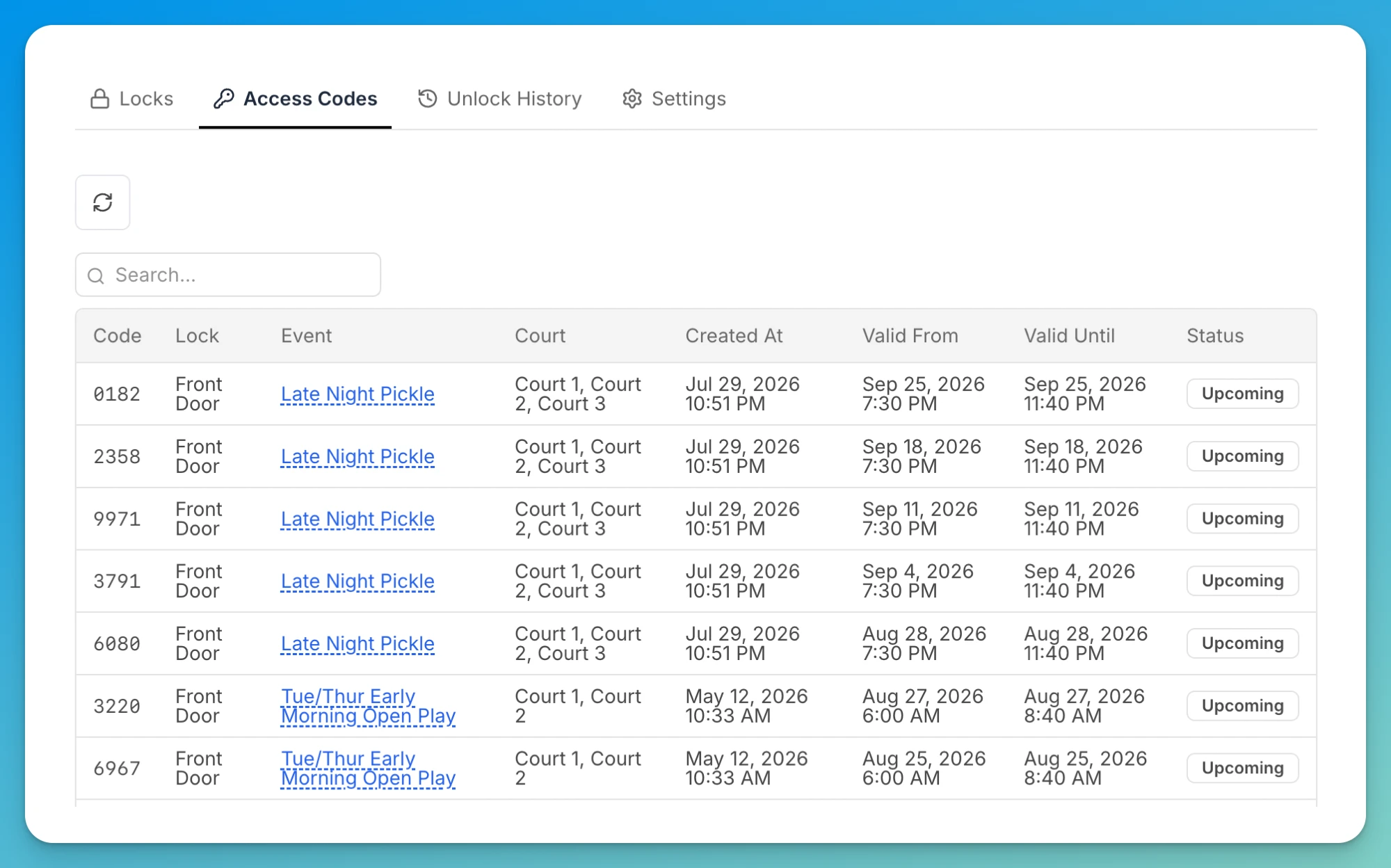
There's a search box above the table, so you can type a customer's event name or a code to jump straight to it.
- Per lock. Open a lock from the Locks tab and scroll to its Access Codes section for just that lock's codes. A lock with no codes shows No access codes have been generated for this lock.
Each code is created the moment a booking is made on a lock-mapped space — your courts, bays, or fields. By default it's active from 30 minutes before the start to 10 minutes after the end — if you've customized a lock's access rule, the window follows that rule instead. The Status column tells you where each code stands:
| Status | Meaning |
|---|---|
| Active | The code works right now. |
| Upcoming | Issued, but its window hasn't started yet. |
| Expired | The booking window has passed; the code no longer works. |
| Revoked | The code was removed (for example, the booking was cancelled). |
| Unknown | OpenCourt can't find the booking this code belongs to, so it can't work out the window. |
What does the customer see?
Sharing is automatic — you don't send codes out. The customer already has theirs:
- In the app, on the booking or event details as Access code. Before it's usable they see Access code will be available at {time}. It also appears in their reservations list.
- In email — the booking confirmation, event-joined, and event-reminder emails each include a line Access Code: {code}.
So the front desk only needs the Access Codes table for walk-up questions ("what's my code?") — everyone who booked already received theirs.
What happens when a booking changes?
| Change | What happens to the code | What the customer gets |
|---|---|---|
| Cancelled | Code is revoked. | Their code stops working. |
| Rescheduled (same space/door) | Same PIN, validity window updates. | No new code to learn. |
| Moved to a different space/door | Old code revoked, new code issued. | An automatic Your access code changed email, even when staff untick the change email. |
| Extended | Same PIN, window extends. | No new code to learn. |
| Moved by staff after it ended, to another past time | Nothing changes. No new code is issued. | Nothing about the code. |
Staff can move a paid booking even after it starts or ends. See Move a paid booking to another time or court.
Give a booking a code, or change it
Open the booking from Schedule. Beside Access Code you see one of two links:
- Generate — the booking should have a door code and has none (for example, the lock was offline when it was booked). The code is created on the lock and shows on the booking a few seconds later.
- Change — the booking gets a new code. The current code stops working at once, and every upcoming date of the booking gets the new code. Use it when a code reached someone who should not have it.
Leave Email the people on this booking the new door code ticked to send them the code; untick it to tell them yourself. Anyone who can manage the schedule can do this, so the front desk can fix it while the customer is on the phone. The booking's Activity Log records who did it and whether the customer was emailed.
A code typed on the booking (a manual code) has neither link: edit the booking to change it. A code that is still activating on the lock has neither link until it is ready. If the lock refused a code, the booking says The lock refused this code. and offers Change. On RemoteLock locks, and on Seam's two-step setup, only Generate is available for now.
Using manual codes without a smart lock
You don't need a smart lock to hand out door codes. Under Settings → Access Controls, the access-code mode has three options:
- Off — No access codes are used.
- Manual Access Codes — Set access codes manually on events and reservations. A default code can auto-apply to court bookings. Pick this and fill the required Default access code for court bookings field (for example 1234). Every booking then shows that code. (Those labels follow your club's wording — "bay" or "field" instead of "court" where that applies.)
- Smart Lock ({provider}) — the connected-lock behavior described above, with per-booking generated codes.
In Manual Access Codes mode, any single event or reservation can override the default in its own Access Code field. Manual codes have no time window — they're always shown to participants, not just around the booking.
The activity trail
-
Per lock. Each lock's page has a Lock Activity section showing the last 2 days by default.
-
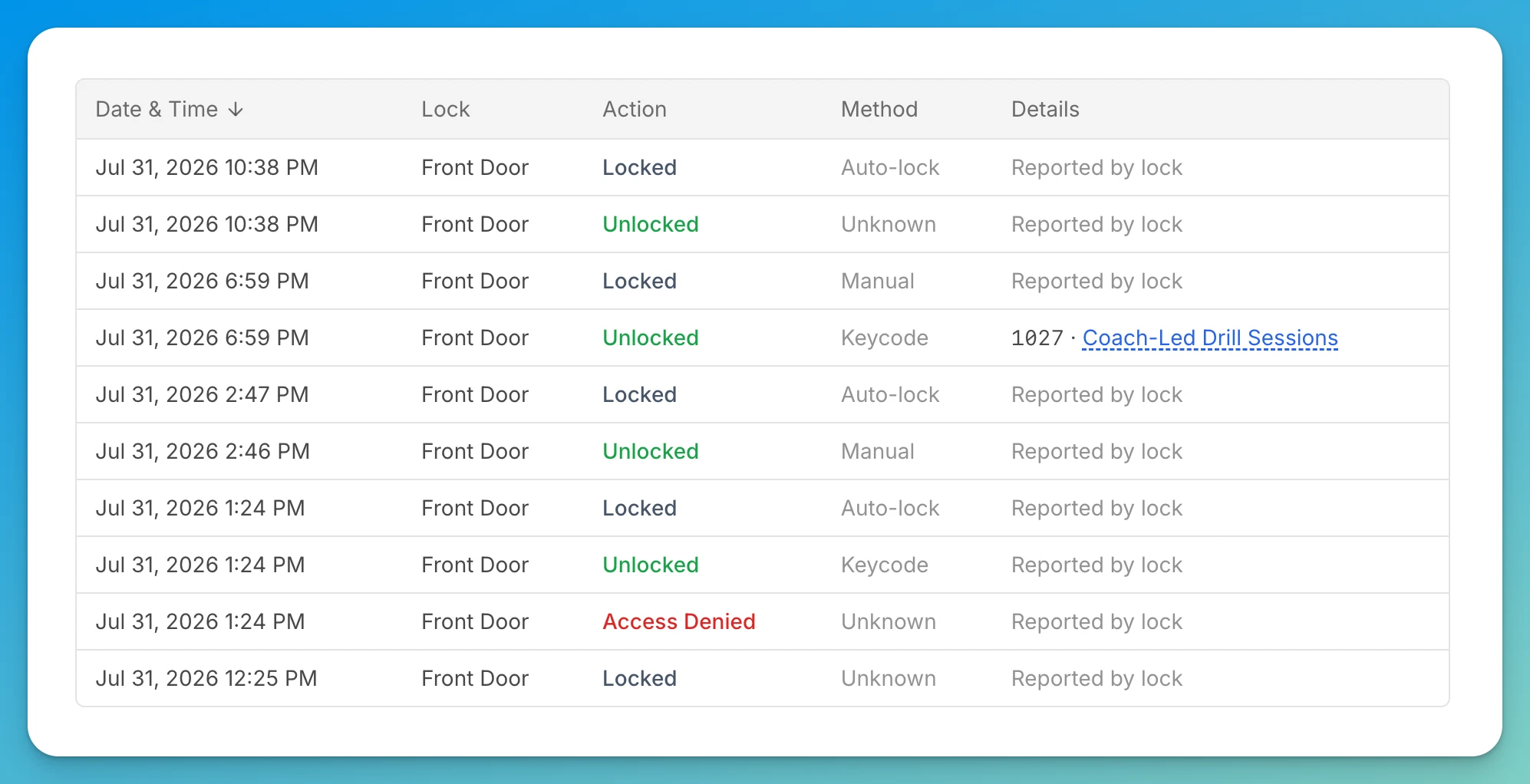
Club-wide. The Unlock History tab logs every event with Date & Time, Lock, Action, Method, and Details.
-
Club activity log. In-app unlock attempts — successes and failures — also land in the club activity log with the customer's name, because the customer was signed in when they tapped. Keypad entries can't be attributed to a person: a door code is shared by everyone on the booking, so it identifies the booking.
Reading the Method column
Method is the most useful column, because it tells you how the door opened — and that determines whether there's a booking to trace it back to.
| Method | What happened | Can you tie it to a booking? |
|---|---|---|
| Keycode | Someone typed a code on the keypad. | Usually yes — Details shows the code and links to the event, e.g. 1027 · Coach-Led Drill Sessions. |
| In-App | A customer or admin tapped Unlock in OpenCourt. | Yes — Details shows the person's name. |
| NFC card / QR code / Remote | UniFi Access only: a card or QR code at the reader, or an unlock from UniFi's own tools. | No — Details reads Reported by lock. |
| Manual | The door was operated by hand — a thumb-turn from the inside, a key, or the lock's own button. | No. There's no code involved, so Details just reads Reported by lock. |
| Auto-lock | The lock re-locked itself after its timer. | No — it's the lock's own housekeeping. |
| Unknown | The lock reported a change without saying how. | No. |
So a run of Manual unlocks isn't a mystery — that's people leaving through the door from inside. When you need to know who, look for Keycode rows: those are the ones that carry a code and a linked booking.
If something goes wrong
- A customer says their code doesn't work — check the row's Status and the lock's Lock Activity, then see When a customer can't get in.
- The code shows but isn't on the lock yet — this is the Native "not-yet-materialized" case; the deep triage is in When a customer can't get in.
- The unlock history shows "Access Denied" or "Access Code Failed" — start the diagnosis in When a customer can't get in.
Related
Access codes & scheduling
When door codes activate and expire, and how Just-in-Time scheduling keeps high-volume clubs within their locks' code-storage limits.
Disconnect or switch your lock provider
Disconnect a lock provider, understand what disconnecting revokes and removes, and switch to a different provider — Seam, RemoteLock, Rhombus, UniFi Access, or Avigilon Alta.