

Connect Avigilon Alta (Openpath) to your club
Connect your Avigilon Alta (formerly Openpath) organization so every booking gets its own door code and you can unlock mapped entries from the OpenCourt app.
Connect your club's Avigilon Alta organization (formerly Openpath) so every booking gets its own door code, and so you and your customers can unlock mapped entries from the OpenCourt app. You create one user for OpenCourt in Alta, OpenCourt support finishes the connection, and then you map your entries. (About 10 minutes of your time. You'll need a Super Admin login for your Alta organization and admin access in OpenCourt.)
If you still call it Openpath, this is the same system: Avigilon renamed Openpath to Avigilon Alta.
Before you begin
- A keypad on the door, if you want door codes. Customers type their code on an Alta Smart Keypad Reader (Standard or Mullion). No keypad? That's fine — customers use the unlock button in the app instead (see Doors without a keypad).
- An entry state that accepts a PIN on its own. A state such as Convenience does. If the entry asks for a card and a PIN, a door code alone won't open it.
- Your Alta Org ID. Sign in to the Alta Control Center: the Org ID is the number in the address bar after
/o/.
1. Create the OpenCourt user in Avigilon Alta
OpenCourt signs in to Alta as its own user, with an email address that belongs to OpenCourt. Alta sends that user's invitation to us, so no password ever has to be shared, and our support team can sign in as that user to help when something goes wrong.
-
In the Alta Control Center, open Users and click + (Add user). The Create user panel opens.
-
For Email, enter
integrations+alta-followed by your club's part of your OpenCourt booking link, then@getopencourt.com. For example, if your booking link isapp.getopencourt.com/club/links-indoor-golf, the email isintegrations+alta-links-indoor-golf@getopencourt.com. For First name and Last name, enter OpenCourt and Integration.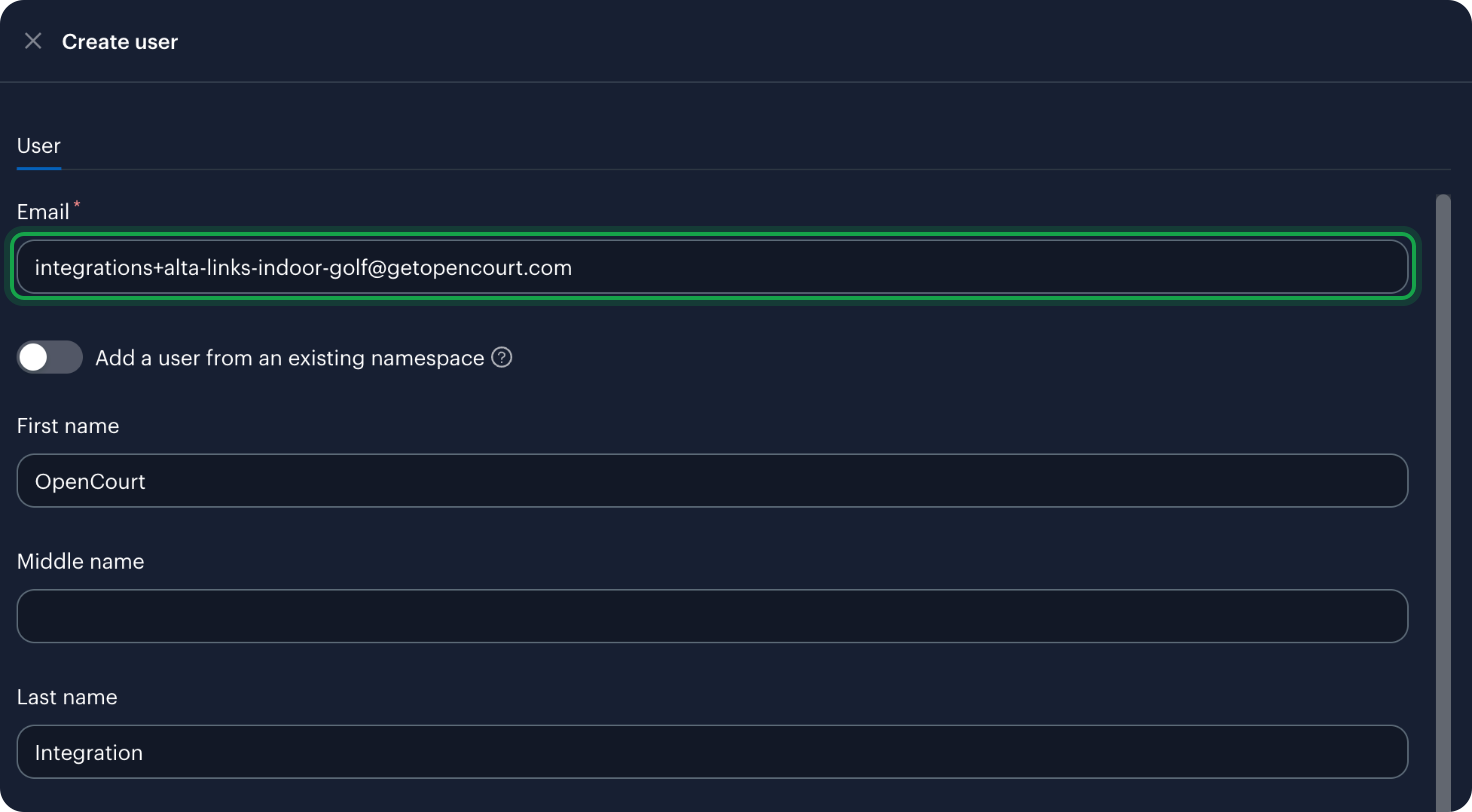
-
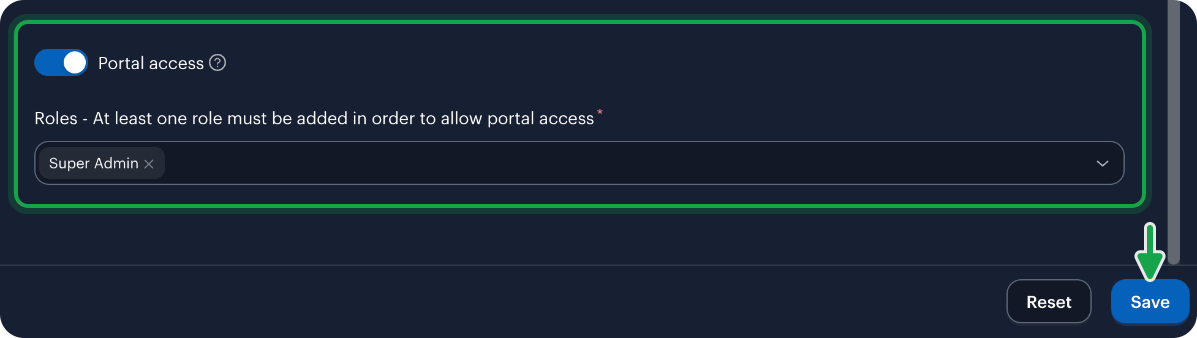
Turn on Portal access, and under Roles choose Super Admin. Choose plain Super Admin, not MFA enforced Super Admin — OpenCourt signs in with a password and can't answer a second-factor prompt.
-
Click Save. Alta emails the invitation to OpenCourt — there's nothing to open on your side.
-
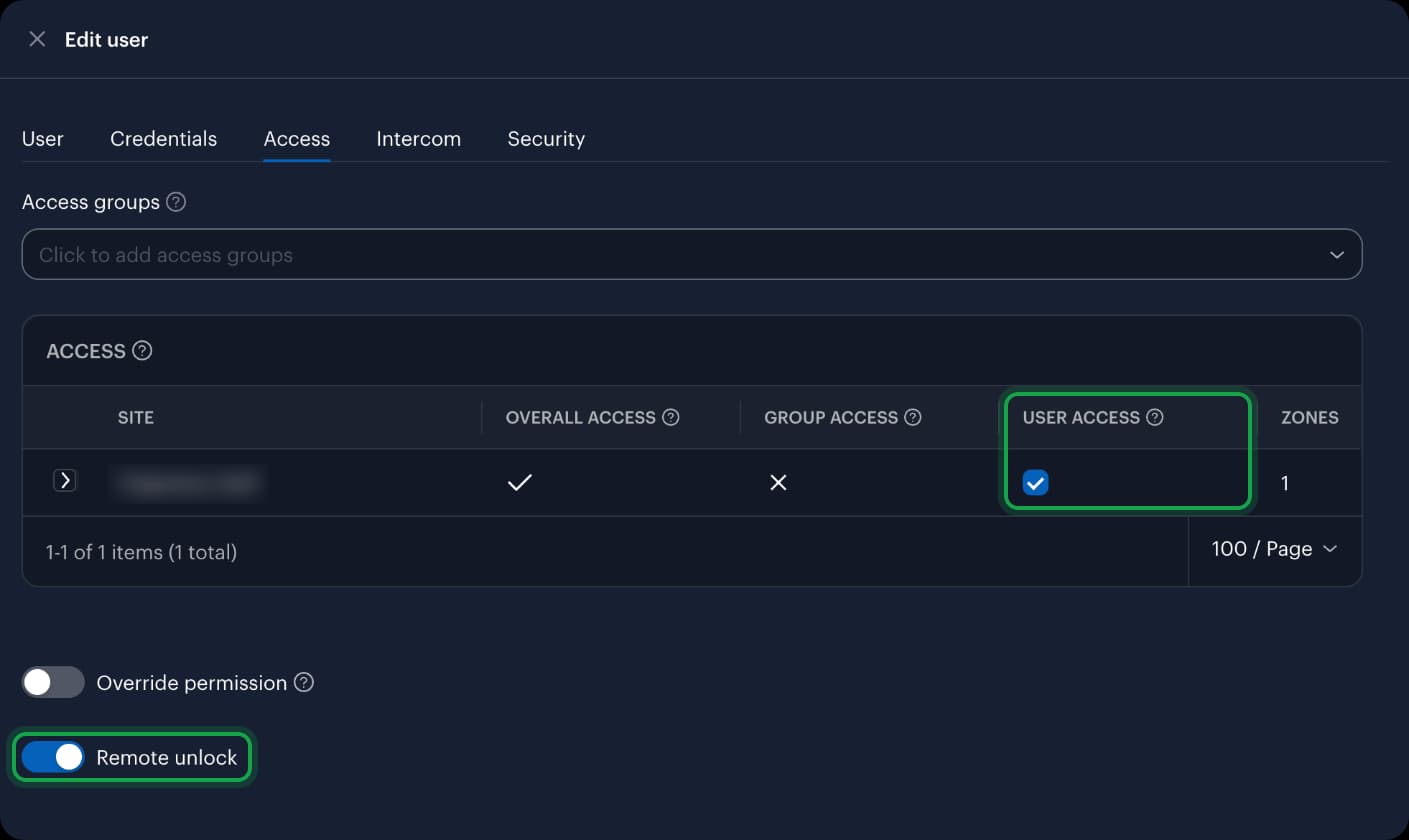
Give the user door access. Back in Users, click the pencil next to the new user, open the Access tab, and check User access for your site. Overall access turns to a check mark. Turn on Remote unlock too — the unlock button in the OpenCourt app needs it. Click Save. Door codes OpenCourt creates open the entries this user can open.
2. Ask OpenCourt to finish the connection
Email support@getopencourt.com with your Org ID and the email you used for the user. We accept the invitation, set the user's password, and connect Alta to your club — usually within one business day. We'll reply when it's done.
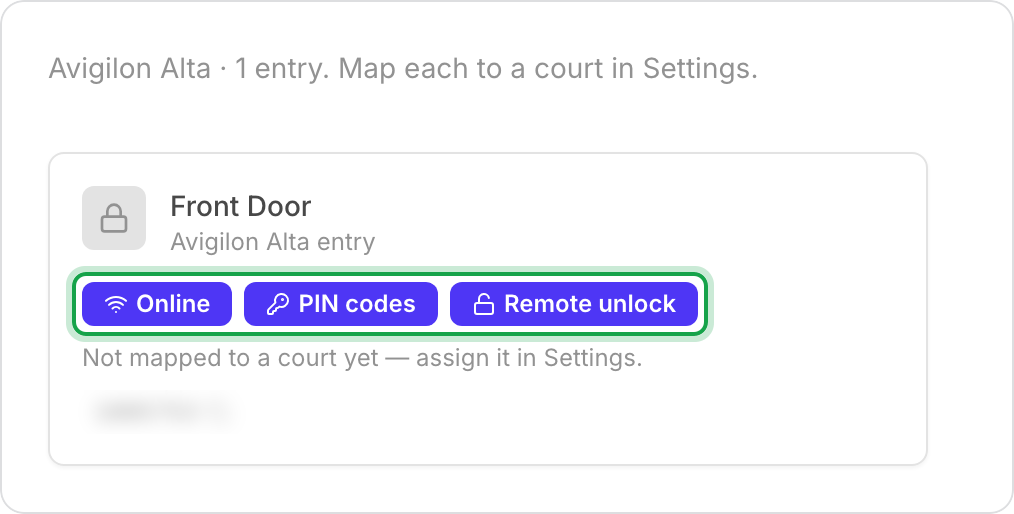
Once connected, Settings → Access Controls shows each Alta entry as a card. Entries show a PIN codes badge, and a Remote unlock badge when the entry can be opened from the app.
3. Map your entries and turn on door codes
- Map each entry to a space. In Settings → Access Controls, switch to the Settings tab and find Court-to-Lock Mapping — the heading follows your club's wording. Choose an entry for each space and click Save.
- Turn on Smart Lock mode. On the same tab, under Access Control Mode, choose Smart Lock (Avigilon Alta) and click Save. Until you do, bookings don't get door codes.
- Turn on Remote Unlock on the same tab if customers should be able to open the door from the app, then choose who can unlock, and when in each entry's Door access section. See Set who can unlock doors from the app.
Doors without a keypad
Alta can't tell OpenCourt whether a door's reader has a keypad, so Door Codes start on. If your doors have no keypad, turn them off so customers aren't sent a code they can't use:
- In Settings → Access Controls, open the Settings tab.
- Under Door Codes, switch to Disabled. New bookings stop getting codes.
- Under Upcoming Bookings, click Update upcoming bookings to remove the codes bookings already have.
- Make sure Remote Unlock is Enabled — it's now the only way in.
If both Door Codes and Remote Unlock are off, the tab shows a red warning: bookings would come with no way to open the door.
If your Alta organization doesn't offer PIN credentials at all, Door Codes is already off and can't be turned on.
What happens next
When a customer books a mapped space, OpenCourt creates a 6-digit door code right away, so the customer sees it as soon as they book. The keypad accepts it only during the booking's time window (by default from 30 minutes before the start to 10 minutes after the end). If the booking moves, the same code moves with it. If the booking is cancelled, the code is removed.
On entries that support it, you can unlock a mapped entry from its page in the admin app, and customers can unlock from the OpenCourt app during their booking (according to the access rules you set). The door opens momentarily and then relocks on its own.
Everything OpenCourt creates is added alongside your Alta setup. Your staff's cards, codes, and mobile credentials keep working, and OpenCourt only ever removes the codes it created. In Alta's activity log, door codes from bookings appear under the OpenCourt user; OpenCourt's own activity log shows which booking each one belongs to.
Connect it yourself with your own Avigilon Alta user
Prefer to keep the login in-house? Create the user with an email address you control instead, accept the invitation and set a strong password yourself (and don't add a multi-factor device). Then in OpenCourt:
-
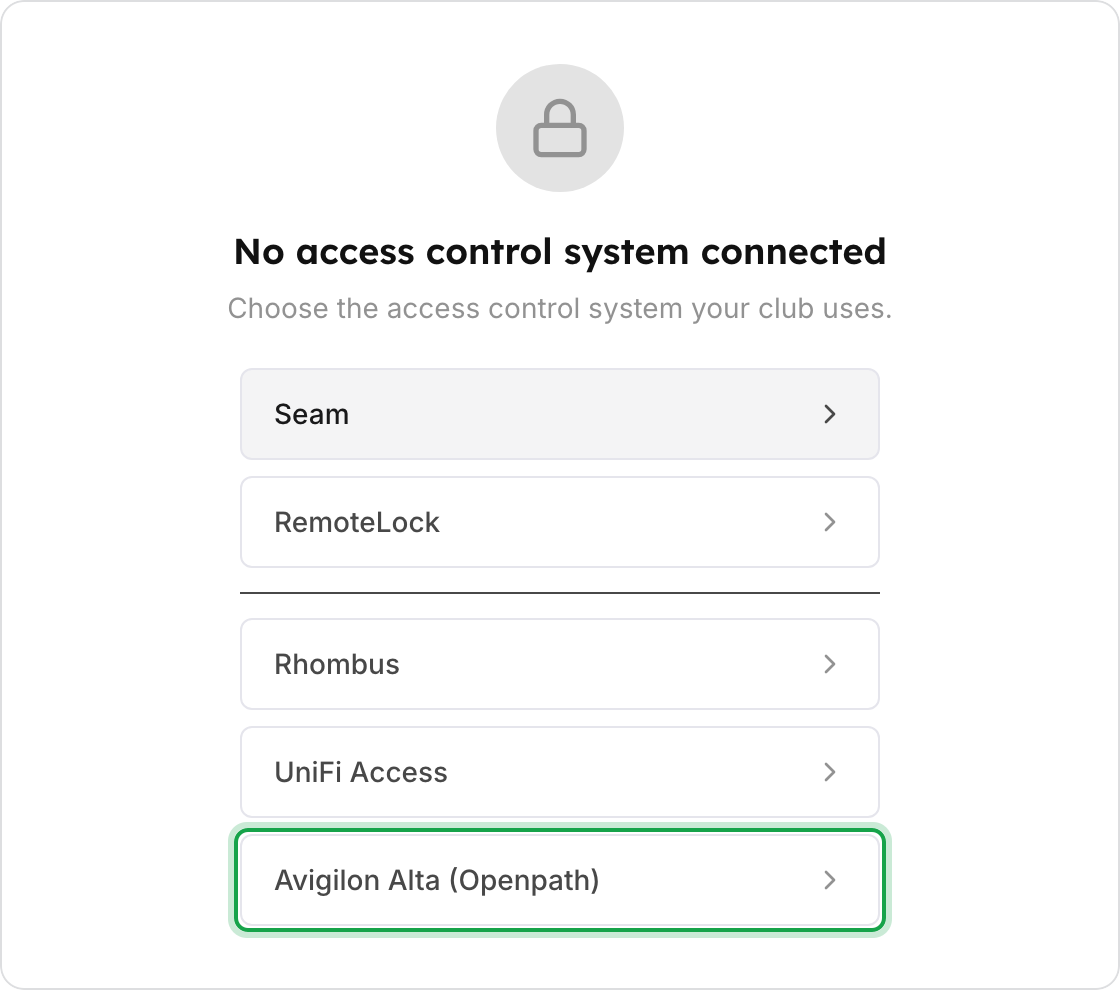
Go to Settings → Access Controls, click Connect a provider, and choose Avigilon Alta (Openpath).
-
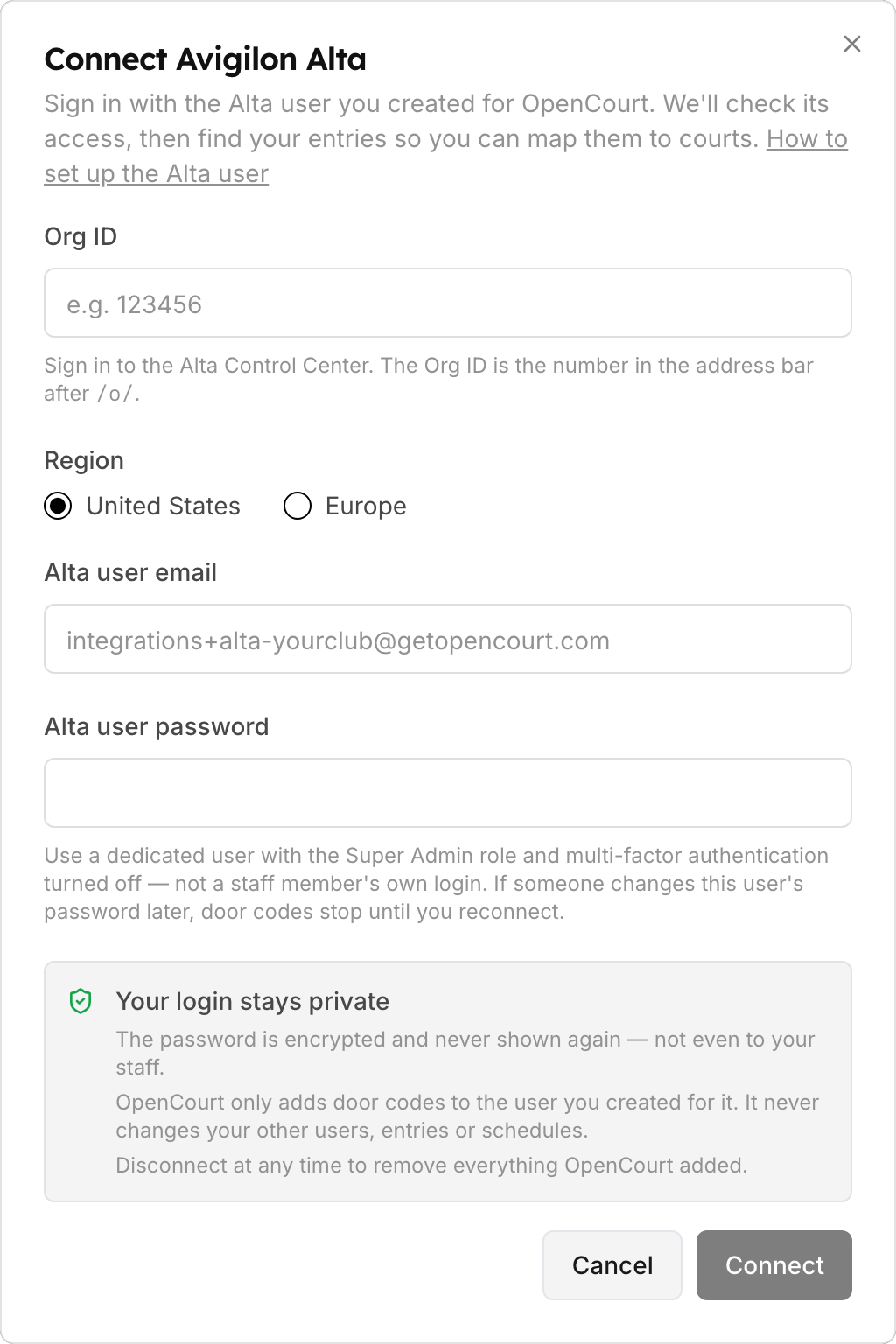
Enter your Org ID, the Region (United States, or Europe if your Alta account is on the EU servers), and the user's email and password, then click Connect. The password is stored encrypted and is never shown again.
-
Continue with step 3 above. If someone later changes that user's password, door codes stop until you disconnect and connect again.
If something goes wrong
- Customers have a code but the keypad rejects it — check the time first: the code works only inside the booking's window. Then check that the entry's state accepts a PIN on its own, and that the OpenCourt user has User access for that site.
- An entry shows no remote-unlock option — the entry isn't wired to an Alta access control unit. Door codes still work if it has a keypad reader.
- The unlock button doesn't open the door — in Alta, edit the OpenCourt user, open the Access tab, and check that Remote unlock is on.
- "Couldn't sign in to Avigilon Alta — reconnect it to continue" on the Locks tab — Alta stopped accepting the OpenCourt user's login. Contact OpenCourt support. If you connected with your own user, fix the user in Alta, then disconnect and connect again.
- "Disconnect the current access-control provider before connecting Avigilon Alta." — your club is still connected to another provider. See Disconnect or switch your lock provider.
Related
Connect UniFi Access to your club
Connect your club's UniFi Access console so every booking gets its own door code and you can unlock mapped doors from the OpenCourt app.
Make your UniFi console reachable (Cloudflare Tunnel)
Expose your UniFi Access console to OpenCourt securely with a Cloudflare Tunnel — no open firewall ports — so OpenCourt can issue door codes and unlock doors.