

Disconnect or switch your lock provider
Disconnect a lock provider, understand what disconnecting revokes and removes, and switch to a different provider — Seam, RemoteLock, Rhombus, UniFi Access, or Avigilon Alta.
Disconnect your club's lock provider, or replace it with a different one. (About 5 minutes. You'll need admin access. Disconnecting revokes every active door code, so pick a quiet time.)
Pause codes without disconnecting
If you only need to stop new codes for a while — a closure, a hardware swap, testing — don't disconnect. Change the access-control mode instead. The mode has three options:
- Off — "No access codes are used."
- Manual Access Codes — you set codes yourself.
- Smart Lock ({provider}) — codes are generated automatically.
Switching from Smart Lock to Off or Manual Access Codes shows this confirmation:
New events and reservations will no longer generate {provider} access codes. Existing codes on previously created events will remain active. Your {provider} connection and lock mappings will be preserved if you switch back.
So a mode switch pauses code generation but keeps your connection, your lock-to-space mappings, and your per-lock rules. Disconnecting removes all of that. For anything temporary, switch the mode.
Disconnect the integration
-
Go to Settings → Access Controls and stay on the Locks tab. Disconnect Integration sits at the top right, above your lock cards — not on the Settings tab.
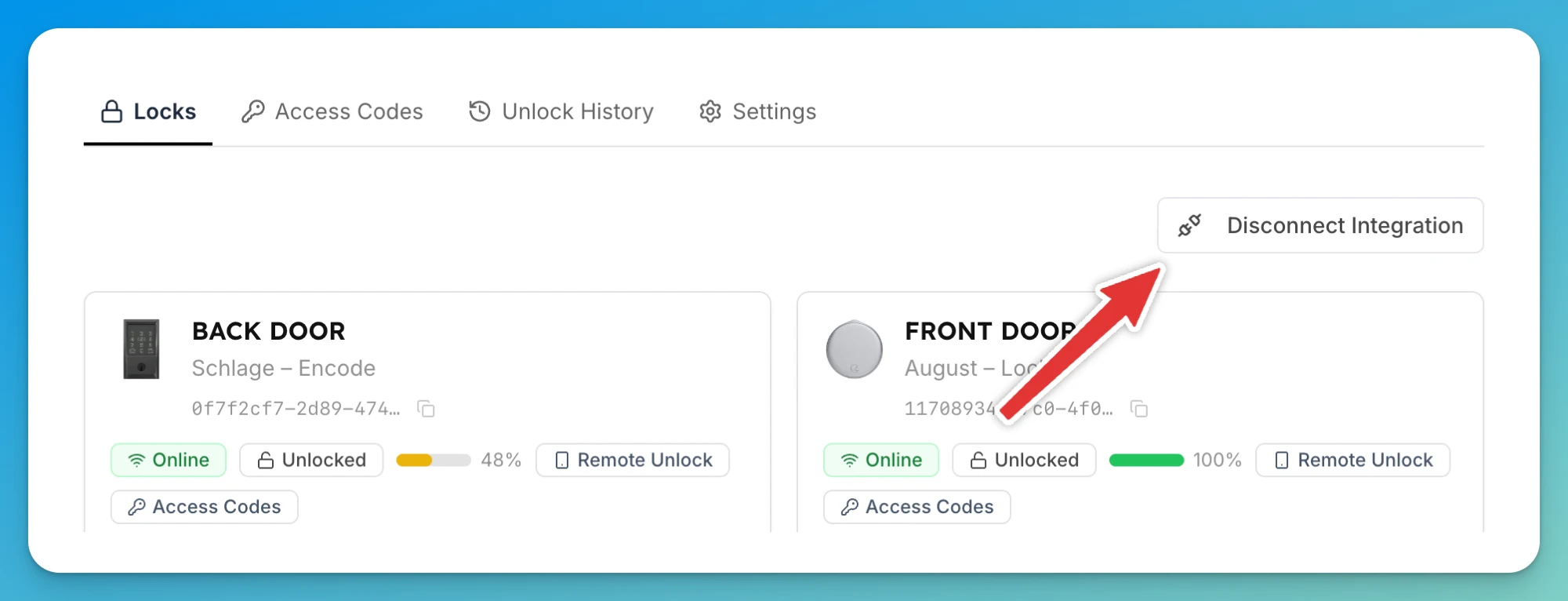
-
Click Disconnect Integration. A confirmation opens titled Disconnect locks integration? with this text: "This will immediately revoke all active door codes and remove all lock devices. Customers and staff will lose smart lock access until you reconnect a provider. You can reconnect at any time."
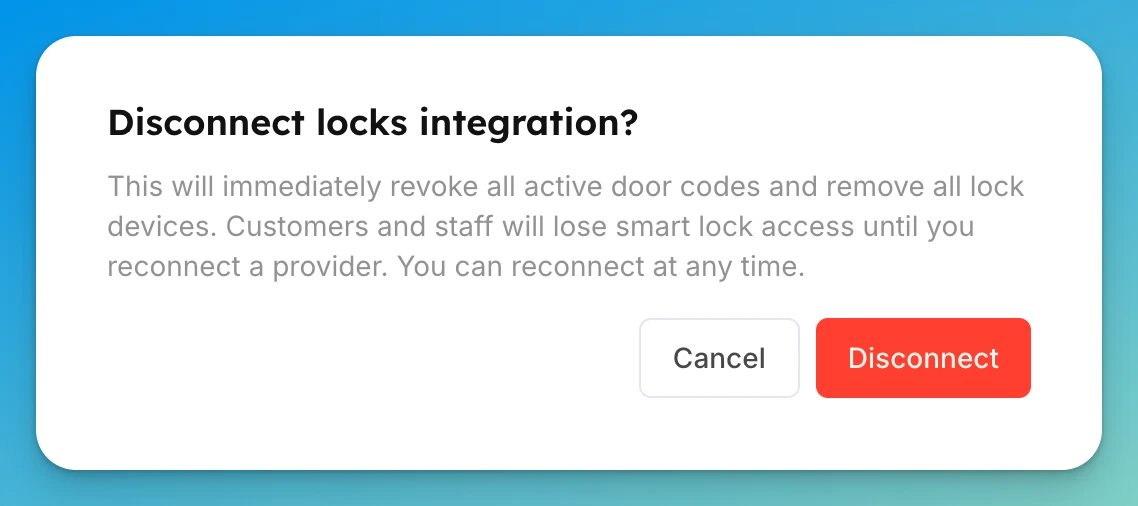
-
Click Disconnect. You'll see Locks integration disconnected. and the page returns to the provider picker: "Choose the access control system your club uses." — listing Seam, RemoteLock, Rhombus, UniFi Access, and Avigilon Alta (Openpath).
What disconnecting removes
Disconnecting is immediate and clears everything:
- All active door codes are revoked and stored codes are deleted — customers and staff lose smart lock access right away.
- Every lock device and its space mapping is removed.
- The provider connection is removed.
- The action is recorded in your club's activity log.
Reconnecting later means re-mapping locks to spaces and reconfiguring per-lock rules from scratch.
Switch to a different provider
- Pick a quiet time. Customers with upcoming bookings lose their codes the moment you disconnect.
- Disconnect the current provider (steps above).
- Connect the new provider from the picker: Seam, RemoteLock, Rhombus, UniFi Access, or Avigilon Alta.
- Re-map each lock to its space — mappings don't carry over.
- Re-set your per-lock rules (who can unlock, and when).
- Test one booking end-to-end to confirm codes reach the hardware.
If something goes wrong
- Disconnect fails or errors — a temporary connection issue. Try again shortly; if it keeps failing, contact OpenCourt support.
- Customers report lost door codes after disconnecting — expected. Disconnecting revokes every active code immediately (see the timing note above). Re-save their bookings or contact support to re-issue codes.
- You disconnected but only wanted a pause — reconnect the provider, then re-map locks and rules. Next time, switch the mode to Off instead — it keeps your connection and mappings.
Related
Door codes day-to-day: view, share, and manage access codes
After your locks are connected, this is how door codes behave every day — where to look one up, what the customer sees, and what happens when a booking changes.
A customer can't get in — troubleshoot door access
The customer says the door won't open. Find out whether the lock is down for everyone or just this one customer's access is blocked — then fix the right thing.