

Move a paid booking to another time or court
Move a customer's paid court booking, decide what happens to any price difference, choose whether the customer gets an email, and undo a waived charge.
Move a customer's paid court booking to a new time or court, and settle any price difference in the same step. (About 1 minute. You need the Schedule, Reservations & Events permission.)
Before you begin
- The booking is a paid reservation on one court. A booking paid with a membership or a pass also counts as paid.
- The new time and court are free on the schedule.
- To waive a charge, keep an overpayment, undo either one, or refund to the card past your refund cutoff, you also need the Waive Reschedule Charges & Refunds permission.
Move the booking
- On the Schedule, click the booking. The booking panel opens.
- Click Edit.
- Change the date, the Start time and End time, or the court.
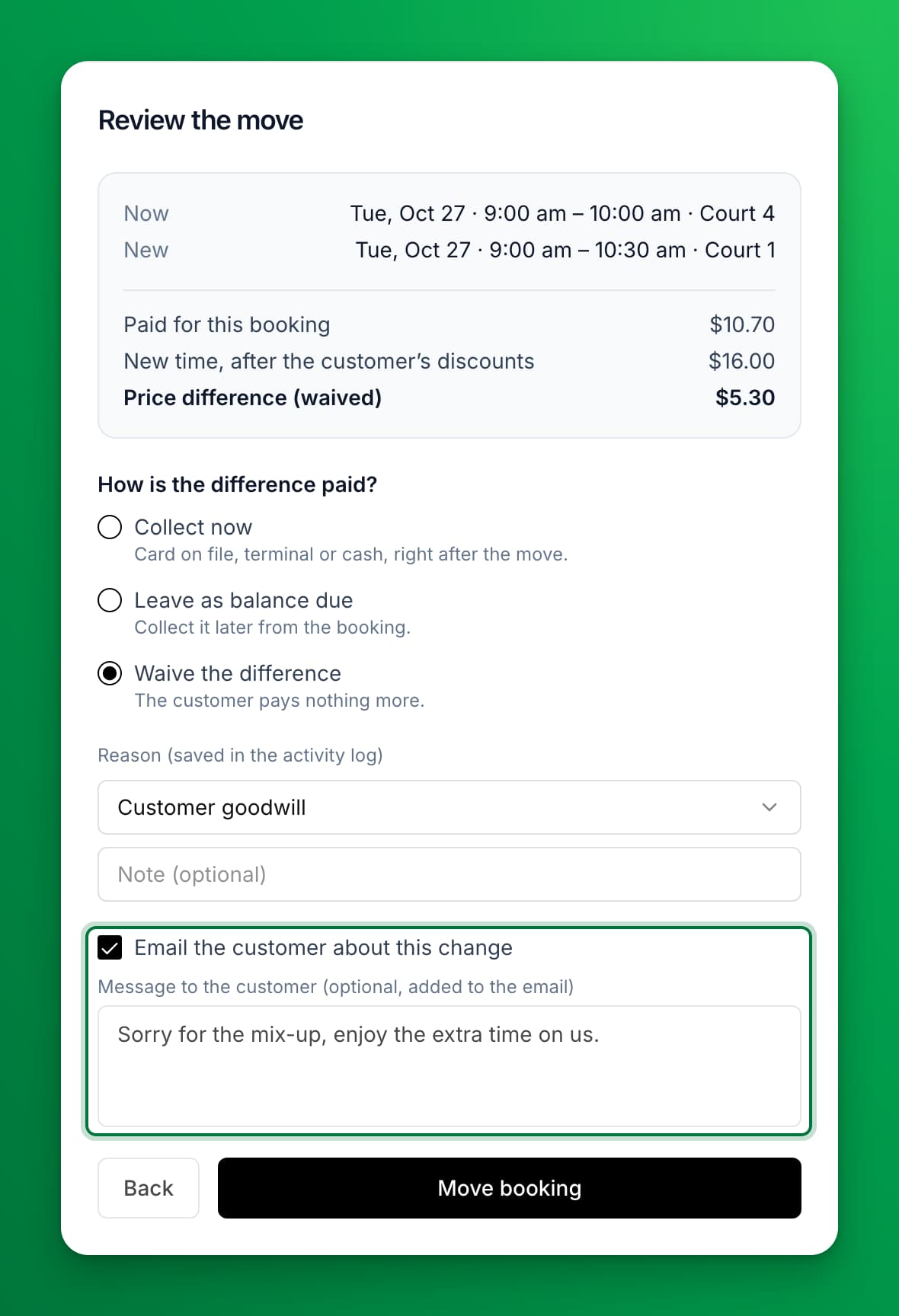
- Click Update reservation. The Review the move dialog opens. Nothing is saved yet.
- Check the Now and New rows, and the amounts below them.
- If the price changes, choose what happens to the difference (see the next section).
- Choose whether to email the customer, and add a message if you want (see "Choose whether the customer gets an email").
- Click Move booking. If you chose Collect now, the button reads Move and collect, and the payment window opens after the move.
Staff moves skip the customer booking rules, such as club hours, how far ahead customers can book, and booking limits. The new court must still offer the booking's activity.
What happens to a price difference
The new time costs more. Under How is the difference paid?, choose:
| Option | What happens |
|---|---|
| Collect now | You take the payment right after the move, by card on file, terminal or cash. |
| Leave as balance due | The booking shows a balance due. You collect it later from the booking. |
| Waive the difference | The customer pays nothing more. Choose a reason. It is saved in the activity log. |
The new time costs less. Under What happens to the overpayment?, choose:
| Option | What happens |
|---|---|
| Refund now | The difference goes back the way your refund settings say for the customer's rule set: to their card, or to their account credit. A booking paid with account credit is refunded as credit. Past your refund cutoff, it goes to account credit. |
| Keep the overpayment | The club keeps the difference. Choose a reason. |
Past the refund cutoff, a checkbox lets you refund to the customer's card instead of account credit. You see it only with the Waive Reschedule Charges & Refunds permission.
The price does not change. The dialog says so, and nothing is charged or refunded.
If refunds are off for the booking's rule set, the dialog says that the difference is not refunded.
Choose whether the customer gets an email
Email the customer about this change is ticked for a booking that has not started. It is not ticked for a booking that has started.
When it is ticked, you can add a Message to the customer. It appears in the email as a note from your club.
You can't untick it when the customer gets account credit, or when your refund policy keeps part of their money. They need to know where their money went. When you choose Keep the overpayment, the email follows your choice.
Customer emails never say "waived". They say There is no extra charge for this change. or The new time costs $X less. The difference is not refunded.
Move a booking that has started or ended
You can move a booking that is in progress or already over, for example when a customer played on a different court. Customers can't move a booking after it starts.
- A refund for a started booking goes to account credit, unless you choose a card refund. That needs the Waive Reschedule Charges & Refunds permission.
- The customer email is off by default.
- For a booking that has ended and that you move to another time in the past, OpenCourt sends no new door code and does not change the bay code. If you move it to a future time, the codes update as for any move.
Undo a waived charge or a kept overpayment
Every waived charge and kept overpayment shows on the booking panel under Price adjustments, with the reason, who did it and when.

- Open the booking and find Price adjustments.
- Click Undo next to the entry.
- Click Undo in the dialog.
The difference shows on the booking again, as a balance due or an overpayment. You can then collect, refund, waive or keep it as usual.
- A waived charge can be undone at any time.
- A kept overpayment can be undone only before the booking starts.
- The customer is not emailed. If you told them there was no extra charge, let them know.
Settle a balance later
A booking you moved with a balance due shows Balance due on the booking panel, with Collect payment and Waive. A booking with an overpayment shows Refund now and Keep. After a booking starts, an overpayment can no longer be refunded or kept from here.
Door codes and bay codes
- Same door or bay: the customer keeps the same code. Its time window moves with the booking.
- A court behind a different door lock: the customer gets a new code. OpenCourt sends it even when you untick the change email, because they need it to get in.
See Door codes day to day for more.
If something goes wrong
- The dialog says another booking already holds the court — someone took that time. Click Back and pick another time or court.
- "This reservation has a payment, so its time or court can only be changed through the reschedule flow" — you changed the booking another way. Use Edit and Update reservation as above.
- "That court doesn't offer this booking's activity" — pick a court that offers the same sport or activity.
- "This paid reservation has no host" — choose a host for the booking first, then move it.
- "This booking's earlier price changes can't be combined with this move" — cancel the booking and book it again.
- You don't see Waive the difference, Keep the overpayment, or the card refund checkbox — you need the Waive Reschedule Charges & Refunds permission. Ask a club admin.
- You don't see Undo — the entry can't be undone any more, for example a kept overpayment on a booking that has started.
Related
Repeat a reservation for a customer
Book the same time and court for one customer on many dates at once: every day, or every 1 to 4 weeks, up to 52 reservations.
Schedule Configuration Customizations
We allow configuring your court sheet schedule in a variety of different ways, including setting up varying schedule time segment durations for the whole day or in different portions of the day.