

Dependent Spaces
Dependent spaces let you link courts or spaces that share a physical footprint — like a full tennis court that can also be split into two pickleball courts. When one space is booked, OpenCourt automatically blocks off the others in the same time window, across reservations, events, programs, and coach lessons. No more double-bookings or manual coordination. Just set up the rules once and OpenCourt handles the rest.
Who Can Configure This
Dependent Spaces rules can be created and managed by both club admins and Super Admins.
How to Add a Rule
-
Go to Settings → Spaces and Categories.
-
Scroll down to the Dependent Spaces section.
-
Click + Add rule.
-
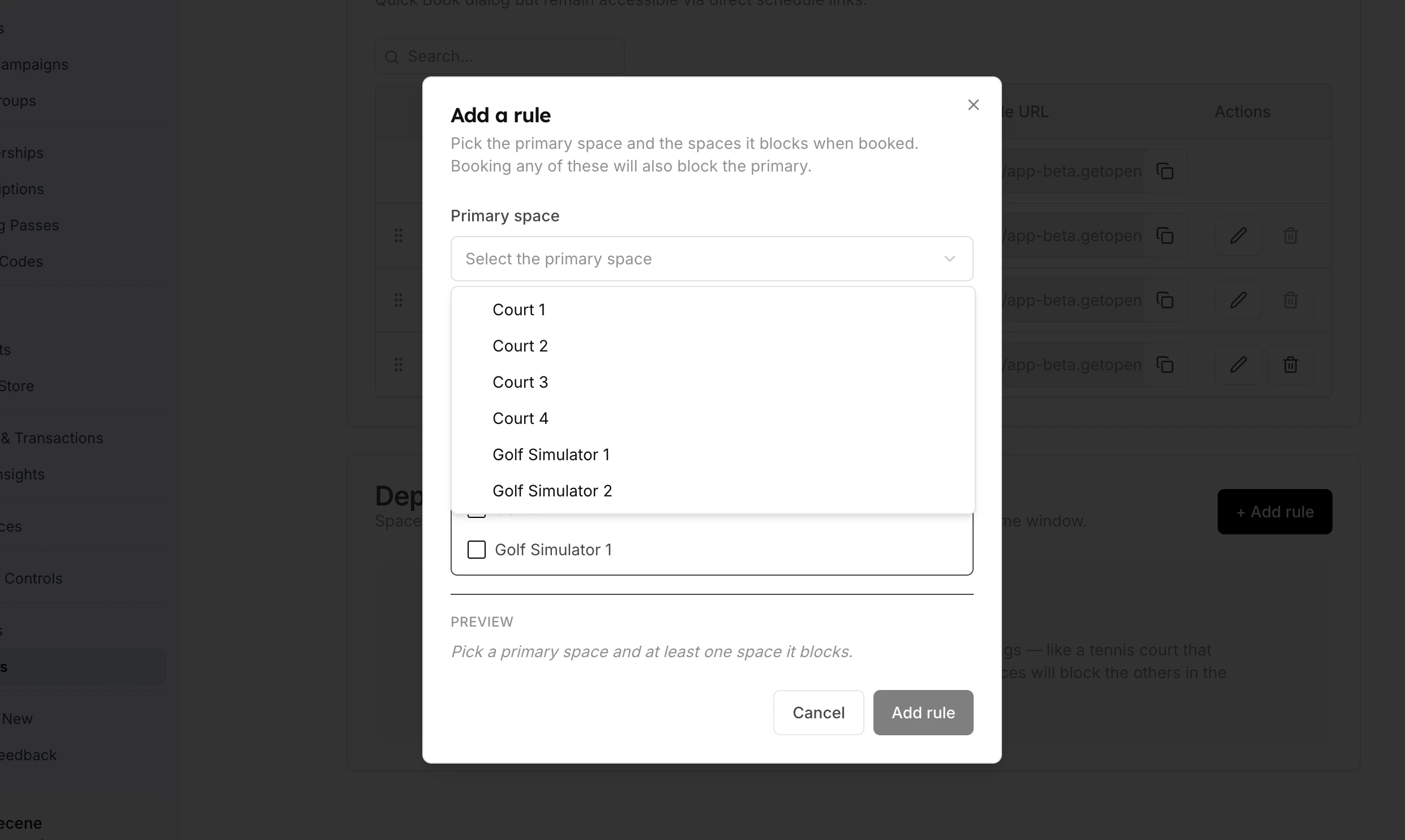
In the Primary space dropdown, select the space that, when booked, should block the others.
-
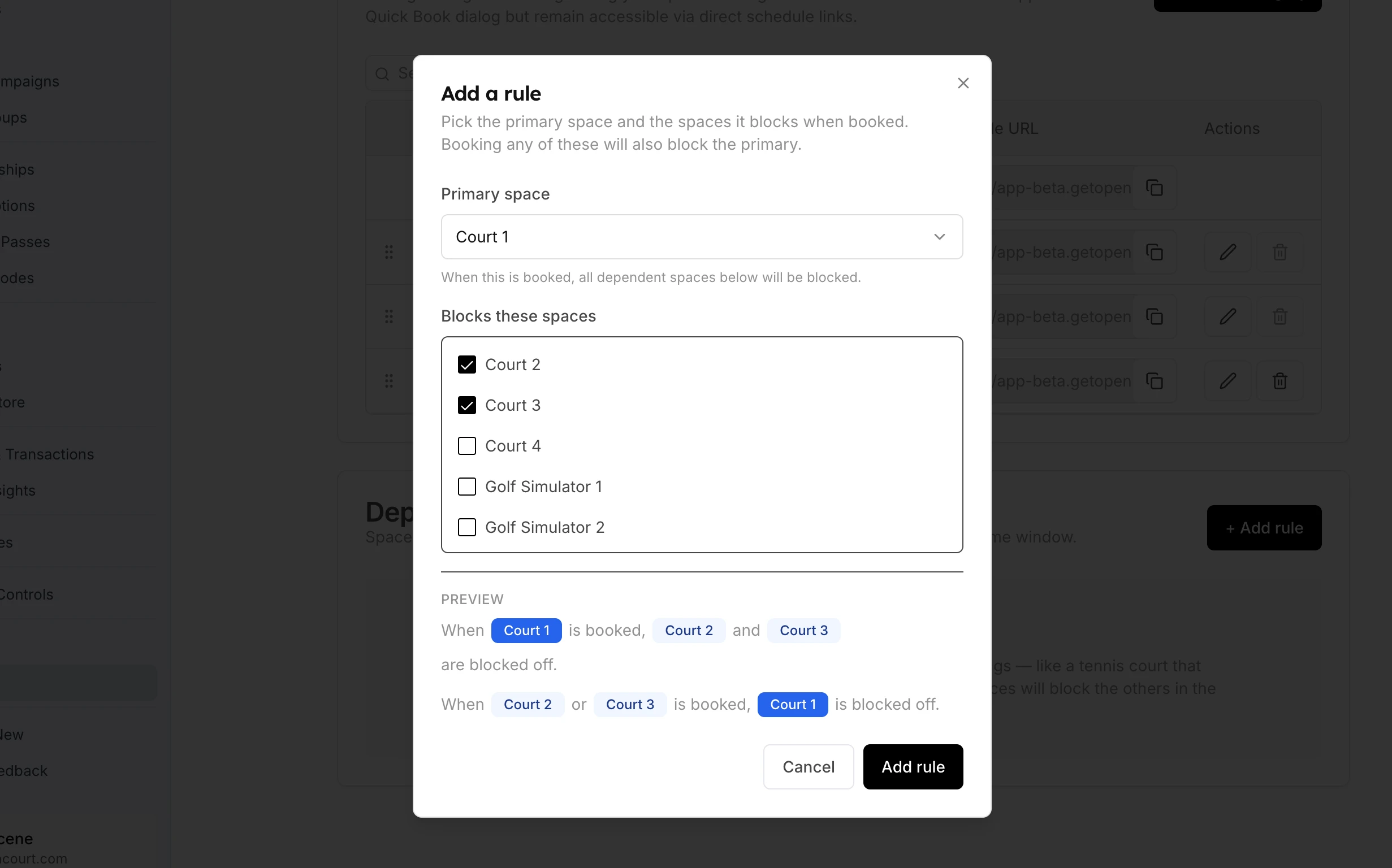
Under Blocks these spaces, check every space that should be blocked when the primary is booked.
-
Review the Preview at the bottom of the modal to confirm the logic looks correct.
-
Click Add rule to save.
How the Rule Works
Dependent Spaces rules are bidirectional. You don't need to create a second rule in reverse — OpenCourt applies blocking both ways automatically.
Example: Primary space = Court 1 (Tennis). Blocks = Court 2 (Pickleball) and Court 3 (Pickleball). → When Court 1 (Tennis) is booked, Court 2 and Court 3 are both blocked off. → When Court 2 or Court 3 is booked, Court 1 is blocked off. → If an event, program, or coach lesson is created on Court 1, Court 2 and Court 3 are blocked for that time window too.
Programs keep the rule when you change them. When you bulk-edit a program or add an event to it, every new time slot blocks its linked courts. If a linked court is already booked at that time, you see an overlap warning and nothing is saved. See Editing Programs (Event Series).
Coach lessons follow the same rule. If Court 2 already has a booking, a lesson can't go on Court 1 at that time:
- When OpenCourt picks the court, it chooses another free court. If there is none, the time doesn't appear for booking.
- When you pick the court yourself in New lesson, you see Already booked on Court 2 at this time. Move the other booking or choose another court.
What the User Sees
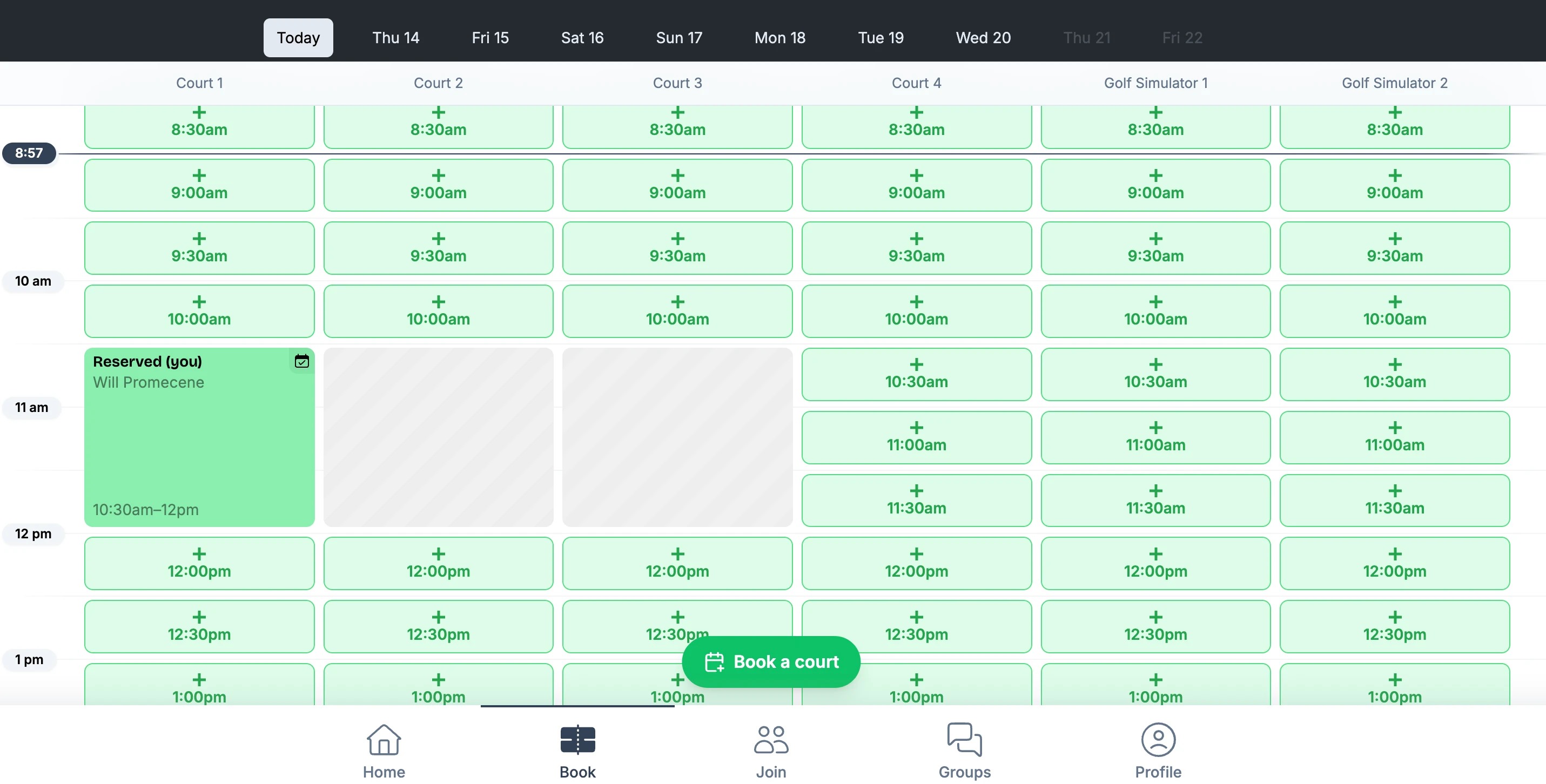
When a dependent space is blocked, it appears greyed out with a striped pattern on the schedule — users won’t see a booking option for that time slot. No error message is shown; the space simply looks unavailable, the same way an already-booked court appears.
In the example below, Court 1 is reserved and Courts 2 and 3 are automatically blocked off for the same time window.
Editing or Deleting a Rule
Each rule in the Dependent Spaces list has an edit (pencil) and delete (trash) icon. Click the pencil to update which spaces are linked, or the trash icon to remove the rule entirely.
💡 Tip: The primary space won't appear in the "Blocks these spaces" checkbox list — only the other spaces are shown. This prevents you from accidentally creating a self-referencing rule.
Blocking Off Courts or Marking Time as Unavailable
Sometimes, clubs need to make certain courts temporarily unavailable — for maintenance, cleaning, internal use, or private activities. The Unavailable option lets you block off time without creating a visible event or sharing any details with players.
Resources (Ball Machines, Equipment & More)
Resources are bookable items at your club that members can add to their court reservations — ball machines, pitching machines, or any other equipment that needs to be reserved for a specific time slot. When a member books a court, they can optionally add a resource to their reservation. The system tracks availability so two people can't book the same ball machine at the same time, and handles pricing automatically.