

See who changed a booking or event
Find out who created, moved, edited or cancelled a booking, event or program, when they did it, from where, and why. Includes the Activity tab, the club Activity Log and Program History.
See every change to a booking or event: who made it, when, from where, what changed, and why. (Under a minute. You need to be an admin of the club.)
Before you begin
- Changes are recorded in full from October 2026. Older entries show who did what, but they can have less detail, such as no field changes or no source.
- Customers never see this history. Their record of a booking is the emails it sent them.
Check the history of one booking or event
-
Open the booking or event from the Schedule.
-
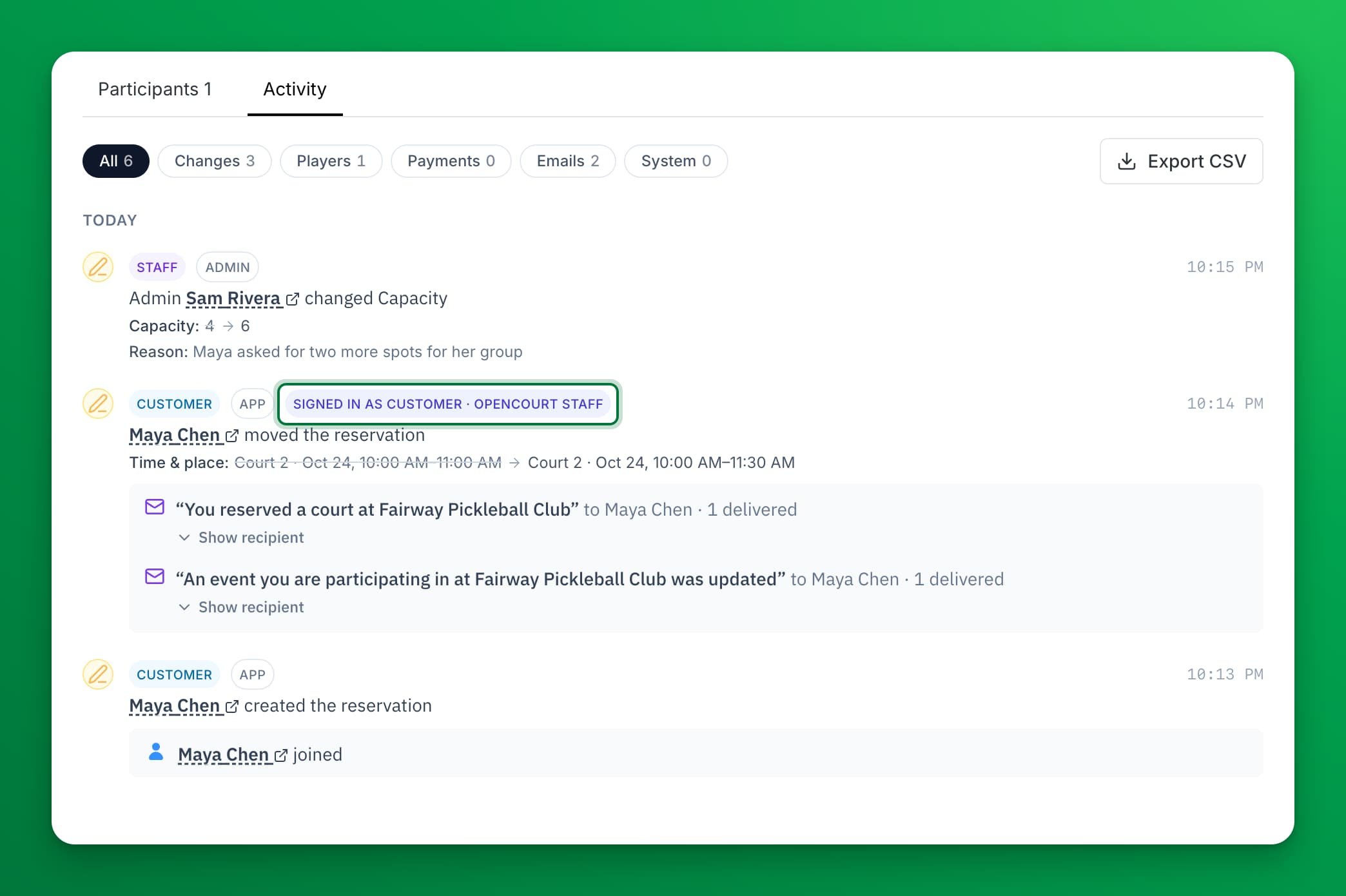
Select the Activity tab.
-
To narrow the list, select a filter: Changes, Players, Payments, Emails or System. Each filter shows how many entries it has.
-
To keep a copy, select Export CSV. The file has one line for each changed field and each email recipient.
The newest entry is at the top. Entries are grouped by day.
What each entry tells you
| Part of the entry | What it means |
|---|---|
| The name | The person who made the change. Select it to open their profile. |
| Customer, Staff, Coach, System | The kind of person or process that made the change. System means OpenCourt did it automatically, for example an auto-cancellation. |
| App, Admin, Front desk, Series edit, Automation | Where the change came from. Series edit means a change to the program reached this event. |
| Field lines, such as Capacity: 4 → 6 | The value before and after. A door code shows as Changed, never the code itself. |
| Reason | Why staff made the change, when they gave a reason. |
| Emails under an entry | The emails that change sent. Select Show recipient to see each recipient, their delivery status and a Preview of the email. |
Give a reason when you change a booking
Staff can add a short reason when they edit, move or cancel a booking or event. The reason is optional, and only staff see it.
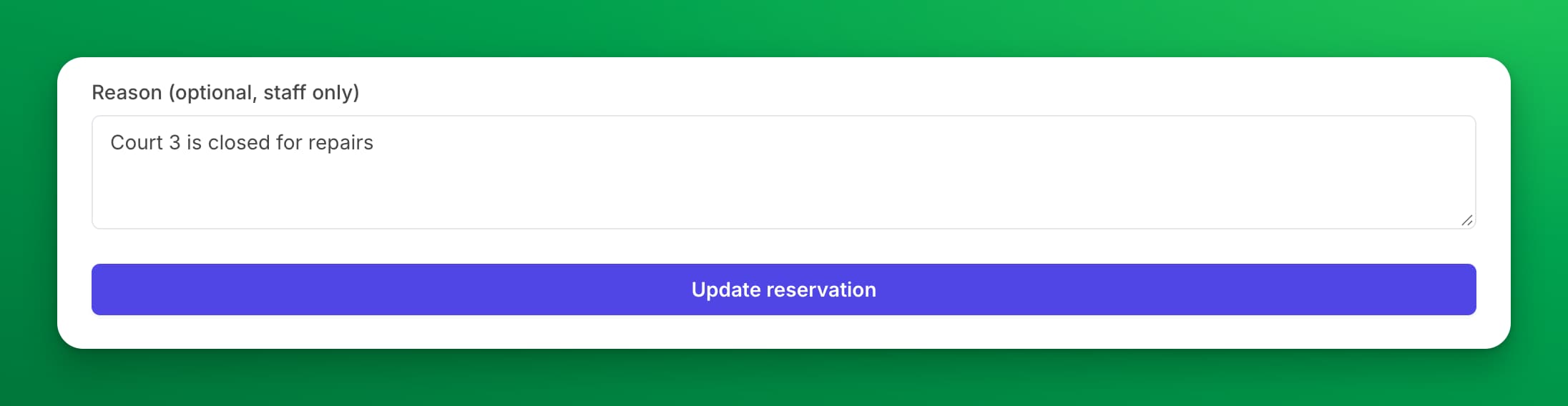
You find the Reason (optional, staff only) field:
- on the edit page of a booking or event, above the save button;
- in the cancel dialog;
- when you change or move a booking from the schedule, including a paid move;
- on Edit Program Settings and on Bulk Edit Events for a program. See Editing Programs.
The reason shows in the Activity tab, on the Activity Log page, in Program History and in both CSV exports.
See everything that happened at the club
The Activity Log page lists the changes across the whole club, newest first.
- In the left menu, select Activity Log.
- Use the filters to narrow the list: From and To dates, Done by, Source, Category and Search (a name, a booking or a field).
- To open a booking from its entry, select Open booking.
- To keep a copy, select Export CSV. The file has the rows that match your filters.
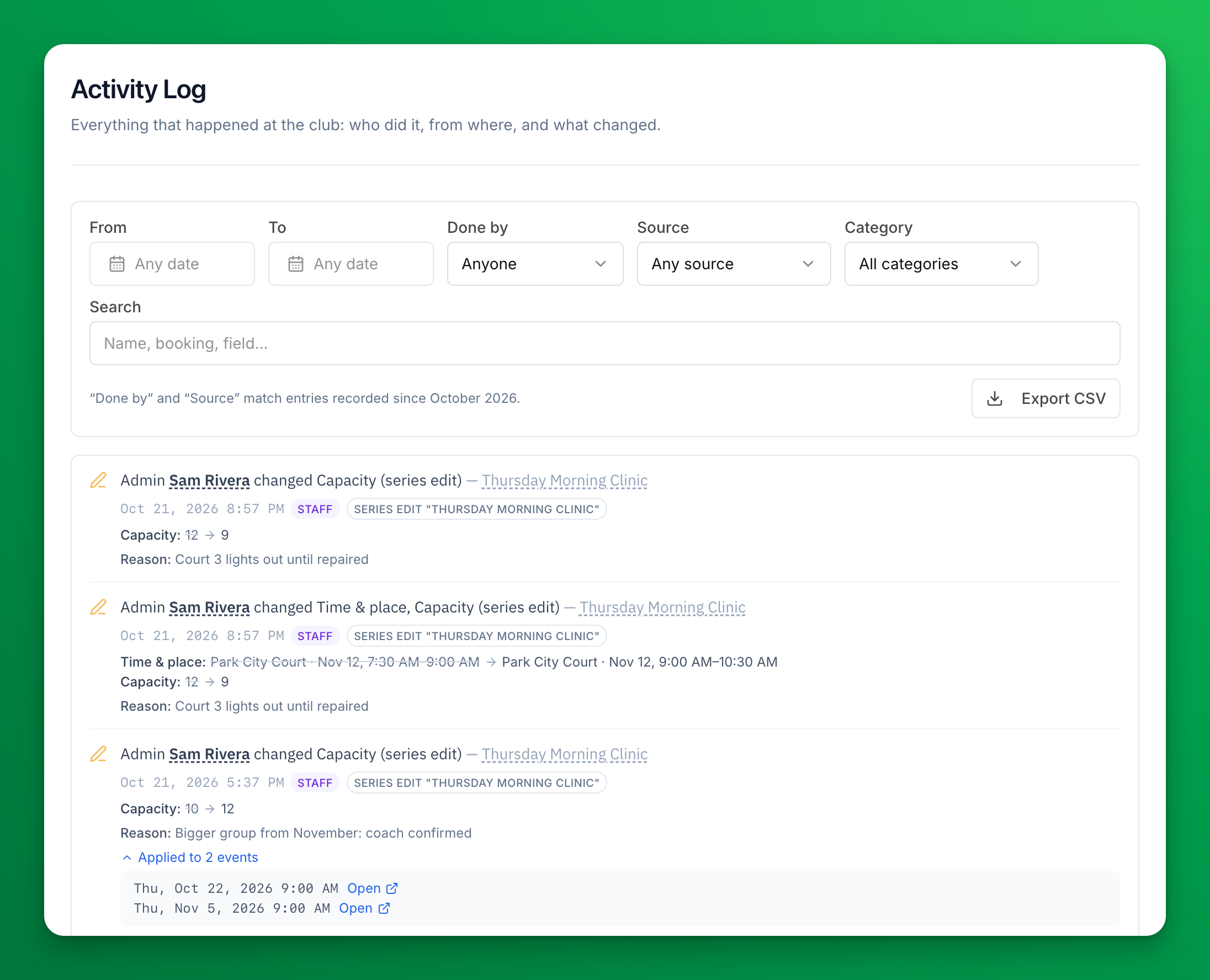
When one action changes many sessions, for example a program edit, the page shows one entry. Select Applied to N events to see each session and open it.
Done by and Source match only entries recorded since October 2026.
See the history of a program
Open the program from Events & Programs → Programs (Event Series). The Program History card lists the changes to the program itself, with how many upcoming sessions each change reached. See Editing Programs.
What "OpenCourt Staff" means
Sometimes the OpenCourt support team makes a change for you, for example to fix a booking. These entries show OpenCourt Staff instead of a person's name.
When our team makes a change while signed in as one of your customers, the entry stays the customer's. It also has the badge Signed in as customer · OpenCourt Staff. This tells you that the customer did not make the change themselves. The customer's Last interaction on the Users page still updates.
If you need to know more about a change that OpenCourt Staff made, contact support.
If something goes wrong
- I can't find the Activity Log page in the menu. Your role does not have the Schedule, Reservations & Events permission. Ask the club owner to add it to your role. You can still open the Activity tab of a booking.
- The Done by or Source filter hides older changes. These filters work only on entries recorded since October 2026. Clear them and use Search to find older entries.
- An entry says OpenCourt Staff and I want to know who it was. Contact OpenCourt support with the booking and the time of the entry.
- The Emails filter shows an email as Failed, Suppressed, Bounced or Skipped. Hover over the status to see the reason. See Sending Emails to Event Participants for what each status means.
Related
Move a paid booking to another time or court
Move a customer's paid court booking, decide what happens to any price difference, choose whether the customer gets an email, and undo a waived charge.
Schedule Configuration Customizations
We allow configuring your court sheet schedule in a variety of different ways, including setting up varying schedule time segment durations for the whole day or in different portions of the day.