

Sending Emails to Event Participants
Admins can send a custom email directly to the participants of any event — a clinic, open play, tournament, or any other event type. This is useful for sharing last-minute updates or any message that applies specifically to the people in that event.
How to Send an Email
- Open the event from the admin events list
- Go to the Participants tab
- Click Email above the participants table, then Message participants…
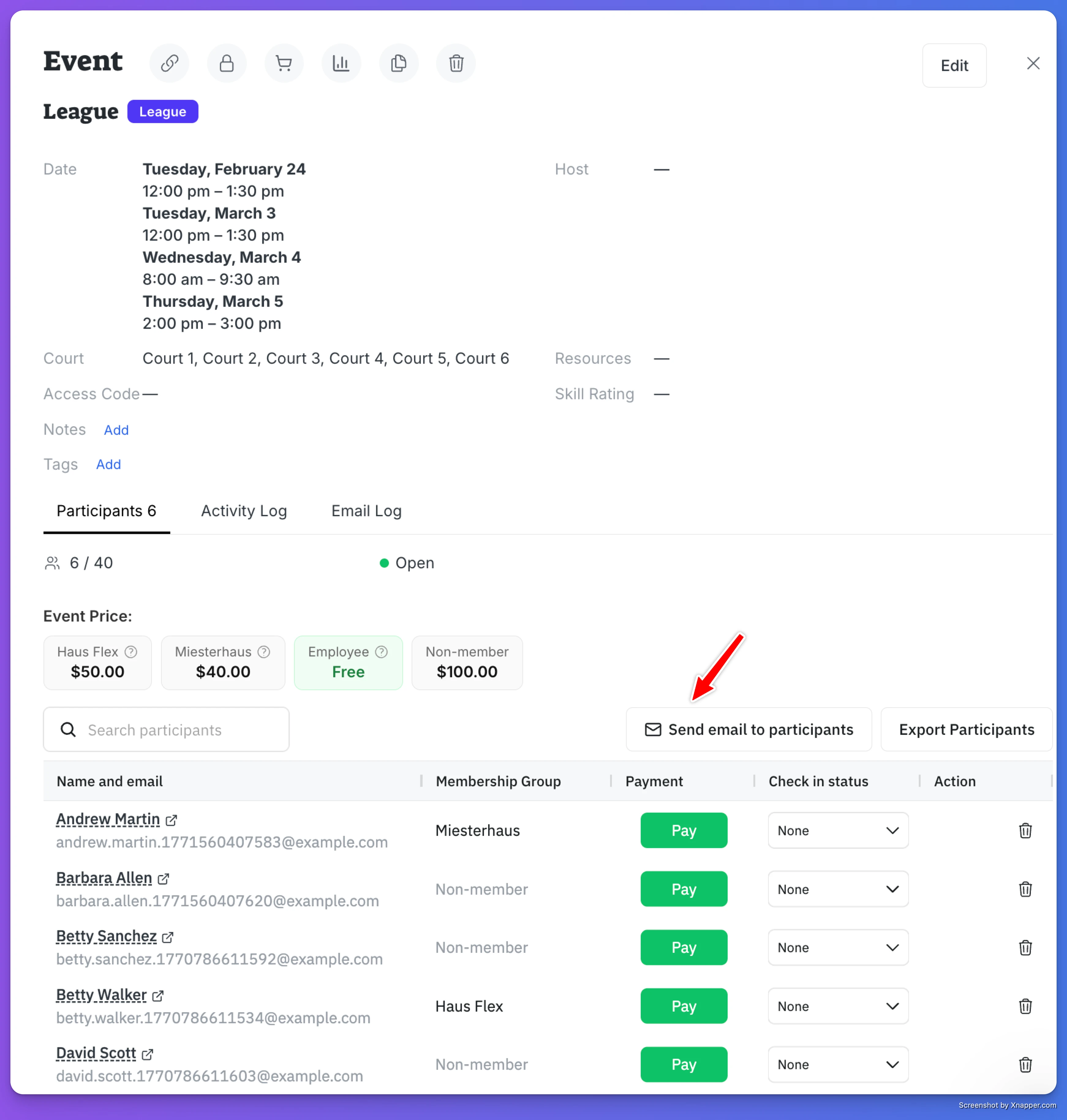
Step 1: Compose Your Message
The email popup opens with two sections:
Subject — Pre-filled as "[Event Name] — [Club Name]". This gives recipients immediate context about which event the email relates to.
Message — A rich text editor where you write your message.
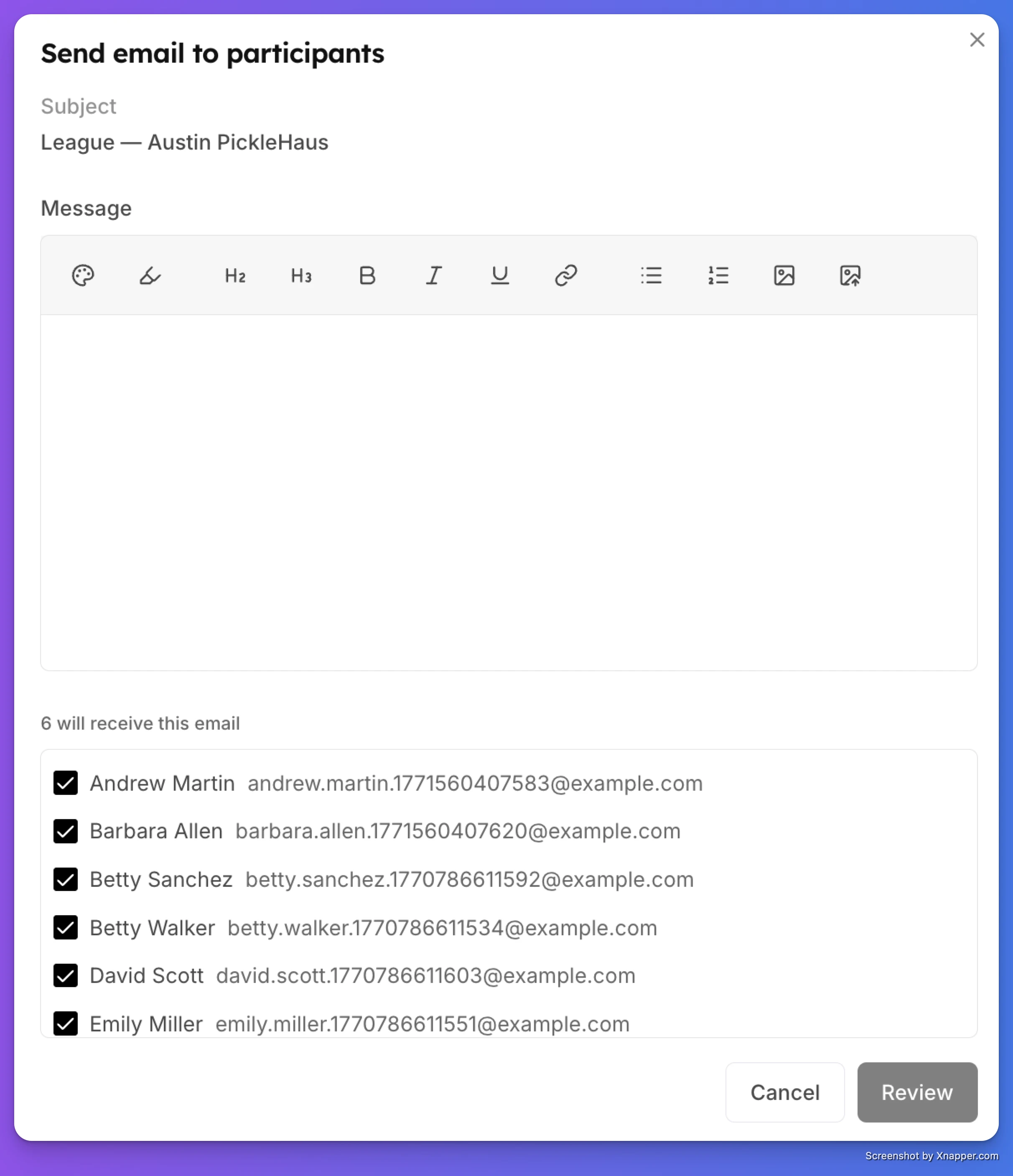
Step 2: Choose Recipients
Below the editor, you'll see a list of all recipients. By default, all confirmed participants and waitlisted members are selected. Each person has a checkbox — uncheck anyone you want to exclude from this email.
The label shows how many people will receive the email (e.g., "6 will receive this email").
Guests without user accounts are automatically excluded since they don't have email addresses in the system.
Step 3: Review
Click Review to see a preview of the email before sending. The review step shows:
- Email preview — How the email will look to recipients, including:
- An intro line: "You have an update from [Club Name] regarding your upcoming event"
- Your custom message in a left-bordered card
- An Event Details card with the event name, date/time, duration, and court/space assignment
- Recipient list — The final list of people who will receive the email, with names and email addresses
Step 4: Send
Click Send email to send. You'll see a confirmation toast:
- Success: "Email queued for X recipient(s)"
- Partial failure: "X email(s) queued. Y failed to enqueue." (if some addresses had issues)
- Full failure: Error message with details
Check which emails were sent
Every event and booking has an Activity tab in its details. Select Emails to see every email about it: the emails you sent and the automatic ones (confirmations, reminders, updates).
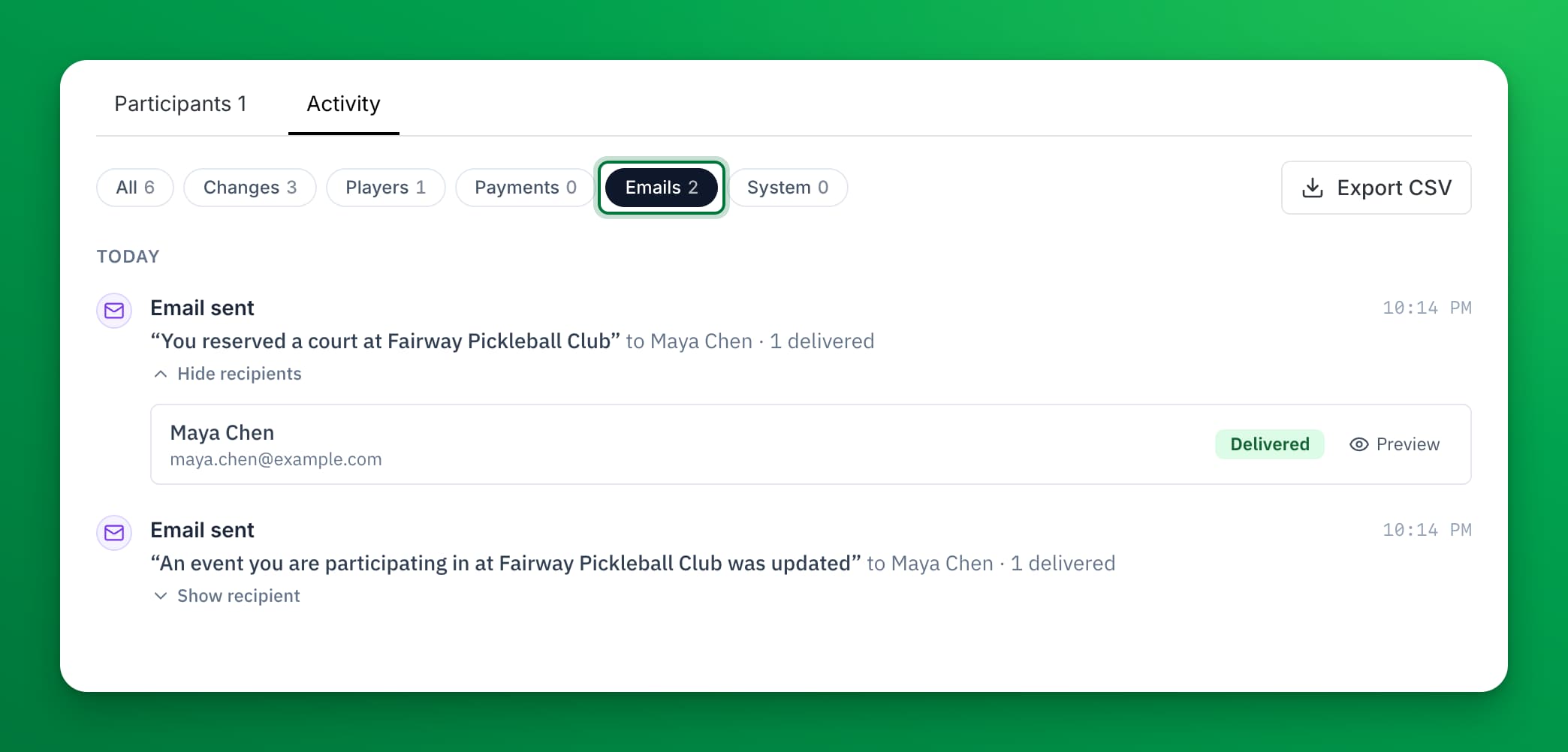
Each email shows its subject, the time it was sent, and how many recipients got it. Select Show recipient to see each recipient and their status:
- Delivered (green): the recipient's mail server took the email.
- Accepted (green): the email provider took the email. This does not prove it reached the inbox.
- Pending (yellow): the result is not known yet.
- Failed (red): the email was not sent.
- Suppressed (orange): the address is blocked, because an earlier email to it bounced, or the recipient marked an email as spam or unsubscribed. The email was not sent.
- Bounced (rose): the email was sent, but the recipient's mail server refused it.
- Skipped (gray): the email was not sent on purpose, for example because the address is a placeholder.
Select Preview to see the email as the recipient got it. For a failed, suppressed, bounced or skipped email, hover over the status to see the reason.
With All selected, an email also shows under the change that sent it. For the rest of the Activity tab, see See who changed a booking or event.
What the Email Looks Like
Recipients receive a branded email with:
- Header — Club branding
- Intro line — "You have an update from [Club Name] regarding your upcoming event."
- Your message — The custom content you wrote, displayed in a left-bordered card to visually distinguish it from the event details
- Event Details card — A gray card showing:
- Event name
- Date and time with duration (e.g., "Saturday, March 7 at 9:00 AM - 10:30 AM (1h 30m)")
- Court/space assignment (if applicable)
- Footer — Club name and OpenCourt branding
Where Else These Emails Appear
Admin-sent event emails are tracked across the platform:
| Location & What you see | |
|---|---|
| Event detail → Activity tab → Emails | All emails for this specific event (admin-sent + system notifications) |
| Settings → Email History | Shows with the label "Admin: Event Email" alongside all other sent emails |
| User profile → Emails tab | Visible per-user when viewing a specific member's email history in the admin panel |
Tips
- Use it for time-sensitive updates — Court change, schedule shift, weather cancellation, parking info, or any detail that participants need to know before the event.
- Uncheck waitlisted members if the update only applies to confirmed participants (e.g., court assignments).
- Check the Activity tab after sending: select Emails to verify delivery. If any emails failed, hover over the red status badge to see the reason.
- No setup required — Unlike Email Campaigns, this feature works out of the box. It uses the platform's transactional email stream, so there's no club-level email configuration needed.
Event Reminders
The Event Reminders feature helps clubs reduce no-shows by automatically sending reminders to participants before an event starts. You can configure reminders by event type (for example, leagues, tournaments, clinics) or customize them for individual events. This is especially useful for events people sign up for well in advance—such as leagues or tournaments—where reminders help ensure players don’t forget to attend.
Swish Integration - Effortless Game Management
Swish is a platform that makes it very easy for you to run leagues, tournaments, and a variety of other types of organized games, such as round robins, king…