

Run a monthly academy or youth program
Sell an academy, junior program or recurring clinic as a monthly subscription that covers every session, keep a single-session drop-in price for everyone else, and give each child their own subscription.
Set up a program, such as a junior academy or a weekly adult clinic, so that customers pay one monthly price and join every session for free. Customers who do not subscribe can still drop in to a single session. (About 20 minutes. You need subscriptions turned on for your club.)
How the parts fit together
| Part | What it does |
|---|---|
| Event tag (for example Junior Academy) | Marks every session that belongs to the program. |
| Booking pass | Makes a session free. It works only on sessions with the tag. |
| Subscription | Charges the monthly price. Every month it gives the subscriber a fresh pass. |
| Program (event series) | The sessions themselves. Each one carries the tag and a drop-in price. |
A subscriber joins each session with their pass and pays nothing. Everyone else pays the drop-in price for that one session.
Before you begin
- Subscriptions appears in your admin sidebar. If it does not, contact support to turn subscriptions on for your club.
- You know the monthly price and the price of one drop-in session. Make the drop-in price clearly lower than the monthly price. The drop-in price is for one session, never for the whole month.
- Decide who the program is for. Youth programs send the pass to the child, so each child needs their own subscription. Adult programs keep the pass with the person who pays.
Step 1: Create the tag
- Go to Settings → Event Tags.
- Click Add Tag, enter a name such as Junior Academy, and click Create Tag.
Use one tag for each program. If you run two levels, such as Mini and Junior, create two tags and repeat these steps for each.
Step 2: Create the booking pass
-
Go to Booking passes → Booking Passes and click Create Booking Pass.
-
Enter a Name, such as Junior Academy Pass.
-
Under Redemption Mode, choose how the pass is counted:
- Whole Event/Reservation counts sessions. Each session uses one, whatever its length. This is the simplest choice for a program.
- By Hours counts time. Each session uses its length, so a 90-minute session uses 90 minutes.
Your choice decides what you enter on the subscription in Step 3.
-
Leave Can be redeemed by family members off. Each child then keeps their own pass.
-
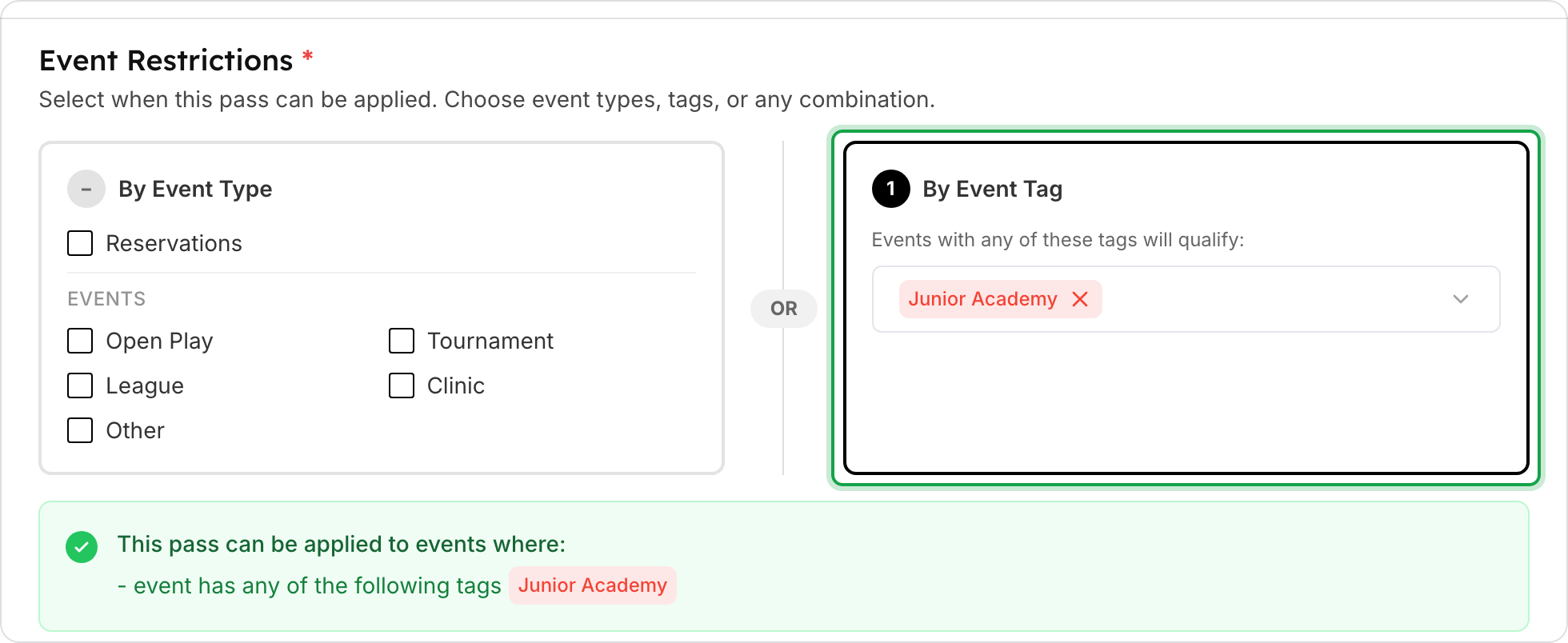
Under Event Restrictions, leave every box under By Event Type empty. Under By Event Tag, select your tag.
-
Check the green summary. It must read event has any of the following tags followed by your tag, and nothing else.
-
Click Create Booking Pass.
Step 3: Create the monthly subscription
-
Go to Subscriptions → Catalog and click New Subscription Product.
-
Enter the name and description customers see, then add a pricing plan with your monthly price.
To charge members less, add two pricing plans: one at the member price and one at the regular price. On each plan, use Rule set visibility so members see only the member plan and non-members see only the regular plan. What a customer sees depends on the membership of the person who pays, so a parent who is a member sees the member price for their child.
-
Under Booking passes, click Add booking pass and choose the pass from Step 2.
-
Set how much the pass holds each month. The field matches the pass from Step 2:
- A Whole Event/Reservation pass shows Uses per Cycle: the number of sessions.
- A By Hours pass shows Minutes per Cycle: the total time, in minutes.
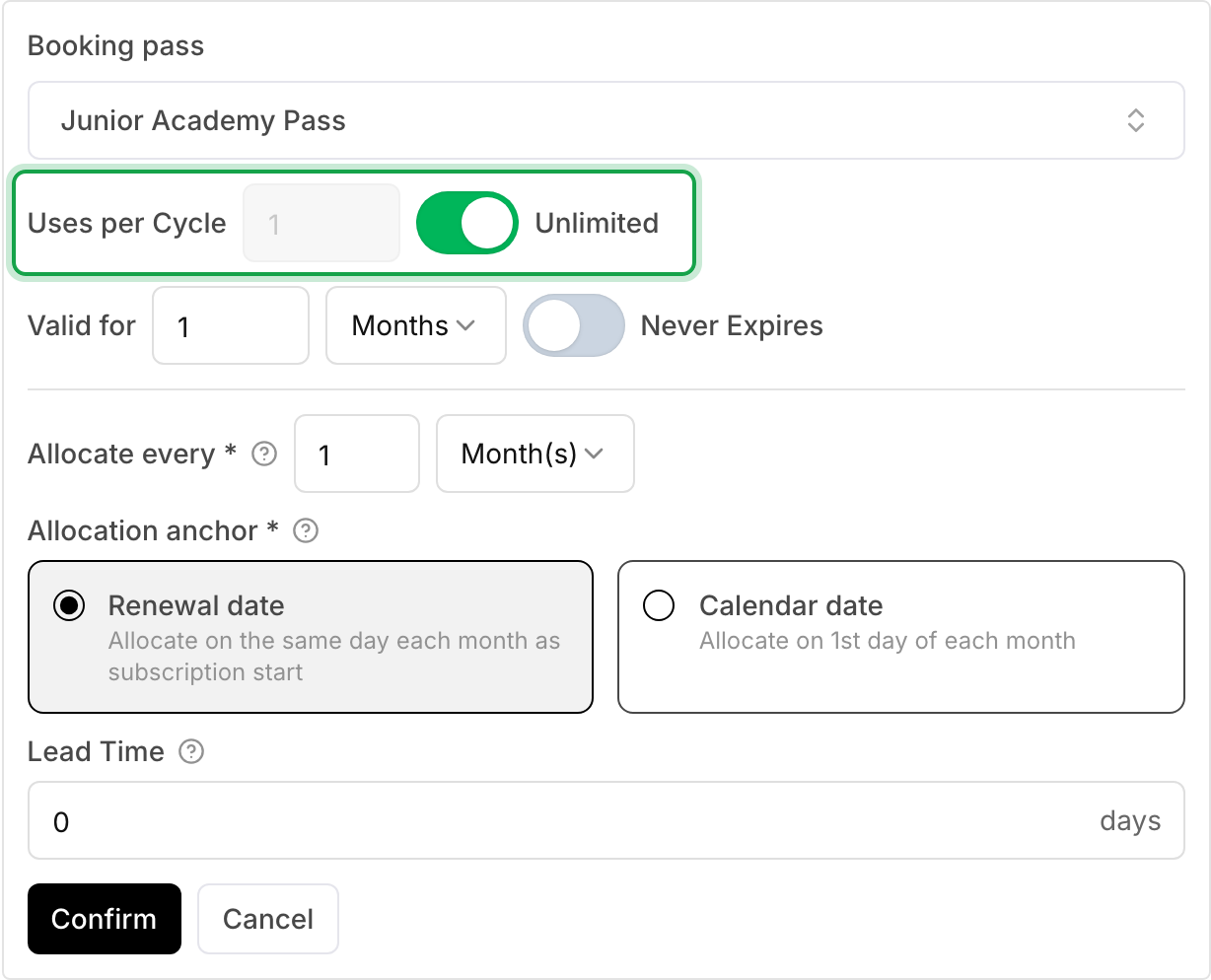
For a program that covers every session, turn on Unlimited. The subscriber then covers every session in the month, however many there are.
-
Set Valid for to 1 Months and Allocate every to 1 Month(s). Click Confirm.
-
Save the product.
If you would rather set a limit, enter a number instead of Unlimited. The number must cover the longest month. A program on Tuesdays and Thursdays has 8 sessions in some months and 10 in others. That is 10 uses, or 600 minutes for one-hour sessions.
Step 4: Create the program sessions
-
Go to Events & Programs and create a new event. Choose the Recurring Series tab for the schedule. For details, see Creating a recurring event series.
-
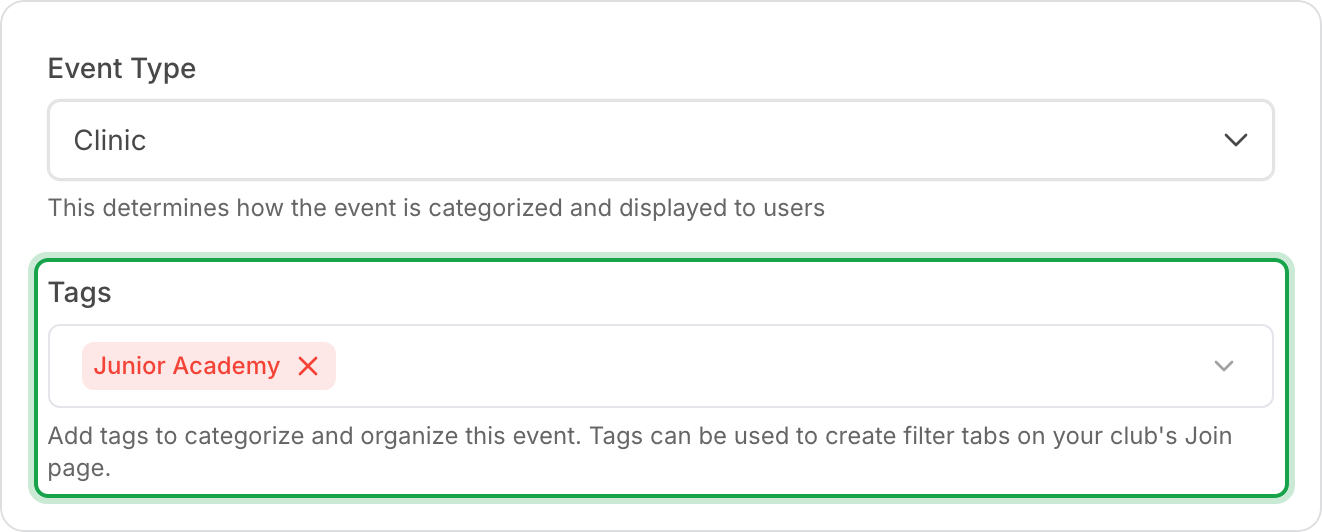
Under Tags, select the program's tag.
-
Under Pricing, choose Paid and enter the drop-in price in every price field. There is one field for each rule set, plus Non-member price.
-
In Description (optional), say clearly that the price is for one session, and link to the subscription. For example: "This is a single drop-in session. To join every session, get the Junior Academy subscription: (link)". To get the link, open the subscription in your club's store and copy the address from your browser.
-
Create the program.
Every session in the program gets the tag, so the pass works on all of them.
Add the tag to a program that already exists
If you created the sessions before the tag, add the tag to the whole program, not to one session:
- Go to Events & Programs and open the program.
- Click Edit Program Settings, add the tag under Tags, and save.
This updates every future session that still follows the program. A session that someone edited on its own no longer follows the program, so it keeps its old tags. Open each of those sessions and add the tag there. Past sessions do not change.
Check it from the customer side
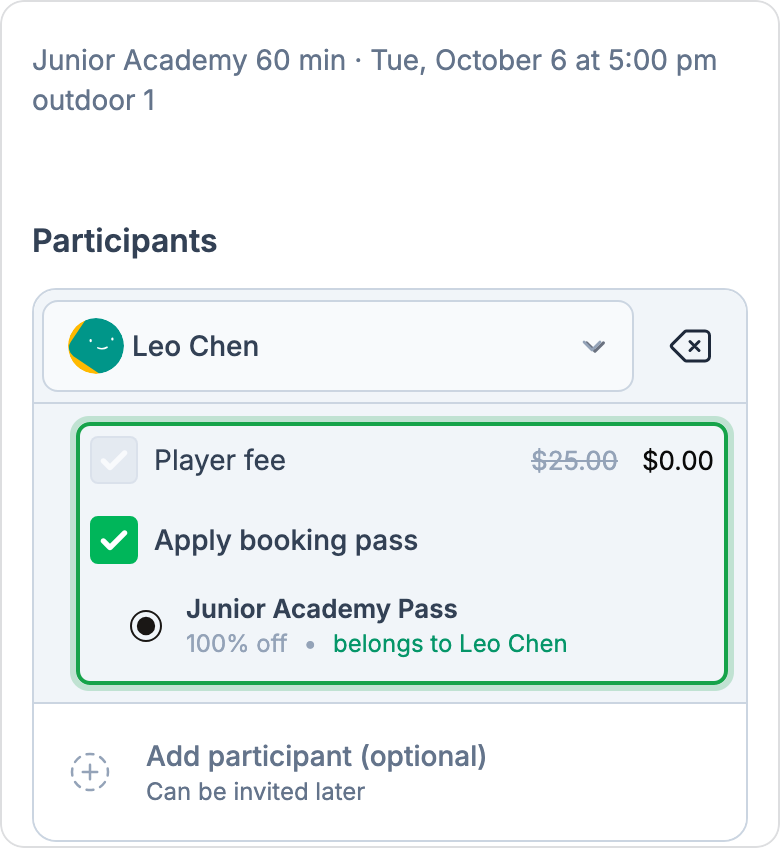
When a subscriber joins a session, the fee drops to $0.00 and the checkout shows Apply booking pass with the pass name. A parent who joins for a child sees "belongs to" and the child's name.
If the fee does not drop, see If something goes wrong.
Youth programs: one subscription for each child
A pass goes to one person. A parent with two children in the program buys the subscription twice, once for each child.
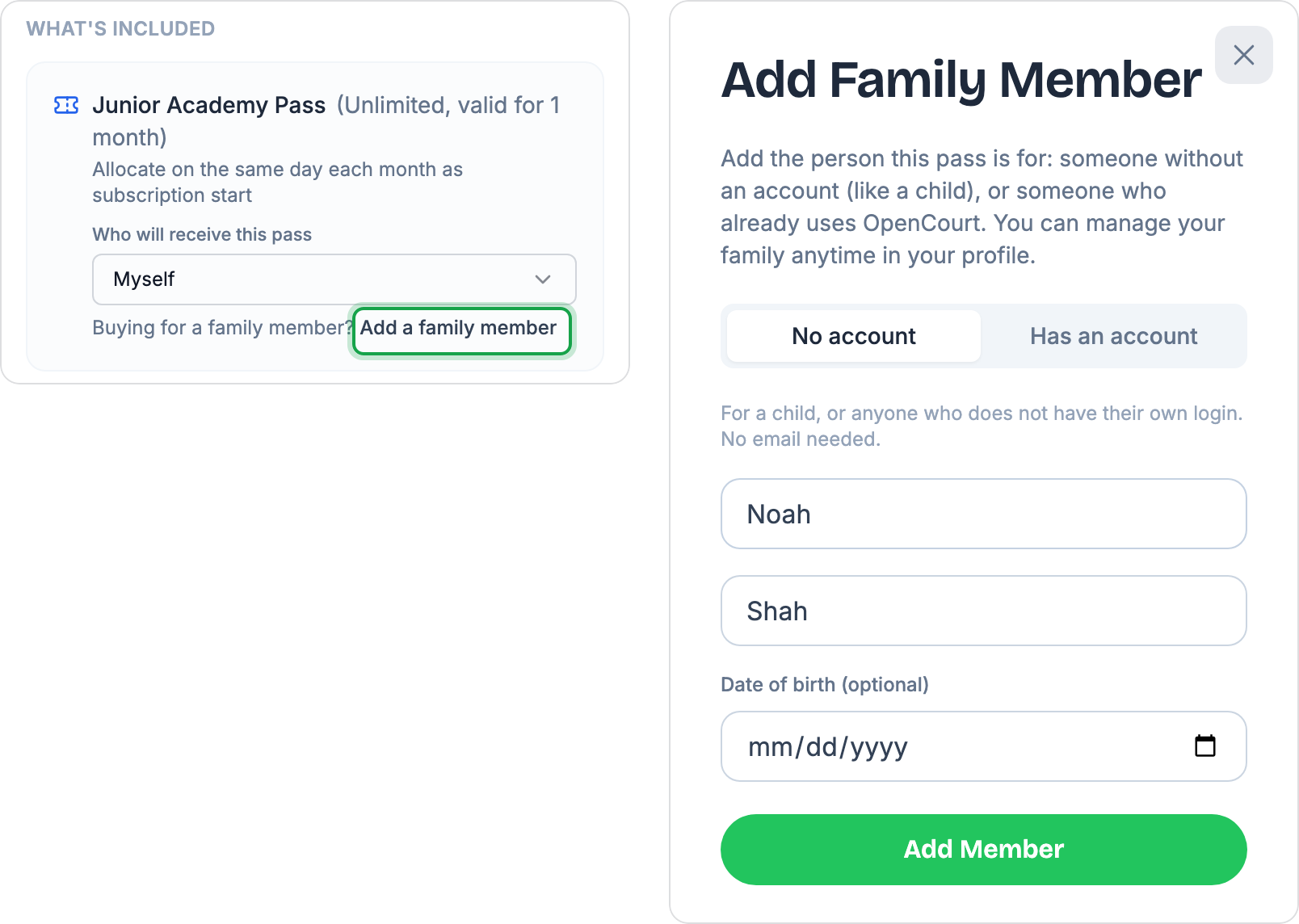
On the subscription page, the parent chooses the child under Who will receive this pass. A parent with no family members on file sees Buying for a family member? Add a family member. That link opens a short form. On the No account tab, the parent enters the child's first and last name. No email is needed.
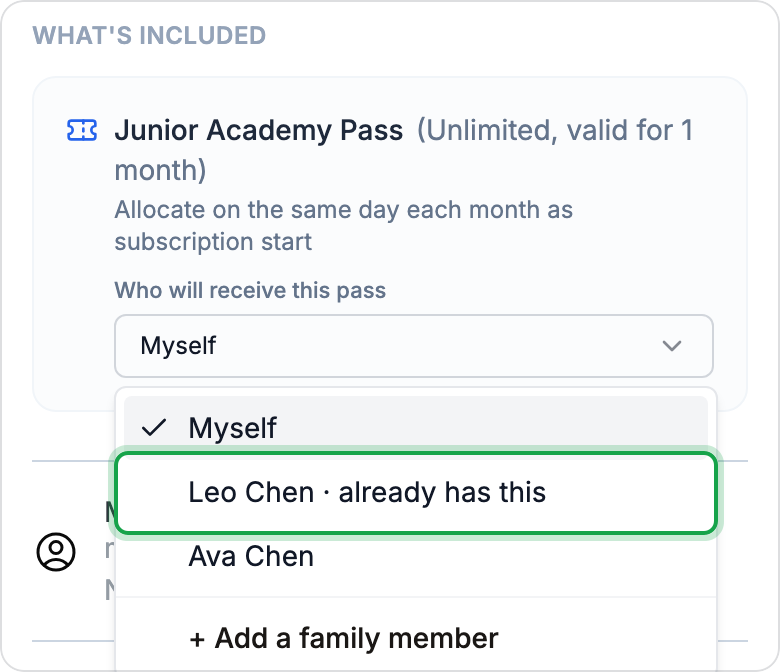
When the parent comes back for a second child, the picker shows already has this next to the child who is already subscribed. OpenCourt does not let anyone buy the same subscription twice for the same child.
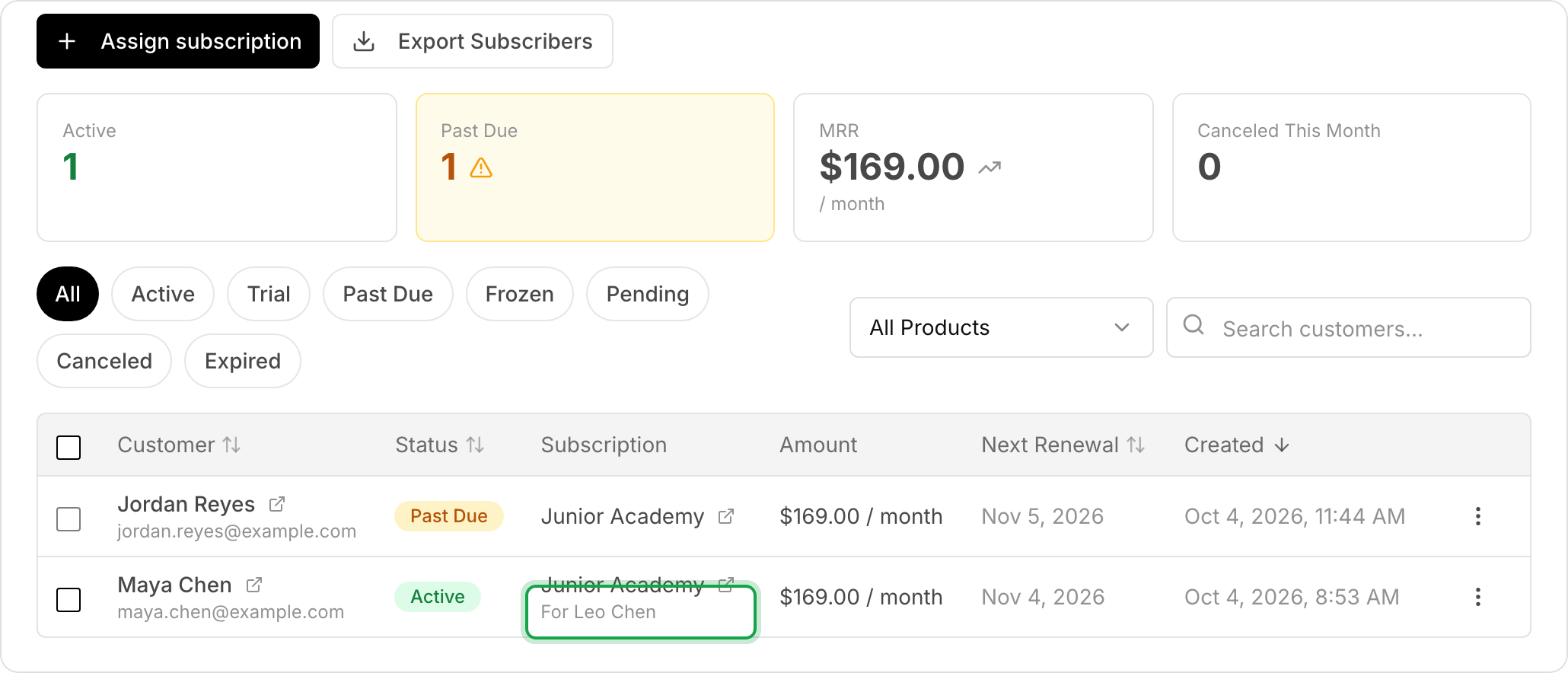
In Subscriptions → Subscribers, each subscription shows For and the child's name under the product name.
Sign a child up for the parent
- Make sure the child is in the parent's family. For details, see Creating and managing a family account.
- Go to Subscriptions → Subscribers and click Assign subscription.
- Choose the parent, the product and the pricing plan.
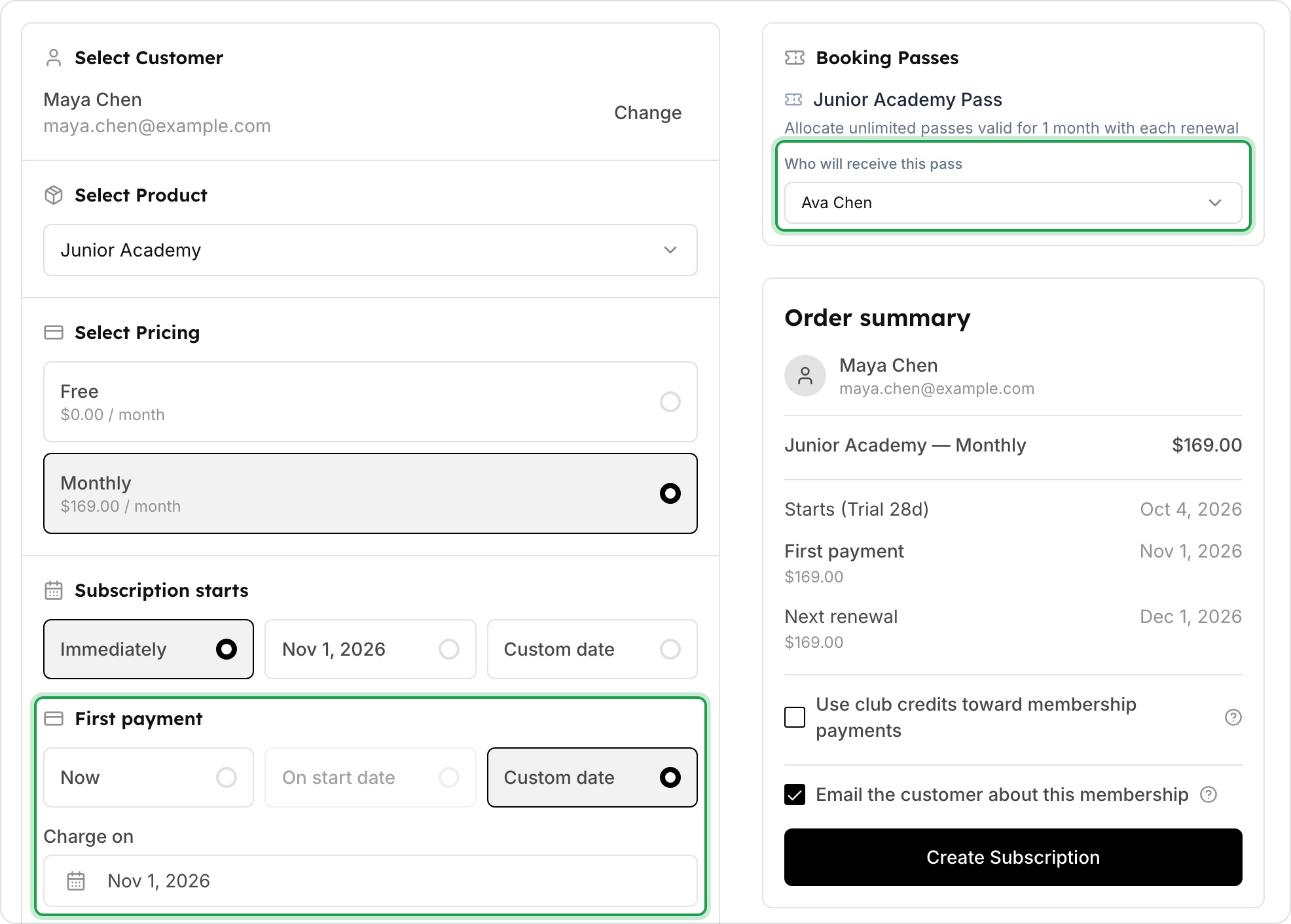
- Under Booking Passes → Who will receive this pass, choose the child. This picker appears only when the parent has family members.
Move a subscription from the parent to the child
A parent sometimes buys with Myself selected by mistake. To send the pass to the child instead:
-
Add the child to the parent's family.
-
In Subscriptions → Subscribers, open the subscription.
-
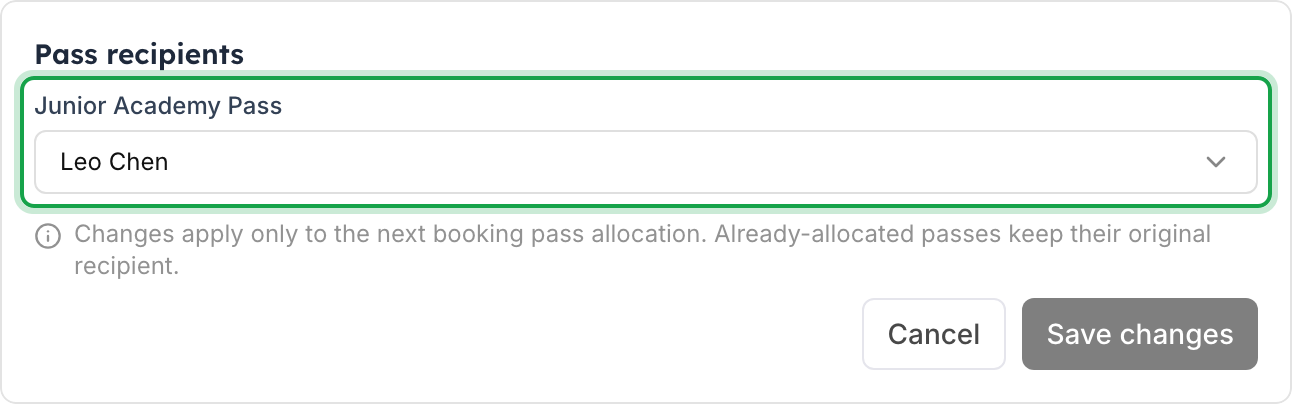
Under Pass recipients, click Edit, choose the child, and click Save changes. Every future month now goes to the child.
-
To move this month's pass too, open the parent's profile. On the Booking Passes tab, click Archive pass on the current pass. Within an hour, OpenCourt gives this month's pass to the child.
Move drop-in customers onto the subscription
If customers paid the drop-in price before you set up the subscription, you can move them onto it now and start billing next month:
- If the child is not in the family yet, add them first. On a session roster, a guest without an account has a Convert button. It turns the guest into a customer and keeps their booking.
- Go to Subscriptions → Subscribers → Assign subscription and choose the customer, the product and the plan. For a youth program, choose the child under Who will receive this pass.
- Under Subscription starts, choose Immediately. The pass arrives now.
- Under First payment, choose Custom date and pick the date billing starts, such as the 1st of next month. Under Payment method, choose the customer's saved card or Add new card.
- Check the Order summary, then click Create Subscription.
Use a membership instead
You can build the same program as a membership instead of a subscription. A membership can carry the same tag-restricted booking pass. It also adds a rule set, such as member prices. A family membership can include each child as a family member, and each child gets their own pass. The price is set per family, not per child.
A customer holds only one membership at a time. A family that already has a membership at your club cannot add an academy membership, so a subscription is usually the better fit for a program.
Choose a subscription when the program is the only thing customers buy, or when families may already be members. Choose a membership when program families also get member pricing, or when you want one price for the whole family. For the full comparison, see Subscriptions vs. memberships. For the family setup, see Set up a family membership.
If something goes wrong
- A subscriber is asked to pay for a session. The session is missing the tag. Open the session and check Tags. If only some sessions have it, someone edited those sessions on their own. Add the tag to the program as in Add the tag to a program that already exists, then fix each session that no longer follows the program.
- The pass covers only one session a month. The subscription gives too few uses or minutes, for example 60 minutes a month for one-hour sessions. Edit the product as in Step 3, choose Apply to all subscribers, then edit each subscriber's current pass.
- The pass works on sessions outside the program. The pass also has an event type ticked. Remove it so the pass uses only the tag.
- The parent has the pass instead of the child. Move it as in Move a subscription from the parent to the child.
- A parent cannot buy for a second child. The child they chose already has this subscription. Ask them to pick the other child, or add the child to the family first.
- Customers buy single sessions instead of the subscription. Check that the drop-in price is for one session and that the description links to the subscription.
Related
Editing Programs (Event Series)
Quickly update multiple upcoming events in a program without having to edit or recreate each one manually.
Creating Events with Divisions
The Event Divisions feature lets you organize participants into groups within the same event—such as men’s and women’s brackets for a tournament, or different skill level brackets. This is especially useful when you want balanced participation or specific limits for each group.