

Creating and Managing Subscriptions
Sell a recurring package of booking passes, such as four lessons a month or every session of a program. Create the product, price it, add its passes, sell or assign it, and manage subscribers.
A subscription charges a customer on a schedule, such as every month, and gives them booking passes each time. Use it for packages like four private lessons a month, or every session of a program. (About 10 minutes. You need a booking pass to include.)
Before you begin
- Subscriptions appears in your admin sidebar. If it does not, contact OpenCourt support to turn it on for your club.
- The booking pass you want to include exists. See Creating booking passes.
Create a subscription
- Go to Subscriptions → Catalog and click New Subscription Product.
- Under Subscription Details, enter the Name, a Short Description for listings, and a Description on Subscription Page.
- Under Pricing plans, set up the first plan:
- Choose Renewable (bills every period until canceled) or Fixed-term (one charge, lasts a set time, then ends).
- Enter a Name, the Price, and how often it renews, such as every 1 month.
- Click Add pricing plan to offer another option, such as a yearly plan.
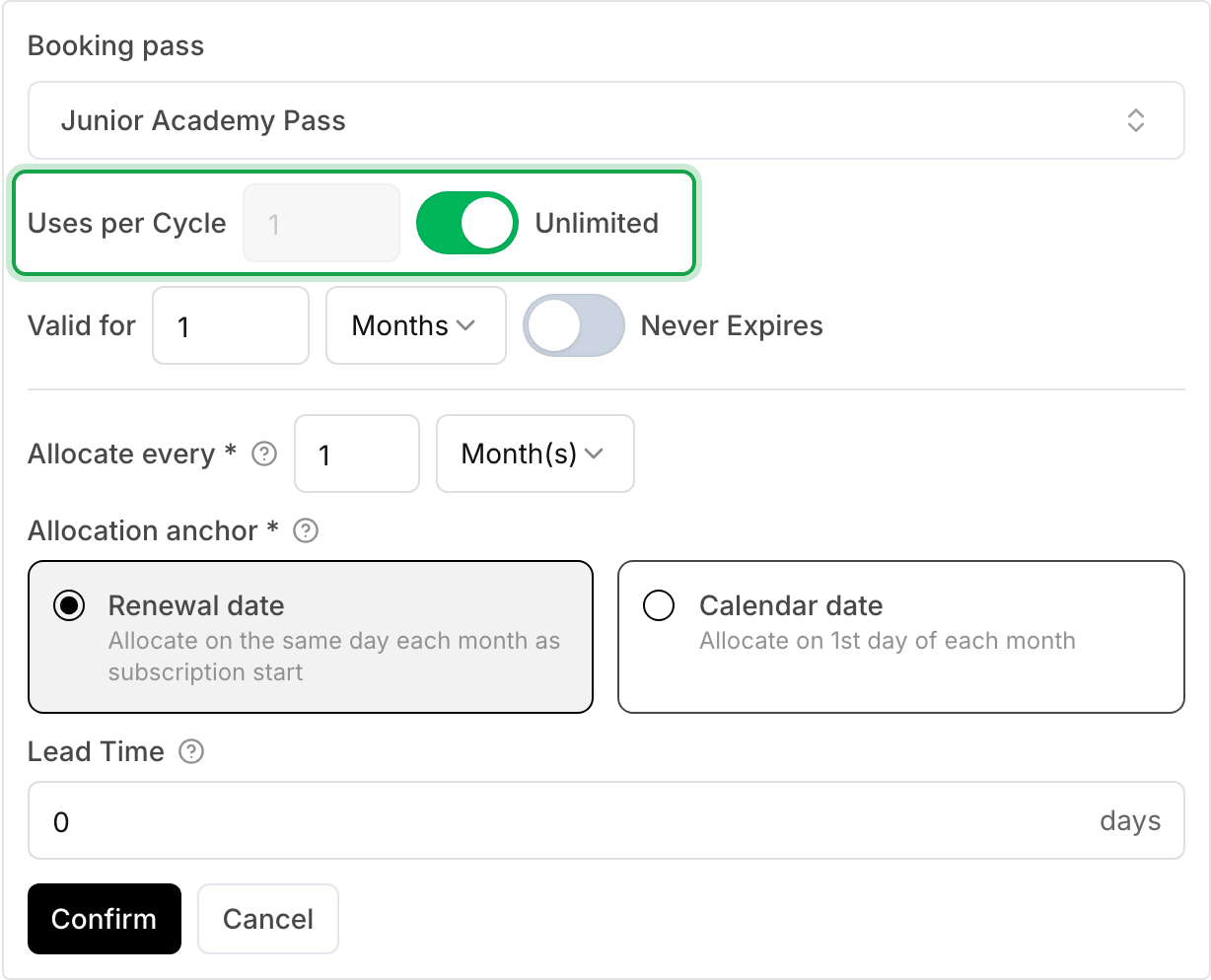
- Under Booking passes, click Add booking pass and choose the pass. Set how much it holds each cycle:
- Uses per Cycle for a pass that counts sessions, or Hours per Cycle for a pass that counts time, such as 1.5 for 90 minutes. The field matches the pass type.
- Turn on Unlimited to cover every use in the cycle.
- Set Valid for and Allocate every. The defaults give one pass each renewal, valid for one cycle.
- Under Sales Channels, turn on Online Store to sell it in your store, or Payment Link to share a direct link.
- Click Create Subscription.
To sell only once to each customer, turn on Limit to one purchase per customer under Purchase limit.
Charge members a different price
A subscription has no member price field. Instead, add a pricing plan for each price, and choose who sees it:
- Add two pricing plans, for example Members at the lower price and Monthly at the regular price.
- On each plan, open Rule set visibility. Show the member plan only to your member rule sets, and the regular plan only to Non-members.
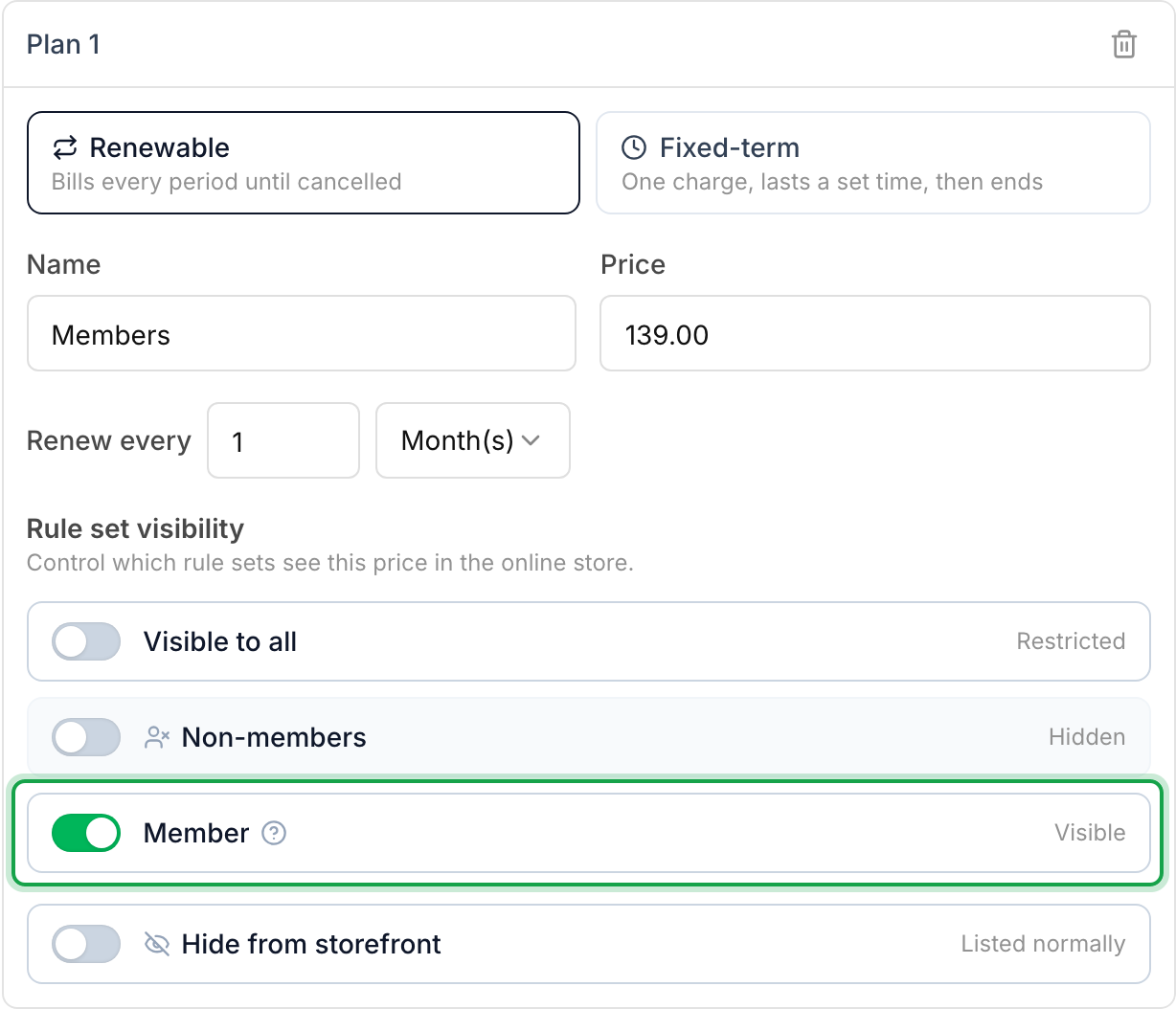
Each customer then sees only their plan, even through a direct link. What a customer sees depends on the membership of the person who pays.
Sell or assign a subscription
Customers buy the subscription from your online store or the payment link. If a pass in the subscription is for someone else, such as a child, the buyer chooses them under Who will receive this pass.
To sign a customer up yourself:
- Go to Subscriptions → Subscribers and click Assign subscription.
- Choose the customer, the product and the pricing plan.
- Under Subscription starts, choose Immediately or a later date.
- Under First payment, choose Now, On start date, or Custom date.
- Under Payment method, choose a saved card or Add new card.
- Click Create Subscription, or Start Checkout when the first payment is Now.
Manage subscribers
Subscriptions → Subscribers lists every subscription. Filter by product or by status: Active, Trial, Past Due, Frozen, Pending, Canceled or Expired. When a pass goes to someone other than the payer, the row shows For and their name. Click Export Subscribers for a CSV file.
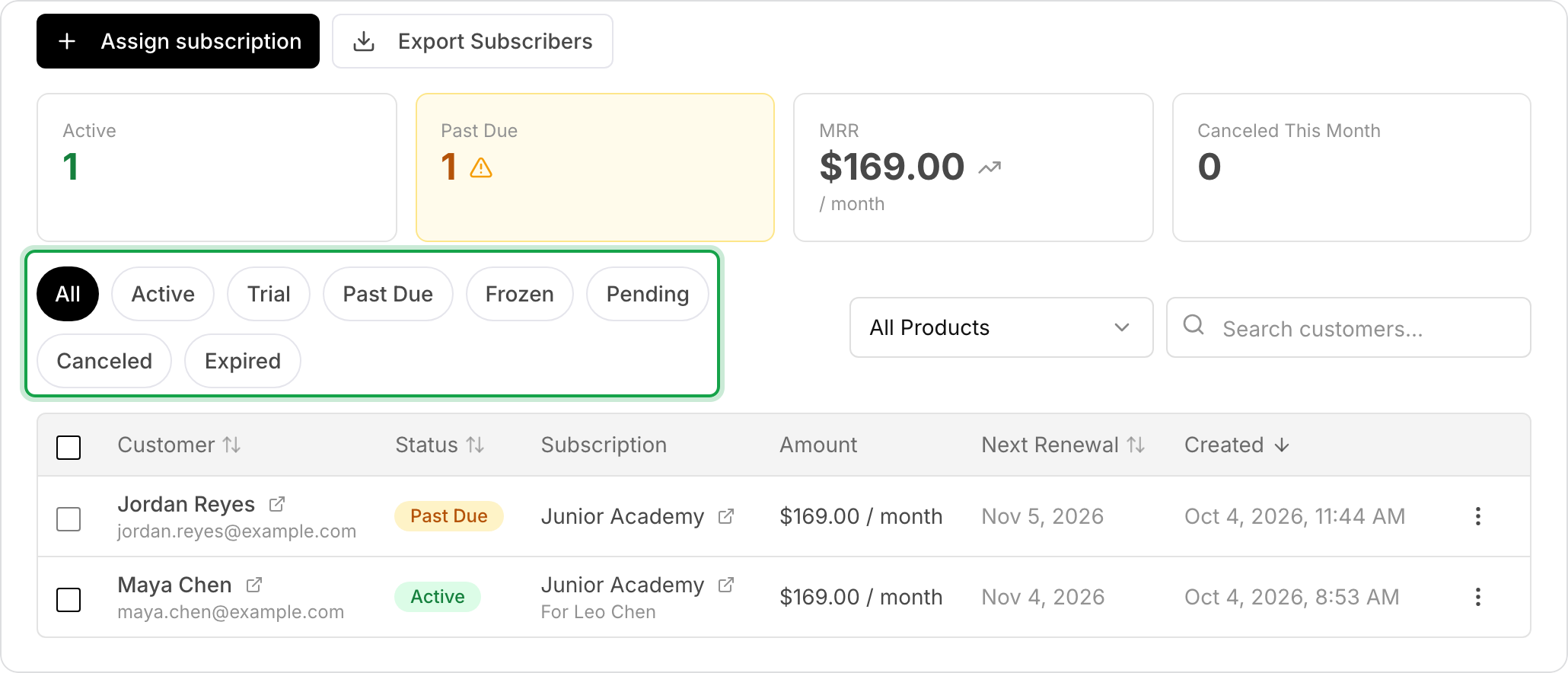
Open a subscription to see its invoices, its payment method (Change or Set card), its booking passes, and these actions:
- Freeze pauses an active subscription. On a frozen one, Manage freeze lets you resume it or change the freeze. See Freeze a membership; it works the same for subscriptions.
- Change Subscription moves the customer to another plan or product.
- Cancel ends it at the end of the cycle, on a date you choose, or now. When you cancel now, you can refund the unused part as club credit.
- Pass recipients → Edit changes who receives the passes from the next allocation.
Customers can cancel their own subscription from their profile. It then ends at the end of the current period.
Change a subscription after you create it
- Price changes create a new version of the plan. Existing subscribers keep their old price until you move them. OpenCourt asks whether to update them now or later.
- Booking pass changes ask Apply benefit changes to existing subscribers? Choose New subscribers only, or Apply to all subscribers to update everyone at their next renewal.
If something goes wrong
- Subscriptions is not in the sidebar. Contact OpenCourt support to turn it on, and check that your admin role can manage memberships.
- A customer cannot buy it again for another person. Each pass recipient can hold the subscription once. The buyer chooses a different recipient under Who will receive this pass.
- A payment failed. The subscription becomes Past Due. See When a membership or subscription payment fails.
Related
Creating a Pass Package
A Pass Package is a product that bundles one or more booking passes together. When a customer purchases the package, the passes are automatically allocated to their account. Unlike passes added to a membership, packages are one-time purchases — sold through your online store, POS, or payment links.
Waivers
Learn how your customers can sign the waiver online, at the Front Desk, and how to check if a customer signed a waiver