

Give booking passes with a membership
Add booking passes to a membership so every member gets them when the membership starts and again on a schedule you choose.
Add a booking pass to a membership, and every member gets that pass when their membership starts and again each cycle — for example, 3 guest passes every month. (About 5 minutes. You need the booking pass and the membership to exist first.)
Before you begin
- Create the booking pass. The pass defines what the benefit covers — for example, guest fees for reservations. See Creating Booking Passes, or follow one of the recipes under Related.
- Create the membership, or open the one you want to change. See Creating and Editing Memberships.
Add a booking pass to a membership
-
Go to Memberships → Catalog.
-
Open the membership, then click Edit. To add passes to a new membership, click New Membership Product instead and fill in the form as usual.
-
Scroll to the Booking passes section ("Booking passes that this membership grants on activation and at each allocation cycle.").
-
Click Add booking pass.
-
Under Booking pass, pick the pass.
-
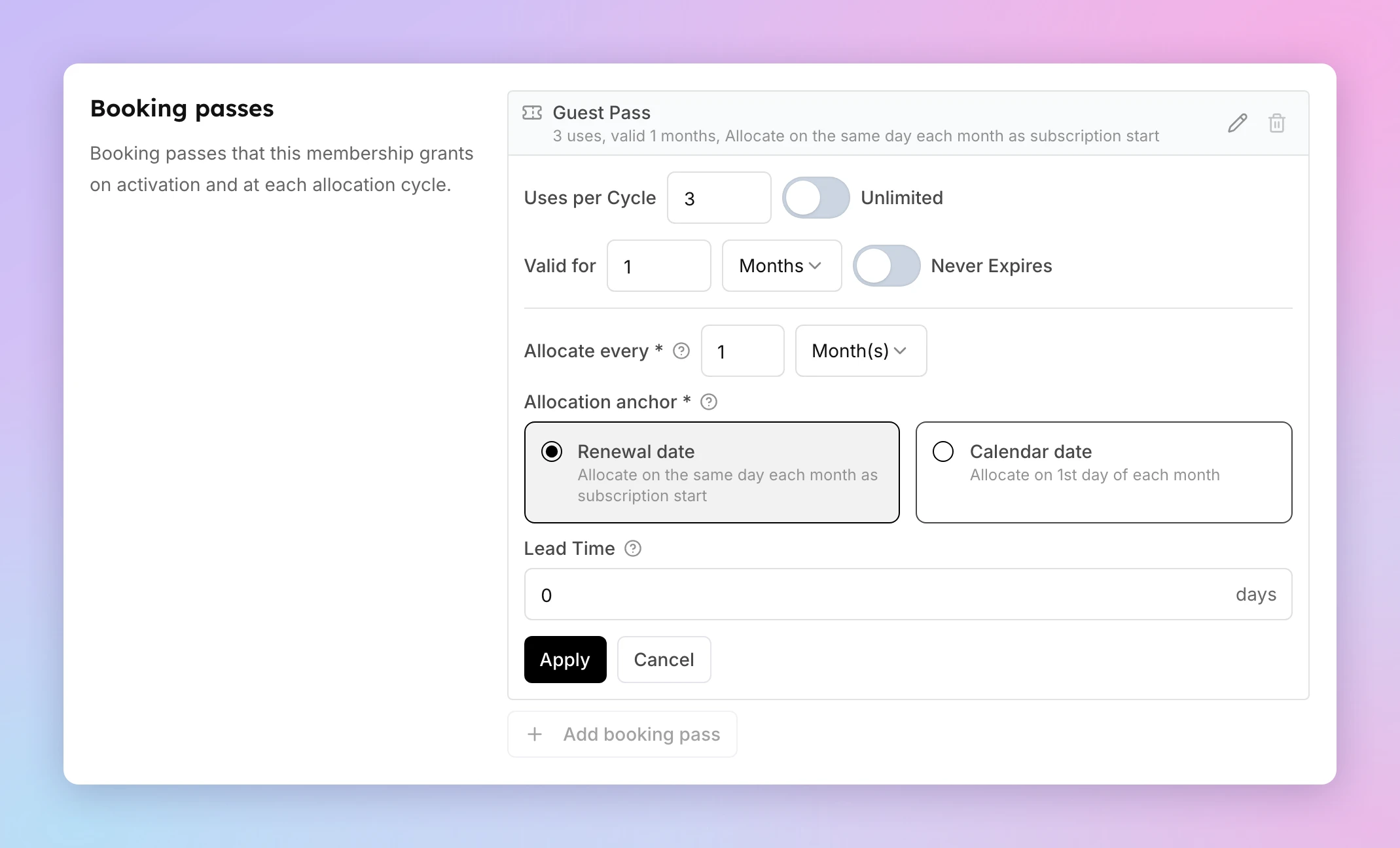
Set how much the member gets each cycle:
- Uses per Cycle — the number of uses, such as 3 guest visits. For a By Hours pass this field is Hours per Cycle — for example, 5 for 5 hours. The line under the field shows the minutes it saves (= 300 minutes).
- Or turn on Unlimited.
-
Set how long each pass stays valid:
- Valid for — a number and a unit (Days, Weeks, Months or Years), such as 1 Months.
- Or turn on Never Expires. Unused passes from earlier cycles then stay usable and add up. A yellow note shows how many a member who uses none holds after a year (for example, 36 uses for 3 a month), and the pass row gets a Rolls over badge. Turning Never Expires off later does not change passes members already hold.
-
Under Allocate every, set how often the member gets new passes — for example, 1 Month(s). Choose Every renewal period to give passes on each billing date.
-
For weeks, months or years, choose when in the cycle the passes arrive under Allocation anchor:
- Renewal date — on the same day as the member's membership started ("Allocate on the same day each month as subscription start").
- Calendar date — on a fixed date for everyone, such as the 1st of each month or every Monday. Pick the day in the field that appears.
-
Optional: set Lead Time to create the passes that many days before each allocation date. If members can book 7 days ahead, a lead time of 7 lets them book next month's first week with next month's passes.
-
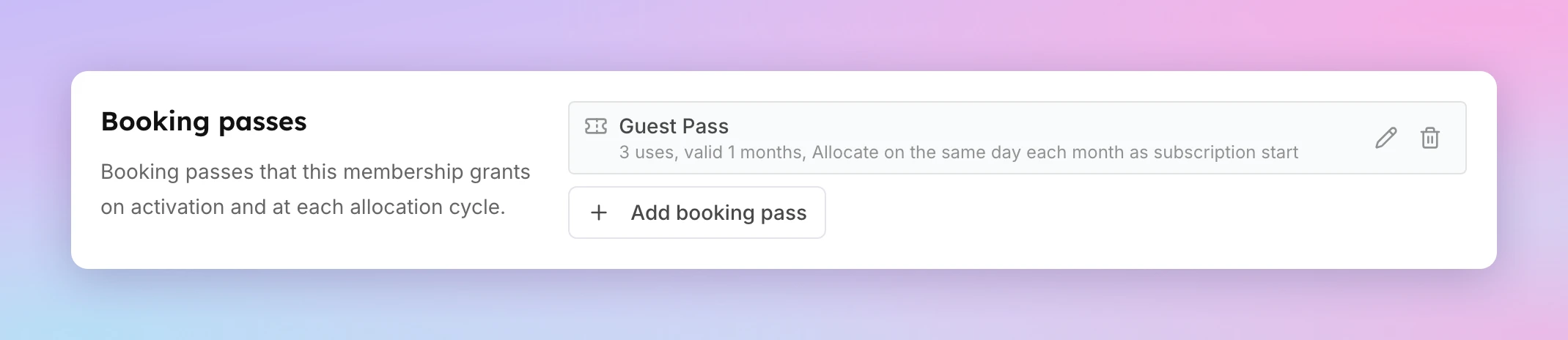
Click Confirm. The pass appears in the list — for example, "Guest Pass — 3 uses, valid 1 months, Allocate on the same day each month as subscription start".
-
Click Save Changes at the bottom of the form (Create Membership for a new membership).
To give more than one pass, click Add booking pass again. A membership can carry several passes — for example, open play sessions and guest passes.
What happens when the membership already has members?
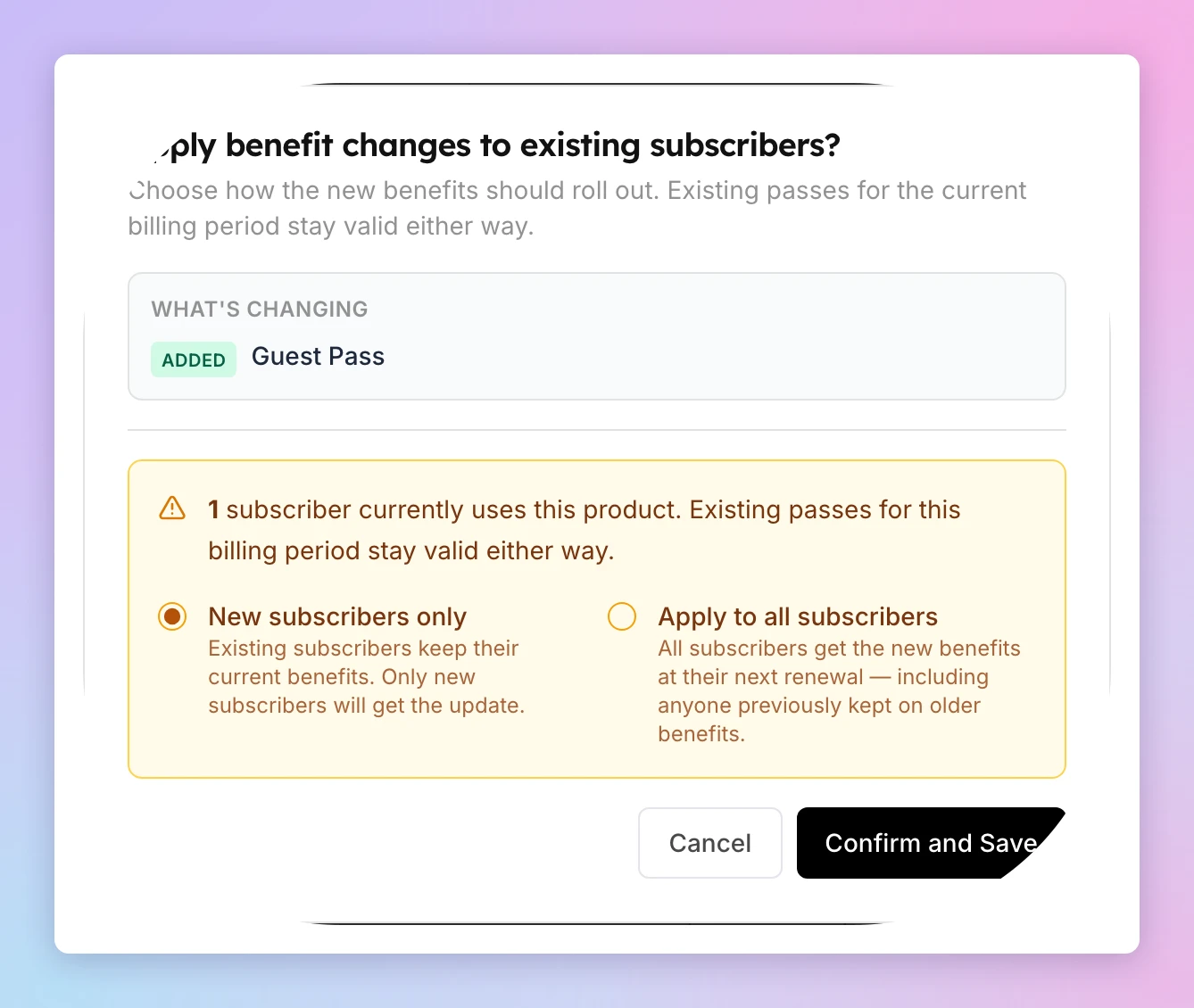
If customers already hold the membership, Save Changes opens Apply benefit changes to existing subscribers?. It lists what is changing (for example, ADDED Guest Pass) and how many subscribers use the membership. Choose one:
- New subscribers only — existing members keep their current benefits. Only new members get the change.
- Apply to all subscribers — every member gets the new benefits at their next renewal.
Then click Confirm and Save. Passes members already hold for the current billing period stay valid either way.
Change or remove a pass on a membership
- Go to Memberships → Catalog, open the membership and click Edit.
- In Booking passes, click the pencil icon on the pass to change it, then click Apply. Click the trash icon to remove it.
- Click Save Changes, and choose how the change rolls out if the dialog appears.
Family memberships
Each family member type in the membership's Family membership section has its own Booking passes list. Use it to give a type of family member (for example, a child) different passes from the main member. See Family member types, rule sets & passes.
To let the whole family share one pass instead, turn on Can be redeemed by family members on the booking pass. See Create a Family-Shared Pass.
If something goes wrong
- The pass is not in the Booking pass list — the pass was not created yet, or the membership already has it. Create it in Booking Passes → Booking Passes.
- The form does not save and the pass row turns red — a value is missing. Set Uses per Cycle (or Unlimited) and Valid for (or Never Expires), then click Confirm again.
- Members hold far more passes than you expected — the pass has Never Expires on, so unused passes rolled over. Reports → Outstanding Booking Passes shows the balances. See Grant booking passes by hand.
- Existing members did not get the new pass — you chose New subscribers only, or members get it at their next renewal. Edit the membership again and choose Apply to all subscribers to include them.
- A member needs a pass right now — grant it by hand from Booking Passes → Pass Holders → Grant New Pass. See Grant booking passes by hand.
Related
- Auto-Allocating with Memberships — what happens to passes when a membership starts, changes, freezes or ends
- Creating a Guest Pass
- Creating a Free Reservation Pass
- Creating a Free Court Hours Pass
- Create a Free Event Pass
- Creating a Free Pass for Events with a Specific Tag
- Creating a Free Lesson Pass
Creating Booking Passes
This guide walks you through creating a booking pass template step by step. Once a template is created, you can grant it to customers by hand or add it to a membership so members get it automatically.
How booking passes work with memberships
How members get booking passes from their membership, when new passes arrive, and what happens to passes when a membership changes, freezes or ends.