

Creating and Editing Memberships
Create a membership in the Catalog, link it to a rule set, add its pricing plans, and choose whether customers can buy it from your homepage.
Create a membership, link it to a rule set, give it one or more pricing plans, and decide whether customers can buy it online. (About 5 minutes. You need at least one rule set.)
Creating a membership
-
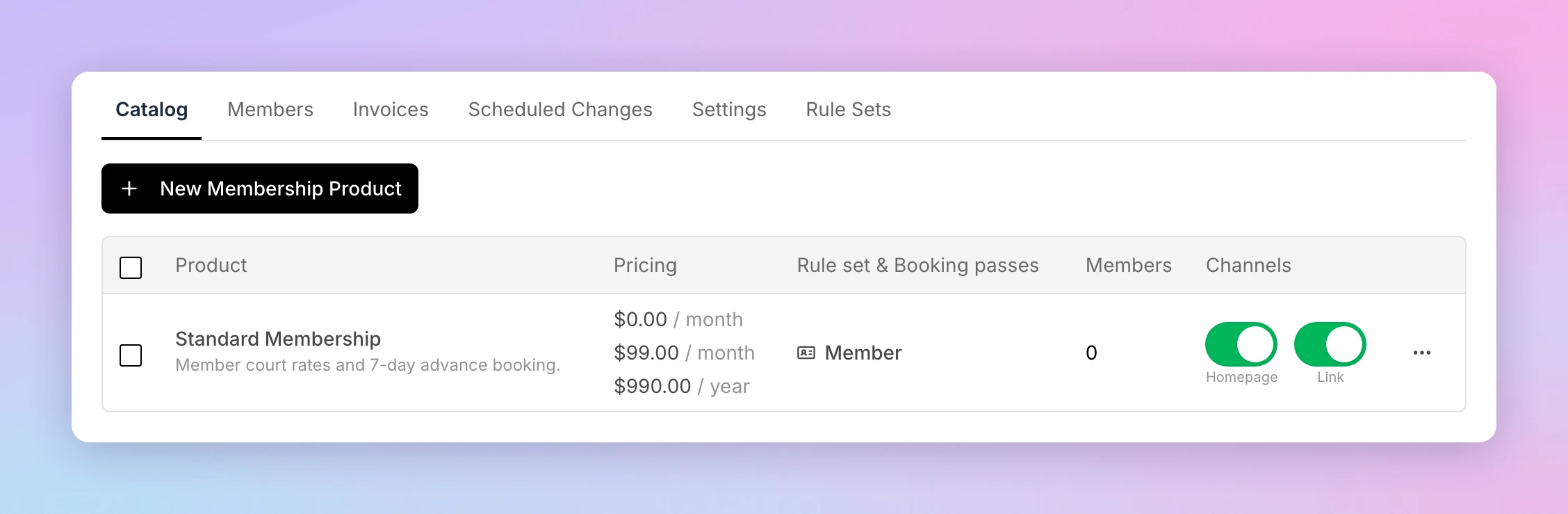
Go to Memberships → Catalog.
-
Click New Membership Product.
-
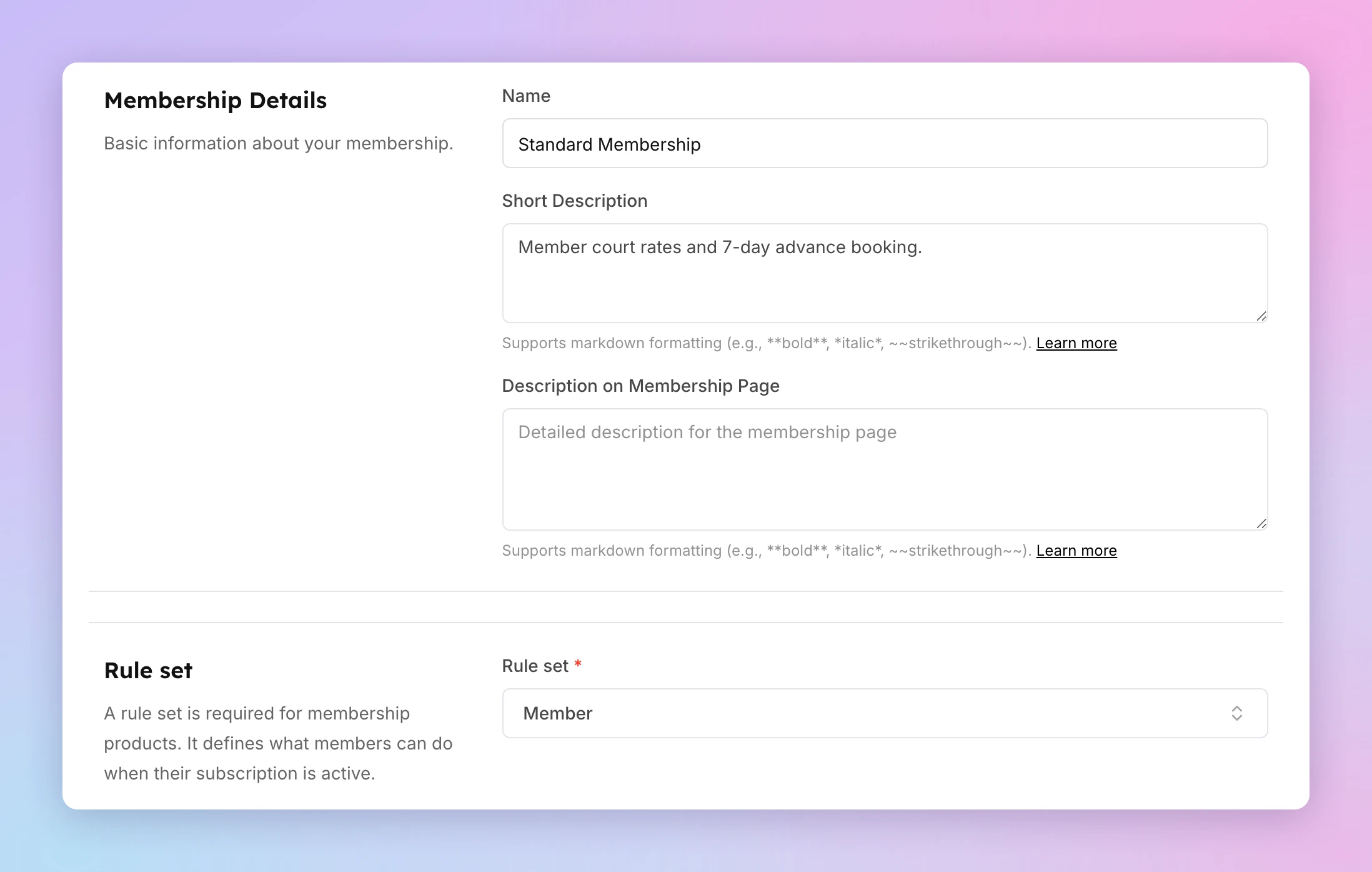
Fill in Membership Details:
- Name — shown to customers on the memberships page and at checkout.
- Short Description — the summary on the membership card.
- Description on Membership Page — the full description. Use it to list benefits and perks.
Both descriptions support Markdown, for example
**bold**and*italic*. -
Under Rule set, choose the rule set members get. It is required. It controls what members can book and what they pay. To make a new one first, see Creating and Managing Rule Sets.
-
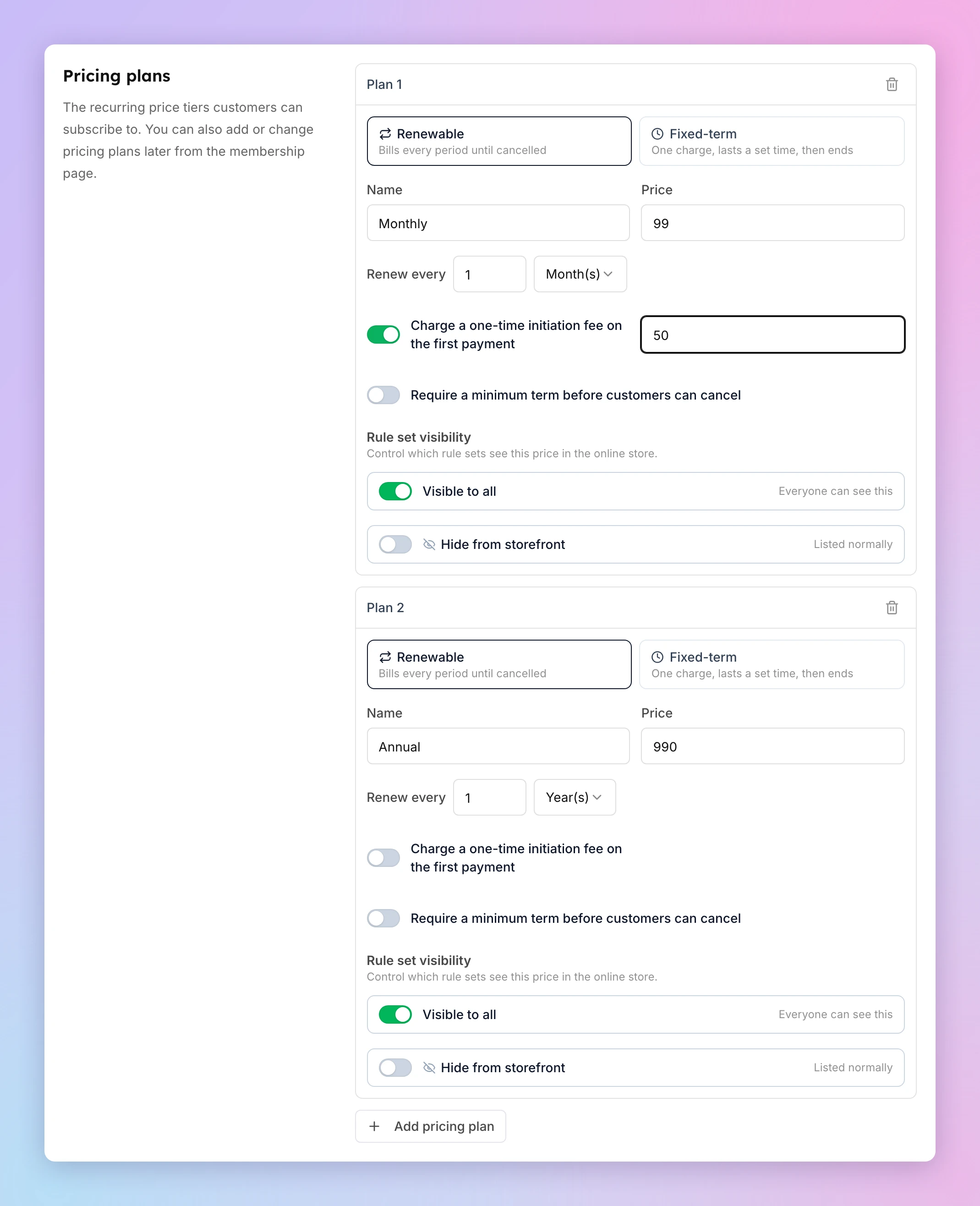
Under Pricing plans, set up at least one plan: choose Renewable or Fixed-term, then enter the Name, Price and how often it renews. Click Add pricing plan for more plans. See Setting Up Membership Plans & Pricing for every option.
-
Optional sections:
- Family membership — let the customer share the membership with family members. See Set up a family membership.
- Purchase limit — Limit to one purchase per customer.
- Booking passes — passes members get each cycle. See Giving booking passes with a membership.
- Custom fields — questions the customer answers at checkout. See Custom fields in memberships.
- Membership Image — a square image for the membership page.
-
Check Sales Channels (next section).
-
Click Create Membership.
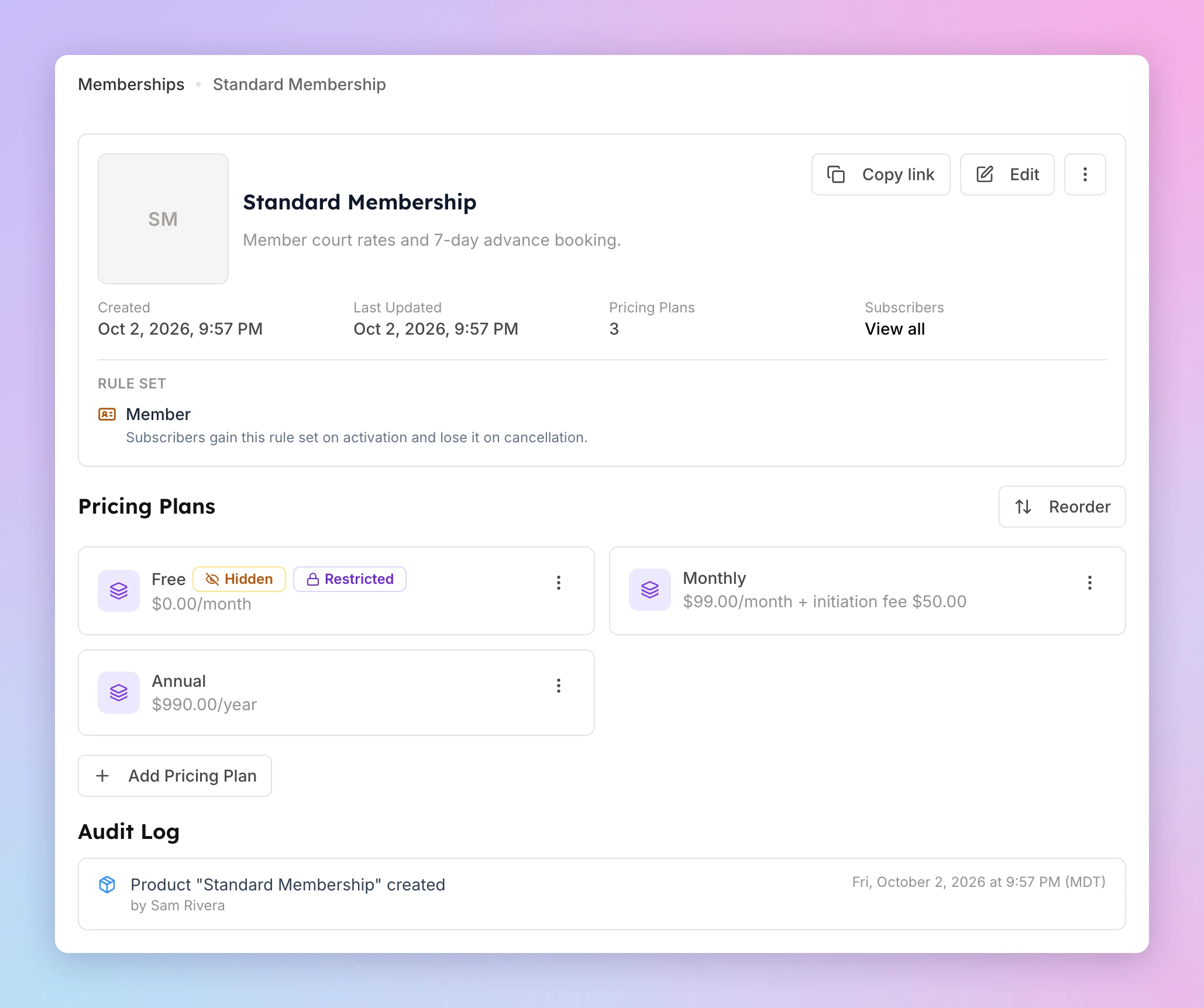
The membership page opens. It shows the rule set, the booking passes and the pricing plans. OpenCourt also adds a hidden Free plan that you can use to give the membership at no charge.
Display a membership publicly or keep it admin-only
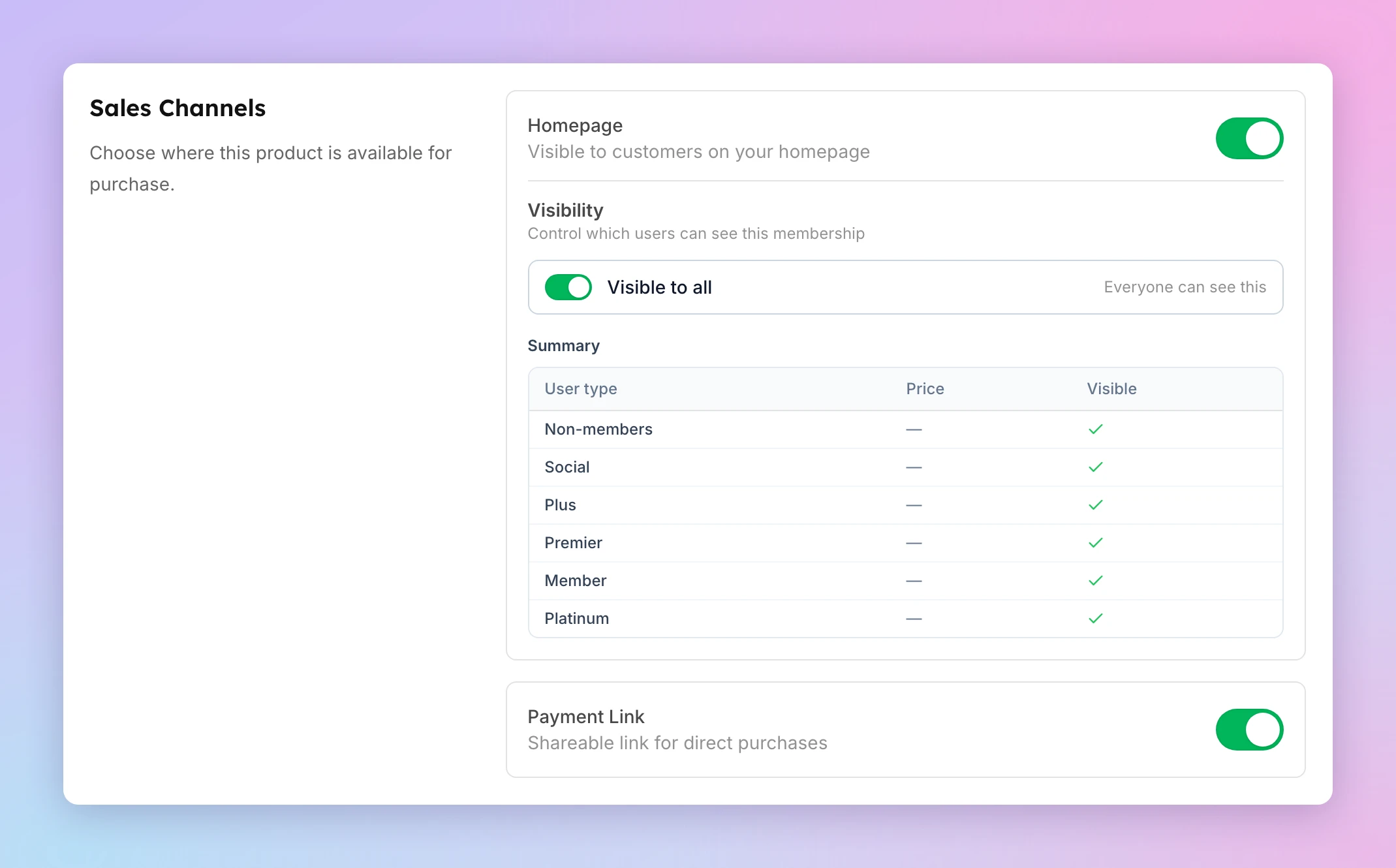
The Sales Channels section of the membership form controls where customers can buy the membership:
- Homepage — on: customers see the membership on your club's memberships page in the app and on the web, and can buy it. Off: the membership is admin-only. Customers cannot see it, but you can still assign it.
- Visibility (shown when Homepage is on) — keep Visible to all, or turn it off to choose which rule sets can see the membership.
- Payment Link — a shareable link for direct purchases, for example in an email to one customer.
Both Homepage and Payment Link are on for a new membership. You can also flip them from the Homepage and Link switches in the Channels column of the Catalog.
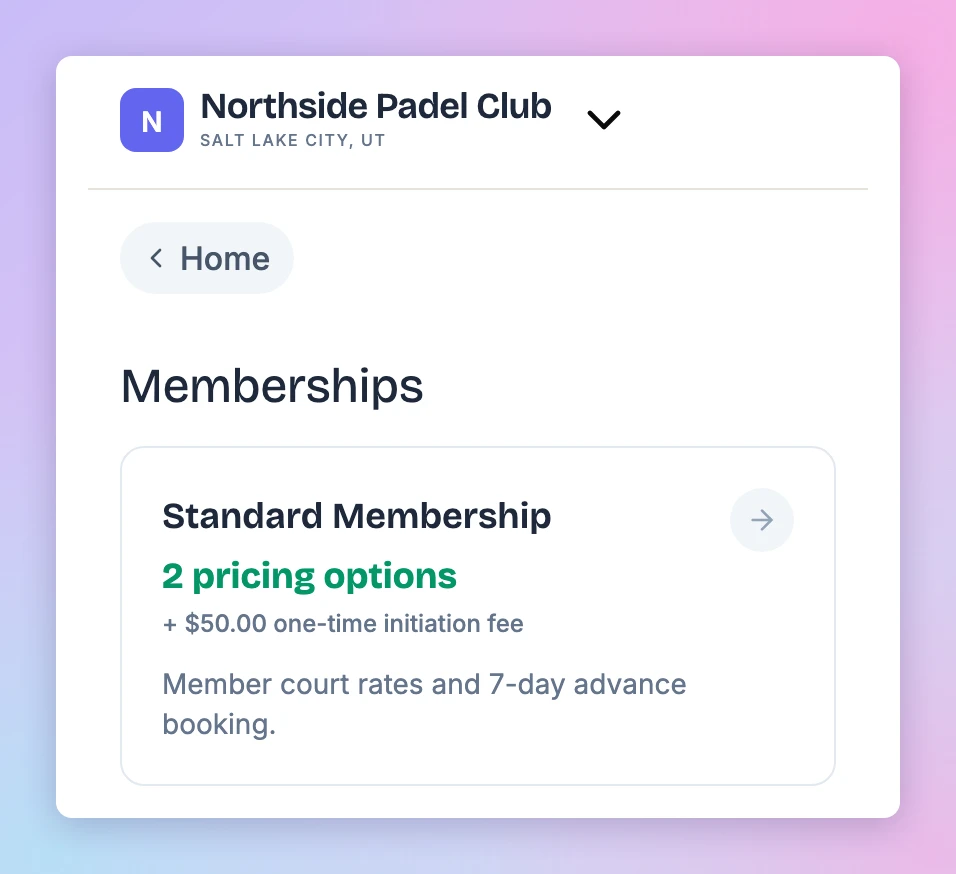
This is what customers see on your memberships page:
Admin-only memberships are useful for:
- Corporate or business agreements
- Special pricing for specific customers
- Private offers or promotions
You can also hide a single pricing plan instead of the whole membership. See Plans customers can buy vs. admin-only plans.
Editing a membership
- Go to Memberships → Catalog and click the membership.
- Click Edit.
- Make your changes and click Save Changes.
Changes to the name, descriptions, rule set and sales channels apply to everyone at once, including existing members. If you change the booking passes of a membership that has members, OpenCourt asks whether the change applies to new members only or to all members.
To change a price, edit the pricing plan instead. See Changing a plan.
Duplicating a membership
On the Catalog tab, open the membership's ⋯ menu and click Duplicate. Use it to start a similar membership without entering everything again.
Archiving a membership
If you no longer sell a membership but it has (or had) members, archive it: on the Catalog tab, open the membership's ⋯ menu and click Archive. A confirmation tells you what happens. Click Archive to confirm.
Customers can no longer buy it and you can no longer assign it. Existing members keep their membership, their access and their billing. The membership no longer appears in the Catalog list.
To archive several memberships at once, select them in the Catalog and click Archive in the bar above the list.
Seeing and unarchiving an archived membership
When you have archived memberships, the Catalog tab shows a Show archived switch with their count. Turn it on to see them at the end of the list, with the date each one was archived and its current members.
To bring one back, open its ⋯ menu (or open the membership and use the banner at the top) and click Unarchive. In the confirmation, choose where it is sold again:
- Show on the club homepage — customers can buy it from your homepage.
- Payment link active — its payment link works again.
Both start with the settings the membership had when you archived it. Click Unarchive to confirm. The membership returns to the Catalog, and you can edit and assign it again.
If a booking pass of the membership was archived in the meantime, the confirmation names it. New members won't get that pass until you restore it on the Booking Passes page.
An archived membership's page is read-only: you can see its details, but you can't edit it until you unarchive it.
Removing a membership
A membership that has never had a member shows Remove instead of Archive in its ⋯ menu. Removing deletes it.
Moving a member to a different membership
Open the customer's profile, go to the Membership tab, and click Change Membership. See Upgrading / Downgrading Membership.
Troubleshooting
Customers cannot see the membership. Check that Homepage is on, that Visibility includes the customer's rule set, and that at least one pricing plan is not hidden from the storefront.
I cannot save the membership. A rule set and a name are required. The form highlights the missing fields.
What's next
Subscriptions vs. memberships
Both bill customers on a schedule and can include booking passes. A membership also gives a rule set and can cover a whole family. Use this comparison to pick the right one.
Setting Up Membership Plans & Pricing
Each membership can have multiple pricing plans — different ways for customers to pay for the same membership.