

Run a membership presale
Collect early signups for memberships before they go live — with an optional presale fee or deposit — then turn each signup into a real membership when you're ready.
Open memberships for signup before your club opens, take an optional presale fee or deposit, and turn each signup into a real membership when you're ready. (About 15 minutes to set up. You need your memberships created first.)
Before you begin
- Your memberships already exist, each with at least one pricing plan. A presale sells plans you have already created — see Setting Up Membership Plans & Pricing.
- To charge a presale fee, your club accepts card payments. A free presale collects a card but charges nothing.
Turn on Membership Presale in your sidebar
Membership Presale is hidden until you switch it on.
-
Go to Memberships → Settings.
-
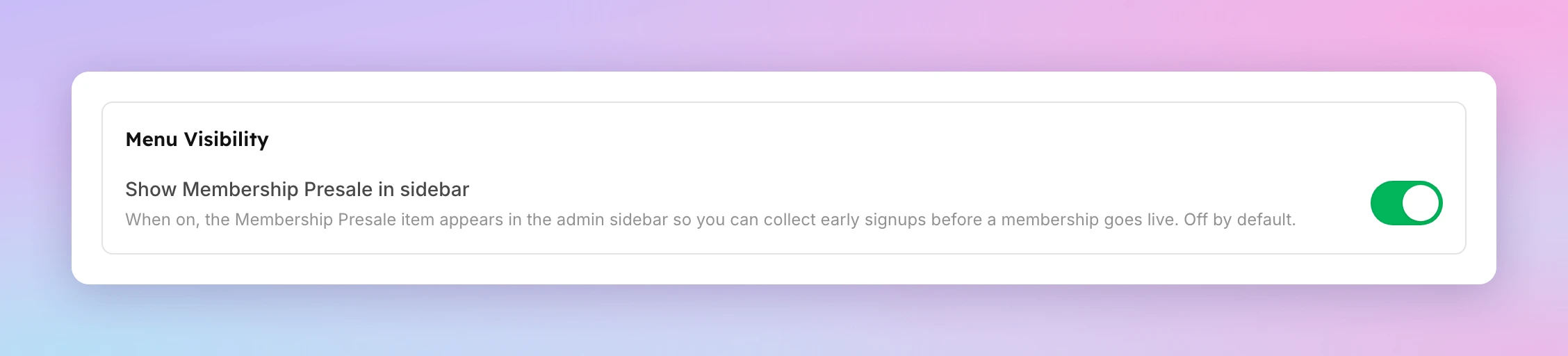
Under Menu Visibility, turn on Show Membership Presale in sidebar.
-
Click Save Changes at the bottom of the page.
Membership Presale now appears in your sidebar.
Add memberships to your presale
-
Go to Membership Presale, then open the Presale Settings tab.
-
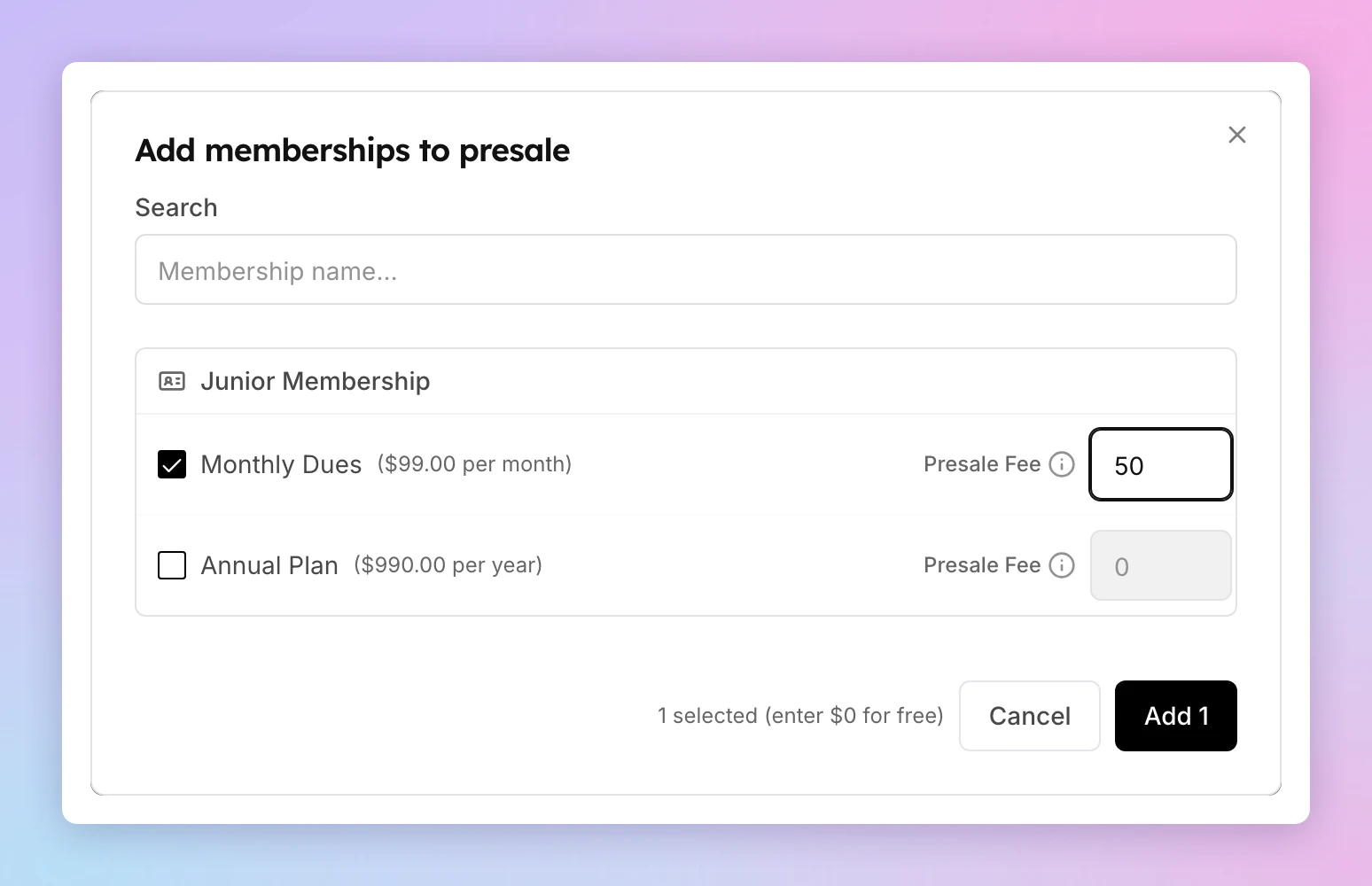
Click Add memberships.
-
Tick each pricing plan you want to offer.
-
Enter a Presale Fee for each ticked plan. This is what the customer pays when they sign up. Enter 0 for a free presale.
-
Click Add.
Your plans appear in the table, grouped by membership.
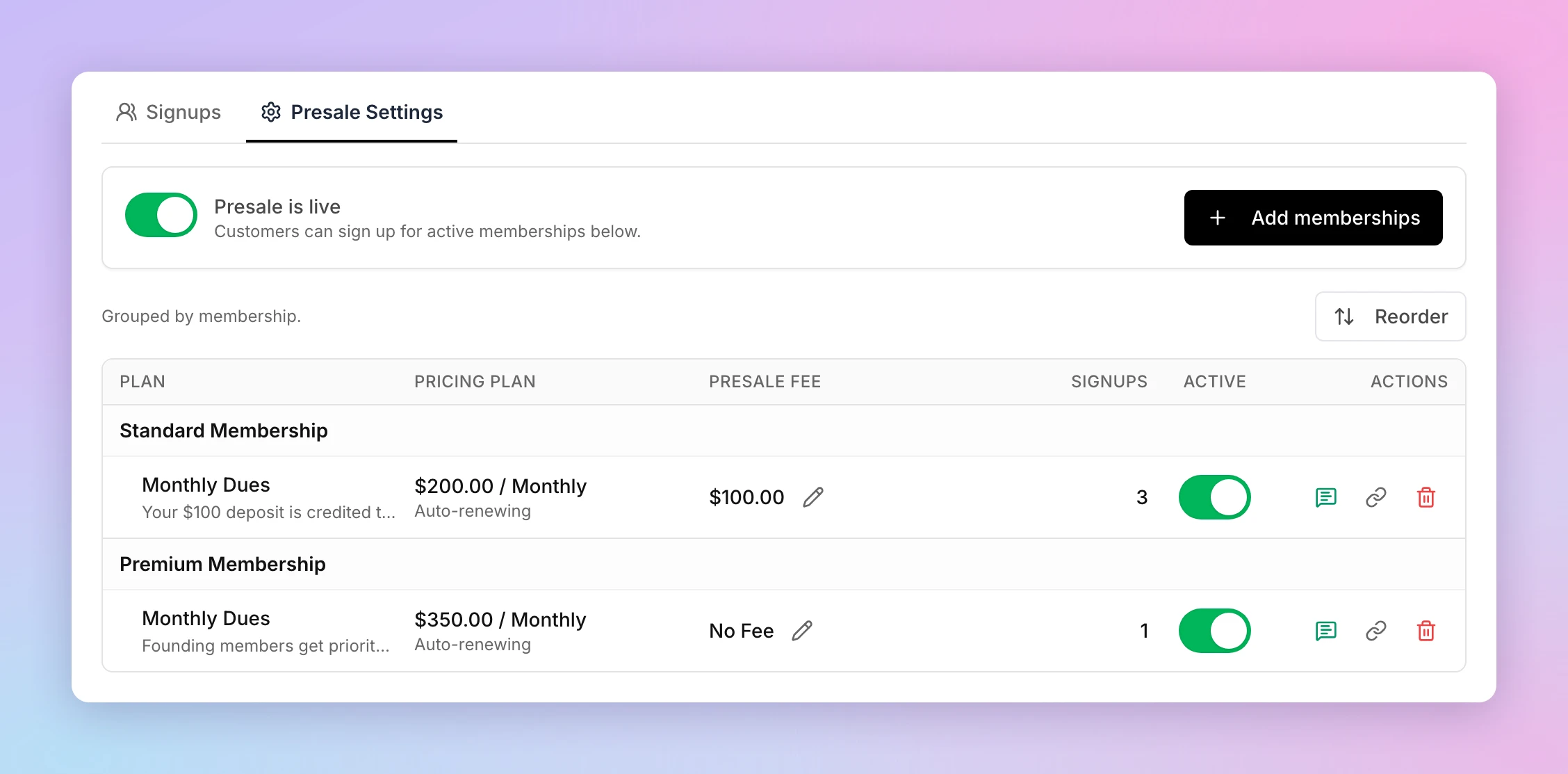
To change a fee later, click the pencil next to it. The new fee applies to new signups only — customers who already signed up keep what they paid.
Add a confirmation note to a plan
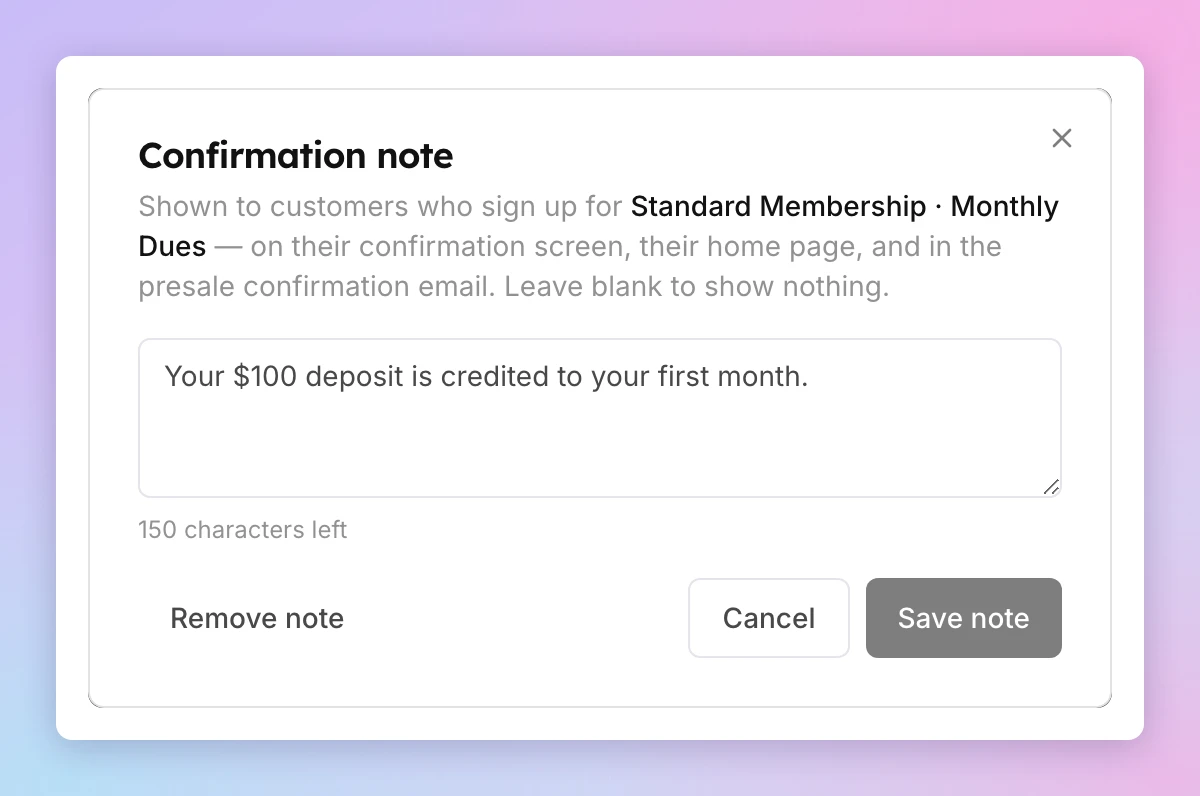
A confirmation note is one sentence customers see after they sign up for that plan. Use it for anything you have promised on top of the price, such as "Your $100 deposit is credited to your first month."
Each plan has its own note, so a founding-member offer and a standard plan can say different things.
-
In the plan's row, click the note icon in Actions.
-
Type your note.
-
Click Save note.
The icon turns green, and the note shows under the plan's name in the table. Customers see it on their confirmation screen, on your club's Memberships page, and in their presale confirmation email.
To take a note off, open it again and click Remove note.
Open the presale to customers
- Presale is live at the top of Presale Settings is the master switch. When it is off, customers cannot see or sign up for any presale plan.
- The Active switch in each row shows or hides that one plan.
- To share a plan directly, click the link icon in Actions. The presale link is copied to your clipboard.
- To change the order customers see, click Reorder, drag memberships and plans into place, then click Save Order.
To take a plan out of the presale, click the delete icon in Actions. Its existing signups are kept.
What your customers see
Presale plans appear on your club's Memberships page, each marked PRESALE.

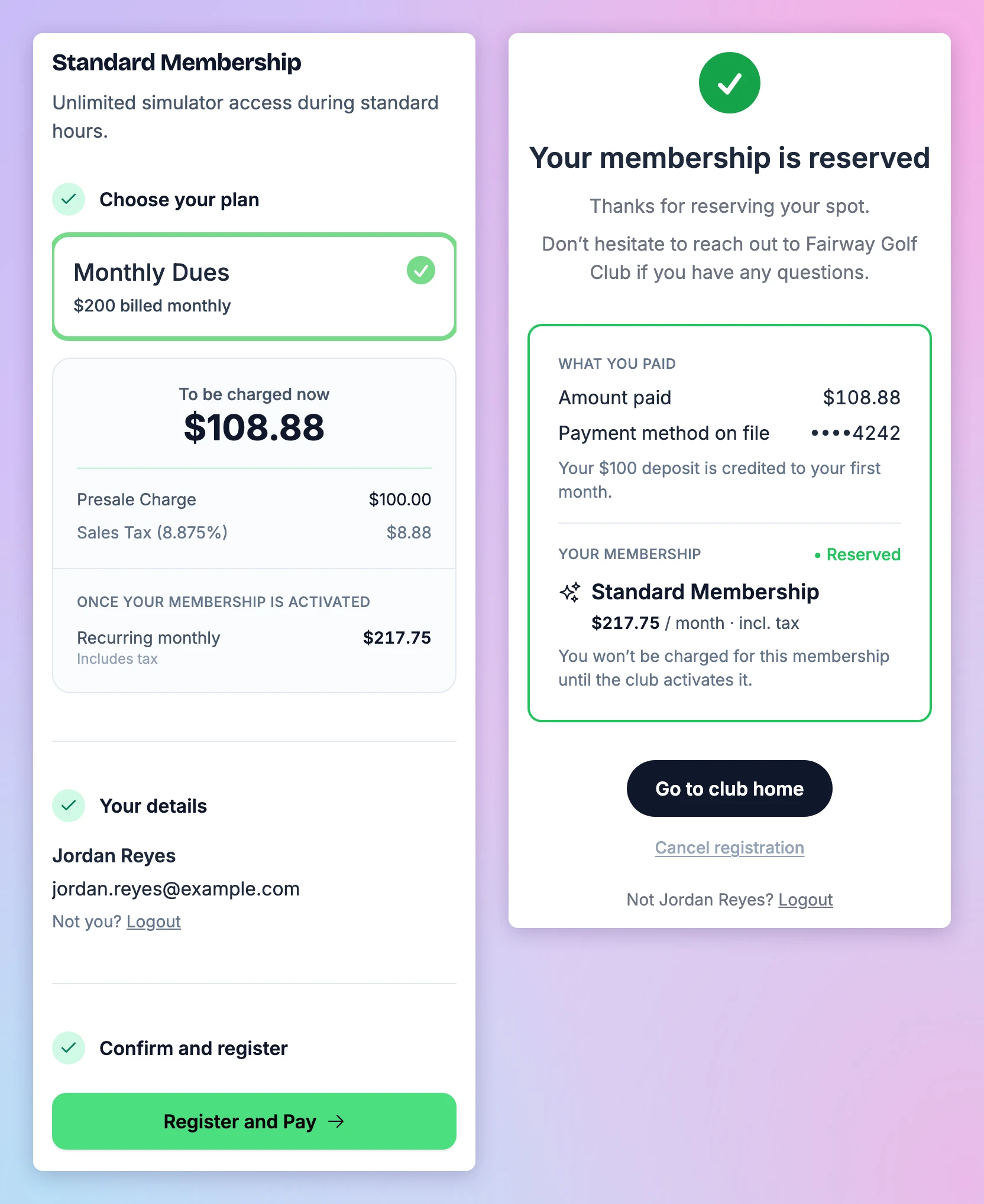
When a customer opens a plan, they see what they will be charged now and what the membership costs after that.
- For a plan with a presale fee, they tap Register and Pay, add a card, then tap Pay.
- For a free presale, they tap Register, add a card, then tap Submit. The card is saved, not charged.
Once they have signed up, a confirmation screen shows What you paid, including your note for that plan, and Your membership, with a line saying they won't be charged for the membership until you activate it.
Customers also receive a presale confirmation email and, for a paid presale, a receipt. Their signup stays visible under Your Reservations on your Memberships page until they have an active membership.
A customer can cancel their own signup from their confirmation screen or the Memberships page. Their payment is not refunded automatically — they are told to contact you.
Manage your signups
The Signups tab lists everyone who signed up. Filter by status or by membership, search the list, or use the Export button to download it.
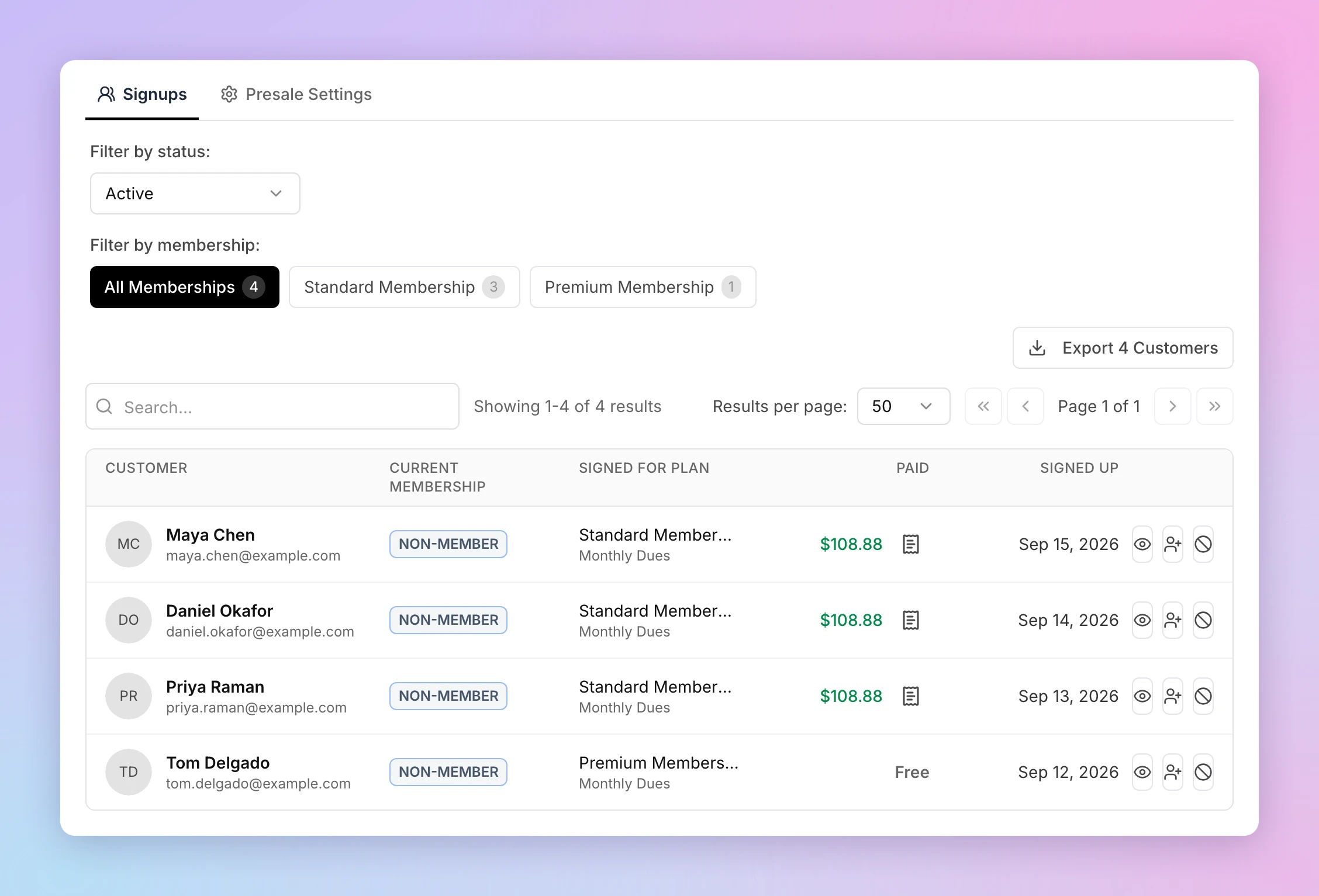
Each row has three actions:
| Icon | What it does |
|---|---|
| View customer profile | Opens the customer's profile. |
| Assign membership | Starts their real membership — see the next section. |
| Cancel presale signup | Cancels the signup. |
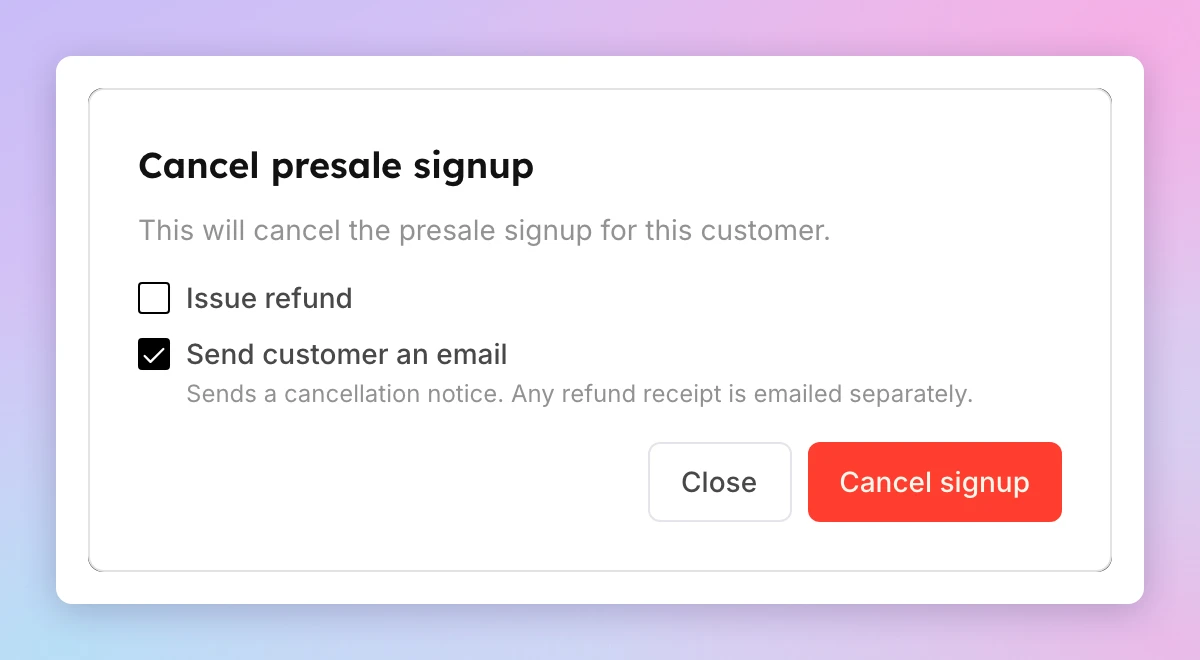
When you cancel a signup, you choose whether to Issue refund (paid signups only) and whether to Send customer an email. A refund receipt is emailed separately.
Turn a signup into a membership
When you're ready to open, start each customer's membership from their signup.
-
On the Signups tab, click Assign membership in the customer's row.
Create Subscription opens with the customer, the membership and the plan they signed up for already filled in.
-
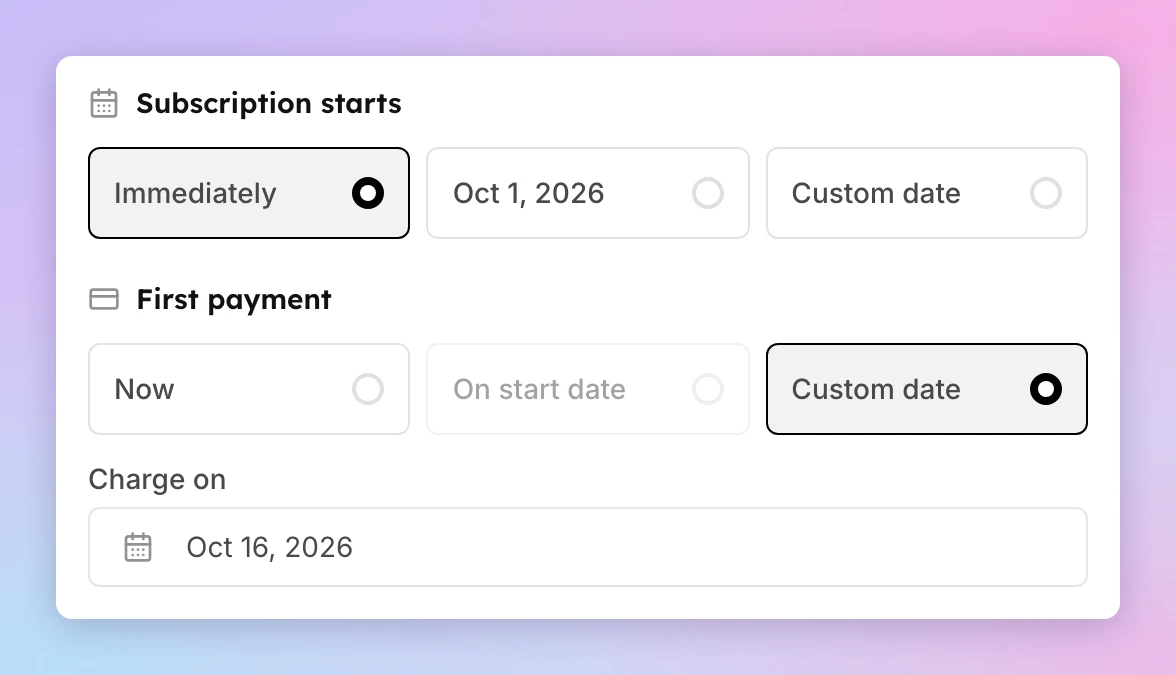
Under Subscription starts, choose when their membership benefits begin.
-
Under First payment, choose when their first charge happens.
To credit a presale deposit against their first period, choose Custom date and set Charge on to one billing period after the start date.
-
Choose the Payment method to charge. The card the customer used for their presale is listed as a saved card.
-
Click Start Checkout.
Their membership now shows under Current membership on the Signups tab.
You don't need to cancel the presale signup afterwards — Current membership already shows who you have converted. Cancelling it would send the customer a cancellation notice unless you untick Send customer an email.
For more on the Create Subscription page, see Selling a membership to customers.
If something goes wrong
- Membership Presale isn't in your sidebar — check these in order:
- The switch is off. Turn on Show Membership Presale in sidebar under Memberships → Settings. It applies to your whole club, so another admin may already have turned it on.
- Your role is missing a permission. The sidebar item needs Memberships & Subscriptions, and opening Memberships → Settings needs Rule Sets (Booking Rates & Rules). Ask an admin who manages your team under Settings → Admin Team to add them to your role.
- Presales aren't available for your club yet. If an admin with both permissions sees no Menu Visibility section under Memberships → Settings, contact support.
- Customers can't see a presale plan — check that Presale is live is on and the plan's Active switch is on. A plan marked Plan archived is hidden from customers: restore it in your membership catalog, or remove it from the presale.
- A plan is missing from Add memberships — it is already in your presale, or it doesn't exist yet. Create it under Memberships → Catalog first.
- A customer cancelled and wants a refund — cancelling doesn't refund them. Refund the payment from Orders & Transactions — see Processing refunds.
- Existing signups show an old presale fee — fee changes apply to new signups only. Each customer keeps the amount they paid.
- A customer didn't get your note by email — the confirmation email goes out when they sign up. A note added later shows on their confirmation screen and Memberships page, but not in an email they already received.
Related
Creating and Managing Rule Sets
A rule set decides what its members can book, what they pay, how far ahead they see and book the schedule, and how cancellations are refunded. Learn how customers get a rule set, and how prices work in each pricing mode.
When a membership or subscription payment fails
What happens when a renewal payment fails: the Past Due status, automatic retries, what the customer keeps and receives, how to collect the payment, and what happens if it is never paid.