

Sell a membership to a customer
Assign a membership from a customer's profile: pick the membership and plan, choose when it starts and when they pay, then take payment or give it for free.
Sell a membership to a customer at the front desk, or give one for free, from their profile. (About 3 minutes. You need the customer's profile and at least one membership in Memberships → Catalog.)
Before you begin
- The customer has a profile at your club. If they don't, add them first.
- The membership and its pricing plans exist. See Creating and editing memberships.
- The customer doesn't already hold an active membership. To move a member to a different membership, use Change Membership instead.
Open the customer's Membership tab
- Go to Users and open the customer's profile.
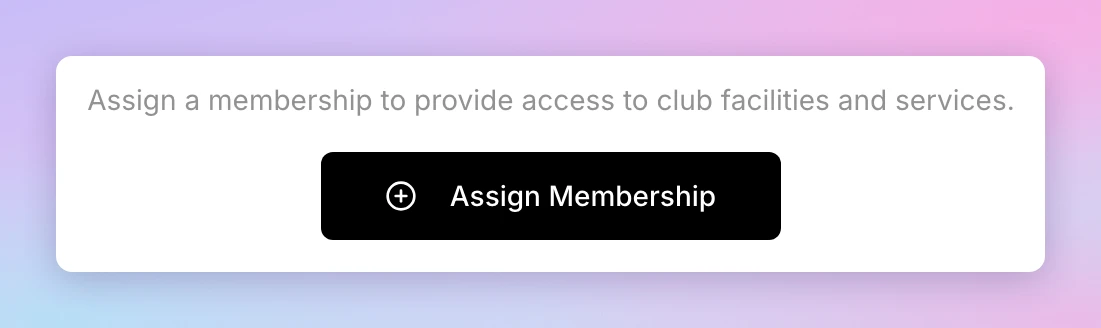
- Click the Membership tab. A customer with no membership sees "Assign a membership to provide access to club facilities and services."
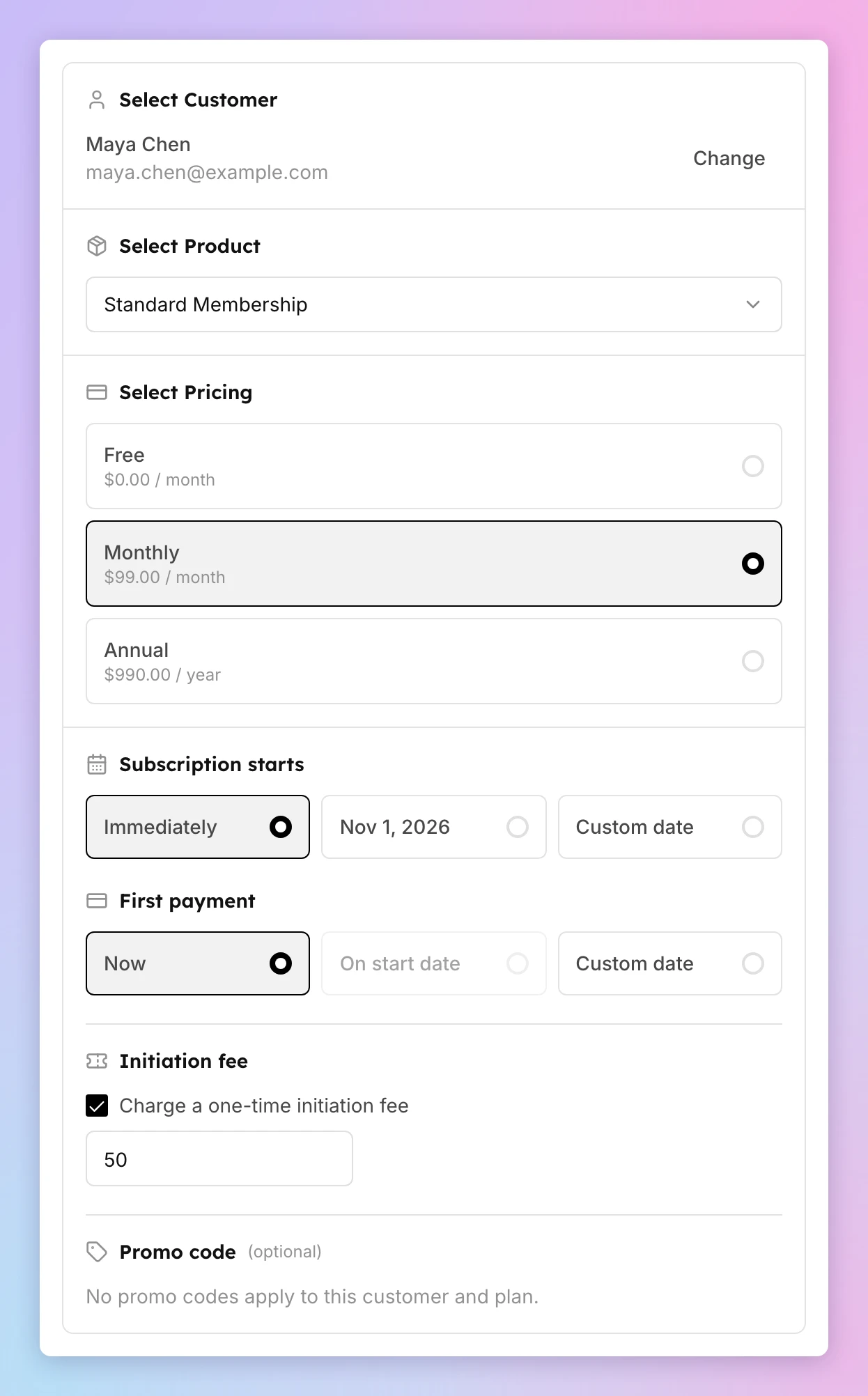
- Click Assign Membership. The Create Subscription page opens with the customer already selected under Select Customer. To pick someone else, click Change.
Choose the membership, plan and dates
- Under Select Product, pick the membership.
- Under Select Pricing, pick the plan. Every plan shows here, including plans hidden from your online store and the Free plan ($0.00).
- Under Subscription starts, choose Immediately, the 1st of next month, or a Custom date. Dates use your club's time zone, and you can't pick a day before today.
- Under First payment, choose when the customer pays for the first time:
- Now — you take payment on the next screen.
- On start date or Custom date — no payment today. Choose a saved card under Payment method, or click Add new card. The card is charged on that date and on each renewal.
- If the plan has an initiation fee, the Initiation fee section shows. Charge a one-time initiation fee is checked. Change the amount, or uncheck it to waive the fee. A waived fee shows in the membership's activity log, with the amount and who waived it.
- (Optional) Enter a code under Promo code.
- Check the Order summary. It shows the first payment and the next renewal.
- Email the customer about this membership is checked by default. Uncheck it if you don't want to send the email.
Take payment
With First payment set to Now:
- Click Start Checkout.
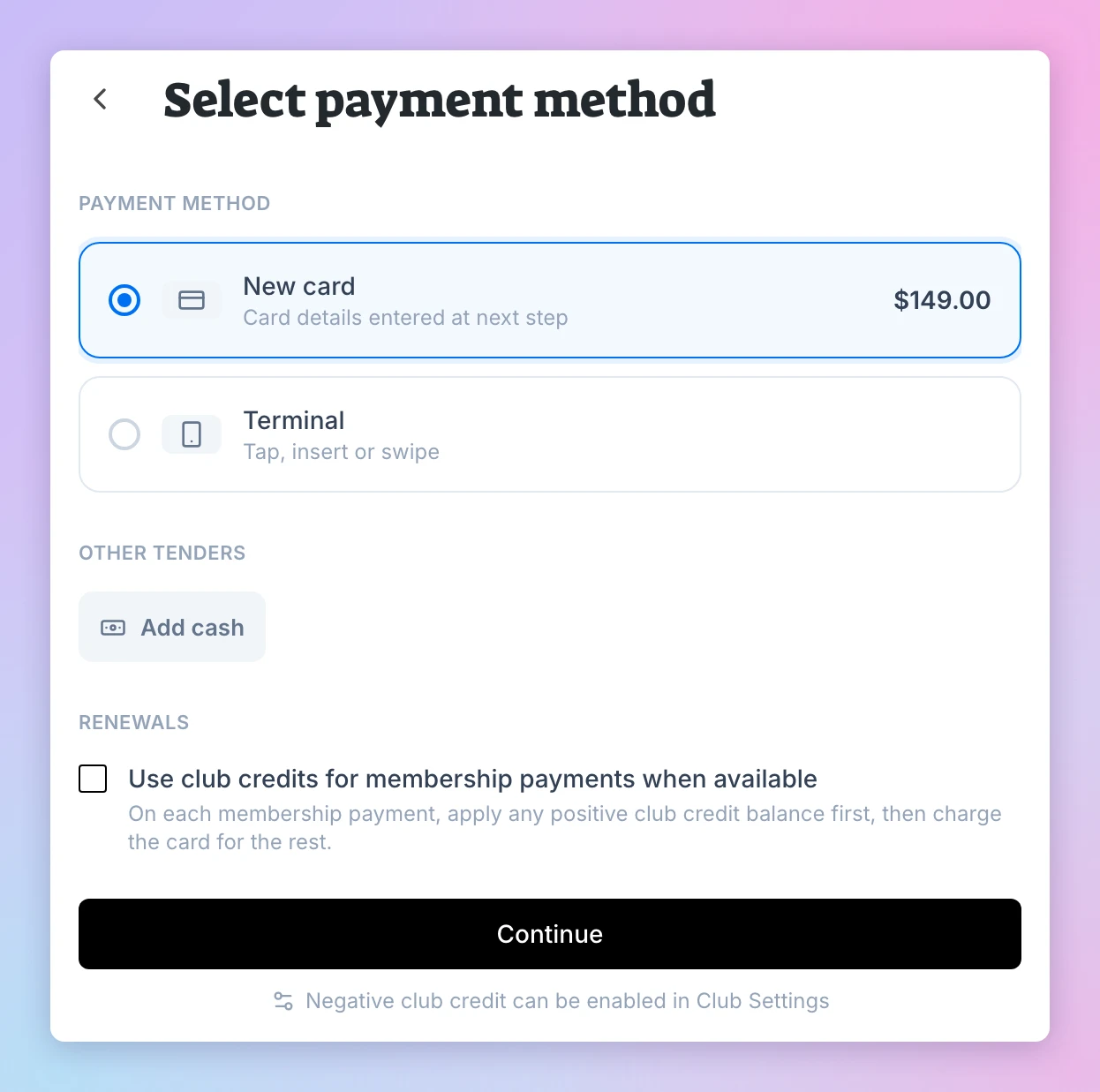
- Under Select payment method, choose how the customer pays:
- New card — you type the card details on the next step.
- Terminal — the customer taps, inserts or swipes their card on your reader.
- Add cash or another payment type your club accepts.
- (Optional) Under renewals, check Use club credits for membership payments when available to pay renewals from the customer's club credit first.
- Click Continue and complete the payment.
With a later first payment, click Create Subscription instead. The membership is created and the saved card is charged on the date you chose. The Subscription Created screen (Subscription Scheduled for a later start) shows the first invoice. With Custom date, it reads Invoice of $X due and the date, with tax and fees included. With On start date, it reads First invoice of $X before tax and fees will be issued on the start date. An initiation fee shows on its own Initiation fee row.
A membership that starts Immediately with a Custom date first payment is in Trial until that date. To move the date later, or to end the trial early and charge now, see Change when a trial membership is first charged.
Give a membership for free
Use the Free plan for staff, partners, or a trial.
- Under Select Pricing, pick Free ($0.00).
- (Optional) Set Expiration date. The membership ends on that date. Leave it empty for a membership that never expires.
- Click Start Checkout. The payment step shows No card needed.
- Click Confirm free order.
You see Subscription Created for an immediate start, or Subscription Scheduled for a later start. Click View Subscription to open it, or Create Another to assign one more.
What happens next
The customer gets the membership's rule set and booking passes when the membership starts. If you left the email checked, they also get a confirmation email. The membership shows on their Membership tab as Current Membership, with its start date and renewal date.
If something goes wrong
- "This customer already has an active membership: … Cancel it before assigning another." — a customer can hold one active membership. Use Change Membership on their Membership tab to move them to a different one. See Upgrade or downgrade a membership.
- You don't see Assign Membership — the customer already has a membership, or they are on someone else's family membership. Both show under Current Membership.
- You can't continue with a later first payment — a paid plan needs a card for renewals. Choose a saved card, or click Add new card.
- The customer hasn't signed your waiver — send them the waiver link or QR code. See Sign a waiver at the front desk.
Related
Adding a new customer
Most of the time, new customers create an account on OpenCourt on their own within a minute by entering their email and their name.
Change when a trial membership is first charged
Move a trial membership's first payment to another date, or end the trial today and charge the customer now.