

Upgrade or downgrade a membership
Move a member to a different membership or pricing plan, or shift their renewal date, now or on a date you choose.
Move a member to a higher or lower membership, switch them from monthly to annual billing, or move their renewal date, without cancelling and re-selling. (About 2 minutes. The member needs an active membership.)
When to use it
- Upgrade a member to a higher-tier membership, or downgrade them to a lower one.
- Switch a member between pricing plans of the same membership, for example Monthly to Annual.
- Move the date a member renews, while they keep the same membership and price.
Change a membership
-
Go to Users, open the member's profile, and click the Membership tab.
-
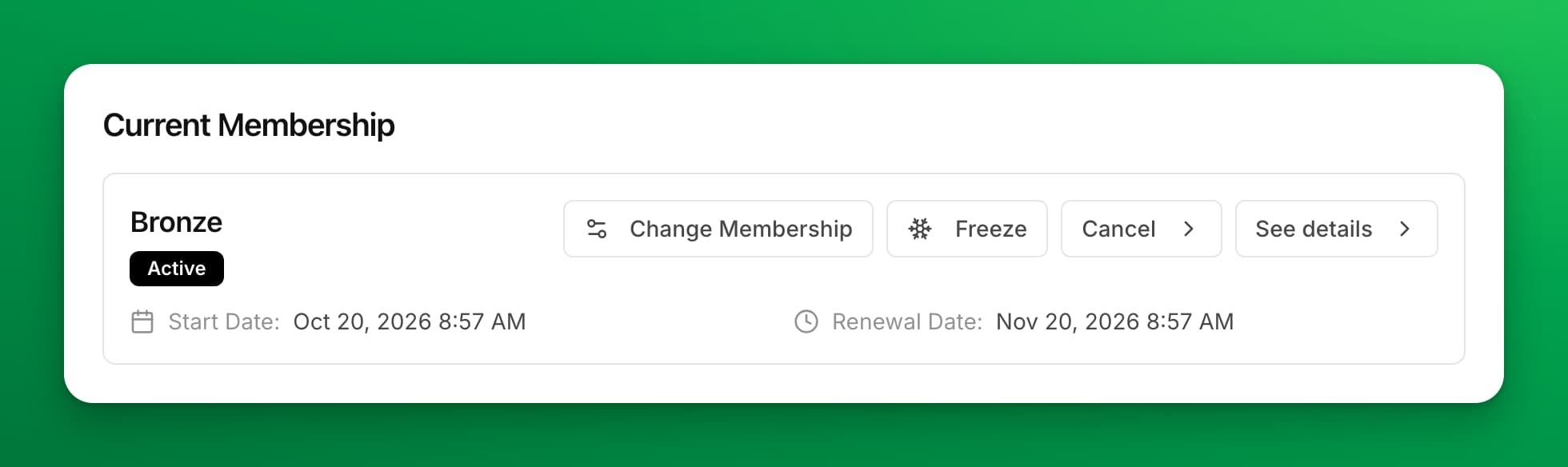
Under Current Membership, check the membership name, its Start Date and its Renewal Date.
-
Click Change Membership. The Update Membership panel opens.
-
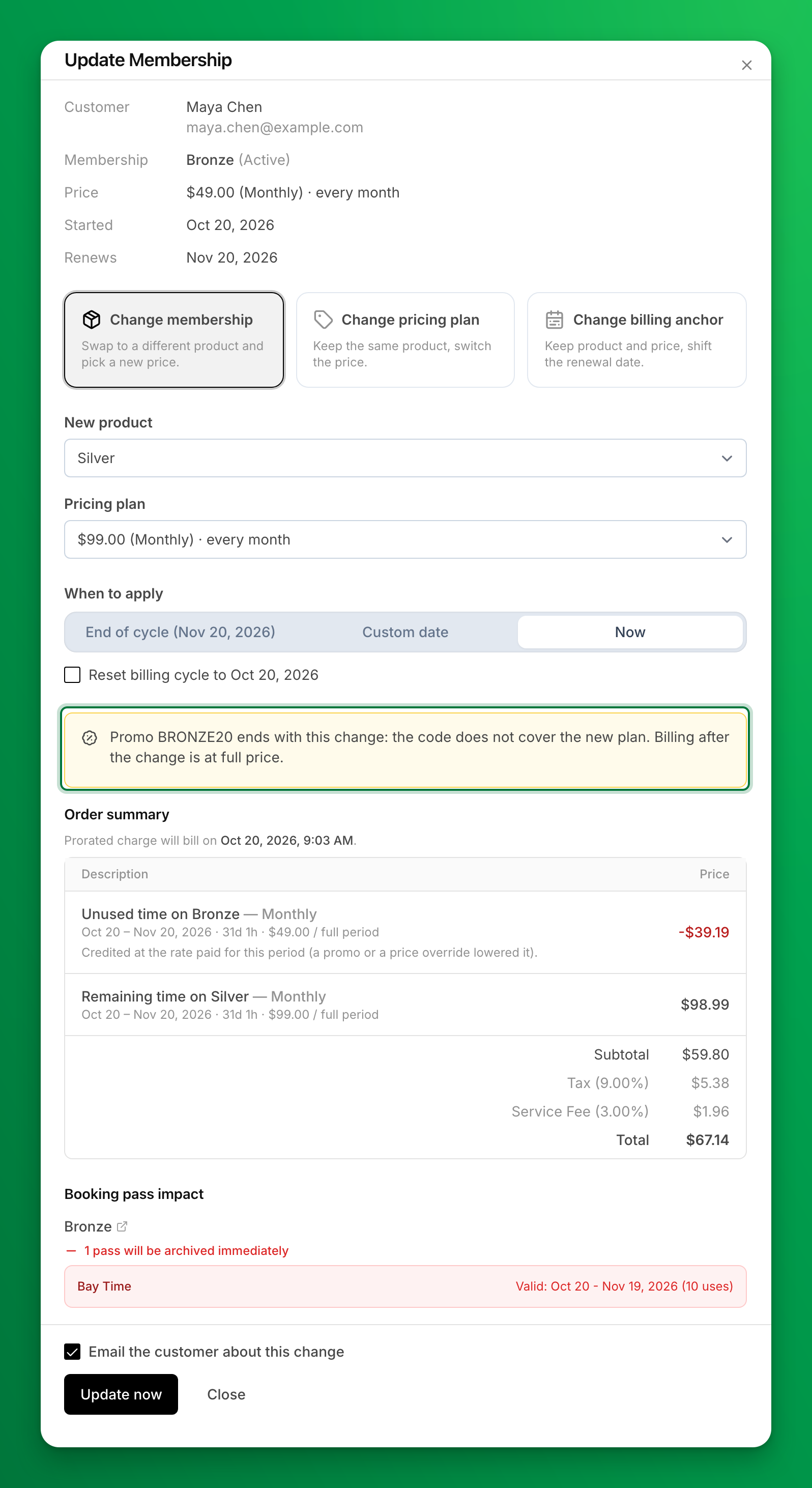
Choose what to change:
- Change membership — swap to a different membership and pick a new price. Choose the New product, then its Pricing plan.
- Change pricing plan — keep the same membership and switch the price. Choose the Pricing plan.
- Change billing anchor — keep the membership and price, and shift the renewal date.
-
Under When to apply, choose:
- End of cycle — the change happens on the member's next renewal date, which shows next to the option. This is the default. When the member's current plan is fixed-term, it reads End of term.
- Custom date — the change happens on the date you pick.
- Now — the change happens right away. Change billing anchor does not offer it.
-
(Optional, for Custom date and Now) Check Reset billing cycle to a date, so the next billing period starts on that date. It is unchecked by default. It is checked for you when the billing interval changes, for example from monthly to annual. It is not offered when the new plan is fixed-term.
-
Check the Order summary and the Booking pass impact. If the member has a promo code, a note above the order summary says whether it continues on the new plan or ends.
-
The email checkbox is checked by default. Uncheck it if you don't want the member to get an email about the change.
-
Click Update now, or Schedule update for a change on a later date.
How billing works when you change a membership
- The unused time is credited at the rate the member paid, not at the list price. If a promo code or a price override lowered the price, the credit is lower too. The order summary then says Credited at the rate paid for this period.
- The remaining time on the new plan is charged at its price. If the member's promo code continues, the charge includes the discount only when the same promo also discounted the period the member already paid. A promo added after that payment does not discount the remaining time.
- With Now, the difference is charged right away. It comes from the member's club credit first, if the membership uses club credit, then from the card on file.
- A difference below $0.50 is not charged. The change still happens, and the order summary says so.
- If that payment fails, the change stays and the membership is marked past due.
- If the new plan costs less, the difference goes to the member's club credit. The card is not refunded.
- The initiation fee is not charged again.
- The rule set changes with the membership. With Now, the new rule set applies immediately. With End of cycle or Custom date, it applies when the change takes effect.
When you reset the billing cycle
- The member pays for one full new period from the reset date. The unused time they already paid for is credited against it. They pay the full period even when the reset date is the renewal date. If they have not paid for the current period, nothing is credited.
- A fixed service fee, if your club charges one on memberships, is added once, as on a renewal. It is added only when the reset ends in a charge to the member.
- Trials and memberships that haven't started yet are not charged for a reset.
When you switch to a fixed-term plan
The member pays the full term price of the new plan. The unused time they already paid for is credited against it.
What happens to a promo code
| The promo code… | What happens |
|---|---|
| covers the new plan | It continues. The note says how many discounted periods are left. |
| does not cover the new plan | It ends with the change. Billing after the change is at full price. The note is yellow, so you see it before you save. |
| is used up | Nothing changes, and no note shows. |
| can't be checked against the new plan | It stays on the subscription. The note says so. |
When you change several members at once, a yellow banner says how many of them lose their promo, and which codes end.
Review or cancel a scheduled change
A scheduled change shows on the member's Current Membership card: "Scheduled to change plan on … The current plan applies until then."
To see every scheduled change at your club, go to Memberships → Scheduled Changes. Click Cancel change to remove a change before it takes effect.
A scheduled change stays in place if you freeze and then resume the membership.
If something goes wrong
- You don't see Change Membership — the button shows only for an active membership. A frozen membership, or one with a cancellation you scheduled, doesn't show it. Resume the membership, or remove the cancellation with Restore renewal, first.
- "Product swap isn't available" — your club has no other membership to move to. Create one in Memberships → Catalog, or use Change pricing plan.
- Change billing anchor isn't offered — fixed-term plans don't renew, so they have no renewal date to move.
- A yellow note says an unpaid invoice covers part of the period — the change charges for days that an open invoice also charges for. Void that invoice or collect it first. If you don't, the member can pay for the same days twice.
- The promo should continue, but the note says it ends — the promo code does not cover the new plan. Check which plans the code applies to in Promo Codes. The note uses the code's current settings.
- You want to give a second membership — a customer can hold one active membership. Assign Membership refuses a second one with "Cancel it before assigning another." Use Change Membership instead.
Related
Ask custom questions when a customer buys a membership
Add your own text questions to a membership's checkout, such as a partner's name or a T-shirt size, and see each customer's answers.
Club Credit
Club Credit lets customers store value in their OpenCourt account and use that balance to pay for almost anything at the club — from court bookings and event registrations to POS purchases in the pro shop.