

Creating and managing a family account
Create a family for a customer, add family members with or without their own login, and see every family at your club.
A family groups a customer with the people they look after, such as a partner and kids. Customers usually create their own family, and you can create one for them. (About 3 minutes.)
A family is the list of people a customer can put on a family membership or share a family booking pass with. Being in a family alone gives nobody membership benefits.
Two kinds of family member
- A person with their own account — best for a spouse, partner, or adult who wants to make their own bookings and join events, lessons and Open Play on their own.
- A dependent without an account — best for a child, or anyone who does not need their own login or email. The family's primary member manages them.
How customers create a family
- In their profile, the customer opens My Family.
- They click Create your family and enter a family name.
- To add someone, they click Add a member, then choose:
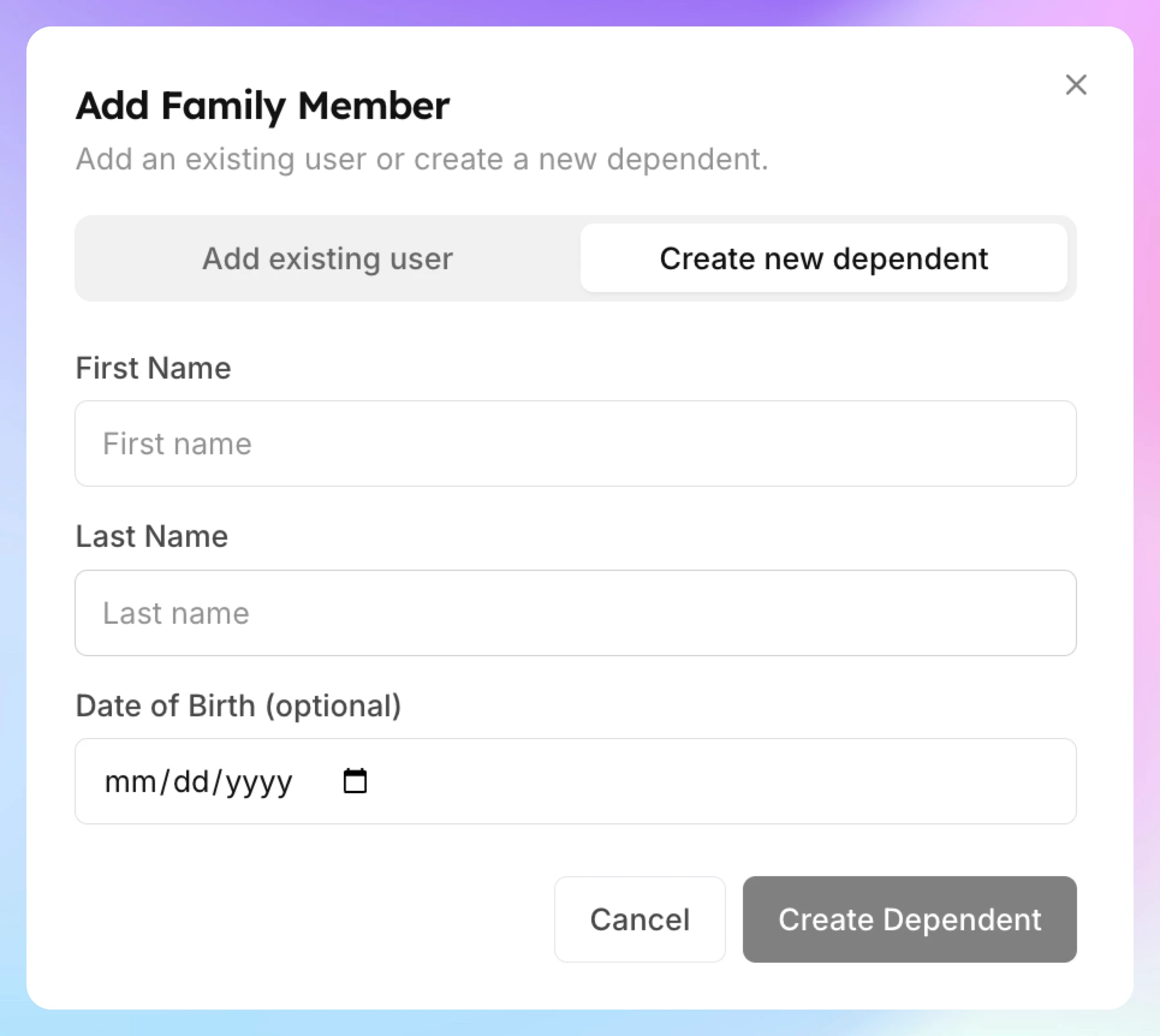
- No account — for a child or anyone without their own login. They enter a first name, a last name and, optionally, a date of birth.
- Has an account — they enter the email the person uses to sign in to OpenCourt. That person must have created an account first.
Where to see families
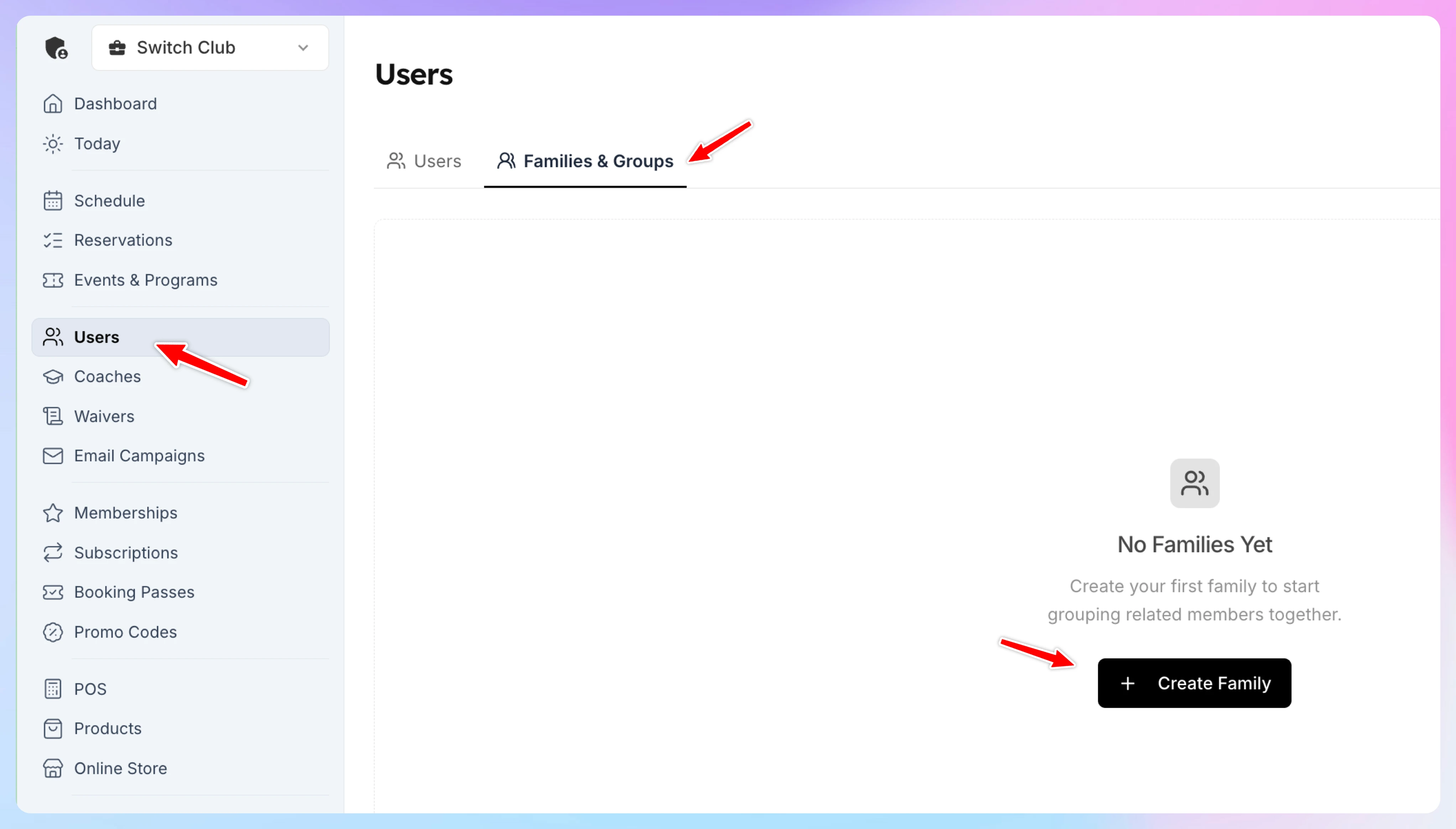
Go to Users and open the Families & Groups tab. Every family whose primary member is a customer of your club shows here, including the ones customers created.
Create a family for a customer
-
Go to Users and open the Families & Groups tab.
-
Click Create Family.
-
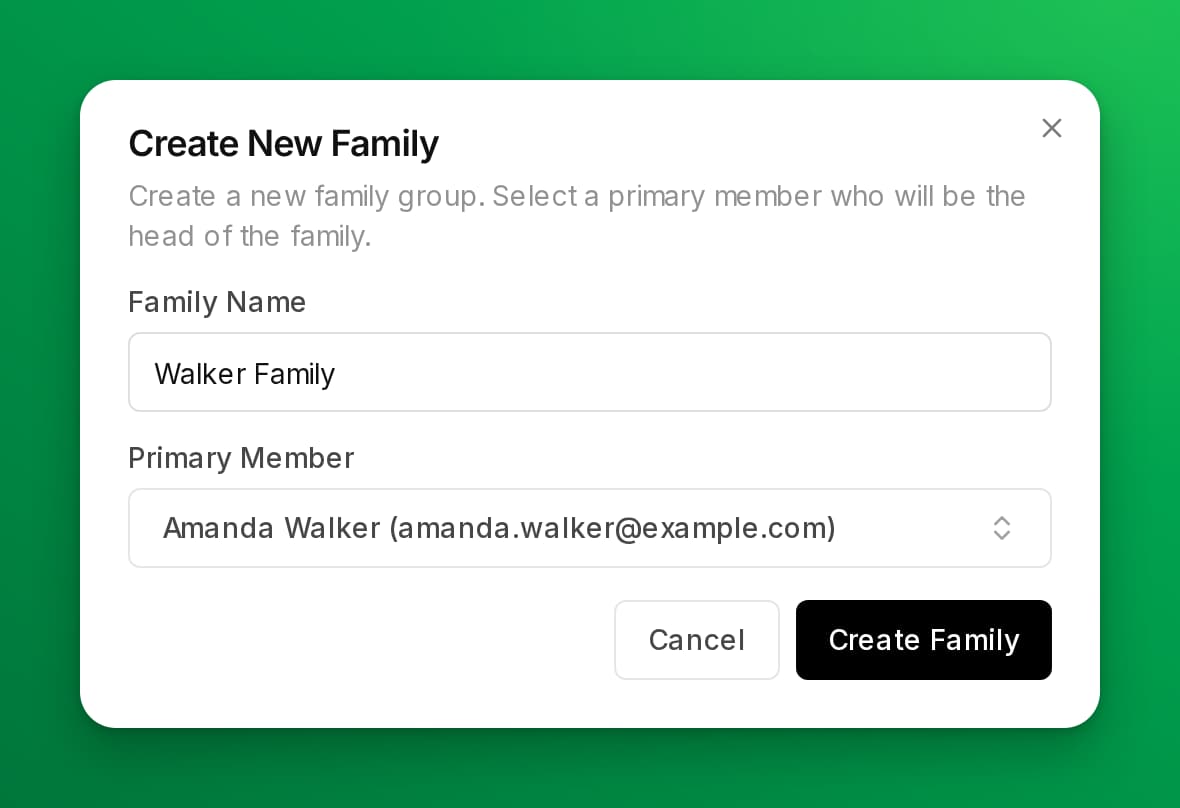
In Create New Family, enter a Family Name.
-
Under Primary Member, search for the customer who heads the family, and select them.
-
Click Create Family. The family's page opens.
Add family members
-
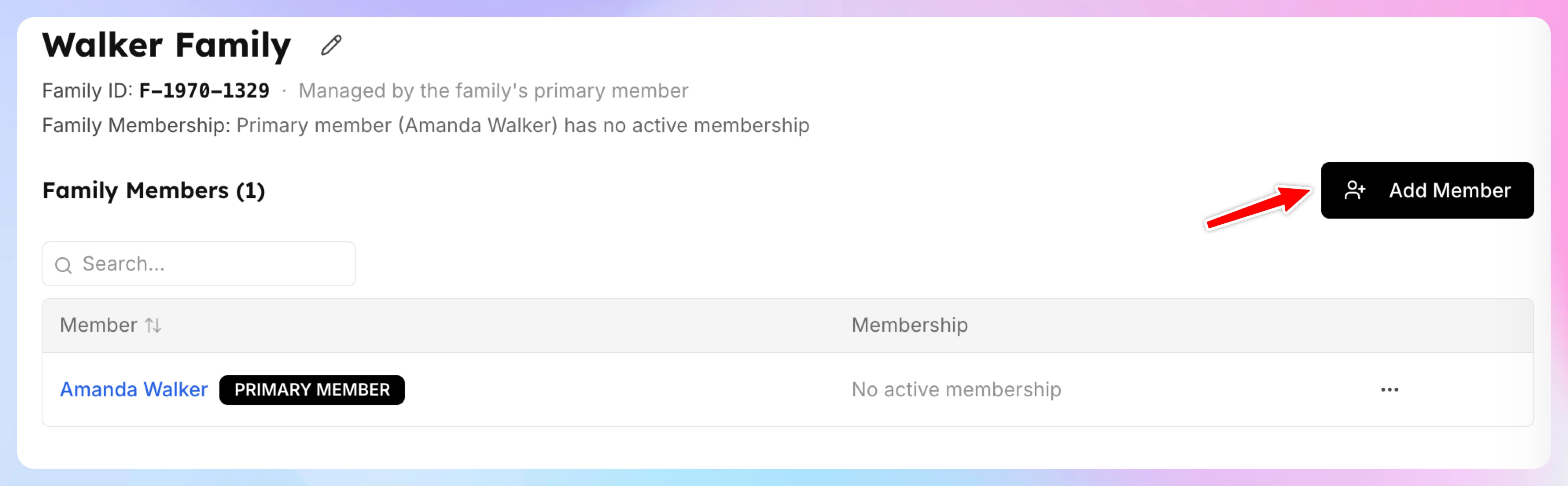
On the family's page, click Add Member.
-
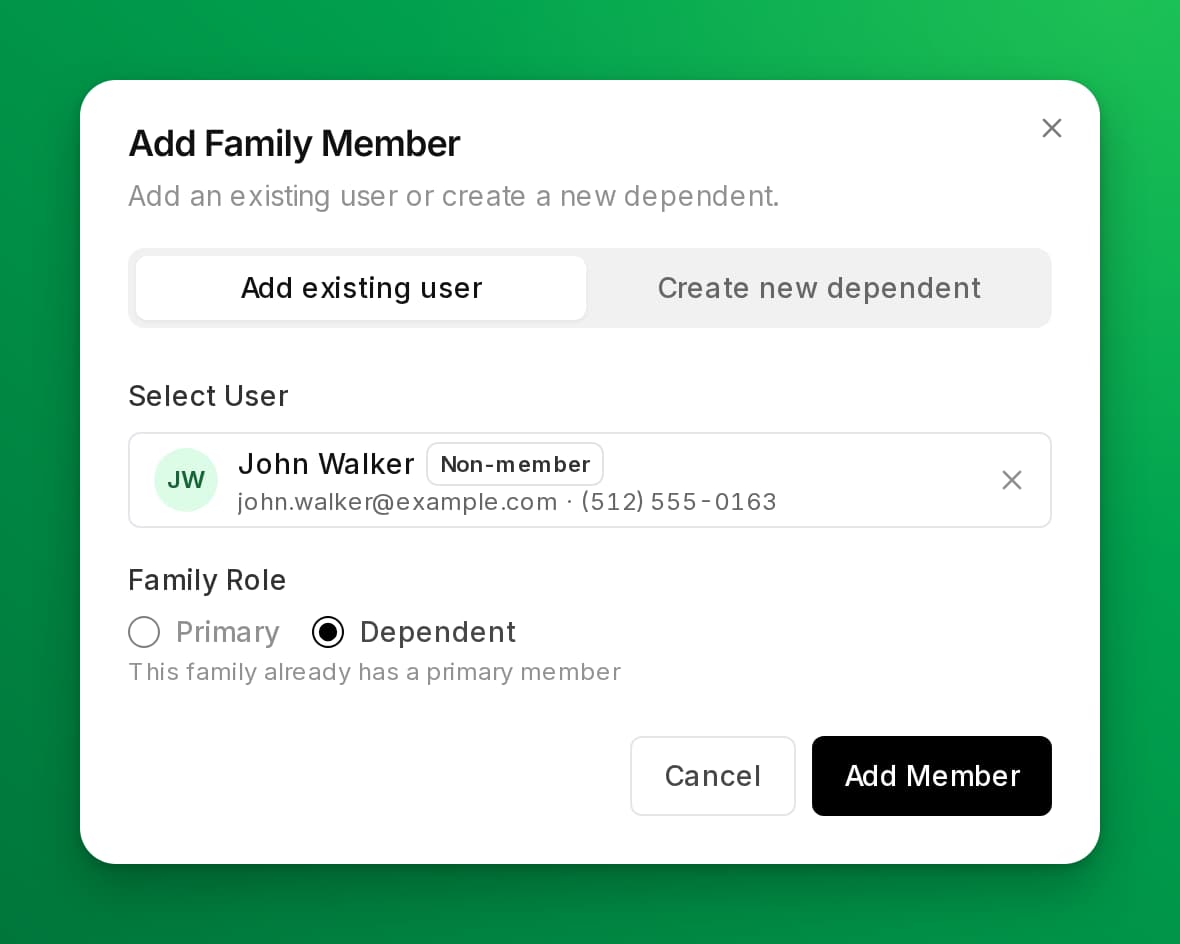
Choose how to add the person:
-
Add existing user — for someone with their own account. Search by name, email or phone number under Select User, then select them. If they don't have an account yet, add them as a customer first.
-
Create new dependent — for a child or anyone who won't sign in. Enter their First Name, Last Name and, optionally, their Date of Birth.
-
-
Click Add Member.
You can also open a customer's profile and use the Family tab to see their family or to assign them to one.
Give family members membership benefits
Family members get membership benefits only when they are on a family membership. The organizer adds people from their family at checkout or from their membership page, and your staff can add them too. To set this up, see Set up a family membership.
Family members can also share a family booking pass. See Create a family-shared pass.
If something goes wrong
- The customer can't find their partner by email — the partner needs their own OpenCourt account first. Ask them to sign up, or add them as a customer.
- A family doesn't show on Families & Groups — its primary member is not a customer of your club yet.
Related
Freeze a membership
Pause a member's billing and benefits while they are away, then resume the membership without cancelling it or charging a new initiation fee.
Set up a family membership
Turn a membership into a family membership: enable family, set a member limit, add member types with their own rule sets and passes, and choose who manages the roster.