

Change when a trial membership is first charged
Move a trial membership's first payment to another date, or end the trial today and charge the customer now.
Give a customer a longer or shorter trial, or end it today and take the first payment now. (About 1 minute. The customer needs a membership in trial.)
Before you begin
- The membership shows the Trial badge.
- To end the trial now, the customer needs a card on file. Add one under Payment method on the membership page if they don't have one.
Open the first payment date
- Go to Users, open the customer's profile, and click the Membership tab.
- On the membership card, click See details.
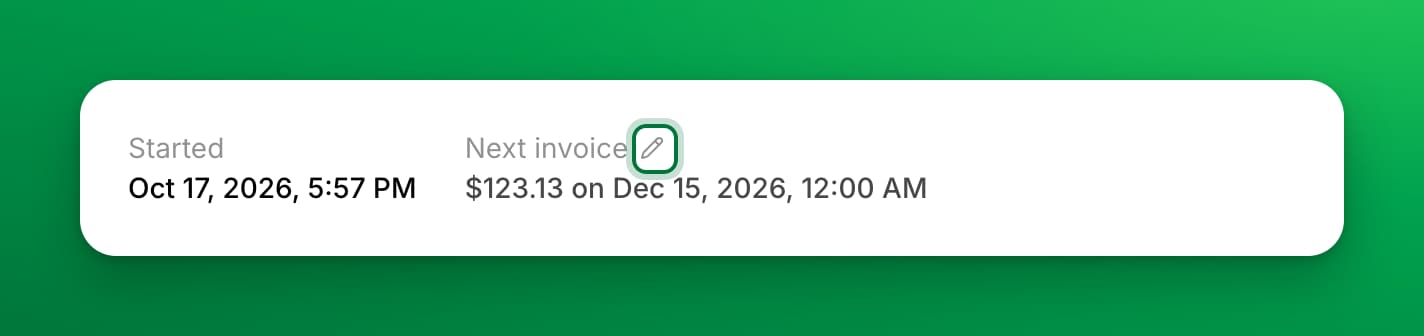
- Next to Next invoice, click the pencil. The Change first payment date window opens. It shows the amount and the current date of the first payment.
Move the first payment to another date
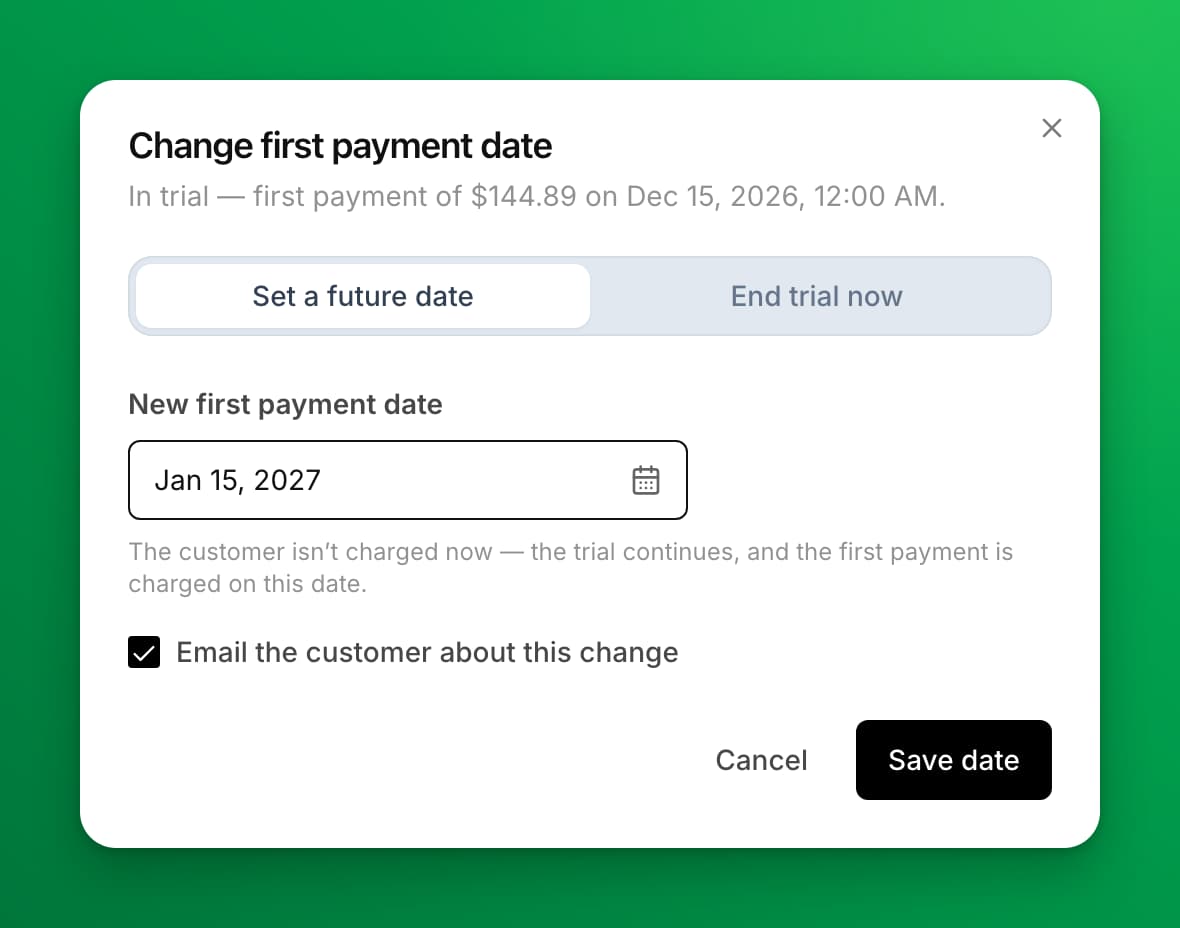
- Stay on Set a future date.
- Under New first payment date, pick the new date. It can be earlier or later than the current date, from tomorrow up to 24 months ahead.
- Email the customer about this change is checked by default. Uncheck it if you don't want to send the email.
- Click Save date.
The customer isn't charged now. The trial continues, and the card is charged on the new date. The renewal after it moves with it: one billing cycle after the new date.
End the trial now and charge the customer
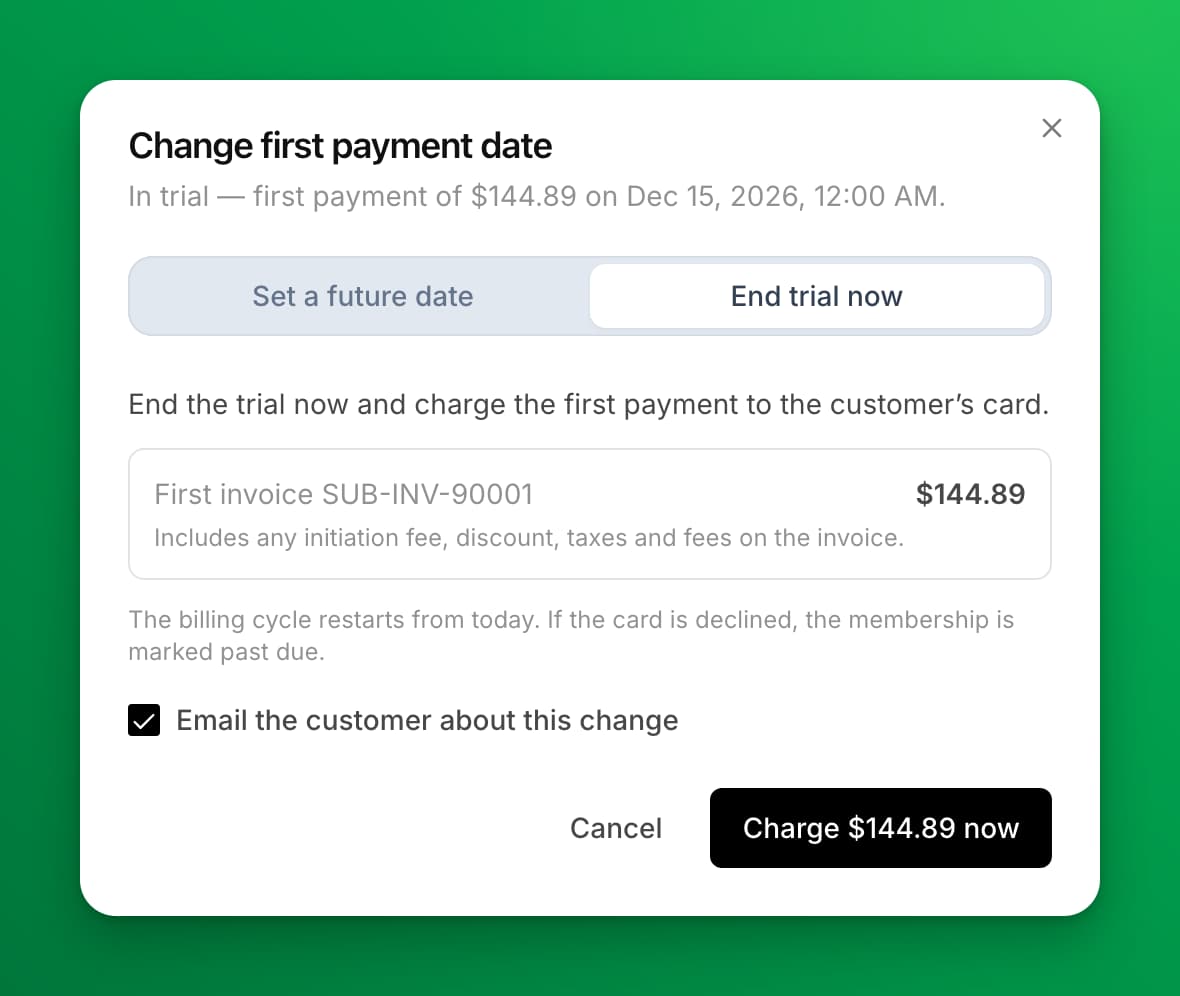
- Click End trial now. The window shows the first invoice and its total, with any initiation fee, discount, taxes and fees.
- (Optional) Uncheck Email the customer about this change.
- Click Charge $X now, where $X is the total.
If the payment goes through, the membership becomes Active, and the billing cycle restarts from today. The next renewal is one billing cycle from today.
What the customer sees
With the email checked, the customer gets an email:
- After a date change: the amount, and the new date of their first payment with the old date crossed out.
- After you end the trial: that the trial has ended, with the amount charged.
The customer's membership page shows the new date under Billing Starts. The membership's activity log records the change and who made it.
If something goes wrong
- "The card was declined. The membership has been marked past due." — the charge failed. The customer keeps access during a grace period and gets the usual payment-failed email. They can update their card, or you can click Collect payment on the membership page later.
- "The bank wants the customer to approve this payment." — the customer got an email with a link to approve it. The membership shows past due until they pay.
- "The charge has not settled yet." — another payment for this invoice was running at the same moment, or the payment needs a check. Open the invoice on the membership page after a few minutes.
- "This membership is paid manually, so it cannot be charged now." — the customer pays by hand. Open the first invoice under Invoices on the membership page, and click Record Payment when they pay.
- "This first payment is due now and will be charged within the hour." — the first payment date has arrived, and the payment runs within the hour. Reload the page after that.
- You don't see Next invoice or the pencil — the membership is set to cancel. If the cancellation is scheduled for a later date, click Cancel scheduled cancellation first. A trial that is set to cancel when the trial ends can't be restored, because its first payment was voided. If the customer is staying, click Cancel and then Cancel now to end the trial, and then sell them a new membership. The new membership can't be sold while the trial is still running.
- "A payment for this first invoice is already open." — the customer has a payment page for this invoice open. Wait for them to finish it, or check the invoice first. You can still move the date.
- You don't see the pencil on a family member's membership — a family seat is paid through the owner's membership. Open the owner's membership and change the date there.
- Charge $X now is grayed out — there is no card on file. Add a payment method first.
Related
Sell a membership to a customer
Assign a membership from a customer's profile: pick the membership and plan, choose when it starts and when they pay, then take payment or give it for free.
Ask custom questions when a customer buys a membership
Add your own text questions to a membership's checkout, such as a partner's name or a T-shirt size, and see each customer's answers.