

Creating and Managing Rule Sets
A rule set decides what its members can book, what they pay, how far ahead they see and book the schedule, and how cancellations are refunded. Learn how customers get a rule set, and how prices work in each pricing mode.
A rule set decides what its members can book, what they pay, how far ahead they can see and book the schedule, and how cancellations are refunded. Every membership uses exactly one rule set, and several memberships can share one.
| Layer | What it controls | Where it lives |
|---|---|---|
| Membership | Name, description, pricing plans, sales channels, family, booking passes | Memberships → Catalog → [membership] |
| Rule set | Booking rates, schedule visibility, booking limits, refund policy | Memberships → Rule Sets → [rule set] |
What is a rule set?
A rule set is a named group of settings with four tabs:
- Booking Rates — what a booking costs, including time- or day-based overrides and guest fees
- Schedule — how far into the future members can see the schedule
- Reservations — how far ahead members can book, booking lengths, guest payment and booking limits
- Refunds — whether cancellations are refunded, how close to the start time, and where the refund goes
Rule sets exist separately from memberships, so one configuration can serve several memberships. For example, "Individual" and "Family" memberships can share a "Standard Member" rule set if their booking privileges are the same.
Built-in rule sets
Every club starts with two rule sets:
- Non-Member (Default) applies to every signed-in customer without a membership. You cannot rename, delete or move it.
- Member is ready for your first membership. You can rename it, but you cannot delete it.
How a customer gets a rule set
A customer gets a rule set from their membership. Each membership links to one rule set.
- Family members on a family membership get the rule set of their family member type. If the type has none, they get the membership's rule set.
- Customers without a membership get Non-Member (Default).
- A customer holds only one membership at a time, so they always have exactly one rule set.
The membership's status decides whether its rule set applies:
| Membership status | Rule set |
|---|---|
| Active, Trial | Applies |
| Past Due (a renewal payment failed) | Still applies while OpenCourt retries the payment. See When a membership payment fails |
| Frozen | Does not apply. The customer books at Non-Member prices until the freeze ends |
| Pending (starts on a future date) | Does not apply until the start date |
| Canceled, Expired | Does not apply |
A freeze on a family membership removes the rule set from every family member too.
Rule sets need the permission to configure memberships. Without it, the Rule Sets tab does not appear.
Creating a rule set
-
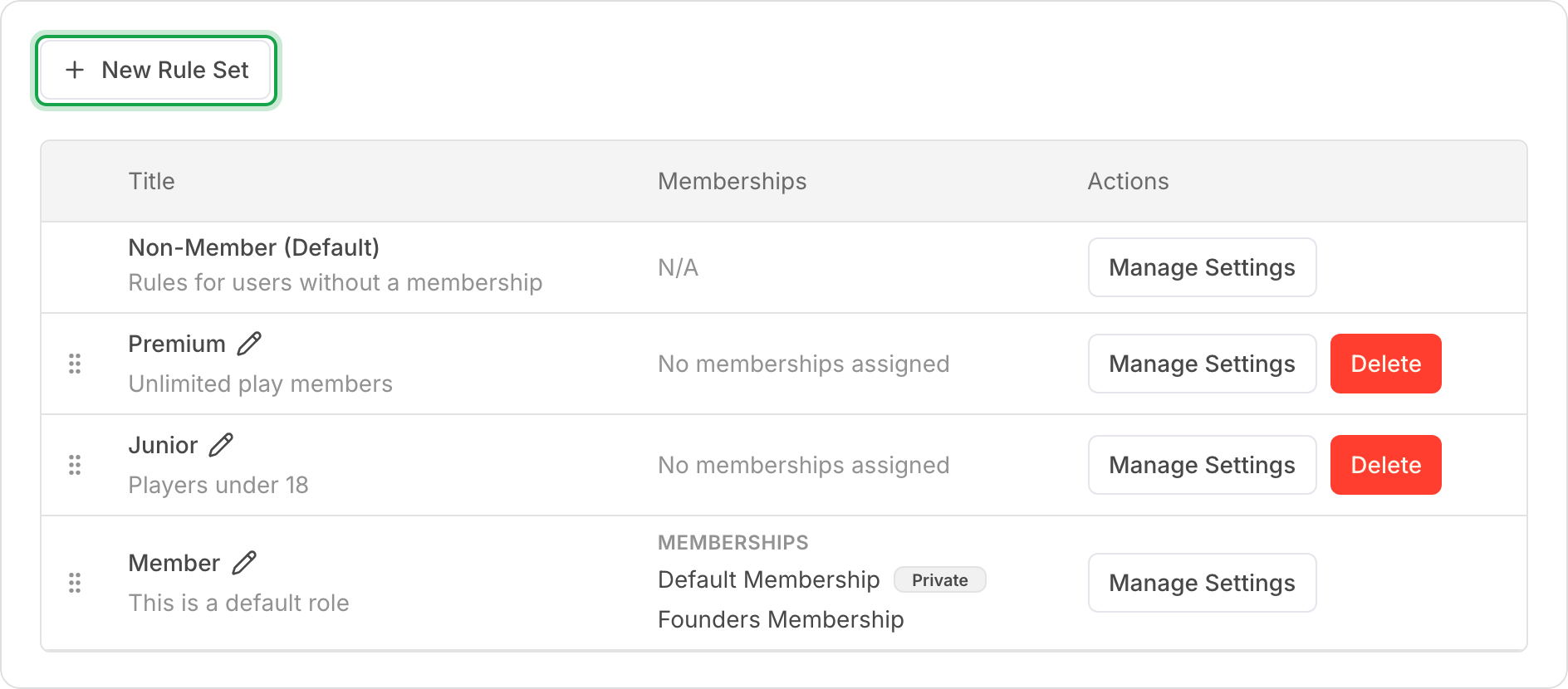
Go to Memberships → Rule Sets.
-
Click New Rule Set.
-
In the Add New Rule Set dialog, fill in:
- Name (required) — identifies the rule set throughout the admin
- Description (optional) — internal notes, not shown to members
-
Click Create Rule Set.
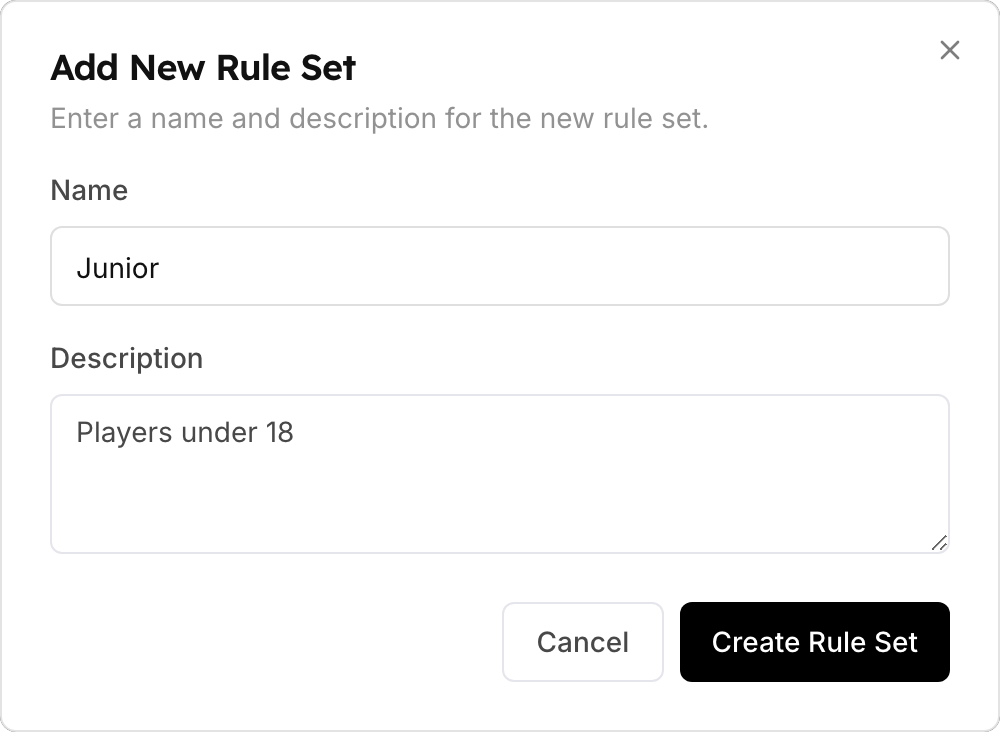
The new rule set appears in the list. Click Manage Settings on its row to configure its tabs. Then choose it in a membership's Rule set section.
There is no way to copy an existing rule set. To make a similar one, create a new rule set and enter its settings again.
Managing rule sets in the list
Each row in Memberships → Rule Sets has:
- Manage Settings — opens the rule set's settings tabs.
- The pencil icon next to the name — renames the rule set.
- Delete — removes the rule set. You cannot delete a rule set that a membership uses. Move those memberships to another rule set first.
Drag rows to change the order of the rule sets.
Which pricing does my club use?
OpenCourt sets booking prices in one of two ways. Your club uses one of them:
- Prices on the rule set. You set court rates on each rule set's Booking Rates tab. Most of this article describes this mode.
- Prices per activity. You set prices on each activity, in Settings → Activities, and add pricing rules for each rule set. The rule set's Booking Rates tab only shows the result.
To check, open any rule set and look at its first tab. If it shows Default settings and Custom Rules, your club sets prices on the rule set. If it shows a read-only table with Set per activity — Activities, your club sets prices per activity. To change modes, contact OpenCourt support.
Both modes use the other tabs (Schedule, Reservations, Refunds) in the same way.
Booking Rates tab (prices on the rule set)
The tab name uses your club's word for a bookable space — for example Court Booking Rates at a tennis or padel club, or Bay Booking Rates at a golf club. It sets what a booking costs for members of this rule set.
Under Default settings, choose one pricing mode. It applies to all courts at all times, unless a custom rule overrides it:
- Court fee, per hour — a flat fee for the whole court, whatever the number of players
- Per person, per hour — each person pays based on the booking length
- Per person, fixed fee — each person pays a fixed amount, whatever the booking length
- Advanced — combine fee types: court fee per hour, per person per hour, a Day fee, and a per-person fixed fee. Advanced also shows the Daily Fee Configuration options.
For more on these modes, see Pricing models.
Click Save Changes when you are done.
Guest fees (participant price overrides)
To charge a different price to people who join a member's booking — for example a guest fee for non-members — check Set custom pricing for other court booking participants (the word "court" changes to your club's space name).
- Under Participant Price Override 1, use Apply to participants with these rule sets to pick who this price applies to. For a guest fee, pick Non Member.
- Choose the mode for this price: Per person, per hour, Per person, fixed fee, or Advanced, and enter the amount.
- To charge another group a different price, click Add Participant Price Override.
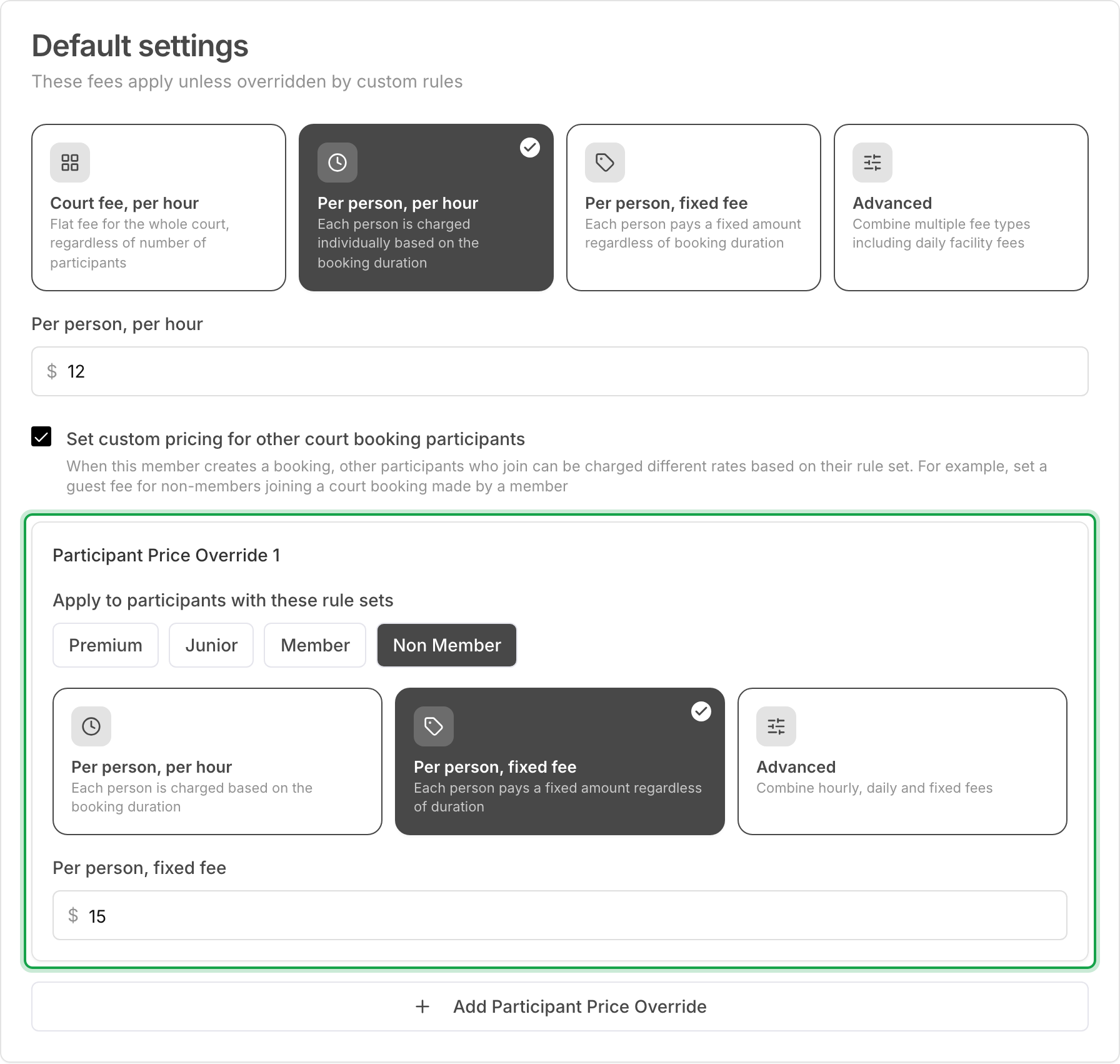
How the override is charged:
- It replaces the joining person's own rule set price. It is not added on top. A non-member who joins a member's booking pays the override price, not the non-member rate plus the override.
- A Per person, fixed fee is charged once per person per booking, whatever the booking length.
- It applies only to people who join the booking, never to the member who made it.
- People whose rule set is not picked in any override pay their own rule set's price.
- Who pays the guest's fee (the member at booking, or the guest later) is set in Guest payment on the Reservations tab.
Custom rules (time and day overrides)
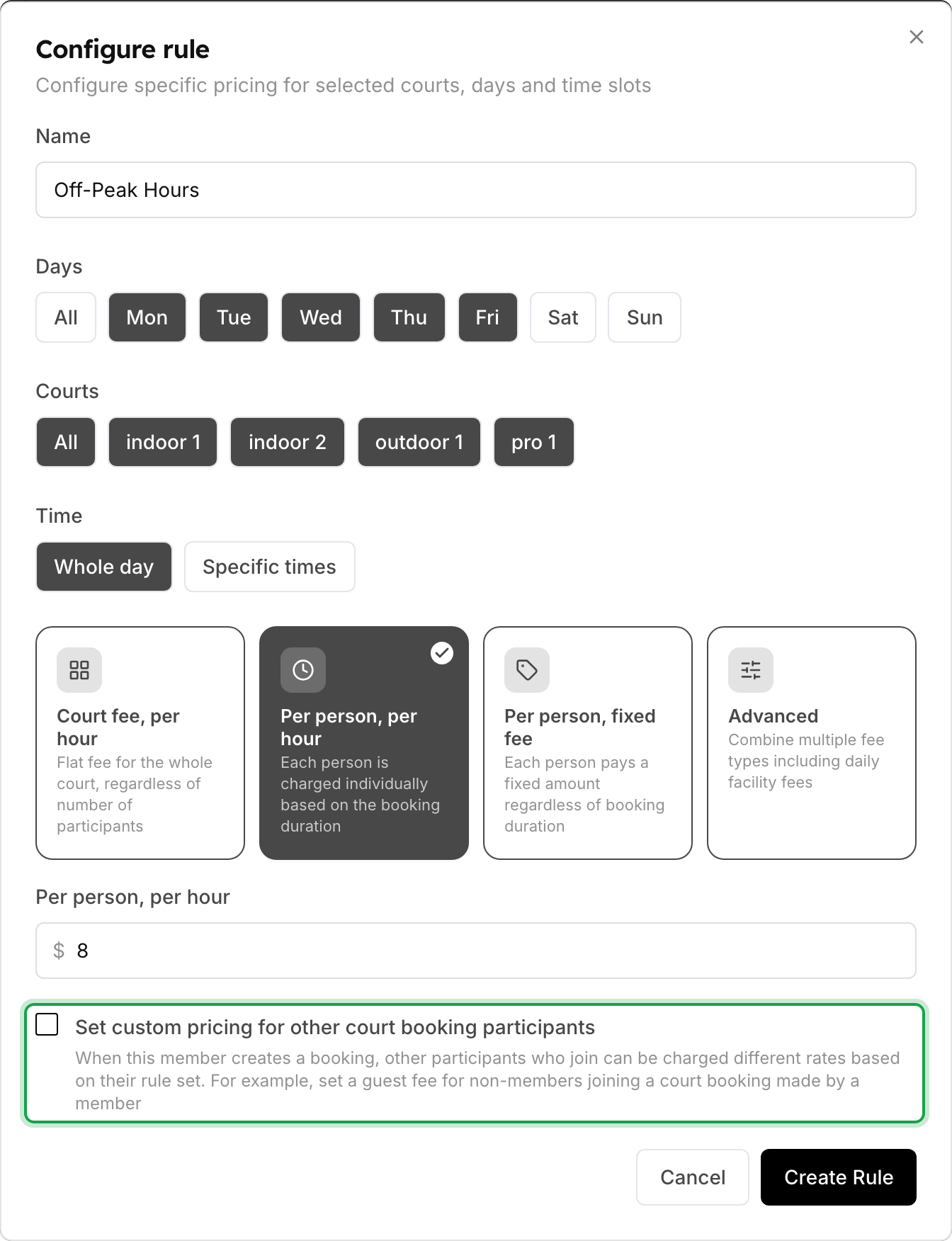
Under Custom Rules, click + Add new rule. The Configure rule dialog opens:
- Name — a descriptive label, e.g.,
Off-Peak Hours - Days — the days this rule applies to. Toggle individual days (Mon–Sun) or click All. For weekday mornings, select Mon, Tue, Wed, Thu and Fri.
- Courts — specific courts, or All for every court.
- Time — Whole day, or Specific times with a Start Time and End Time (e.g., 6:00 AM – 11:00 AM). Click Add another time frame for more ranges.
- Pricing mode — the same modes as Default settings, with the amount for this time.
Click Create Rule.
Booking Rates tab (prices per activity)
If your club sets prices per activity, this tab is a read-only summary. It shows each activity's price for Everyone and for this rule set, for today's off-peak time and the smallest group size. There is nothing to save here.
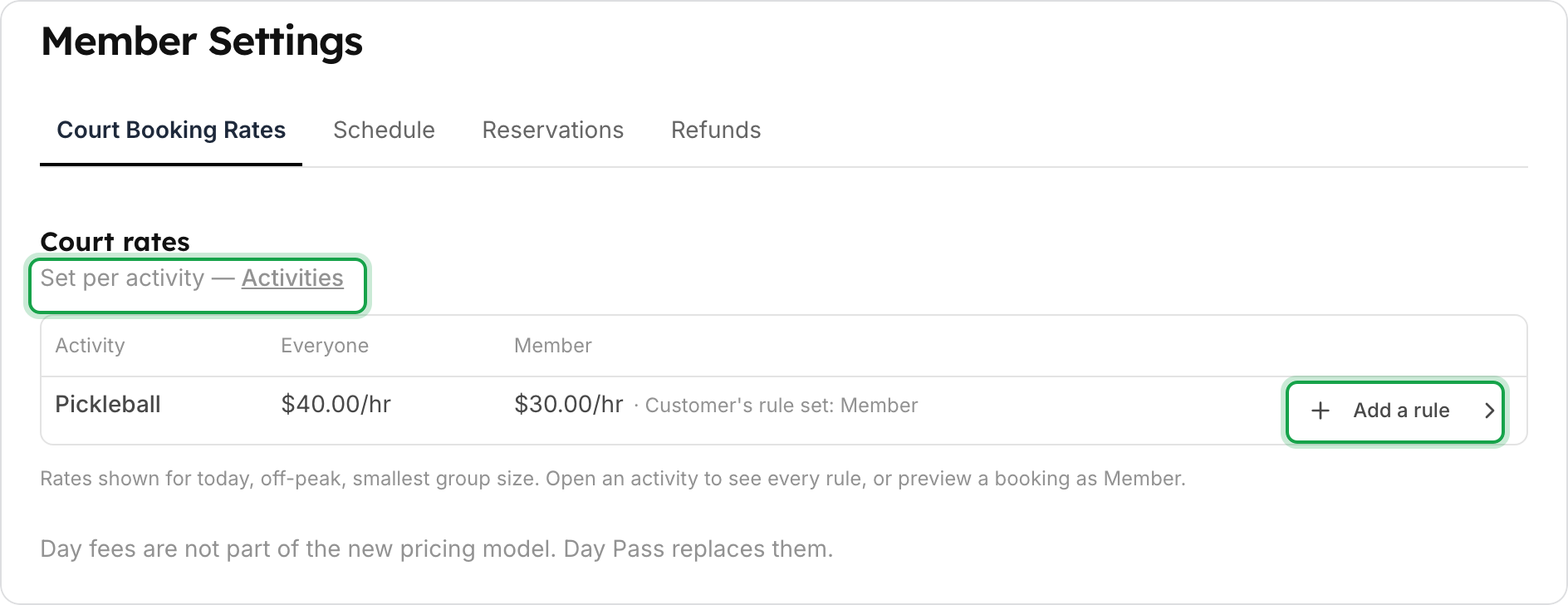
To give this rule set a different price:
- Click Add a rule on the activity's row. The activity's pricing rule opens with this rule set already chosen.
- Enter the price, and save the rule.
You can also start from the activity: go to Settings → Activities, open the activity, and in the Pricing card click Add rule under Pricing rules. Click Condition and choose Customer's rule set or Booker's rule set to pick who the price is for.
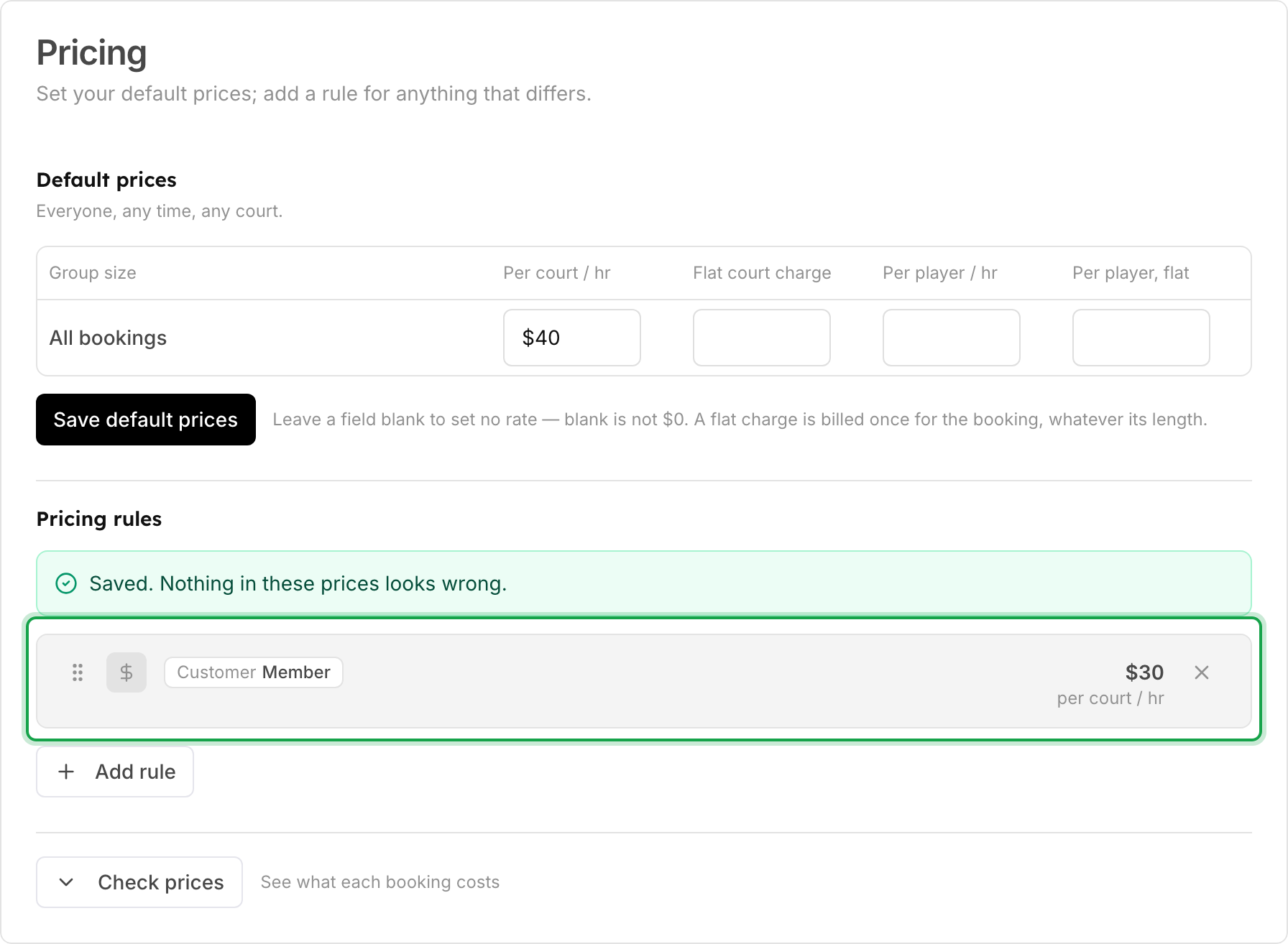
Day fees are not part of per-activity pricing. Guest prices become pricing rules with the Booker or guest condition.
Schedule tab
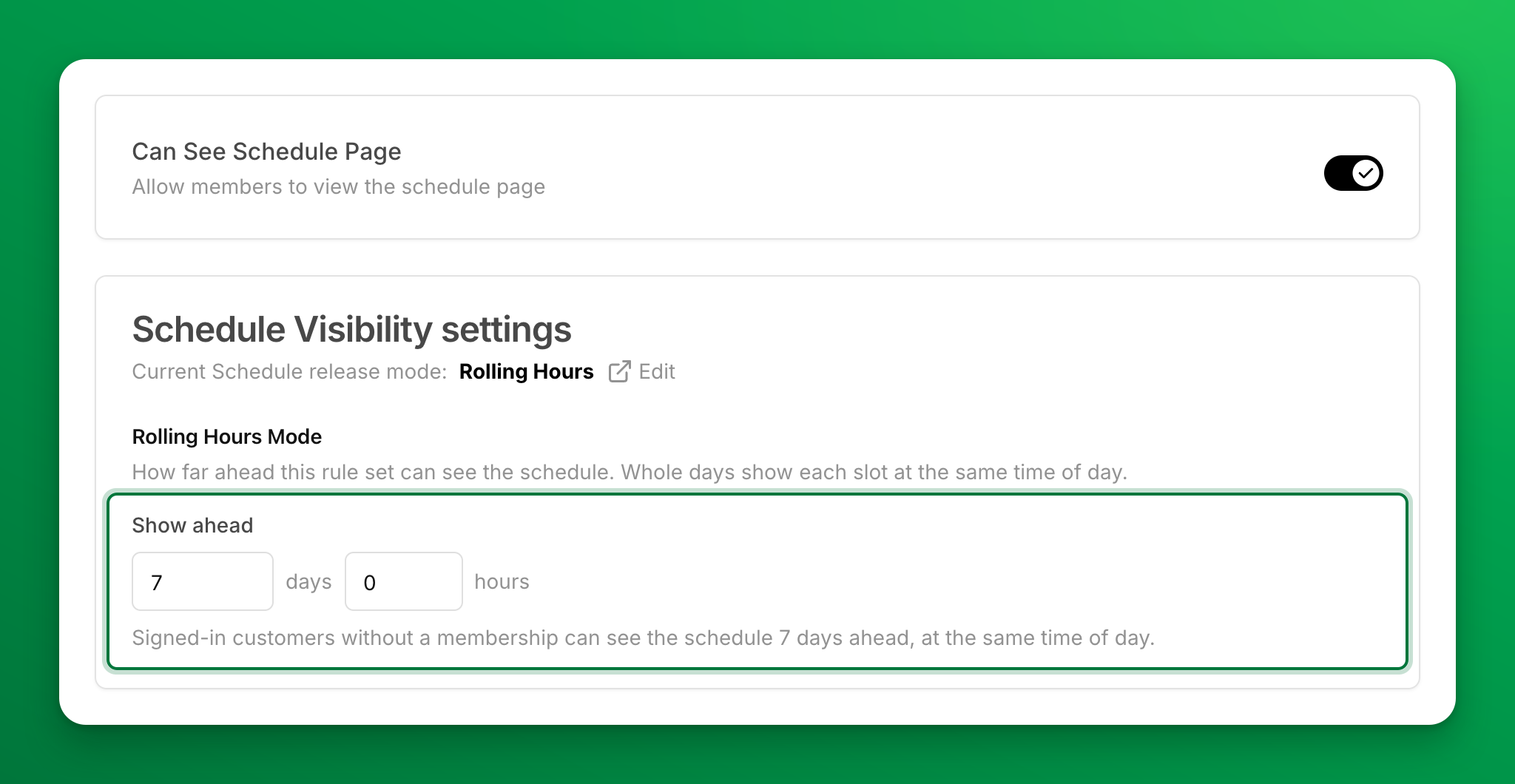
Controls what members see on the schedule page:
- Can See Schedule Page — allow or block access to the schedule entirely.
- Schedule Visibility settings — how far ahead members can see. The fields depend on your club's schedule release mode, shown at the top of the card (click Edit to change it for the whole club):
- Rolling Hours — Show ahead: how far ahead members see the schedule, in days and hours. Whole days show each slot the same number of days ahead at the same time of day, also when the clocks change for daylight saving time. Extra hours count as exact time. The line under the fields says what members get.
- By Calendar Day — Days ahead and Reset Time: show N calendar days ahead, and release the next day at the reset time.
Reservations tab
Controls how members book. The cards, from top to bottom:
-
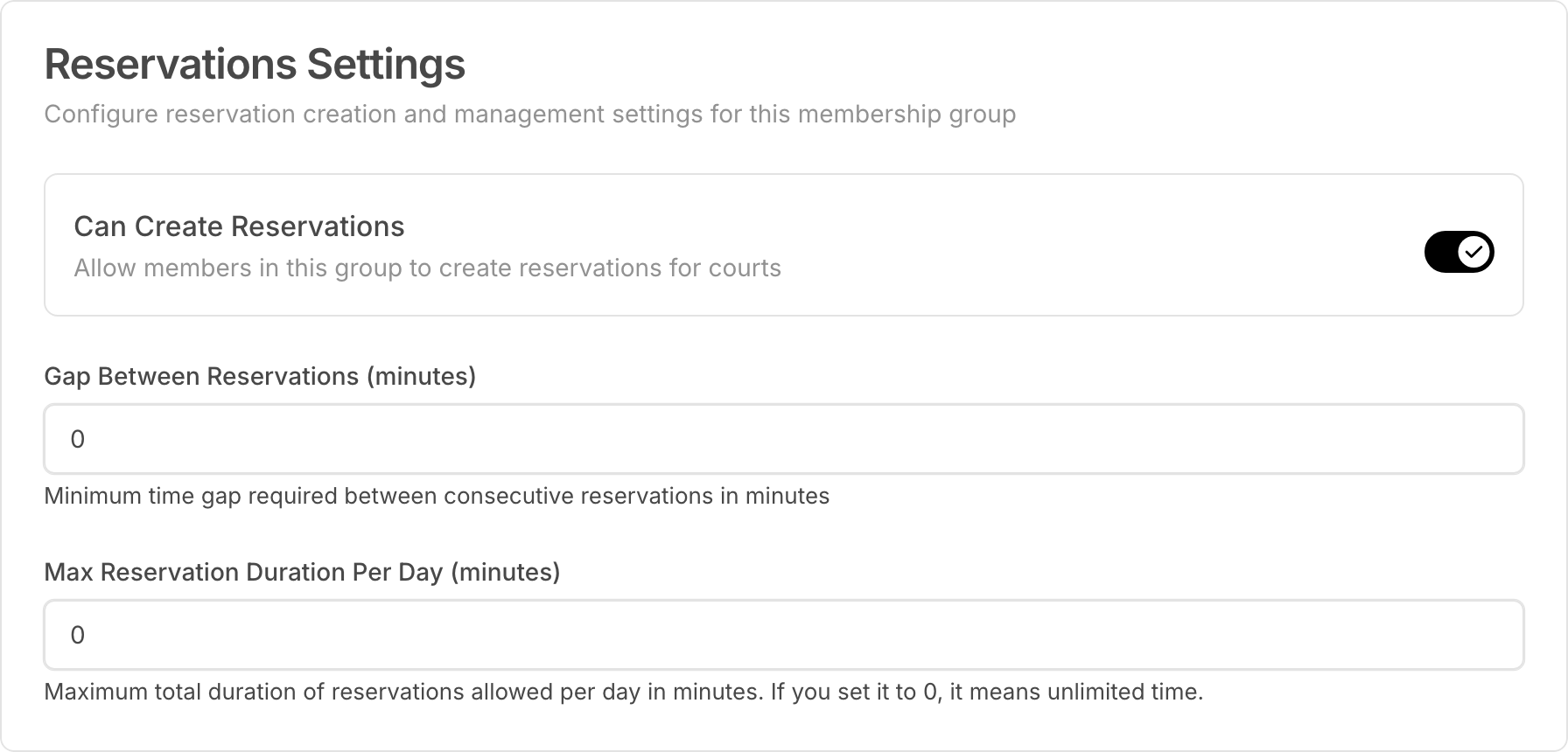
Reservations Settings
- Can Create Reservations — allow or block booking.
- Can open bookings for others to join — on: customers with this rule set see the Open Game option when they book, so other customers can find the booking and join it. Off: they cannot open a game, either when they book or later when they edit a booking. Games that are already open stay open.
- Can add other customers to bookings — on: they can search your customer list (members and non-members) and add people to their bookings and to events they join. Off: they can add only their family members, and guests by name.
- Gap Between Reservations (minutes) — the minimum gap required between consecutive reservations.
- Max Reservation Duration Per Day (minutes) — the total a member can book per day. 0 means unlimited.
-
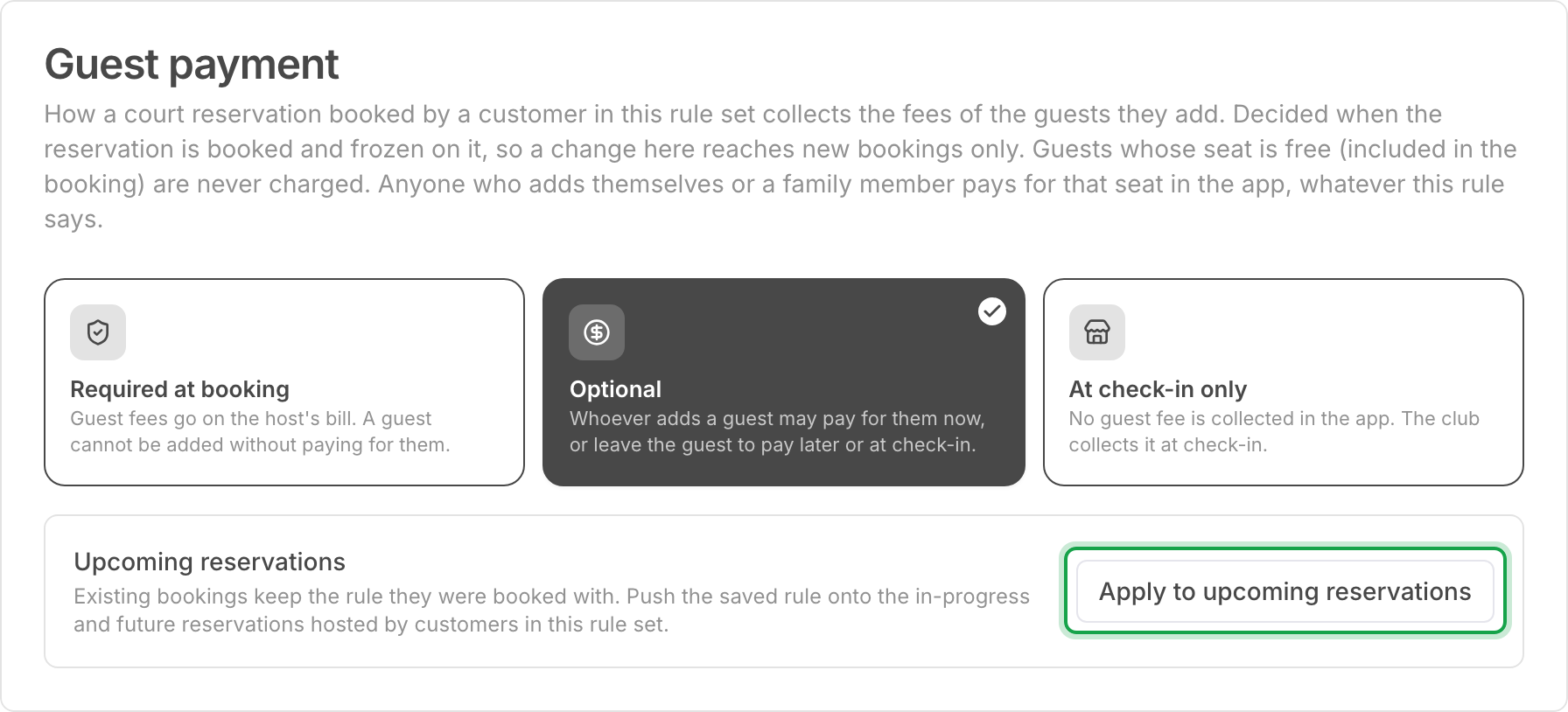
Guest payment — who pays for the guests a member adds:
- Required at booking — guest fees go on the member's bill. A guest cannot be added without paying for them.
- Optional — whoever adds a guest may pay for them now, or leave the guest to pay later or at check-in.
- At check-in only — no guest fee is collected in the app. Your club collects it at check-in.
A change here applies to new bookings only. To apply it to bookings that already exist, click Apply to upcoming reservations.
-
Player limits — turn on Custom player limits for this rule set to set the minimum, maximum and default number of players. Off: the club's general player limits apply.
-
Upcoming Events Limits — how many upcoming events a member can join. Leave empty for unlimited.
-
Booking Conflict Rules — stop a member from holding two things at overlapping times. Back-to-back bookings are always allowed.
-
Booking Duration Settings
- Bookable durations (minutes) — the booking lengths members can pick.
- Default Booking Duration (minutes) — the length pre-selected when the booking dialog opens. It must be one of the bookable durations.
- Per-court overrides — turn on a court to give it its own duration menu. These overrides are shared by all rule sets.
-
Booking in Advance settings — how far ahead a member can book. Like the Schedule tab, it uses your club's release mode: Book ahead (days and hours), or Days ahead and Reset Time.
With Rolling Hours, a slot opens for booking at its own time of day, the chosen number of days before it. With 14 days, members can book an 8:30am slot from 8:30am two weeks earlier, also when the clocks change for daylight saving time in between. If you add extra hours (for example 13 days and 22 hours), a note says that slots no longer open at the same time of day. Click Use 14 days in the note to round to whole days.
Click Save Changes at the bottom of the tab to save your changes.
Refunds tab
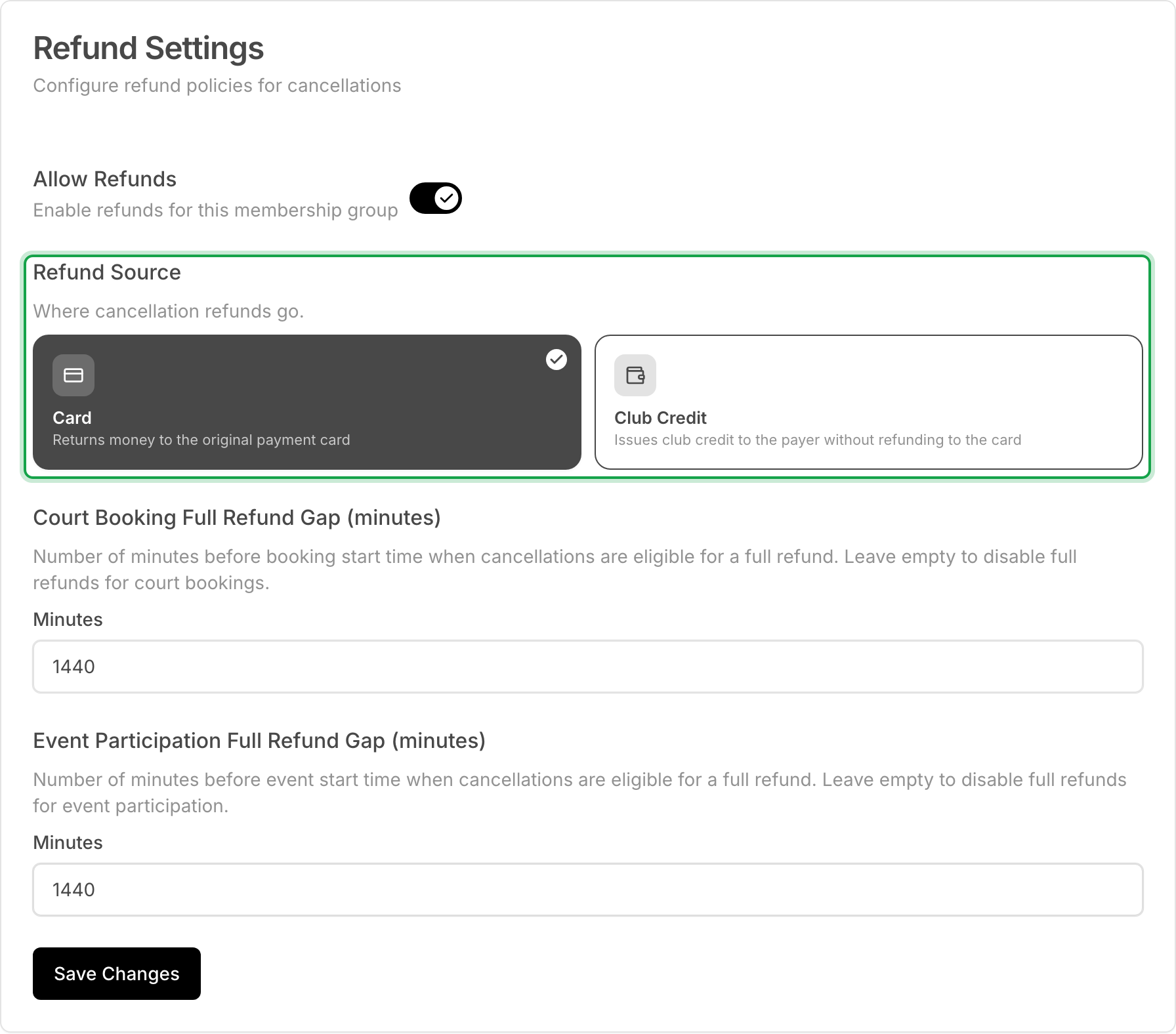
Sets the refund policy when a booking is canceled:
- Allow Refunds — turn refunds on or off for this rule set.
- Refund Source — Card returns money to the original payment card. Club Credit gives the payer club credit instead.
- Court Booking Full Refund Gap (minutes) — a court booking canceled at least this many minutes before it starts gets a full refund. A later cancellation gets no automatic refund. Leave it empty to turn off full refunds for court bookings.
- Event Participation Full Refund Gap (minutes) — the same rule for events.
Event prices
Event prices are set on each event, not on the rule set. In an event's Pricing, each rule set has its own price field, plus Non-member price. This works the same in both pricing modes. A rule set you create after an event exists pays the non-member price for that event until you add its price.
Hide a rule set's price field in event forms
If you never price events for a rule set, you can remove its field from the event form:
- Open the rule set (or Non-Member (Default)) and go to its first tab, the booking rates tab.
- In the Event prices card, turn off Show the [rule set] price in event forms. The label uses the rule set's name. The change saves at once.
While the switch is off:
- The event form has no price field for this rule set.
- Customers with this rule set pay the non-member price for events.
- A price already saved on an event stays on that event.
On the Non-Member (Default) page, the switch removes the non-member price field from the event form.
Changing which rule set a membership uses
- Go to Memberships → Catalog and open the membership.
- Click Edit.
- Select a different rule set in the Rule set section.
- Click Save Changes.
The new rule set applies to all current members at once, on their next booking. If the membership has members, a dialog may ask whether to apply benefit changes to existing subscribers. That choice affects booking passes only.
Setting Up Membership Plans & Pricing
Each membership can have multiple pricing plans — different ways for customers to pay for the same membership.
Run a membership presale
Collect early signups for memberships before they go live — with an optional presale fee or deposit — then turn each signup into a real membership when you're ready.