

Setting Up Membership Plans & Pricing
Each membership can have multiple pricing plans — different ways for customers to pay for the same membership.
Each membership can have multiple pricing plans — different ways for customers to pay for the same membership. For example, one membership can offer a Monthly plan, an Annual plan and an early-bird plan. All plans of a membership give the same benefits; only the price and billing change.
You add the first plans when you create the membership. This article covers adding and changing plans afterwards.
Adding a plan
- Go to Memberships → Catalog and open the membership.
- Under Pricing Plans, click Add Pricing Plan.
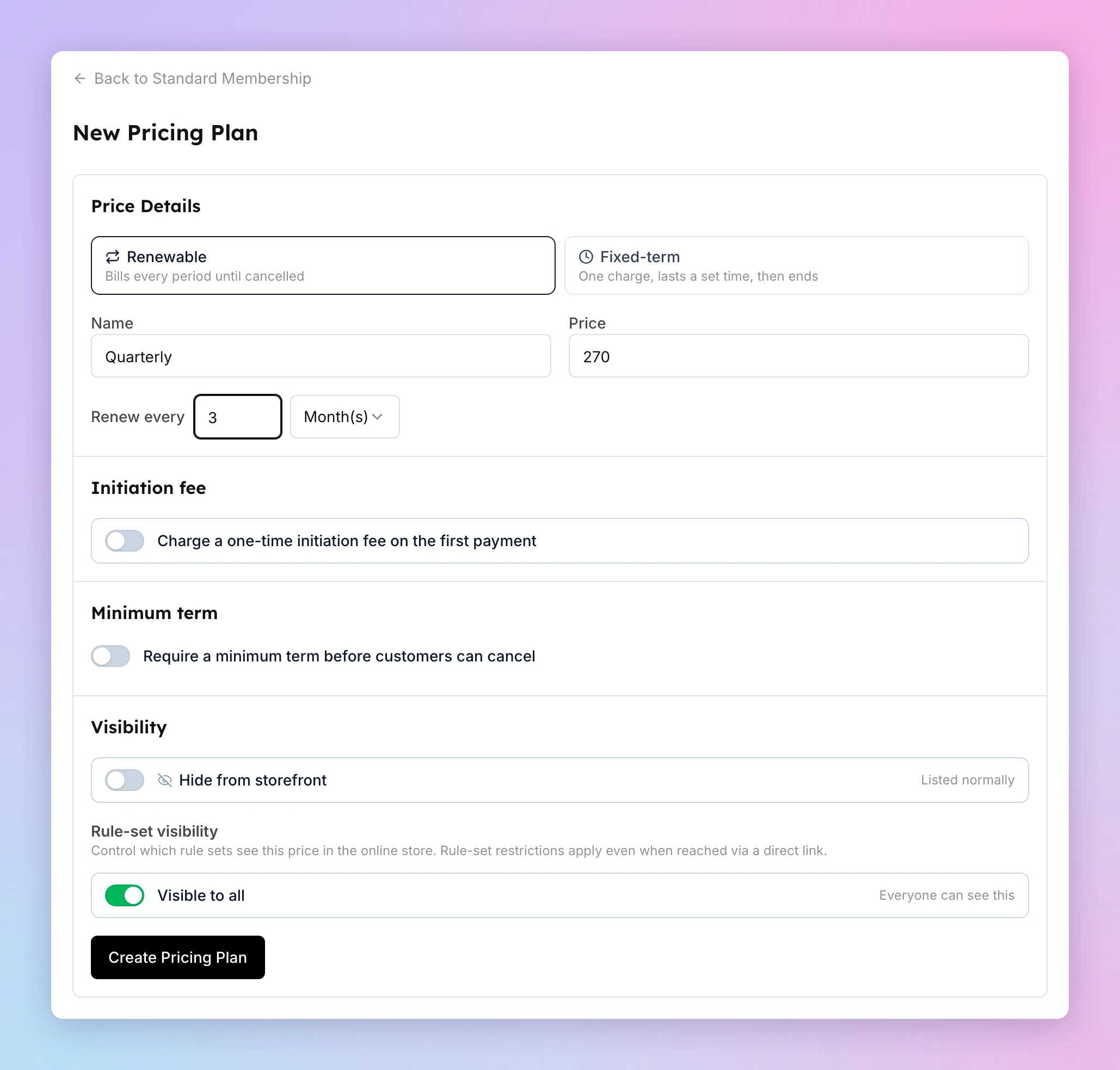
- Choose the plan type:
- Renewable — bills every period until the customer cancels.
- Fixed-term — one charge, lasts a set time, then ends. There is no renewal.
- Enter the Name customers see (for example, "Annual") and the Price.
- Set Renew every (or Lasts for, for a fixed-term plan): a number plus Day(s), Week(s), Month(s) or Year(s). For an annual plan, enter
1and Year(s). - Optional settings:
- Charge a one-time initiation fee on the first payment — enter the amount. It is added once to the first payment and never charged on renewals.
- Require a minimum term before customers can cancel — customers cannot cancel the membership themselves until the term ends. Admins can always cancel it.
- Hide from storefront (called Hide from customers when you edit a plan) — customers cannot see or buy the plan. You can still assign it from the admin.
- Rule-set visibility — keep Visible to all, or turn it off to choose which rule sets see this plan.
- Click Create Pricing Plan.
The Free plan
Every membership has a system plan named Free ($0.00). It is hidden from customers and restricted, so customers never see it. Use it to give a membership at no charge — for example to staff or as a complimentary gift — when you assign the membership. You cannot archive or remove it.
Plans customers can buy vs. admin-only plans
A plan is on sale to customers when all of these are true:
- The membership's Homepage sales channel is on (see Display a membership publicly or keep it admin-only).
- The plan is not set to Hide from storefront.
- The customer's rule set is allowed by the plan's Rule-set visibility.
Admins can still assign a hidden plan from the customer's profile. This is useful for corporate deals, staff pricing and private offers.
To change a plan's visibility later, open the plan's ⋯ menu on the membership page and choose Visibility.
Direct purchase links
Every plan has its own purchase link. Open the plan's ⋯ menu and click Copy link. Rule-set restrictions still apply when someone opens the link. To share a link to the whole membership, use Copy link at the top of the membership page.
Changing a plan
Click a plan to open it, then click Edit.
If the plan has no members, your changes apply at once.
If the plan has members and you change the price or billing, OpenCourt creates a new price version. New customers get the new price. Existing members keep the old price until you move them. The old version lists its members, with these options for each one:
- End of billing cycle — the member starts paying the new amount at the next renewal.
- Prorate and migrate now — if the new amount is higher, the member is charged the prorated difference. If it is lower, the difference goes to the member's club credit.
Booking passes are not affected by a price change, because they belong to the membership, not to the plan.
Requiring customers to contact you to cancel
By default, customers can cancel a membership themselves from their membership page. You can turn this off, so that customers must contact you to cancel.
- Go to Memberships → Catalog and open the membership.
- Under Cancellation, turn on Require customers to contact the club to cancel.
- In the window that opens, tell customers how to cancel (see below), read the notice about cancellation laws, and tick the box to confirm that your club may do this.
- Click Turn on.
All plans of the membership follow this setting. To give one plan a different setting, open the plan and choose an option under Cancellation:
- Same as product — the plan follows the membership's setting.
- Customers can cancel online — customers on this plan can cancel themselves.
- Customers must contact the club to cancel — customers on this plan must contact you. The same confirmation window opens.
The change applies at once, also to current customers. Admins can always cancel a membership. A customer who already scheduled a cancellation can still undo it.
Tell customers how to cancel
A customer who cannot cancel sees a short line, "Online cancellation isn't available for this membership", and then your instructions. Once cancellation is turned off, a What customers see instead box appears:
- Note to customers — your own words, up to 500 characters. For example: "Call us at (512) 555-0142 or visit the front desk. We need 30 days' notice." Phone numbers, email addresses and web addresses (starting with
https://,http://orwww.) in the note become tappable on the customer's phone. Customers see it labelled as a note from your club. - Cancellation link — optional. A link to your own cancellation form, starting with
https://. Customers see a button that opens it. - Button text — optional, up to 40 characters, for example "Cancel on our website". If you leave it empty, the button says Open cancellation form.
Click Save details. Set the details on the membership for all of its plans. To give one plan different instructions, open the plan, choose Customers must contact the club to cancel, and fill in its own box; leave it empty to use the membership's. If you leave both empty everywhere, customers see a message to contact your club, with buttons to email or call you from your club's contact details: the reply-to email in Settings → Email settings and the phone number in Settings → Home Page Settings.
Customers must always have a way to cancel. If your club has no contact email or phone, you must add a note or a link before you can turn this on, and you cannot remove both while it is on. If customers still end up with no way to contact you (for example, you later remove your club's contact details), they can cancel online again until you add one.
Cancellation laws
Getting an email when a membership is canceled or ends
Go to Settings → Admin Team → Notifications and, for each recipient, turn on:
- Membership Cancellation by Customer — a customer cancels their own membership in the app. Usually they still have access, so you can reach out.
- Membership Ended — a membership ends for any reason: a cancellation takes effect, a fixed term finishes, or a renewal payment never came through. This email can arrive up to 15 minutes after the membership ends.
Everyone who already gets New Membership Purchase gets both emails until you change their settings.
Reordering plans
On the membership page, click Reorder, drag the plans into the order you want, and click Save Order. Customers see the plans in this order.
Retiring a plan
Open the plan's ⋯ menu:
- Remove — appears only when no one has ever had the plan. The plan is deleted.
- Archive — appears when the plan has, or had, members. Customers can no longer buy it and you can no longer assign it. Existing members stay on it and keep renewing.
- Restore — makes an archived plan available again.
Archiving is the usual choice for early-bird and limited-time prices: those members keep their price, and no one else can buy it.
What's next
Creating and Editing Memberships
Create a membership in the Catalog, link it to a rule set, add its pricing plans, and choose whether customers can buy it from your homepage.
Creating and Managing Rule Sets
A rule set decides what its members can book, what they pay, how far ahead they see and book the schedule, and how cancellations are refunded. Learn how customers get a rule set, and how prices work in each pricing mode.