

Creating a Free Court Hours Pass
Give your members a pool of free court hours per month. Instead of counting individual bookings, the pass tracks total time — each reservation deducts its duration from the pool.
Example: Premium members get 5 free hours for court bookings per month.
Step 1: Create the booking pass
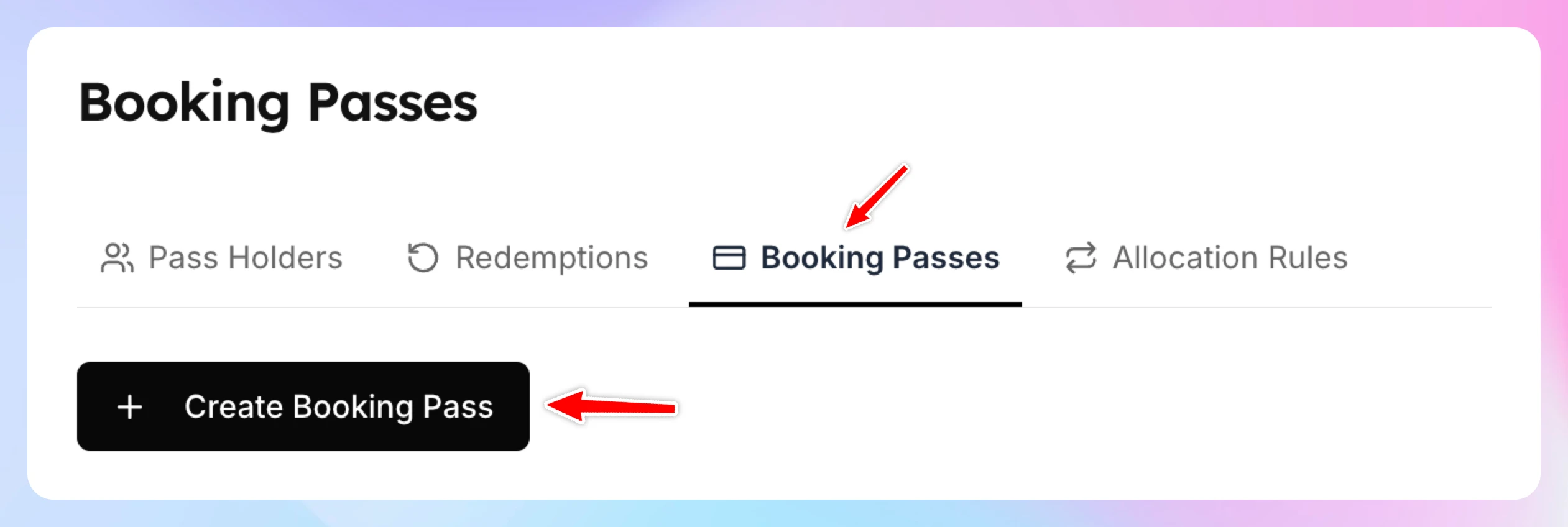
- Go to Booking Passes and open the Booking Passes tab.
- Click Create Booking Pass (Create Your First Booking Pass if your club has no passes yet).
- Enter a Name. Display Name (Optional) and Description are optional.
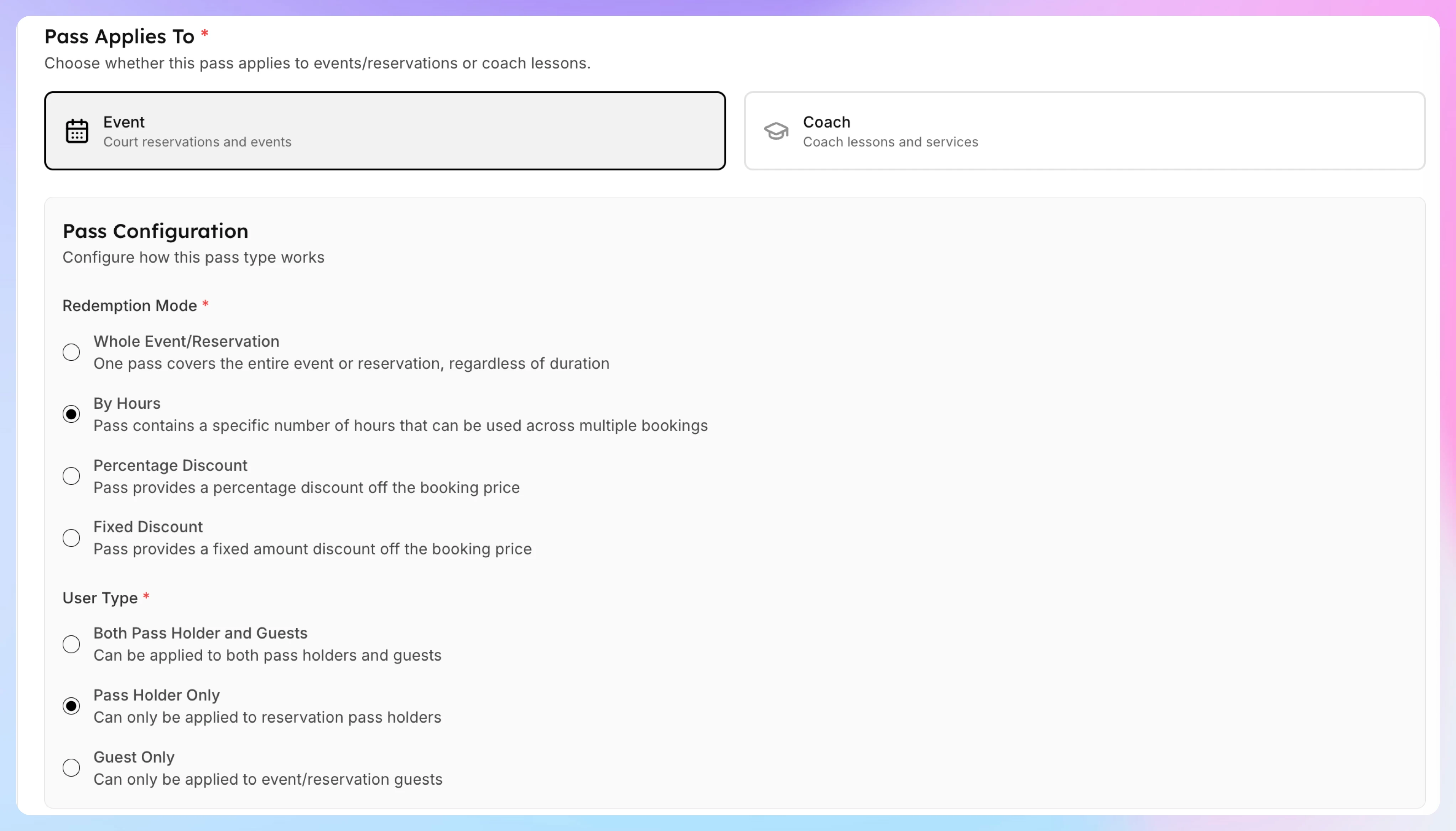
- Under Pass Applies To, choose Event.
- Under Redemption Mode, choose By Hours.
- Under User Type, choose Pass Holder Only.
- To let members share the pass with their family, turn on Can be redeemed by family members.

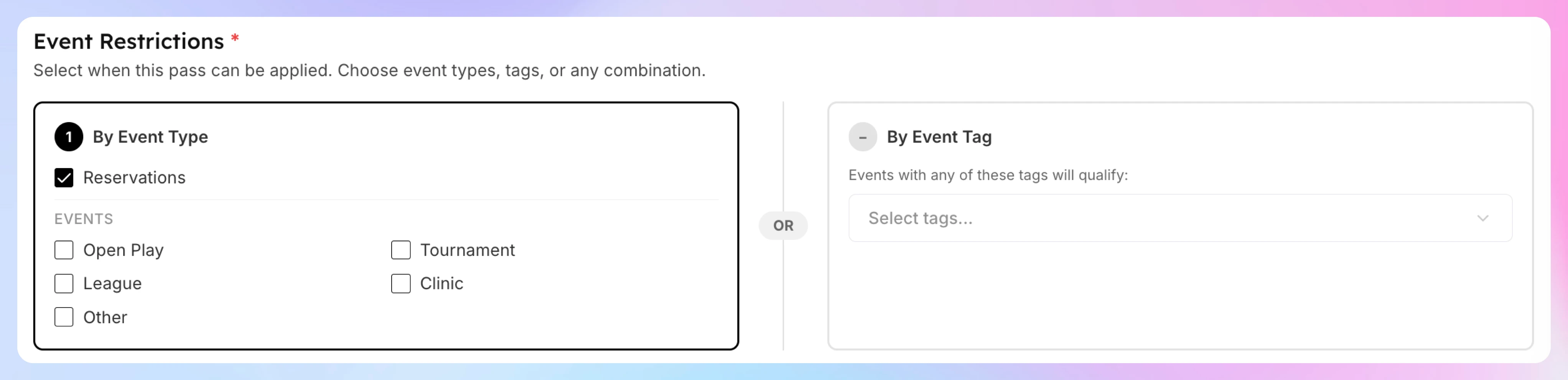
- Under Event Restrictions, check only Reservations. Leave all event types (Open Play, Clinic, etc.) unchecked — this pass should only apply to court reservations.
Click Create Booking Pass.
Note: "By Hours" is only available for Event passes — not Coach passes.
Step 2: Add the pass to the membership
Add the pass to the membership so members get their free court hours when the membership starts and again each cycle.
- Go to Memberships → Catalog, open the membership and click Edit.
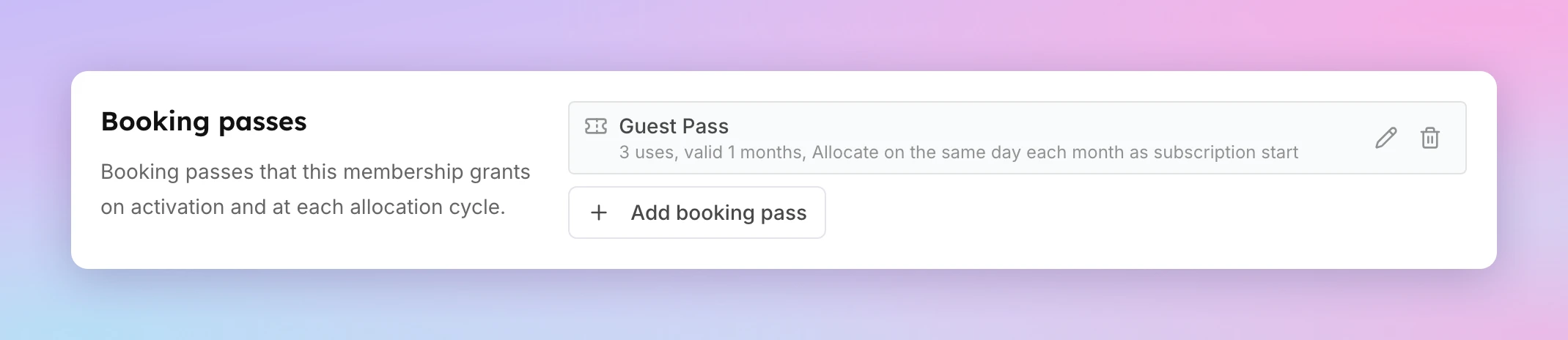
- In the Booking passes section, click Add booking pass.
- Under Booking pass, pick the pass you created in Step 1.
- Set Hours per Cycle to 5. The line under the field shows = 300 minutes. This field replaces Uses per Cycle because the pass is a By Hours pass.
- Set Valid for to 1 Months. Turn on Never Expires only if unused passes should carry over. Unused passes then roll over every cycle and add up: the form shows how many a member who uses none holds after a year, and the pass gets a Rolls over badge.
- Set Allocate every to 1 Month(s) and choose an Allocation anchor: Renewal date or Calendar date.
- Optional: set a Lead Time that matches how far ahead members can book.
- Click Confirm, then Save Changes. If the membership already has members, choose New subscribers only or Apply to all subscribers, then click Confirm and Save.
For every field and option, see Give booking passes with a membership.
How It Works for Members
- A Premium member books a 90-minute court reservation
- The system deducts 90 minutes from their pool (300 → 210 minutes remaining)
- They book another 60-minute reservation — pool goes to 150 minutes
- They can keep booking until the pool runs out
- If they book a 2-hour slot with only 90 minutes left, the pass covers 90 minutes and they pay for the other 30
- On the 1st of next month, a fresh 300-minute pool is allocated
Members can see their remaining balance in My Profile → Booking Passes (displayed as hours and minutes, e.g., "3h 30m remaining").
When to Use Hours vs Whole Event
| ScenarioUse | |
|---|---|
| Members get a fixed number of sessions (e.g., 4 bookings/month) | Whole Event — see Free Reservation Pass |
| Members get a time budget they can split freely (e.g., 5 hours/month) | By Hours — this guide |
The "By Hours" mode is more flexible — members can book three 90-minute sessions or five 60-minute sessions, whatever they prefer.
Key Points
- The hour pool is set on the membership (Hours per Cycle), not on the booking pass
- A booking longer than the remaining pool is partly covered: the pass covers the minutes that are left, and the member pays for the rest
- A member can hold the same pass more than once, for example hours you gave them by hand plus their monthly hours. Checkout adds these together, so one booking can use time from several of them, starting with the hours that expire first. Checkout, the receipt and the order email then list each one with the time it covered and its expiry date, the same way the member sees them in their profile
- Unused hours expire at the end of the month unless you turn on Never Expires when you add the pass to the membership — unused hours then add up every cycle until they are used (see Should a pass expire?)
- The pass applies to all event types you selected in Event Restrictions — if you only checked Reservations, Open Play bookings won't deduct from the pool
Creating a Free Reservation Pass
Give your members a set number of free court reservations per month. Each time a member books a court, one pass is consumed and the booking fee is waived. Example: Premium members get 4 free court reservations per month.
Create a Free Event Pass
Give your members a set number of free event entries per week/month. Each time a member joins a qualifying event, one pass is consumed and the fee is waived.