

Grant booking passes by hand
Give one customer or a group of customers a booking pass outside their membership, choose when it expires, and see how many unused passes your customers hold.
Give a customer a booking pass by hand — a comp, a make-good for a missed visit, or a gift for a group — and decide when it expires. (About 2 minutes. The booking pass must exist first.)
Before you begin
- Create the booking pass. The pass defines what it covers — for example, a guest's fee or an open play session. See Creating Booking Passes.
- Decide when the pass expires. Every hand-granted pass needs an end date or an explicit Never expires. The form has no default. See Should a pass expire? below.
Grant a pass to one customer
- Go to Users and open the customer.
- Open the Booking Passes tab.
- Click Grant Booking Passes.
- Under Booking Pass, pick the pass.
- Enter the Number of Uses (for an hours pass, Number of Hours). Leave it empty for unlimited uses.
- Under Expires, choose one:
- On a date — pick the last day the pass can be used, or click End of this month, In 30 days or In 90 days. The pass works through the end of that day, then it expires.
- Never expires — the customer keeps the pass until they use it.
- Optional: set Valid From if the pass should not be usable yet. Leave it empty and the pass works from today.
- Click Grant Booking Passes.
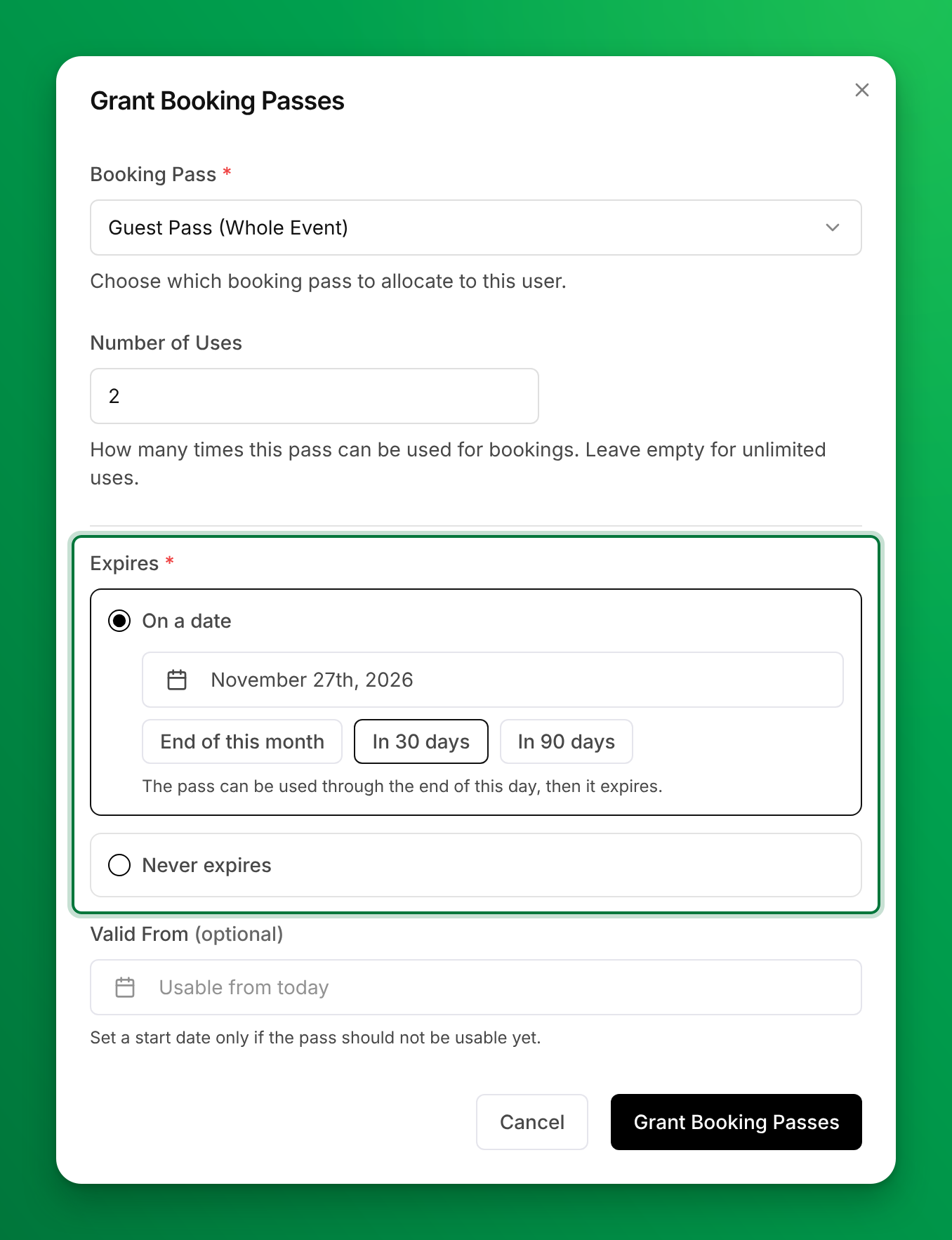
The pass appears in the customer's list. The Validity column shows Until the end date, or Does not expire.
Grant a pass to many customers at once
- Go to Booking Passes → Pass Holders and click Grant New Pass.
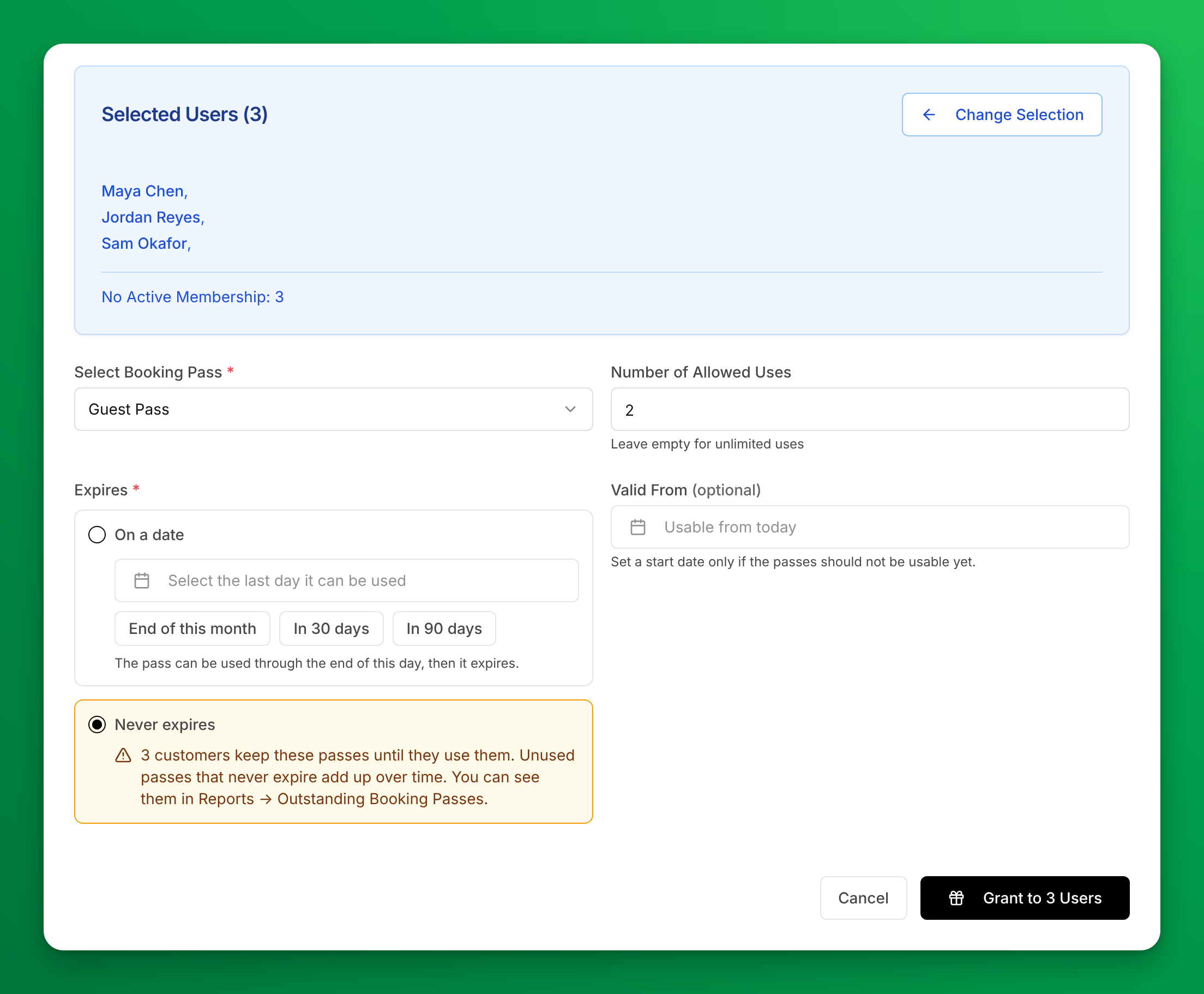
- Find customers with the search box or the membership filter, and click each one to add them to Selected Users.
- Click Grant to N customers.
- Under Select Booking Pass, pick the pass, and enter the Number of Allowed Uses (or Allowed Hours).
- Under Expires, choose On a date or Never expires, as for one customer. When you choose Never expires, the note names how many customers keep the passes until they use them.
- Optional: set Valid From.
- Click Grant to N Users.
Change a pass you already granted
- Open the customer's Booking Passes tab and click the pencil icon (Edit pass) on the pass. From Booking Passes → Pass Holders, open the row's menu and click Edit.
- Change the remaining uses or hours, Valid From, or Expires.
- Click Save Changes.
The form opens on what the pass has now: a pass without an end date opens on Never expires. To give a never-expiring pass an end date, choose On a date and pick the date. To stop a pass today, set its end date to today, or archive it.
Should a pass expire?
Pick an end date unless you have a reason not to. A pass with an end date gets used or goes away. A pass that never expires stays on the customer's account until it is used, and unused passes add up: every pass you grant without an end date is a free visit you still owe.
| Choose | When |
|---|---|
| On a date | Most grants: a comp for this month, a welcome pass, a promotion. In 30 days or In 90 days gives the customer time to book. |
| Never expires | A one-off make-good that the customer should be able to use whenever they come back, such as a make-good for a lesson your coach cancelled. |
The same applies to passes on a membership. With Never Expires on a membership benefit, unused passes roll over every cycle: 3 guest passes a month becomes 36 after a year for a member who uses none. The membership form shows that number in a yellow note, and the benefit row shows a Rolls over badge. See Give booking passes with a membership.
See how many unused passes your customers hold
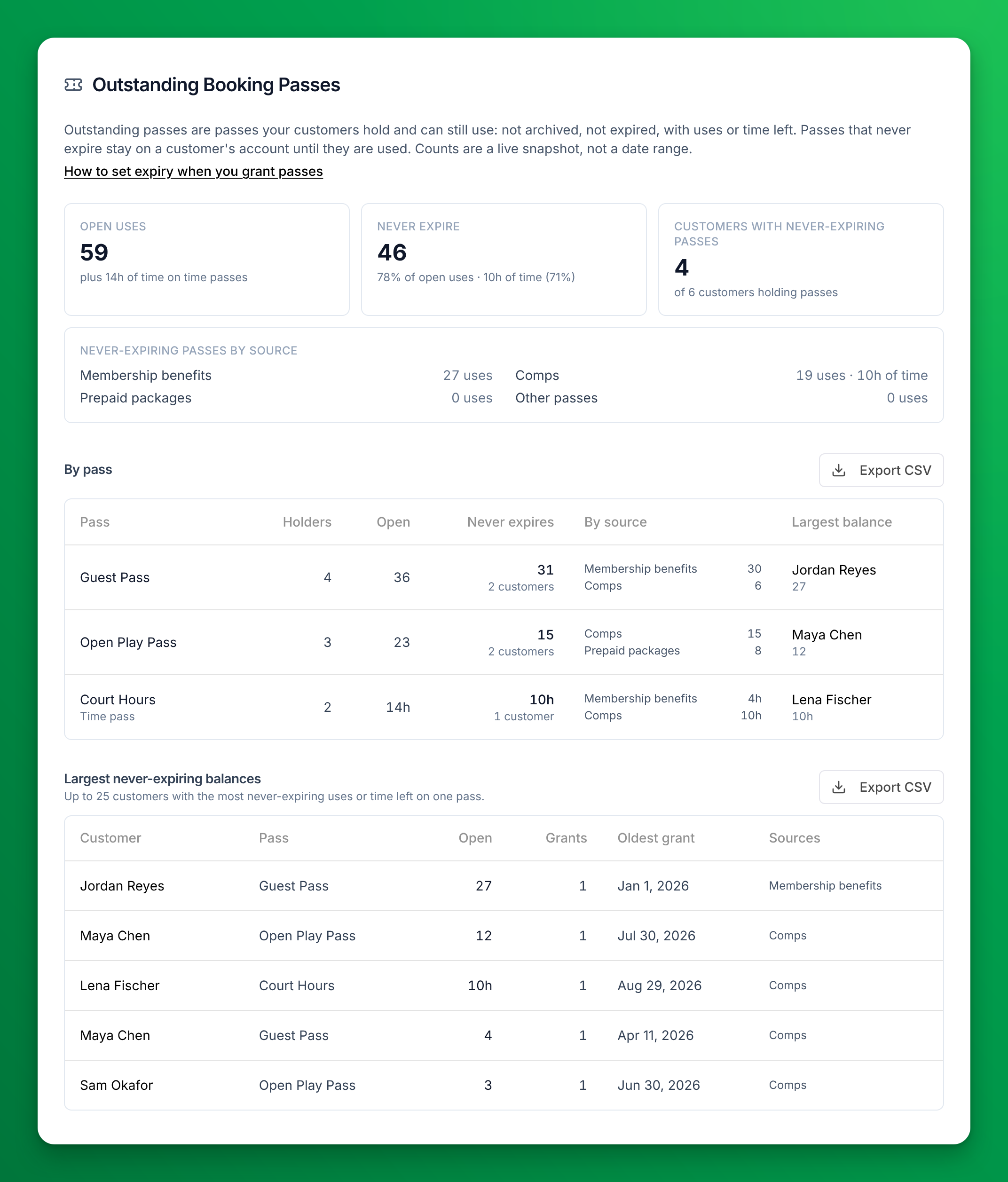
Reports → Outstanding Booking Passes shows every pass your customers can still use: not archived, not expired, with uses or time left. The counts are a live snapshot, not a date range.
- Open uses, Never expire and Customers with never-expiring passes at the top.
- Never-expiring passes by source splits them into Membership benefits, Comps (passes staff granted by hand), Prepaid packages and Other passes.
- By pass lists each pass with its holders, open uses, the part that never expires, the sources and the customer with the largest balance.
- Largest never-expiring balances lists up to 25 customers with the most never-expiring uses or time left on one pass. Click a name to open their passes.
Each table has an Export CSV button. The report counts uses, not dollars: what a use is worth depends on the booking it pays for.
You need access to Reports to see it.
To list the passes themselves, go to Booking Passes → Pass Holders and set Status to Never expires. It shows the active passes that have no end date.
If something goes wrong
- "Choose when these passes expire." — you did not pick an option under Expires. Choose On a date or Never expires.
- "Pick the last day the pass can be used." — you chose On a date without a date. Pick one, or click a preset.
- "The end date must be today or later." — a pass cannot end in the past. Pick today or a later date, or archive the pass instead.
- "The start date must be on or before the end date." — Valid From is after the end date. Clear Valid From or move the end date.
- There is no Grant New Pass button — your club has no active booking pass yet. Create one in Booking Passes → Booking Passes.
- A customer has far more passes than you expected — the passes probably never expire and rolled over. Check Reports → Outstanding Booking Passes, then edit the passes and give them an end date. For a membership benefit, turn off Never Expires and set Valid for. That change does not touch passes customers already hold, so edit those by hand.
Related
How booking passes work with memberships
How members get booking passes from their membership, when new passes arrive, and what happens to passes when a membership changes, freezes or ends.
Creating a Guest Pass
Give your members a set number of free guest visits per month. When a member adds a guest to a reservation or event, the guest's fee is automatically waived — one pass is consumed per guest visit.