

Creating a Pass Package
A Pass Package is a product that bundles one or more booking passes together. When a customer purchases the package, the passes are automatically allocated to their account. Unlike passes added to a membership, packages are one-time purchases — sold through your online store, POS, or payment links.
Use cases:
- A "10-Pack of Court Bookings" that anyone can buy
- A "Beginner Bundle" with 5 clinic passes and 3 court hours
- A "Private Lesson Package" with 5 lessons with a specific coach
Step 1: Create the Booking Pass Templates First
Before creating a package, you need the booking pass template(s) that will be included. If you haven't created them yet, go to Booking Passes → Booking Passes and create the templates you need.
See the most popular individual pass guides for details:
- Guest pass
- Free reservation pass
- Free court hours pass
- Free event pass
- Free event with specific event tag pass
- Free lesson pass
You only need the pass templates — you do not need to add them to a membership. The package itself gives the passes on purchase.
Step 2: Create the Pass Package
- Go to Products → Add Product
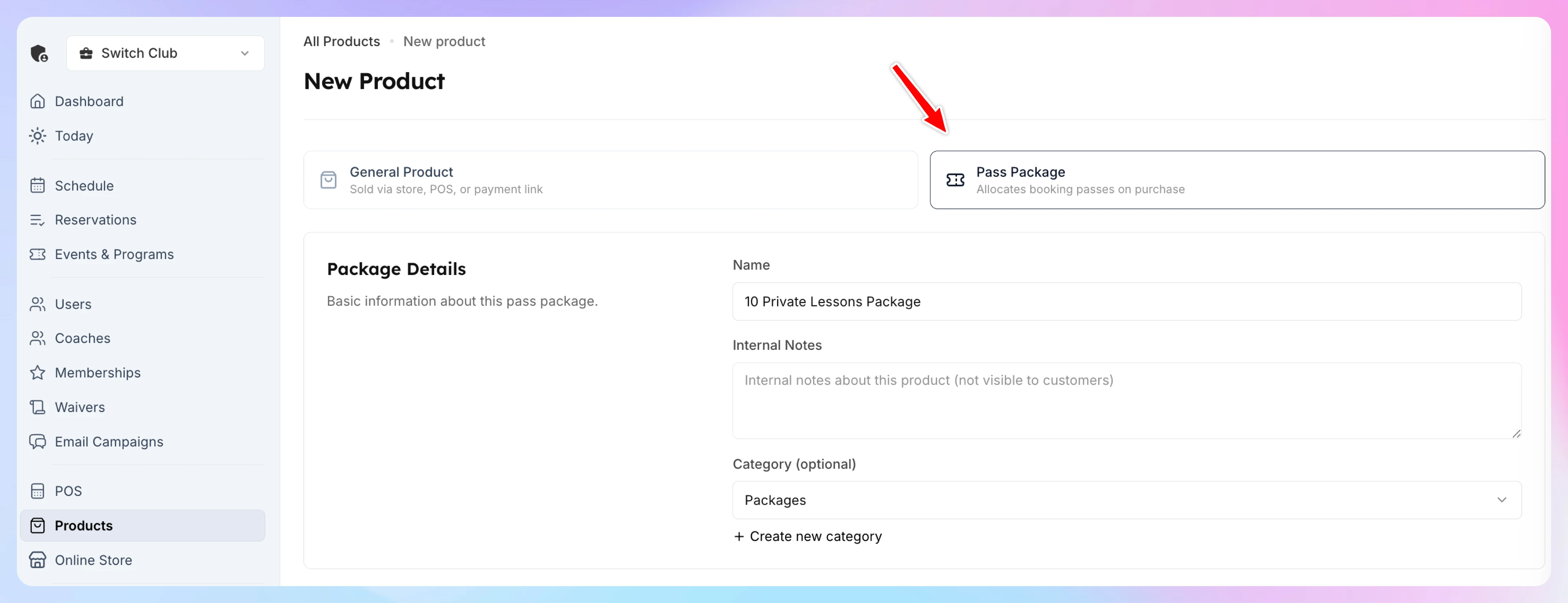
- At the top, you'll see two options: General Product and Pass Package. Select Pass Package.
Product Details
| FieldDescription | |
|---|---|
| Name | The product name — visible to admins and customers (e.g., "10 Private Lessons Package") |
| Internal description | Notes for your team only — not shown to customers |
| Category | Optional — organize products by category (e.g., "Packages", "Passes"). You can create new categories from the dropdown. |
Product Image
Upload an optional image to showcase the package on your store page. Images are cropped to square format, max 5MB.
Sales Channels
Choose where the package can be purchased:
| Channel Description | |
|---|---|
| Online Store | Visible to customers on your club's store page |
| POS | Available for sale at the point of sale (front desk) |
Both channels can be enabled at the same time.

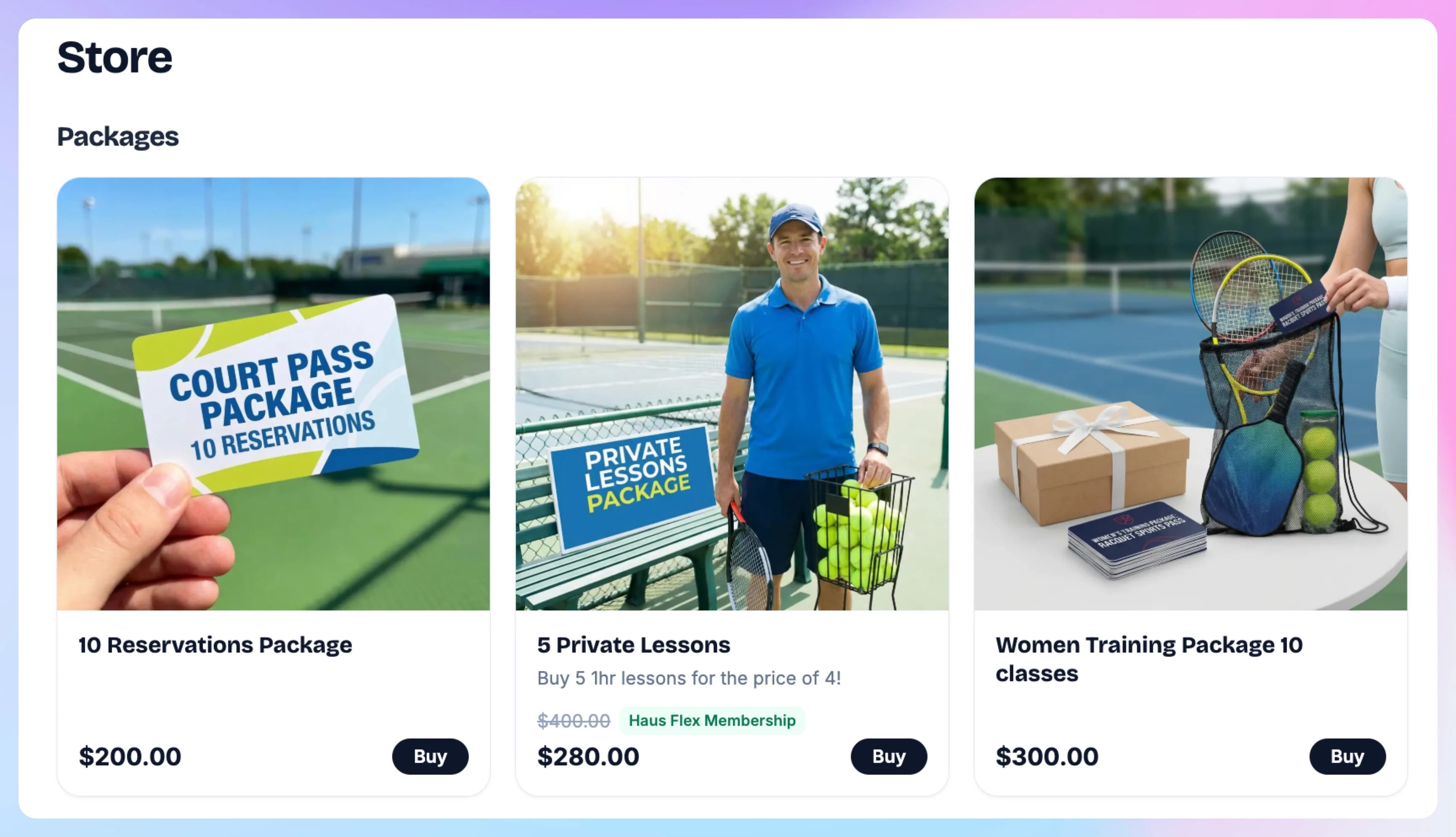
If you enabled the “Online Store” channel, your customers will see it on the Store page, and will be able to purchase from the app or website:
Customer Description
This description is visible to customers on the store page and payment link. Use it to explain what's included in the package — e.g., "Includes 10 court booking passes, valid for 3 months."
Pricing
| FieldDescription | |
|---|---|
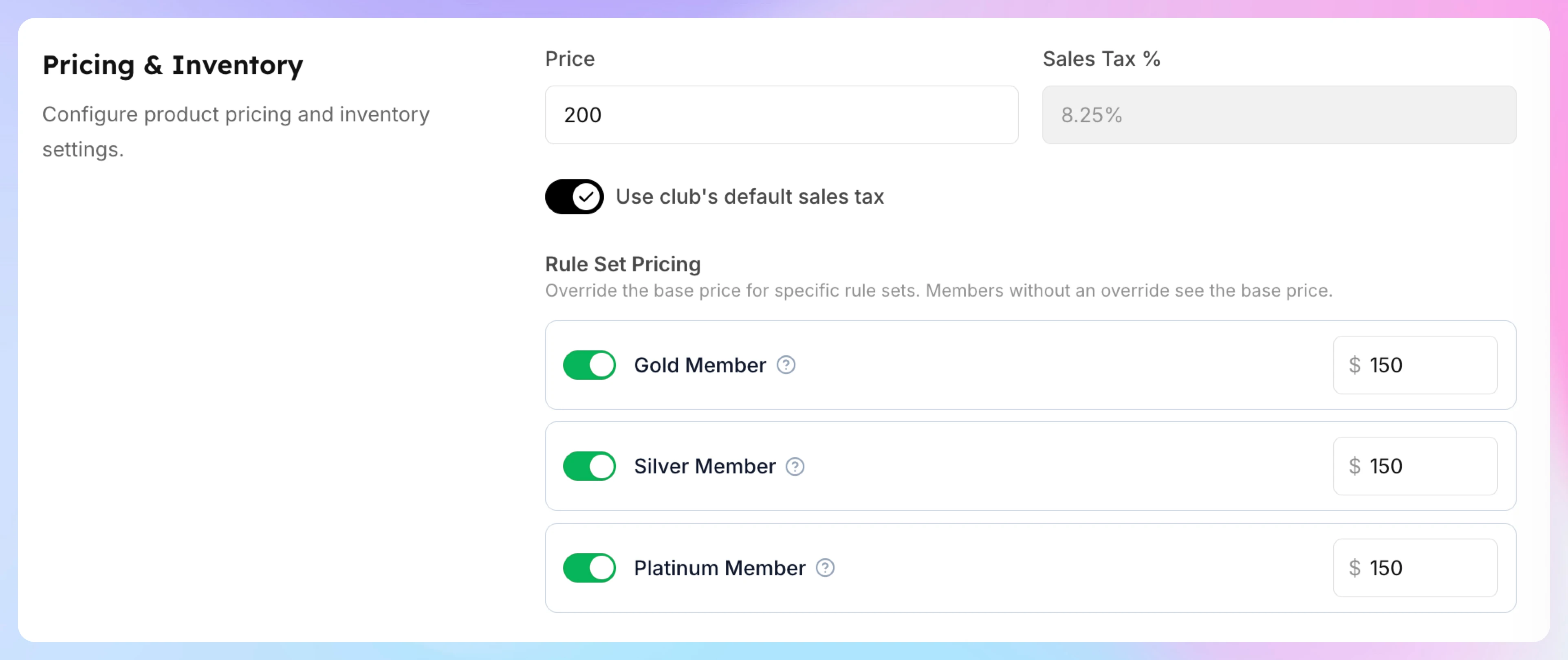
| Price | The package price (e.g., $99.00) |
| Sales Tax | Uses your club's default tax rate. Toggle "Use custom sales tax" to override. |
| Rule set-based pricing | Optional — set different prices for different membership rule sets (e.g., members pay $79, non-members pay $99) |
Booking Passes
This is where you configure what's included in the package.
Validity Period
Set how long the passes remain valid after purchase:
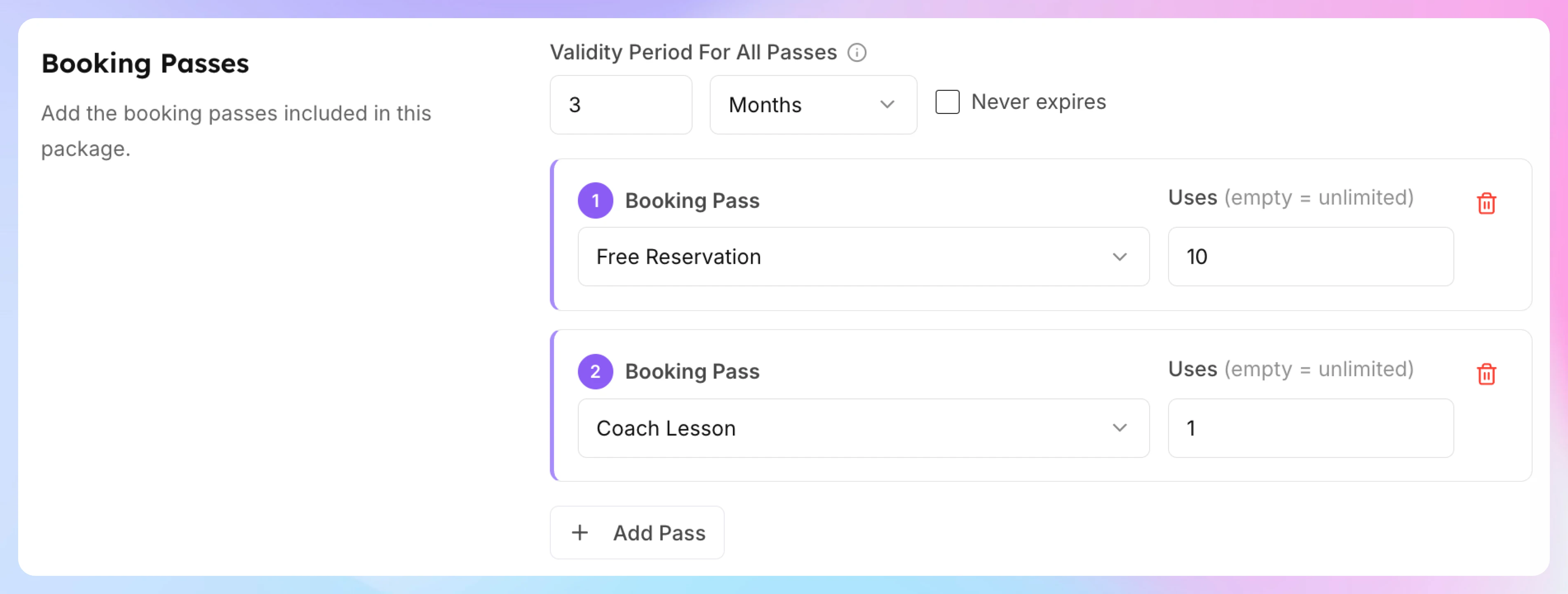
- Enter an amount and unit (e.g., 3 months, 30 days, 1 year)
- Or check "Never expires" if passes should last indefinitely
This validity period applies to all passes in the package.
Adding Passes
Click "Add Pass" to add a booking pass to the package. For each pass, configure:
| FieldDescription | |
|---|---|
| Booking Pass | Select the pass template from the dropdown |
| Number of Uses | How many times the pass can be used (e.g., 10). Leave empty for unlimited. |
| Hours | For "By Hours" passes only — the total hours in the pool (e.g., 10). The line under the field shows the minutes (= 600 minutes). |
You can add multiple passes to a single package. For example, a "Premium Bundle" could include:
- 10 court reservation passes
- 2 guest passes
- 1 private lesson pass
Click "Add Pass" again for each additional pass template.
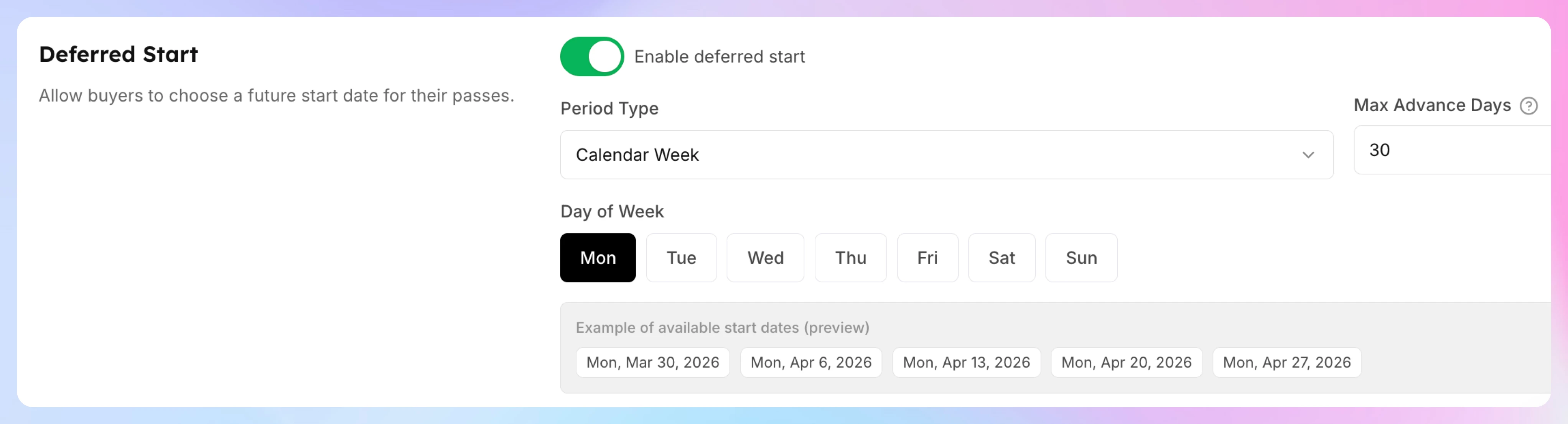
Deferred Start (Optional)
By default, passes become active immediately on purchase. Enable Deferred Start to let buyers choose a future start date — useful for seasonal packages or programs that start on specific dates.
Toggle "Enable deferred start" to reveal the configuration:
| FieldDescription | |
|---|---|
| Period Type | How start dates are determined |
| Max Advance Days | How far in the future buyers can choose (1–90 days) |
Period type options:
| Period TypeWhat it doesExample | ||
|---|---|---|
| Calendar Week | Buyer picks a start-of-week date. You choose which day of the week. | "Passes start every Monday" |
| Calendar Month | Buyer picks a start-of-month date. You choose which day of the month. | "Passes start on the 1st of each month" |
| Calendar Year | Buyer picks a start-of-year date. You choose the month and day. | "Passes start on January 1st" |
| Free Date | Buyer picks any date within the advance window. | "Start whenever you want (within 60 days)" |
When the buyer purchases the package, they'll see a date picker at checkout with the available start dates based on your configuration.
Step 3: Save
Click Save at the bottom of the form. The package is now created and available for purchase through the channels you selected.
Example: 10-Pack of Court Bookings
Scenario: You want to sell a package of 10 court reservations for $150, valid for 3 months.
Prerequisites: Create a "Court Booking" pass template (Event type, Whole Event, Pass Holder Only, Reservations only) — see Free Reservation Pass.
Package setup:
| SectionConfiguration | |
|---|---|
| Name | 10-Pack Court Bookings |
| Customer Description | Book 10 court sessions at a discounted rate. Valid for 3 months from purchase. |
| Sales Channels | Online Store: ON, POS: ON |
| Price | $200.00 |
| Validity Period | 3 months |
| Pass 1 | Court Booking — 10 uses |
| Deferred Start | Off (passes start immediately) |
How it works for the customer:
- Customer finds the package on the club's online store
- They purchase it for $200
- 10 court booking passes are immediately allocated to their account
- Each time they book a court, one pass is consumed
- After 3 months, any unused passes expire
Example: Beginner Bundle
Scenario: A "Beginner Bundle" for $99 that includes 5 clinic passes and 3 hours of court time.
Prerequisites:
- A "Clinic Pass" template (Event type, Whole Event, Clinic only)
- A "Court Hours" template (Event type, By Hours, Reservations only)
Package setup:
| SectionConfiguration | |
|---|---|
| Name | Beginner Bundle |
| Customer Description | Perfect for new players! Includes 5 group clinics and 3 hours of court time. |
| Price | $99.00 |
| Validity Period | 2 months |
| Pass 1 | Clinic Pass — 5 uses |
| Pass 2 | Court Hours — 3 hours |
| Deferred Start | Calendar Month, Day 1, Max 60 days |
With deferred start on "Calendar Month, Day 1", the buyer can choose to start their bundle on the 1st of this month or next month.
Packages vs passes in a membership
| Pass packages | Passes in a membership | |
|---|---|---|
| How passes are granted | One-time purchase | Automatically with membership |
| Recurring | No — buy once | Yes — renews on schedule |
| Tied to membership | No — anyone can buy | Yes — requires specific membership |
| Sold via | Store, POS, payment link | N/A — automatic |
| Best for | Drop-in packs, seasonal bundles, trials | Ongoing member benefits |
Add passes to a membership for recurring member benefits (e.g., "Gold members get 4 free reservations every month") — see Give booking passes with a membership. Use packages for one-time purchases that anyone can buy.
Key Points
- Pass templates must be created before you can add them to a package
- The validity period applies to all passes in the package — you can't set different expiration dates for individual passes within a package
- When a package is purchased, passes are allocated immediately (unless deferred start is enabled)
- Packages appear as products in your store — customers don't need a membership to purchase them
- You can edit a package after creation, but changes won't affect already-purchased packages
- Rule set-based pricing lets you offer member discounts on packages (e.g., members pay $79, non-members pay $99)
Create a Family-Shared Pass
Let an entire family share a single pass pool. When family sharing is enabled, all family members linked to the pass holder can use the pass independently — no need to book through the primary member.
Creating and Managing Subscriptions
Sell a recurring package of booking passes, such as four lessons a month or every session of a program. Create the product, price it, add its passes, sell or assign it, and manage subscribers.