

Editing Programs (Event Series)
Quickly update multiple upcoming events in a program without having to edit or recreate each one manually.
Quickly update multiple upcoming events in a program without having to edit or recreate each one manually. This is especially useful if you’re running recurring events like weekly open plays or clinics and need to adjust times, courts, or a number of participants mid-season.
And you can also add new events to an existing program whenever needed — for example, to extend the series or insert an extra session between existing dates.
When to use “Bulk Edit Events”
Use Bulk Edit Events when you need to:
- Change time slots, courts or participant limits for multiple future events at a time.
In this scenario, you can select one or multiple instances of the Program (events), and apply these changes to them quickly and easily.
When to use “Edit Program Settings”
Use Edit Program Settings when you need to change details that apply across sessions—like the event name/description, privacy, pricing, or requirements.
- Add or remove tags. A booking pass that is restricted to a tag works only on sessions that carry it.
- Update event settings like pricing, public registration, divisions, or skill ratings.
- Add or remove sign-up questions.
- Modify event descriptions or names across all sessions.
When to edit Events individually
You can choose to edit any given event within the program individually. You can adjust any settings on that individual event – however, keep in mind that editing any event individually makes it not follow any settings of the Program. In a way, it becomes “detached” from any future updates of the Program, while still technically being a part of it.
How to Bulk Edit a Program
-
Go to Events & Programs from the left-hand menu.
-
Click the Programs (Event Series) tab.
-
Open the program you want to edit.
-
Click Bulk Edit Events.
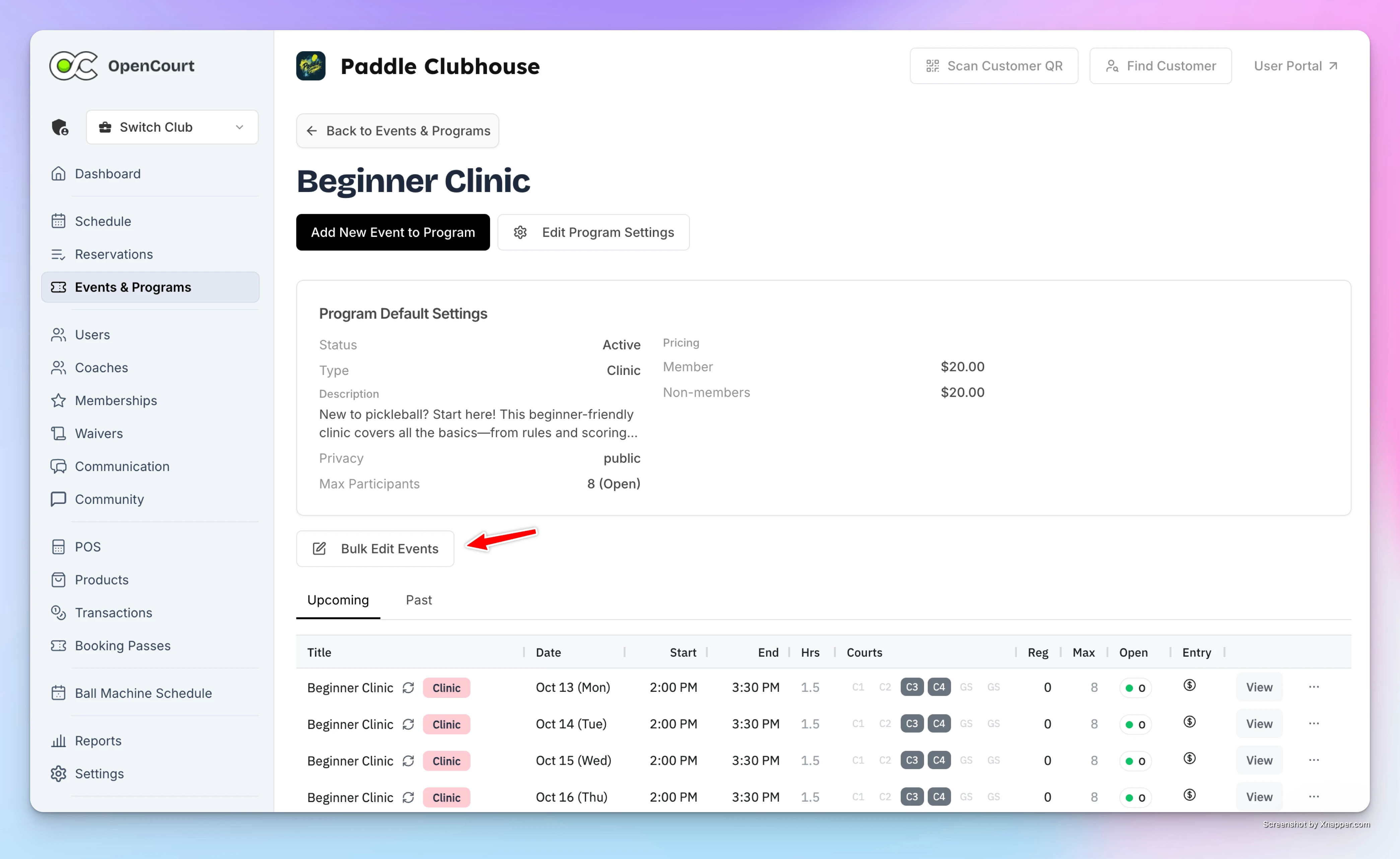
-
Select which events you want to modify:
- Choose All events in the series,
- Or click the small arrow icon to select this event and all events after it (e.g., starting next month).
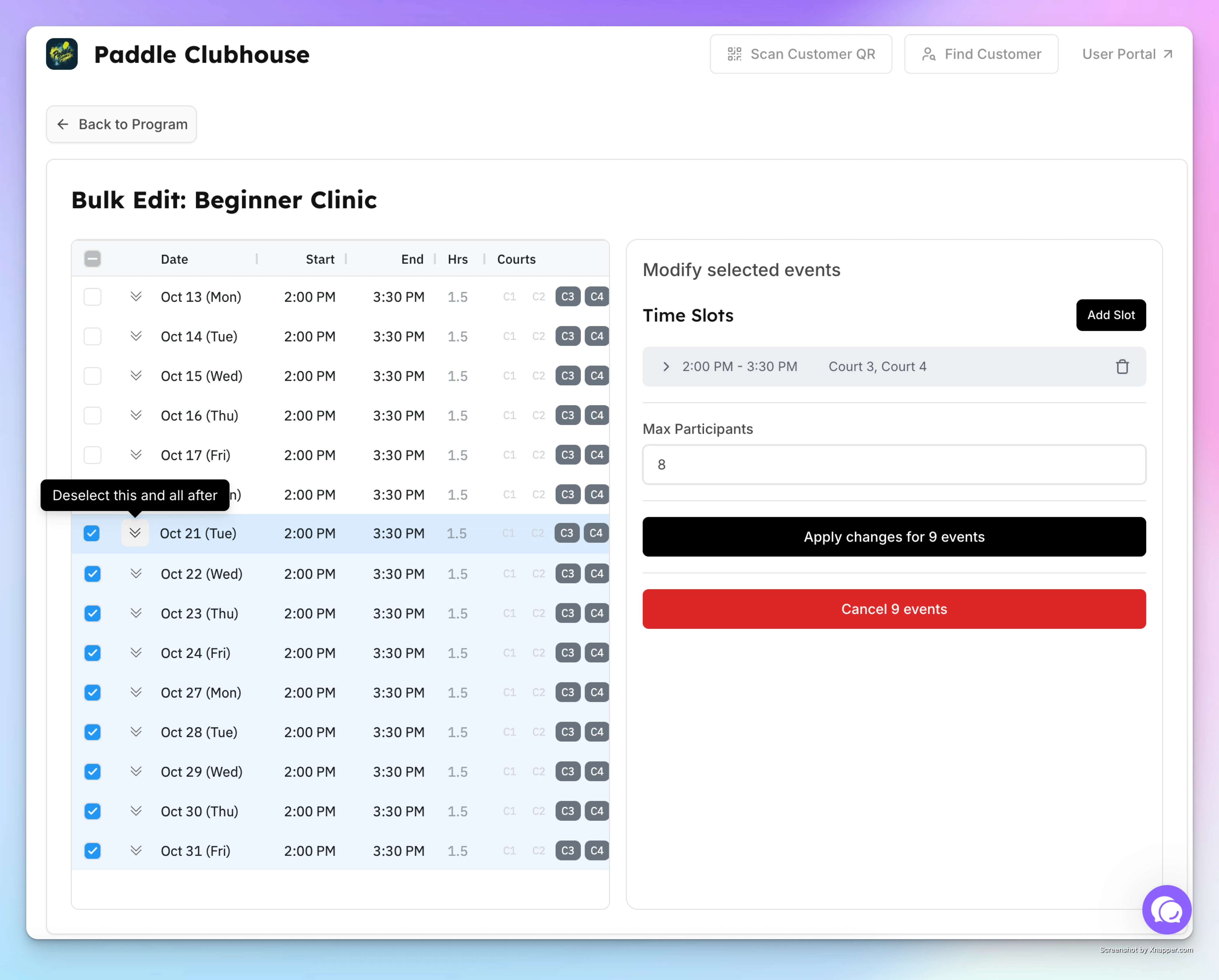
-
Make your changes.
-
Optional: in Reason (optional, staff only), say why you made the change. Only staff see it.
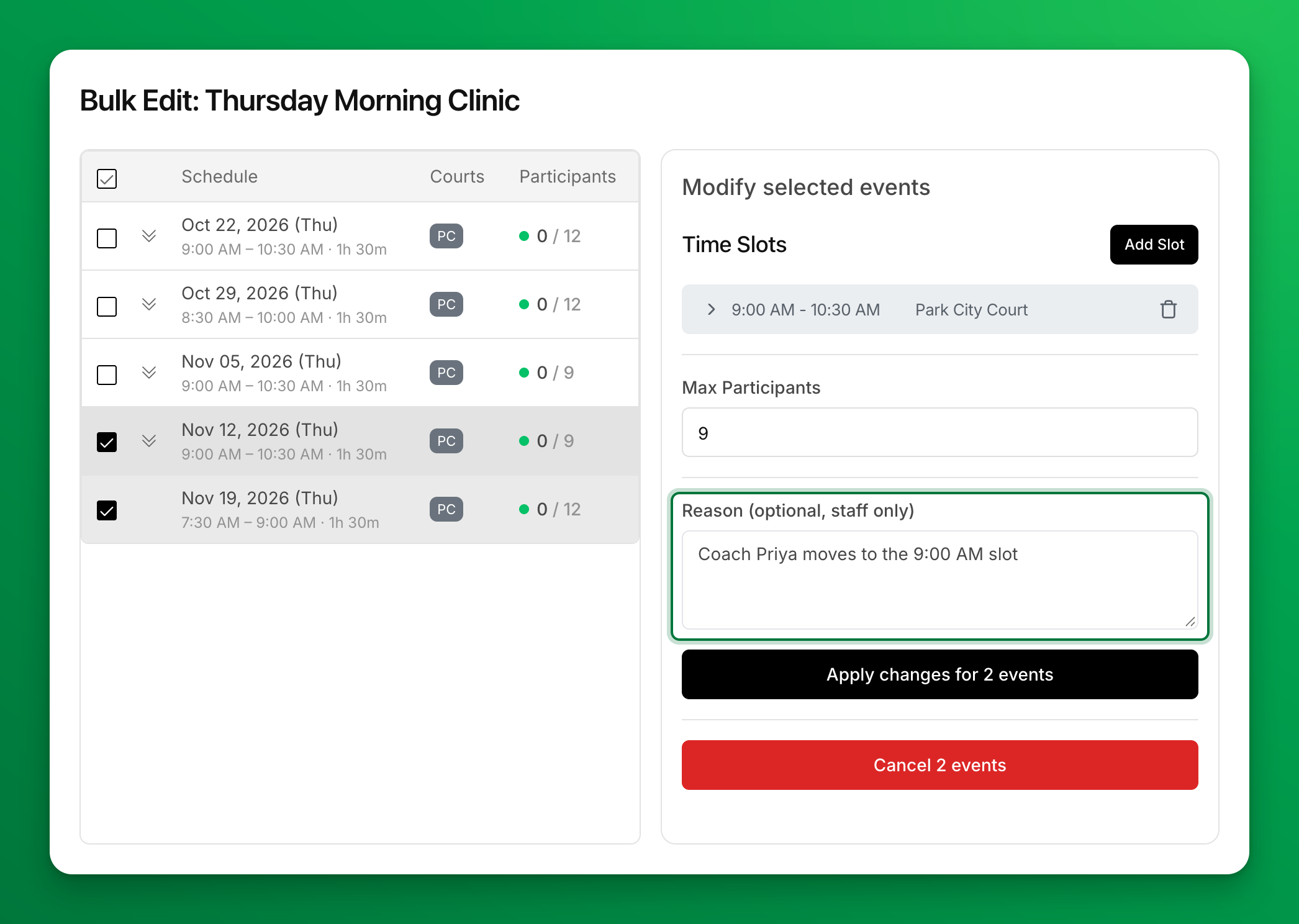
-
Choose whether to email participants. When a selected event has participants, you see Email participants if the time or court changes (your club may call courts something else, such as bays). It is checked by default, so participants with an account get an "Event updated" email for each upcoming event whose time or court moves. Clear it to save without emails — for example, while you make several small edits. When every selected event is already over, it starts unchecked.
-
Click Apply changes for N events (N is the number of events you selected).
Your changes appear right away under Upcoming Events. The "Event updated" email goes only for events whose time or court actually changed: a new participant limit alone sends none. A higher limit can still send an invite to people on the waitlist.
To cancel the selected events instead, click Cancel N events. The cancel dialog has the same optional Reason field.
Note:
If a selected time and court is already booked, the system shows an overlap warning and saves nothing. This includes a booking on a linked court — for example, a pickleball booking on a court that shares a tennis court's footprint (see Dependent Spaces). Bulk Edit re-saves every event you selected, so the warning can appear even when you only change the participant limit. Move the other booking, or deselect the dates it lists, and apply again.
You also can't put two linked courts in the same time slot: they share one space.
How to Edit Program Settings
-
Go to Events & Programs and click the Programs (Event Series) tab.
-
Open the program and click Edit Program Settings.
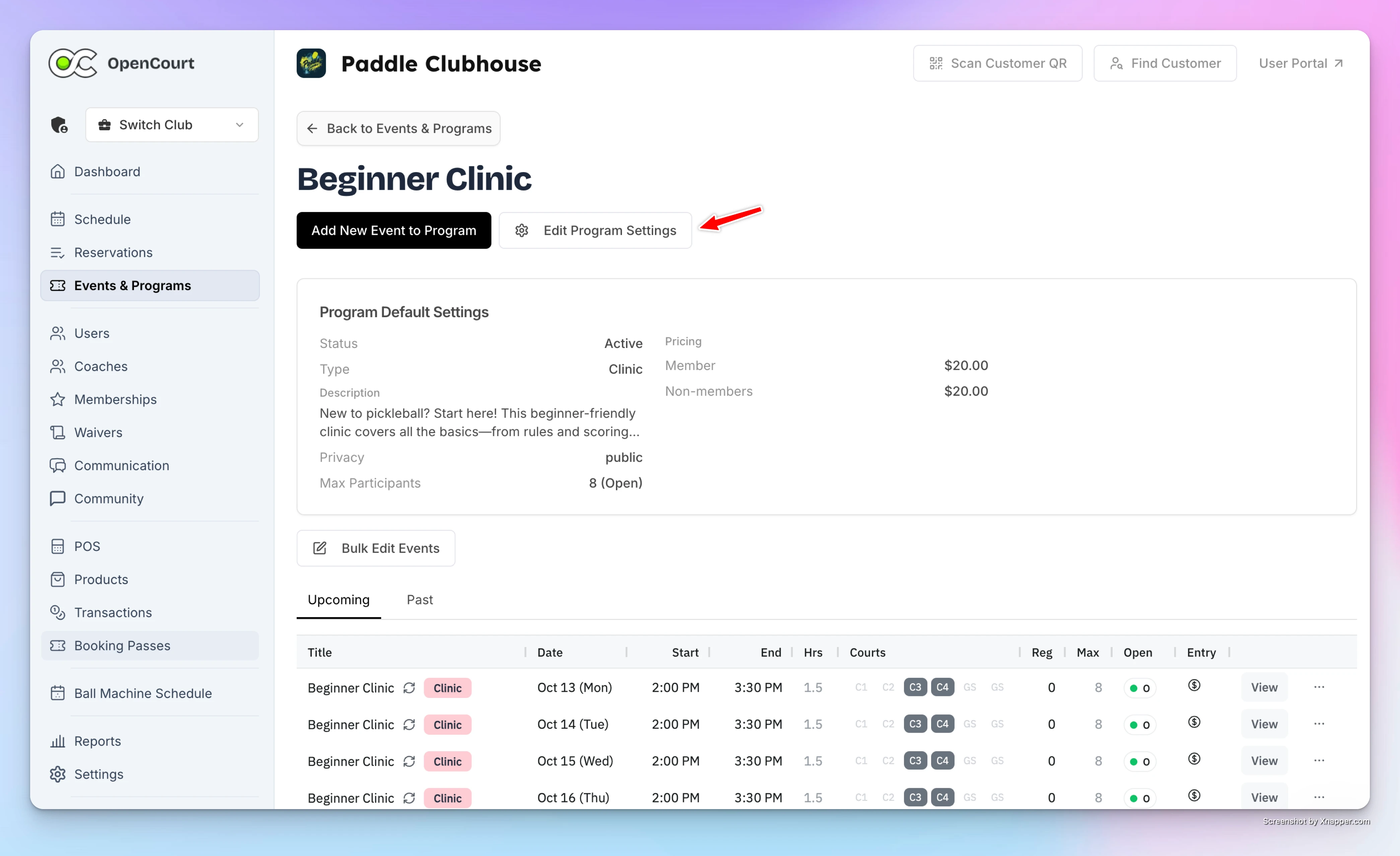
-
Update any of the following:
- Name & Description
- Tags
- Public Registration (toggle on/off)
- Make Event Private (from this point forward)
- Participants Limit
- Pricing
- Skill Rating (add/remove)
- Sign-up Questions (add/remove)
- Event Divisions (add/remove)
-
Optional: in Reason (optional, staff only), say why you made the change.
-
Click Update program (event series).
Scope of changes:
Settings apply only to upcoming events that still follow the program. An event you edited on its own keeps its own settings, including its tags, so update it separately. After saving, you’ll see a success message and the updates will appear immediately under Upcoming Events.
See what changed in a program
The Program History card on the program page lists the changes to the program: who made each one, when, what changed, how many upcoming sessions it reached, and the reason, if staff gave one.
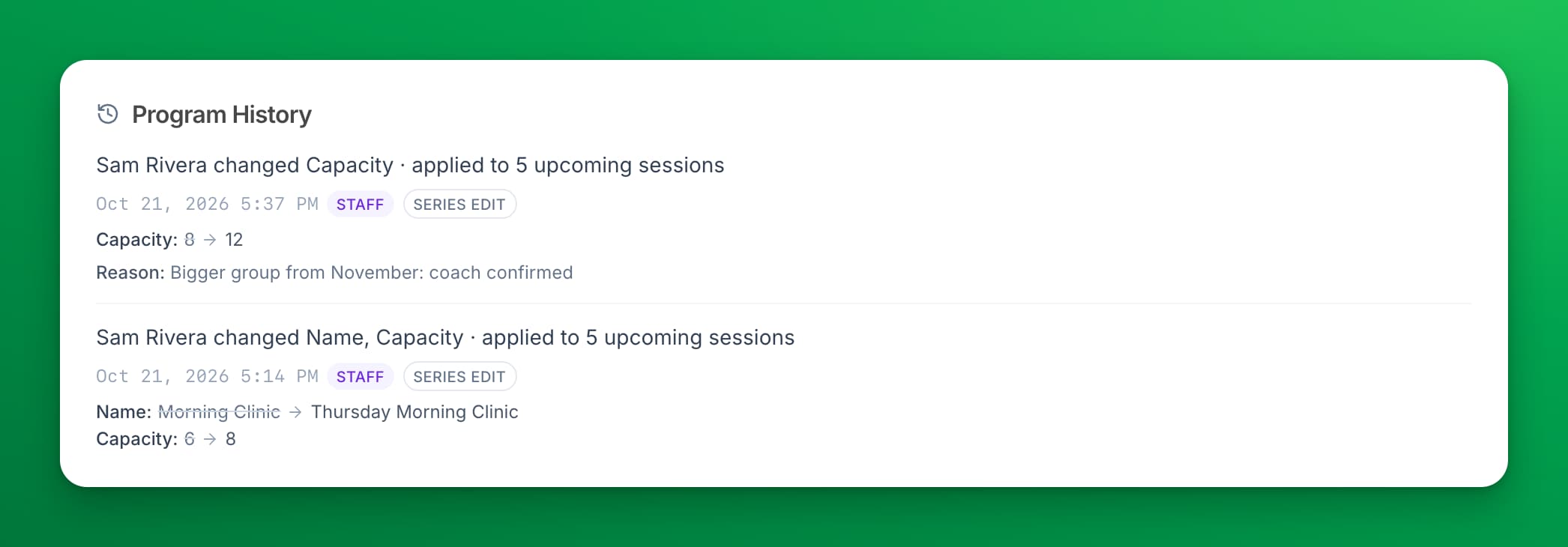
Each session also shows the change in its own Activity tab, marked Series edit. See See who changed a booking or event.
Adding or Removing Events in the Series
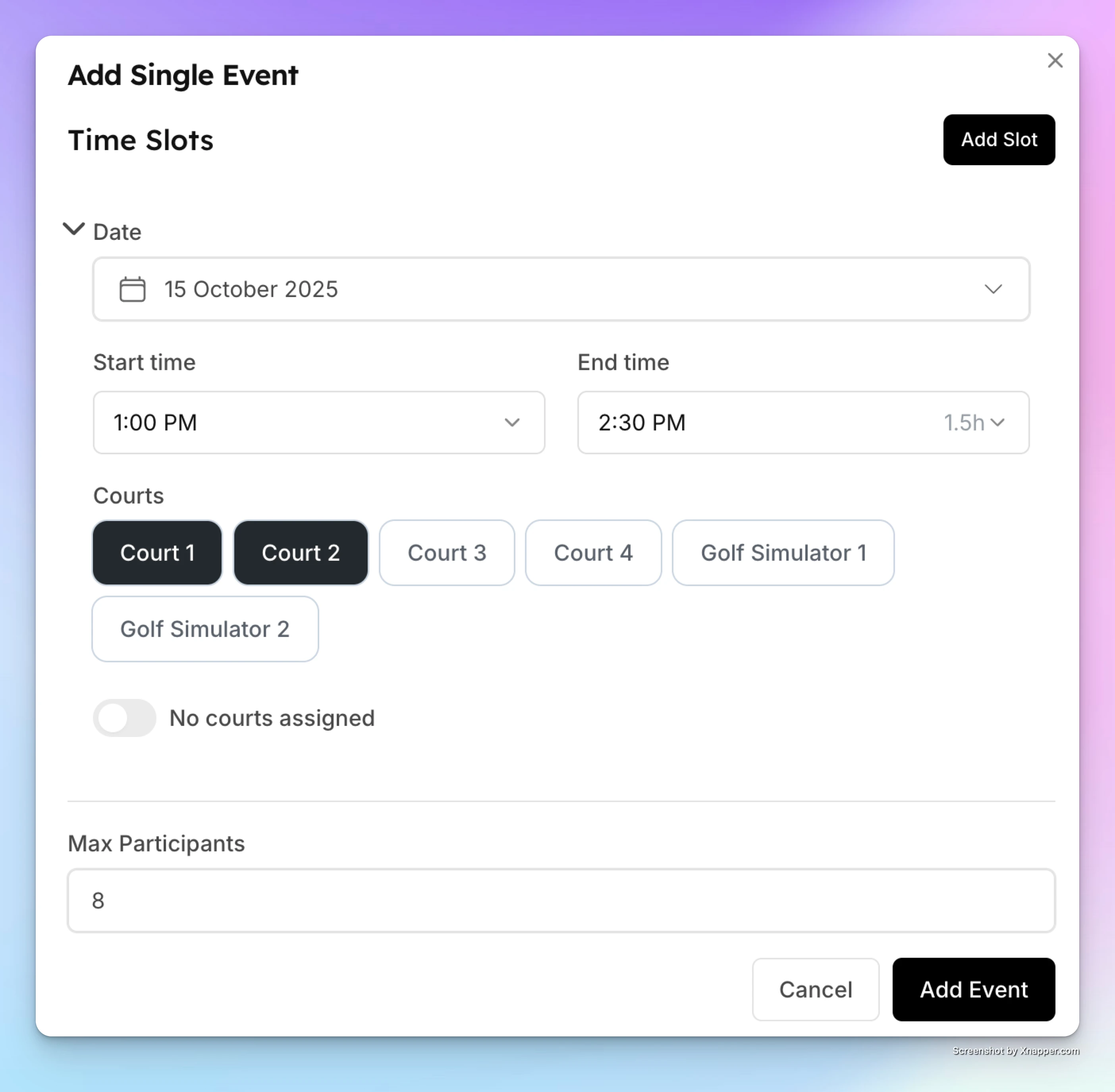
And you can also add new events to an existing program whenever needed — for example, to extend the series or insert an extra session between existing dates:
-
Click Add New Event to Program.
-
Choose a new date, time slot, and court(s).
-
Set the participants limit.
-
Click Create.
The new event will automatically appear in your program list.
If a court you picked, or a court linked to it, is already booked at that time, OpenCourt shows the time slots it can't create. Click Continue to create the event without them, or Cancel to choose another time or court.
Creating a Multi-Date Event (e.g. League)
A league is a structured competition in which players or teams compete in multiple matches over a set period, often lasting several weeks or months. Unlike an Event Series, a league is created as one single event with multiple dates. Players register once for the entire league and make one payment that covers all dates.
Run a monthly academy or youth program
Sell an academy, junior program or recurring clinic as a monthly subscription that covers every session, keep a single-session drop-in price for everyone else, and give each child their own subscription.