

Set up a waitlist for an event
Let customers join a waitlist when an event is full, and choose who gets a spot when one opens: everyone at once, or the people in line first, with a head start.
Turn on a waitlist so customers can line up for a full event, and decide who gets the spot when one opens. (2 minutes per event. You need permission to edit events.)
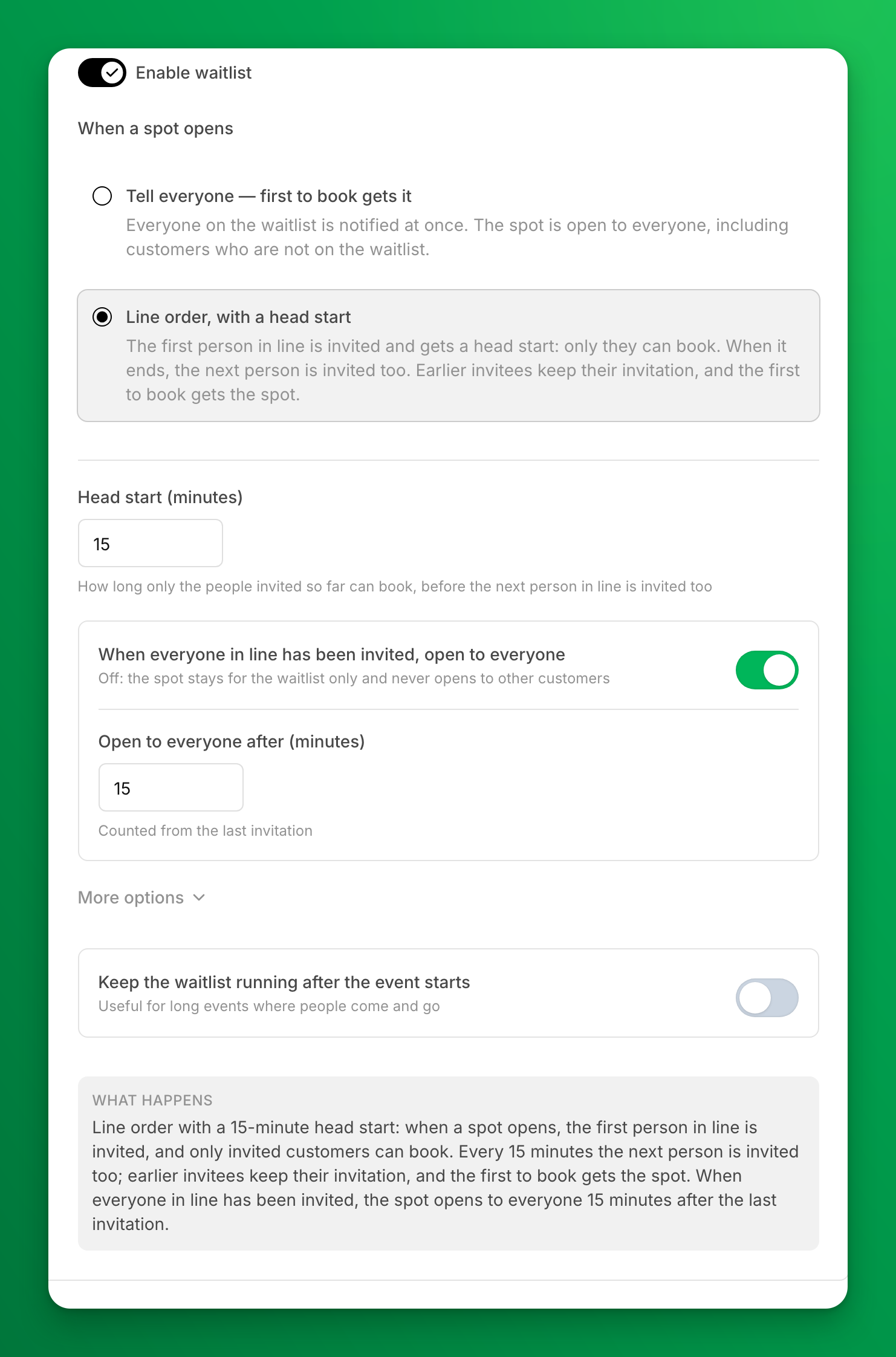
Turn on a waitlist for an event
- Go to Events & Programs and open the event, or create a new one.
- Scroll to the Waitlist section.
- Turn on Enable waitlist.
- Under When a spot opens, choose Tell everyone — first to book gets it or Line order, with a head start. The two options are explained below.
- Save the event.
The box What happens at the bottom of the section describes, in one sentence, what your customers will get.
Which option should I choose?
| Tell everyone — first to book gets it | Line order, with a head start | |
|---|---|---|
| When a spot opens | Everyone on the waitlist is notified at the same time | The first person in line is invited |
| Who can book the spot | Anyone, including customers who are not on the waitlist | Only invited customers, until the line runs out |
| Best for | Casual events where speed matters more than order | Popular events where people expect their place in line to count |
How line order works
When a spot opens, the first person in line gets a head start: for the number of minutes you set in Head start (minutes), only they can book. When the head start ends, the next person is invited too. The first person keeps their invitation. Each head start adds one more person, and the first person to book gets the spot.
An example with a 15-minute head start:
| Time | What happens |
|---|---|
| 3:00 pm | A customer cancels. Maya, first in line, is invited. Only Maya can book. |
| 3:15 pm | Maya has not booked. Jordan, second in line, is invited too. Maya or Jordan can book. |
| 3:22 pm | Jordan books. The event is full again, and everyone left on the waitlist goes back to waiting. |
If an invited customer leaves the waitlist, the next person in line is invited at once.
What happens when everyone in line has been invited?
- With When everyone in line has been invited, open to everyone turned on, the spot opens to all customers after the minutes you set in Open to everyone after (minutes), counted from the last invitation.
- With it turned off, the spot stays for the waitlist only. If nobody on the waitlist books, the spot stays empty.
More options
Under More options, People invited at a time invites a group instead of one person. Most clubs leave it at 1.
Keep the waitlist running after the event starts keeps inviting people after the start time. Use it for long events where people come and go.
What customers see
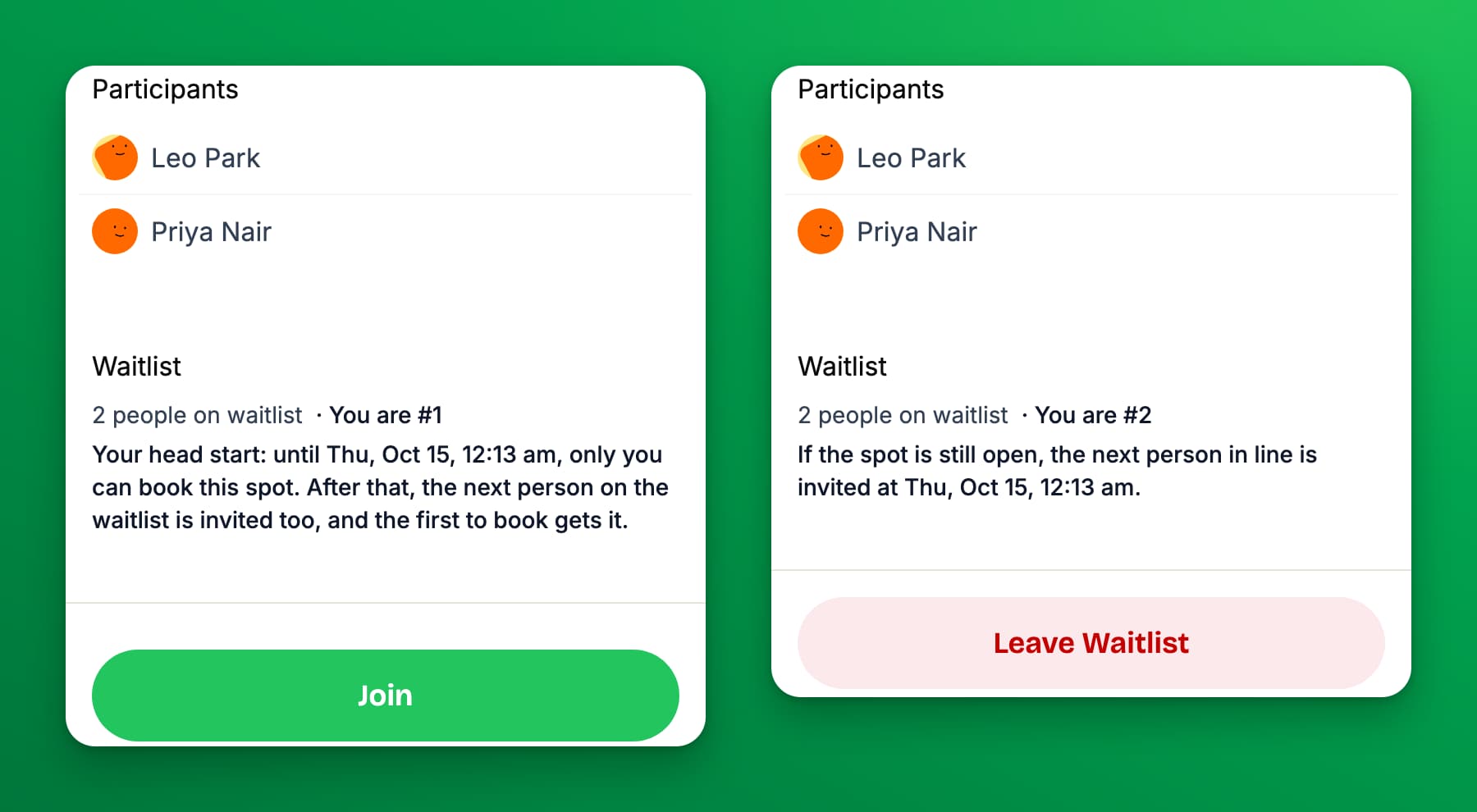
- The event is full. Customers see Join Waitlist instead of Join. They can leave the waitlist at any time.
- They are invited. They get an email and a push notification. With line order, the email names the end of their head start, for example "until 3:45 pm, only you can book this spot". The event page shows the same time, and both Join and Leave Waitlist.
- They are still waiting in line. The event page tells them when the next person is invited.
- They are not on the waitlist. While the spot is held for the line, they see Join Waitlist and a note that the spot is held for customers on the waitlist.
Paid events
A customer who is not on the waitlist cannot pay for a spot that is held for the line. Invited customers pay as usual when they book.
See and manage the waitlist of one event
Open the event from Events & Programs or the Schedule and select the Waitlist tab. You see:
- the mode, in one sentence;
- what is happening now and what happens next, with the time — for example "The next person in line is invited at 3:45 pm if the spot is still open";
- every customer in line, with Status: Invited with the time and not booked yet, or Waiting.
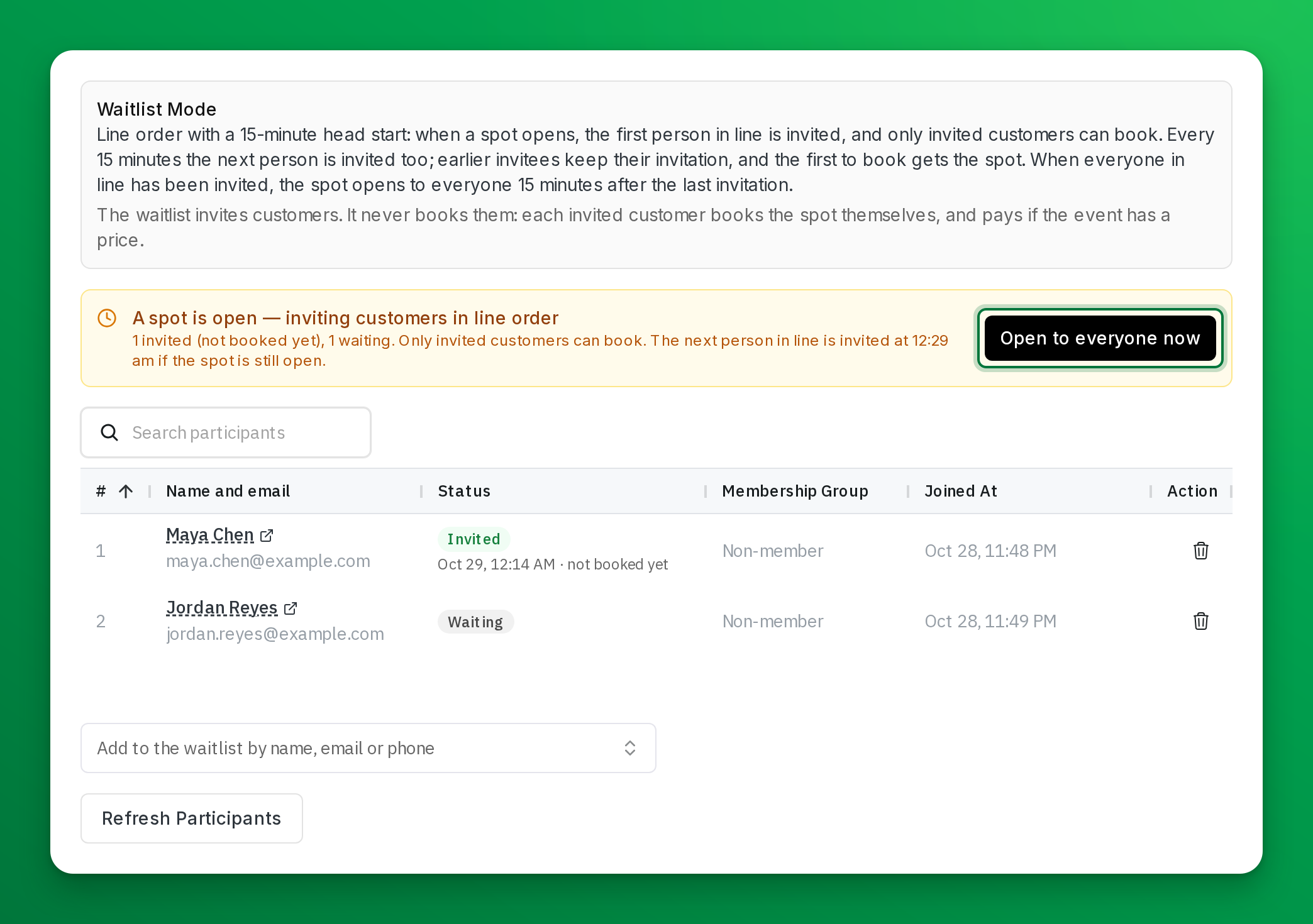
On the same tab you can add a customer to the waitlist (search by name, email or phone number; people already on the event or the waitlist show greyed out, with the reason), or remove one with the trash icon.
Open a held spot to everyone
When a spot is held for customers in line, the banner shows Open to everyone now. Select it to let anyone book the open spots, for example when the event starts soon and the line is slow.
After that, the banner says Open to everyone — set by an admin and shows Back to line order. Select it to hold open spots for the line again. Editing the event does not change this choice.
Set the default for new events
Go to Settings → General → Waitlist Settings and pick the same options. New events start with these settings. Existing events keep their own.
If something goes wrong
- A spot is open, but customers say they cannot book it. Line order holds the spot for invited customers. Open the event's Waitlist tab: the banner says who is invited and when the next person is invited. To let anyone book now, select Open to everyone now in the banner.
- The spot stayed empty until the event started. The event uses line order with When everyone in line has been invited, open to everyone turned off, and nobody invited booked. Turn the switch on for the next event.
- An invited customer says someone else took the spot. With line order, everyone invited so far can book after the head start ends, and the first to book gets the spot. With Tell everyone, any customer can book it.
- A customer was invited but is not on the participant list. An invitation is not a booking. The customer has to open the event and select Join. On the Waitlist tab, their status shows Invited and not booked yet until they book.
- A customer cannot pay for an event that shows free spots. The spot is held for the waitlist and the customer is not on it. They can select Join Waitlist.
- A customer did not get the invitation email. Open the event's Activity tab and select Emails to see what was sent. The invitation still works without the email: the customer sees Join on the event page.
Related
Event Tags
Event tags let you organize and categorize your events with custom labels like "Beginner", "Advanced", "Ladies Night", "Youth", or anything that fits your club. Tags show up as colored badges on events in the admin panel, and — more importantly — they can replace the default event type tabs on the user-facing Join page with your own custom filters. Tags also integrate with booking passes, so you can create passes that only work for events with certain tags (e.g., a "Beginner Clinic Pass" that only applies to events tagged "Beginner").
Auto-Cancellation for Events
The Auto-Cancellation feature makes it easy for clubs to manage events that depend on a minimum number of participants, such as clinics and open plays. If an event doesn’t reach the required number of sign-ups by a set time, it will be automatically canceled, and refunds will be issued to participants.