

Send an email campaign
Write an email, choose which customers get it, send it or save it as a draft, then see who it went to on the campaign page.
Send one email to a group of your customers — everyone, current members, past members, or customers with a tag — and then see who it went to. (About 10 minutes. Your club's campaign email must be set up first.)
Before you begin
- Campaign email is set up for your club. OpenCourt sets this up. If the Email Campaigns page shows Email Configuration Missing and has no Send New Email button, email support@getopencourt.com.
- Your customers have the right tags, if you want to email a tagged group. Create tags in Settings → User Tags.
The Email pricing note on the page shows how many campaign emails your plan includes each month. Automated emails, such as reminders, receipts and confirmations, don't count.
Write the email
- In the admin menu, click Email Campaigns. The Message History list shows every campaign your club has sent or saved.
- Click Send New Email.
- Enter the Subject.
- Write your message in Email Content.
Choose who gets it
Under Recipients, pick one option:
| Option | Who gets the email |
|---|---|
| All Customers | Every customer of your club. |
| Membership Status | Current members, Past members (expired memberships), or Non-members (includes guests and past members). For current or past members, keep All Memberships checked or pick specific memberships. |
| User Tags | Customers with any of the tags you check. |
Selected Recipients shows how many customers match. Search recipients by name or email... only narrows the list on screen to check that someone is in it. It doesn't change who gets the email.
Customers with no real email address, such as a phone-only account, are left out of the send.
Send it, or save a draft
- To send now: click Send Now. In Confirm Send, check the number of recipients, then click Yes, Send Email. A sent email can't be recalled.
- To finish later: click Save as Draft. The draft shows as DRAFT in Message History. Click it, or click Edit Email, to change and send it.
Only a draft can be edited. A campaign that is sending, sent or failed opens its campaign page instead (View Email). When you open a draft, check Selected Recipients again before you send: the list is built from your filters, so it includes customers who joined since you saved it.
What happens after you send
The campaign page opens with the banner Email campaign is being processed. Emails go out in batches in the background. A large campaign can take several minutes. The Delivery card fills in as each batch goes out.
In Message History, the campaign shows as SENDING, then COMPLETED or FAILED.
Read the campaign page
Open any campaign from Message History to see how it went.
The line under the subject
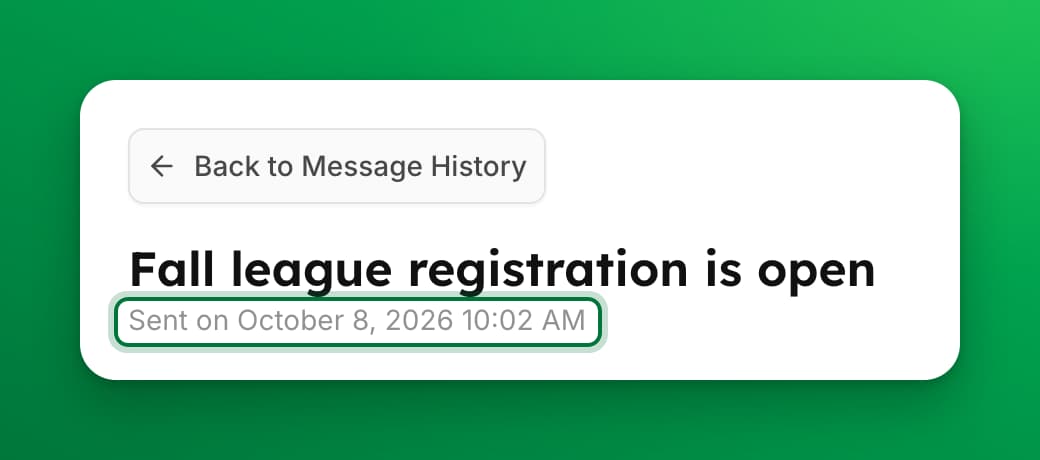
| You see | What it means |
|---|---|
| Sent on date and time | The campaign went out. |
| Failed on date and time | The send stopped partway. Some emails went out, or may have. |
| Failed — not sent | Nothing went out. |
| Not sent — every recipient was skipped | The campaign finished, but every recipient was skipped. See the Error column for the reason. |
Stat cards
Accepted, Bounced, Opened and Clicked show at the top, with Opens Over Time and Device Breakdown below. If they are missing, the page shows why:
- Open and click stats need your club's email settings. — your club's campaign email isn't fully set up. See If something goes wrong.
- Open and click stats are unavailable right now. Try again later. — the rest of the page still works.
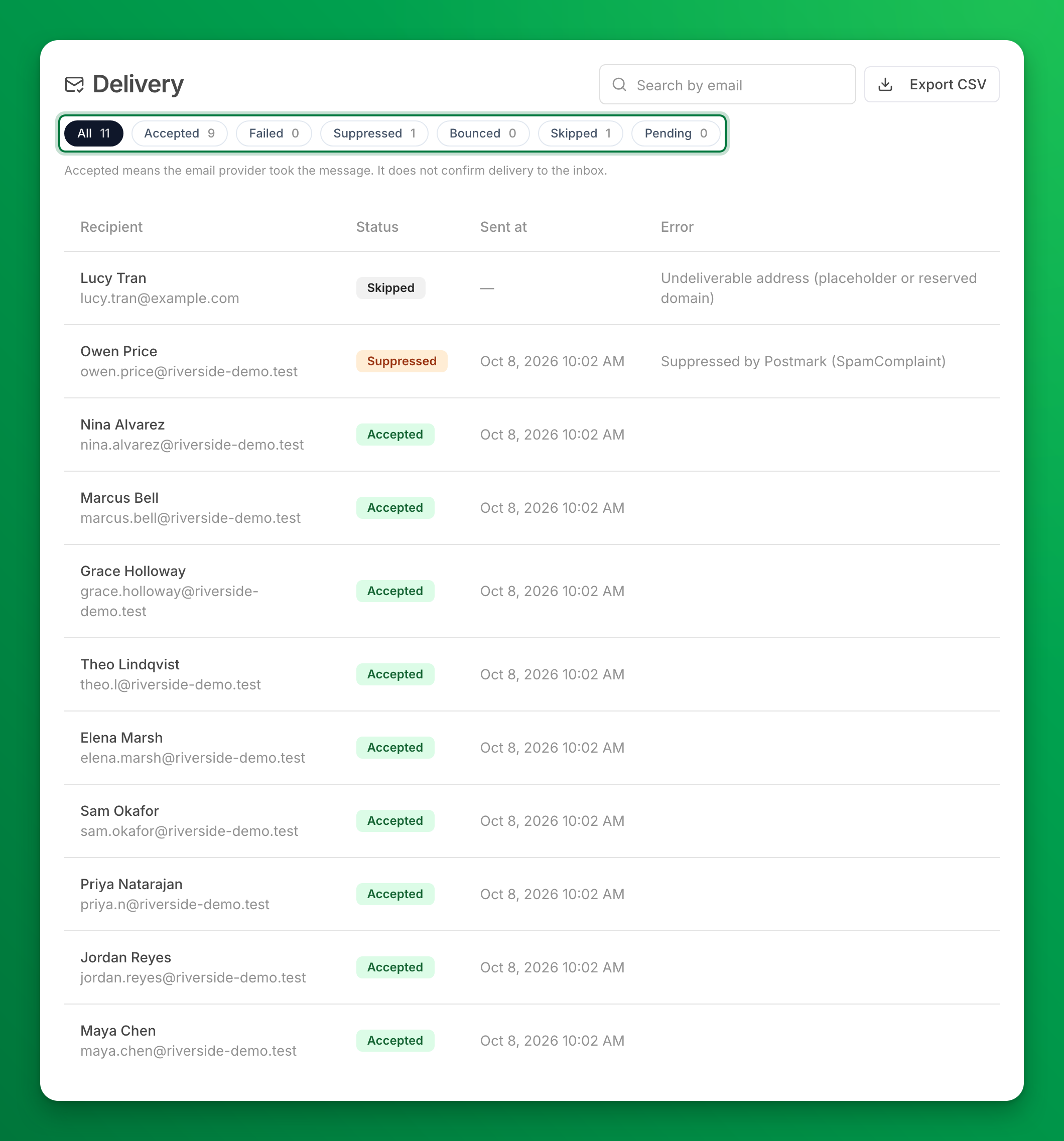
The Delivery card: who got it
The Delivery card lists every recipient, with a status, the time it was sent, and an error when there is one. Click a status chip to show only those recipients:
| Status | What it means |
|---|---|
| All | Every recipient of the campaign. |
| Accepted | The email provider took the message. This does not confirm it reached the inbox. |
| Failed | The email was not sent, or its result could not be confirmed. The Error column says which. |
| Suppressed | The address is blocked because an earlier email to it bounced, or the person marked an email as spam or unsubscribed. The email was not sent. |
| Bounced | The email was sent, but the recipient's mail server refused it. |
| Skipped | The email was not sent on purpose. The Error column gives the reason. |
| Pending | The result is not known yet. |
- Search by email finds one recipient.
- Export CSV downloads the recipients that match the chip and search you chose, with the columns Recipient, Email, Status, Sent at and Error. Times are in your club's time zone.
On a phone, the send time and the error show under each status.
Why was an email skipped?
The Error column gives the reason:
- Club email sending is disabled — email is turned off for your club. Contact OpenCourt support.
- Not sent: the club's email sender is not set up — your club's campaign email isn't set up. Email support@getopencourt.com, then send the campaign again.
- Undeliverable address (placeholder or reserved domain) — the customer has no real email address on file. Ask them for one and update their profile.
- Not sent: the campaign stopped before this recipient — the send stopped before it reached this person.
Who can see campaign emails?
Campaign emails also show in Settings → Email History and on a customer's Email History tab, but only to admins with the Communication permission (or Full Club Admin Access). Other admins see the automated emails only, with the note Campaign emails are not shown: they need the Communication permission.
If something goes wrong
- There's no Send New Email button — the page shows Email Configuration Missing. OpenCourt sets up campaign email. Email support@getopencourt.com.
- "Campaign email is not set up for your club yet, so this email cannot be sent." — same cause. Save the email as a draft so you don't lose it, and send it once OpenCourt confirms the setup.
- The campaign says Failed — not sent — nothing went out. Check the Error column in Delivery for the reason. To try again, start a new email: a failed campaign can't be edited or sent again.
- Some rows say Pending or Failed ("Outcome unknown") — the email provider hasn't confirmed those messages. The page shows a notice above Delivery when this happens. Pending results update within about an hour.
- A customer says they didn't get it — type their address in Search by email. Accepted means the email left OpenCourt; ask them to check their spam or promotions folder. Suppressed, Bounced or Skipped means it didn't reach them, and the Error column says why.
- You can't see Email Campaigns in the menu — you don't have the Communication permission. Ask a club admin who manages permissions.