

Set your email sender name and reply-to address
Choose the name customers see in their inbox and the inbox that receives their replies, then send a test to confirm it works.
Set the name customers see in their inbox and the address their replies reach, so a question about a booking lands at your front desk. (About five minutes, including the test email.)
Before you begin
- An inbox at your club that someone reads, such as hello@yourclub.com.
Set your sender name
- Go to Settings → Email settings.
- In the Sender identity card, find Sender name. It shows your club name with (default) next to it.
- Click Override, type the name you want, and click Save.
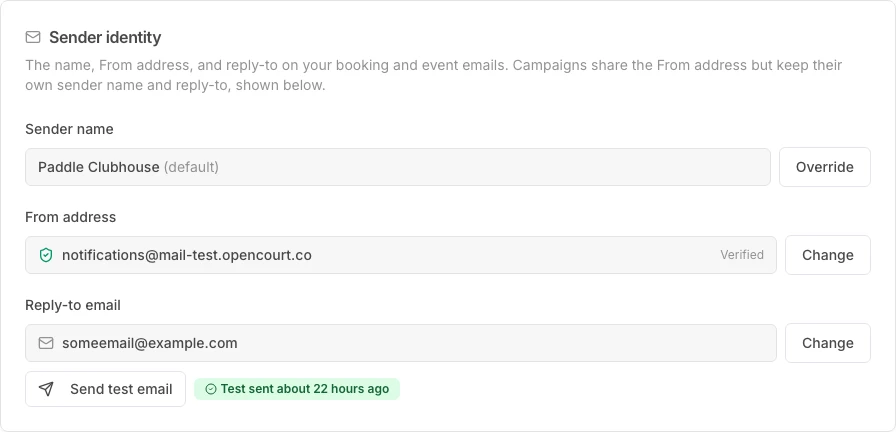
Use the name customers already know you by. To go back to your club name, clear the field and click Save.
Set your reply-to address
- In the same Sender identity card, find Reply-to email.
- Click Set reply-to.
- Type your club's address and click Save.
Replies to booking confirmations, event reminders, and receipts now go to that inbox.
Confirm the inbox receives mail
A typo here is hard to notice: your emails keep sending, but the replies never arrive. Send a test.
- In the Sender identity card, find your saved Reply-to email.
- Click Send test email under the address.
- Open that inbox and confirm the message arrived.

The page then shows Test sent. If the test bounces, it shows Bounced. Correct the address and send the test again.
What happens if you leave the reply-to empty
If you send from your own domain, replies go to your From address — see Send emails from your own domain. If you do not, replies do not reach your club, so set a reply-to.
Does this change my campaigns?
No. If OpenCourt runs email campaigns for your club, their sender name and reply-to stay as they are. To change them, email support@getopencourt.com.
If something goes wrong
- The test email bounced — the inbox does not exist, is full, or rejects outside mail. Confirm the address with whoever runs your email, then send the test again.
- The test email never arrived and did not bounce — check the spam folder first. If it is not there, ask your mail provider to allow mail from OpenCourt.
- You cannot find Email settings — your admin account cannot open club settings. Ask an owner at your club to give you access.