

Turn on email campaigns for your club
Connect your own domain with two DNS records, choose your From address, then ask OpenCourt to turn on campaigns.
Get your club ready to send email campaigns — newsletters and announcements to a group of your customers — from an address at your own domain, such as news@yourclub.com. You add two DNS records for your domain, choose your From address, then ask OpenCourt to turn campaigns on. (About 20 minutes of work, then up to a few hours of waiting for DNS.)
How do I know campaigns are not on yet?
Any of these means your club is not set up for campaigns yet:
-
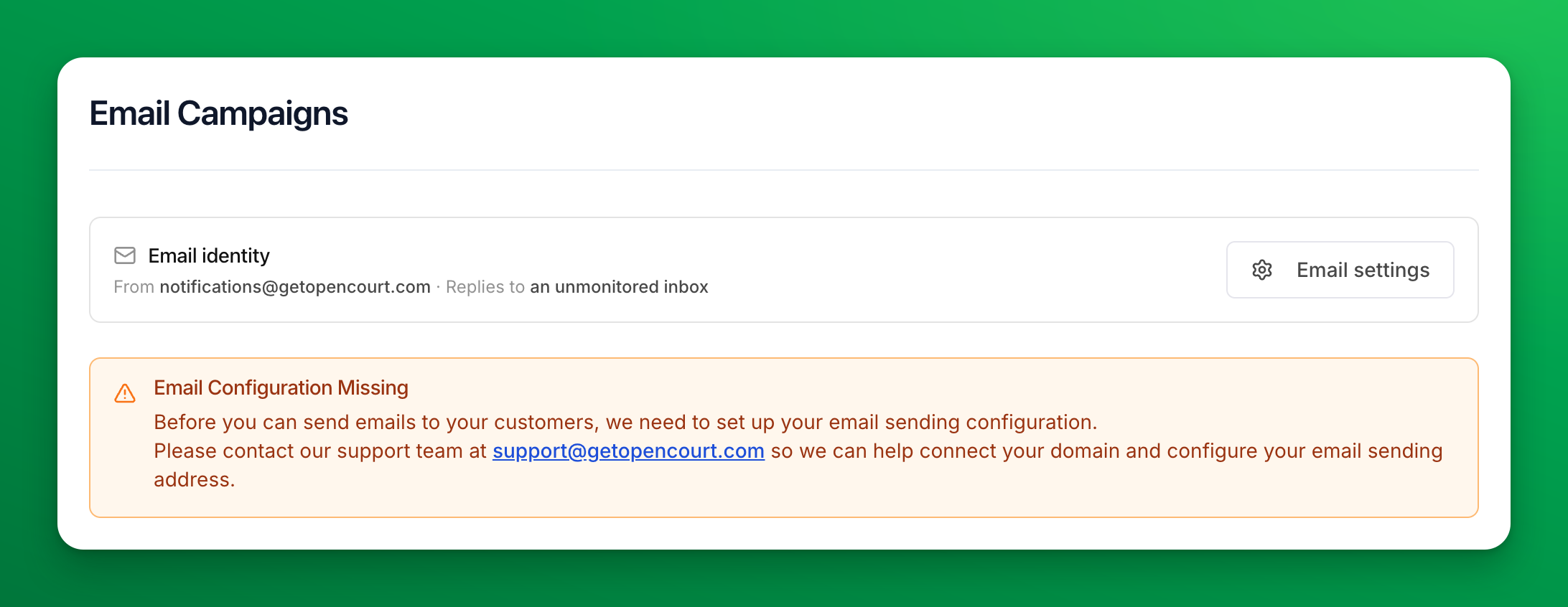
The Email Campaigns page shows Email Configuration Missing, and there is no Send New Email button.
-
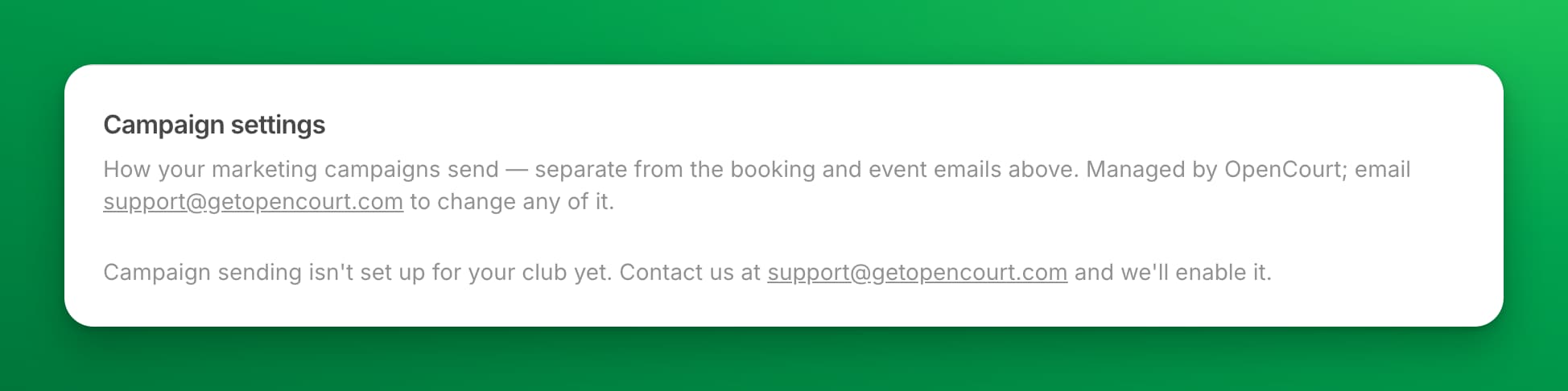
The Campaign settings card at the bottom of Settings → Email settings says Campaign sending isn't set up for your club yet.
-
Sending a campaign fails with Campaign email is not set up for your club yet, so this email cannot be sent.
Before you begin
- A domain your club owns, such as yourclub.com — usually the domain of your website. A Gmail, Yahoo, or Outlook address does not work.
- A sign-in to the company that manages your domain's DNS, such as GoDaddy, Squarespace, or Wix. Not sure which company that is? See Find where your domain's DNS is managed.
- If someone else manages your website or domain, send them this article. They add the records, and you do the rest.
Step 1 — Add your domain in OpenCourt
- Go to Settings → Email settings.
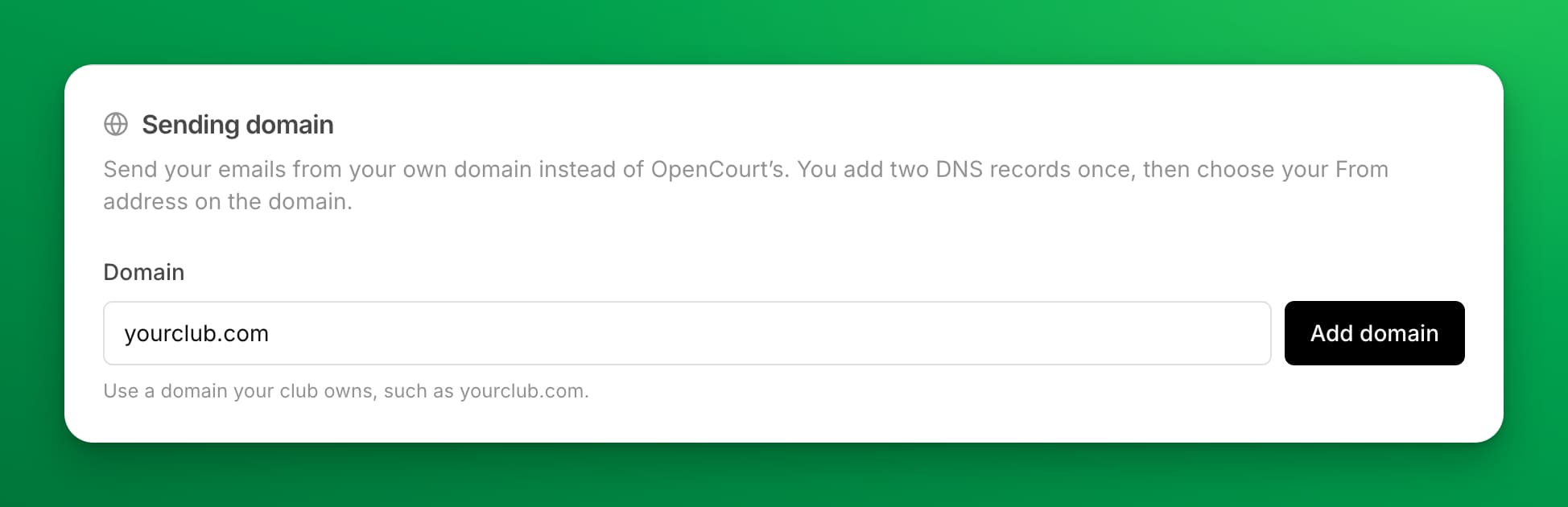
- In the Sending domain card, type your domain into Domain — for example yourclub.com.
- Click Add domain.
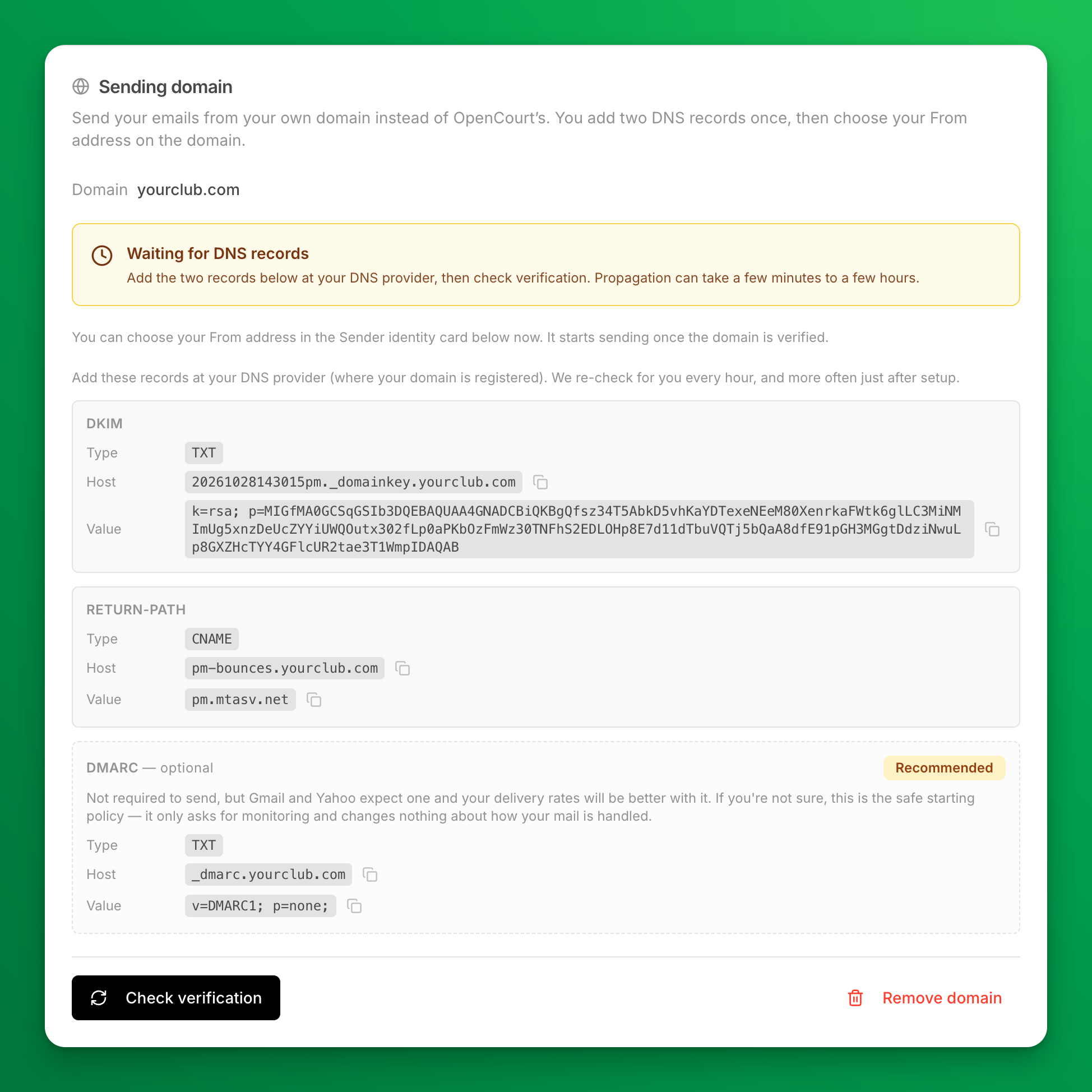
The card now shows Waiting for DNS records and the records to add.
Step 2 — Add the DNS records at your DNS provider
The card lists each record with a Type, a Host, and a Value:
| Record | Type | Required? |
|---|---|---|
| DKIM | TXT | Yes |
| Return-Path | CNAME | Yes |
| DMARC | TXT | Optional. Marked Recommended when your domain has no DMARC record yet: adding one helps your campaigns reach the inbox. Marked Published when your domain already has one: add nothing. |
Keep the card open in one browser tab, and sign in to your DNS provider in another. Then follow the guide for your provider:
- GoDaddy
- Squarespace (including domains that were with Google Domains)
- Wix
- Cloudflare
- Namecheap
- Network Solutions
- IONOS
- Bluehost
- Hostinger
Is your provider not in the list? The steps are the same everywhere:
- Open the DNS settings for your domain.
- Add a TXT record with the DKIM Host and Value.
- Add a CNAME record with the Return-Path Host and Value.
- If the card shows a DMARC row marked Recommended, add a TXT record with its Host and Value.
- Save.
Step 3 — Verify the domain and choose your From address
- Back in OpenCourt, in the Sending domain card, click Check verification.
- When the card turns green and says Domain verified, go to the Sender identity card.
- Next to From address, click Choose address.
- Type the part before the @ — for example news. Your domain is filled in after it.
- Click Save.
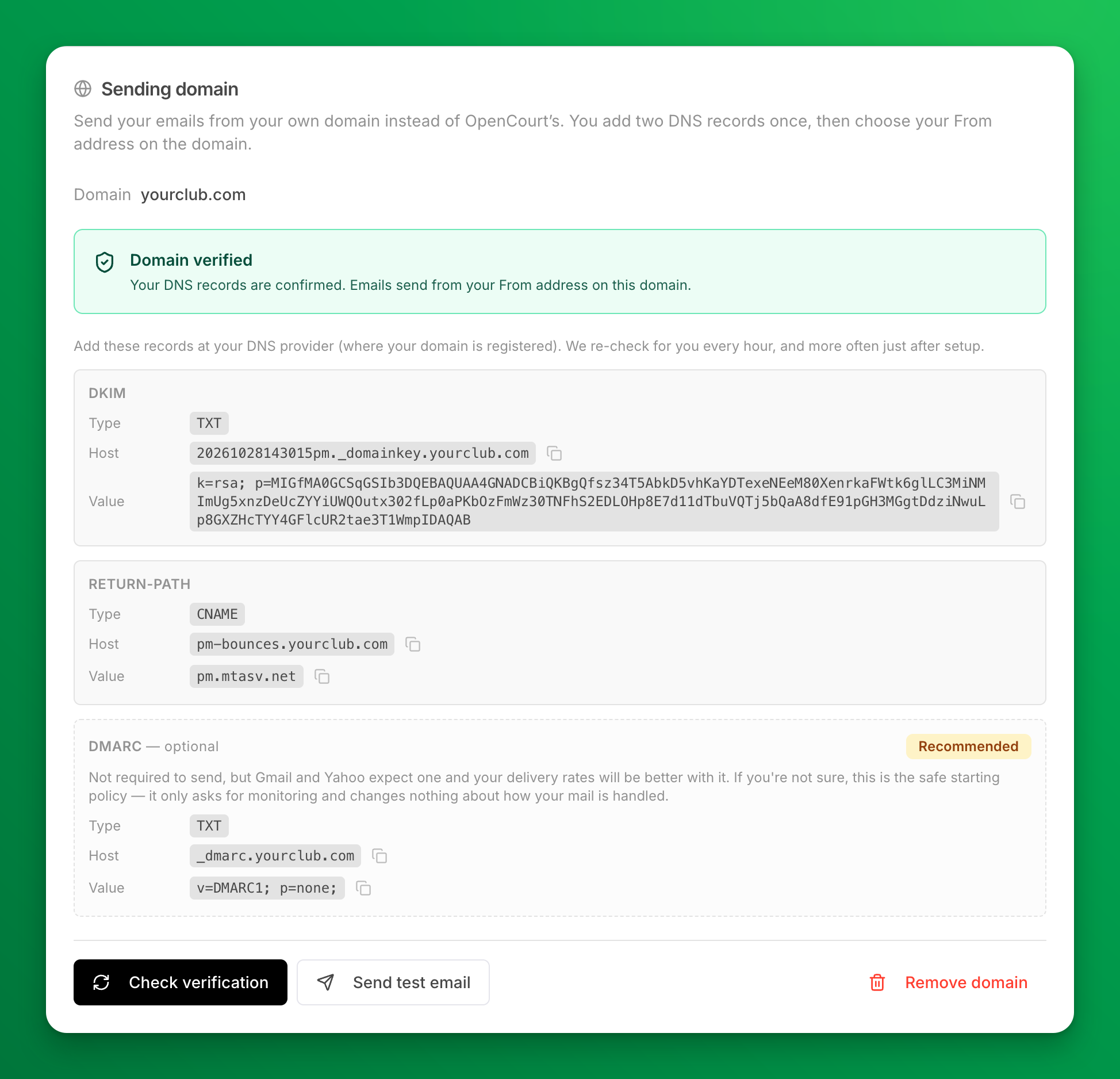
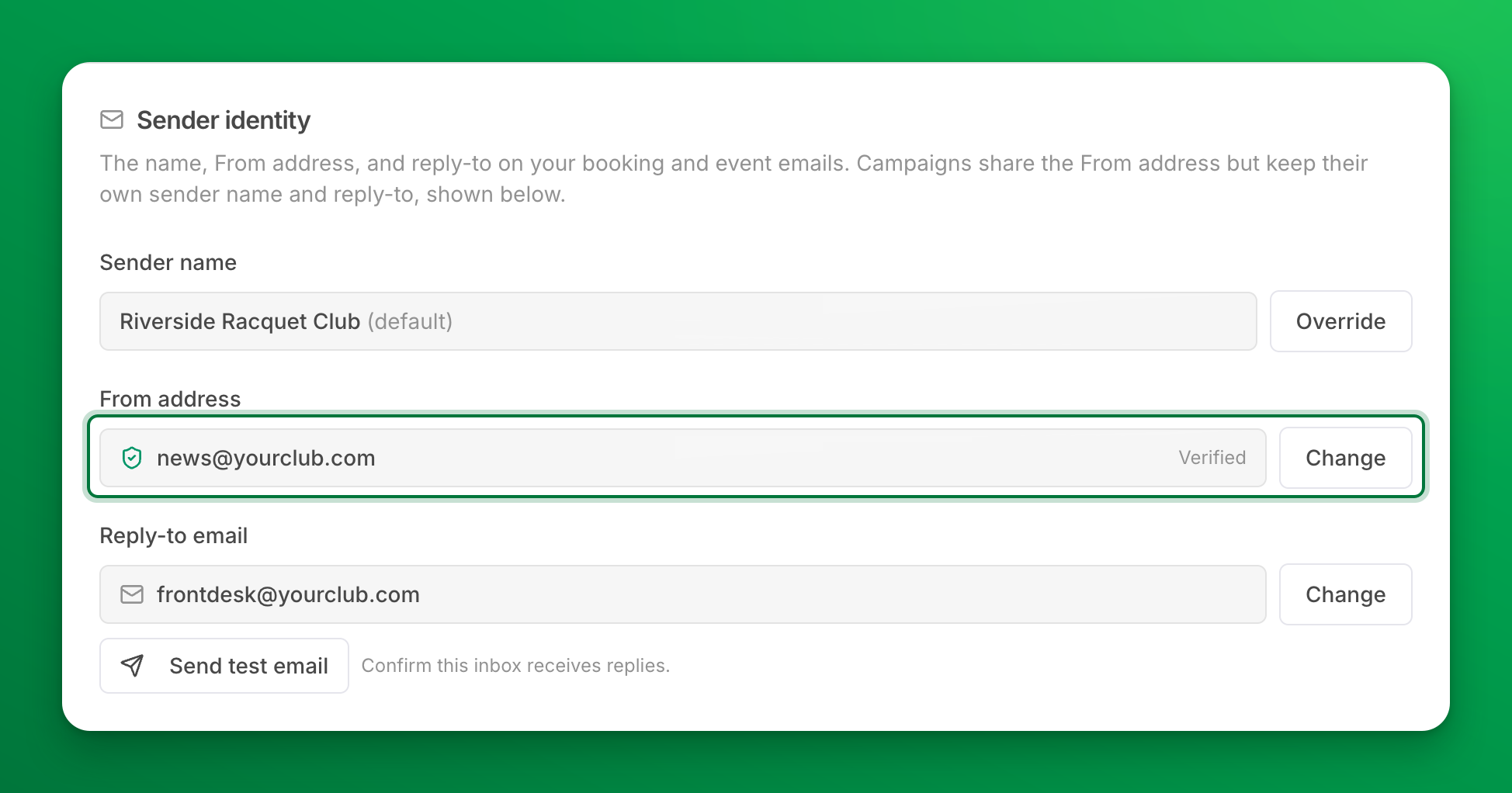
If the card still says it is waiting, DNS changes can take from a few minutes to a few hours to show. Wait and click Check verification again. OpenCourt also checks on its own, so you do not have to stay on the page.
This From address is shared: your club's other emails send from it too. One exception: an email that carries a calendar invite, such as a booking confirmation, still sends from calendar-noreply@getopencourt.com with your club's name, so that calendar apps accept the invite. Replies to it still reach your club. For the details, see Send emails from your own domain.
Step 4 — Ask OpenCourt to turn on campaigns
Do this step only when the Sending domain card says Domain verified. Then email support@getopencourt.com with:
- Your club's name.
- The sender name for campaigns — the name your customers see in their inbox, such as Bocce House or Jon from Bocce House. It can be different from the name on your booking emails.
- The reply-to address for campaigns — where a customer's reply goes, such as frontdesk@yourclub.com.
OpenCourt turns campaigns on and replies to tell you when it is done.
How do I know campaigns are on?
-
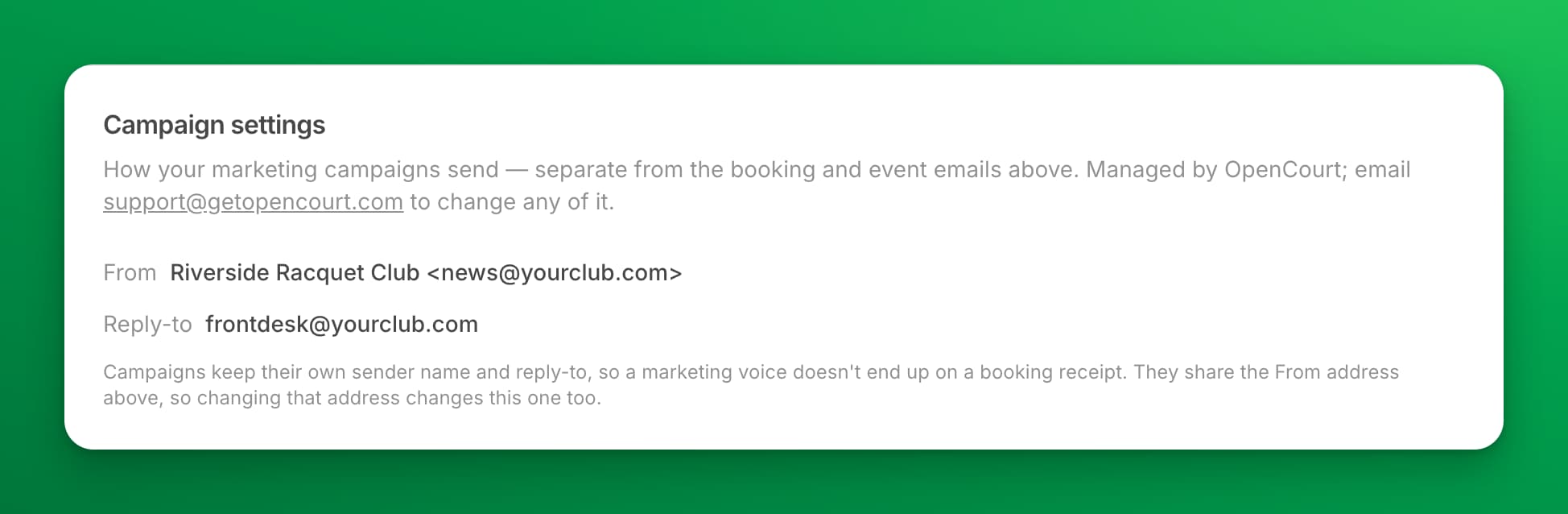
The Campaign settings card in Settings → Email settings shows your campaign From and Reply-to.
-
The Email Campaigns page has a Send New Email button, and the Email Configuration Missing notice is gone.
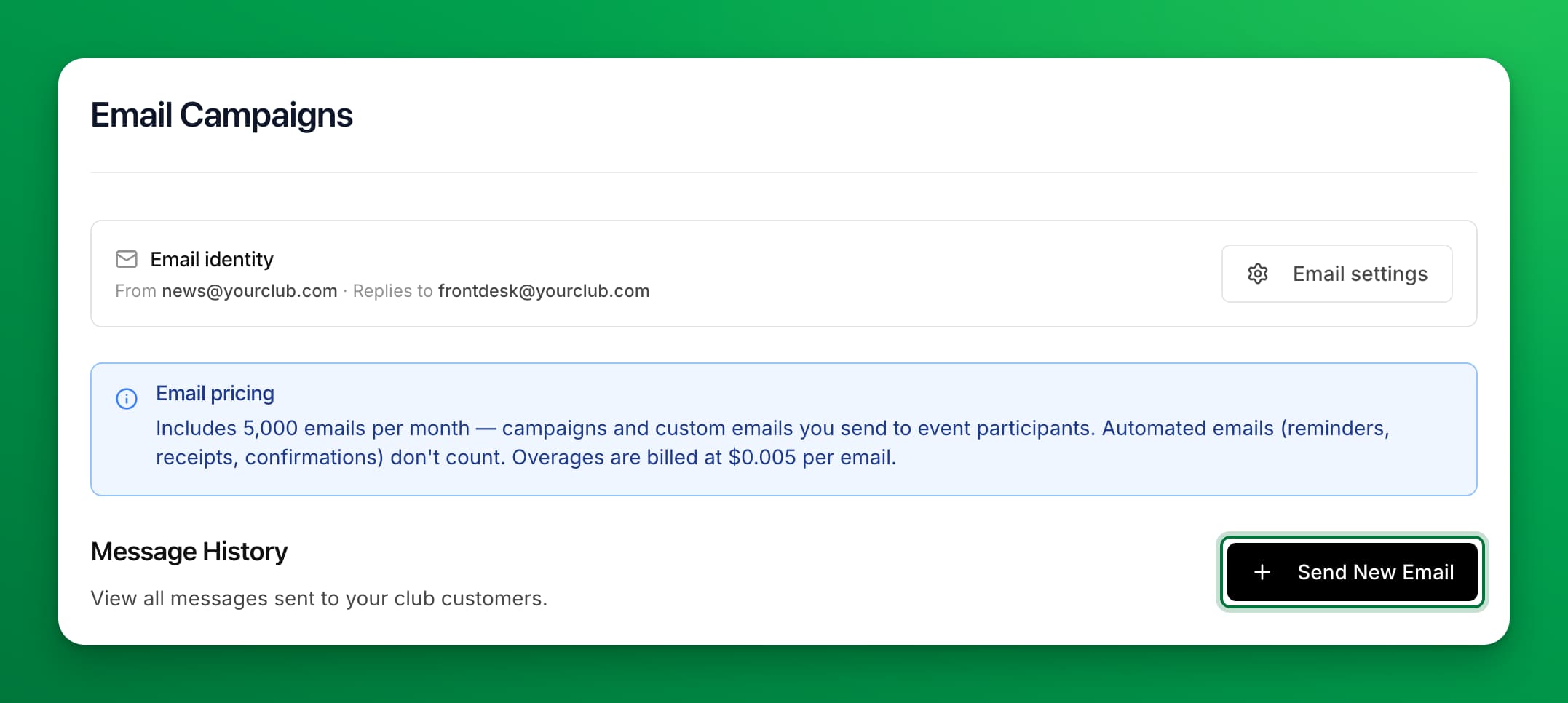
You are ready to send your first email campaign.
If something goes wrong
- The card still says Waiting for DNS records after a day — the most common cause is a doubled domain in the host, such as pm-bounces.yourclub.com.yourclub.com. Open the record at your DNS provider and delete your domain from the end of the host. Also compare the value character for character with the card.
- One record shows Found and the other Not found — only the missing record needs fixing. Check its type: DKIM is TXT and Return-Path is CNAME.
- Your DNS provider will not let you add the records — your DNS may be managed by a different company than the one you bought the domain from. See Find where your domain's DNS is managed.
- The From address row has no Choose address button — add your domain in the Sending domain card first.
- You can't see Email Campaigns in the menu — you don't have the Communication permission. Ask a club admin who manages permissions.