

Blocking Off Courts or Marking Time as Unavailable
Sometimes, clubs need to make certain courts temporarily unavailable — for maintenance, cleaning, internal use, or private activities. The Unavailable option lets you block off time without creating a visible event or sharing any details with players.
When to Use It
Use this feature when you want to:
- Reserve a court for maintenance or repairs.
- Block time for internal meetings or staff use.
- Prevent bookings during special events or holidays.
- Keep certain time slots off-limits without showing event details.
How to Mark a Court as Unavailable
-
Go to the Schedule page.
-
Click on the time slot you want to block.
-
Choose the “Unavailable” option.
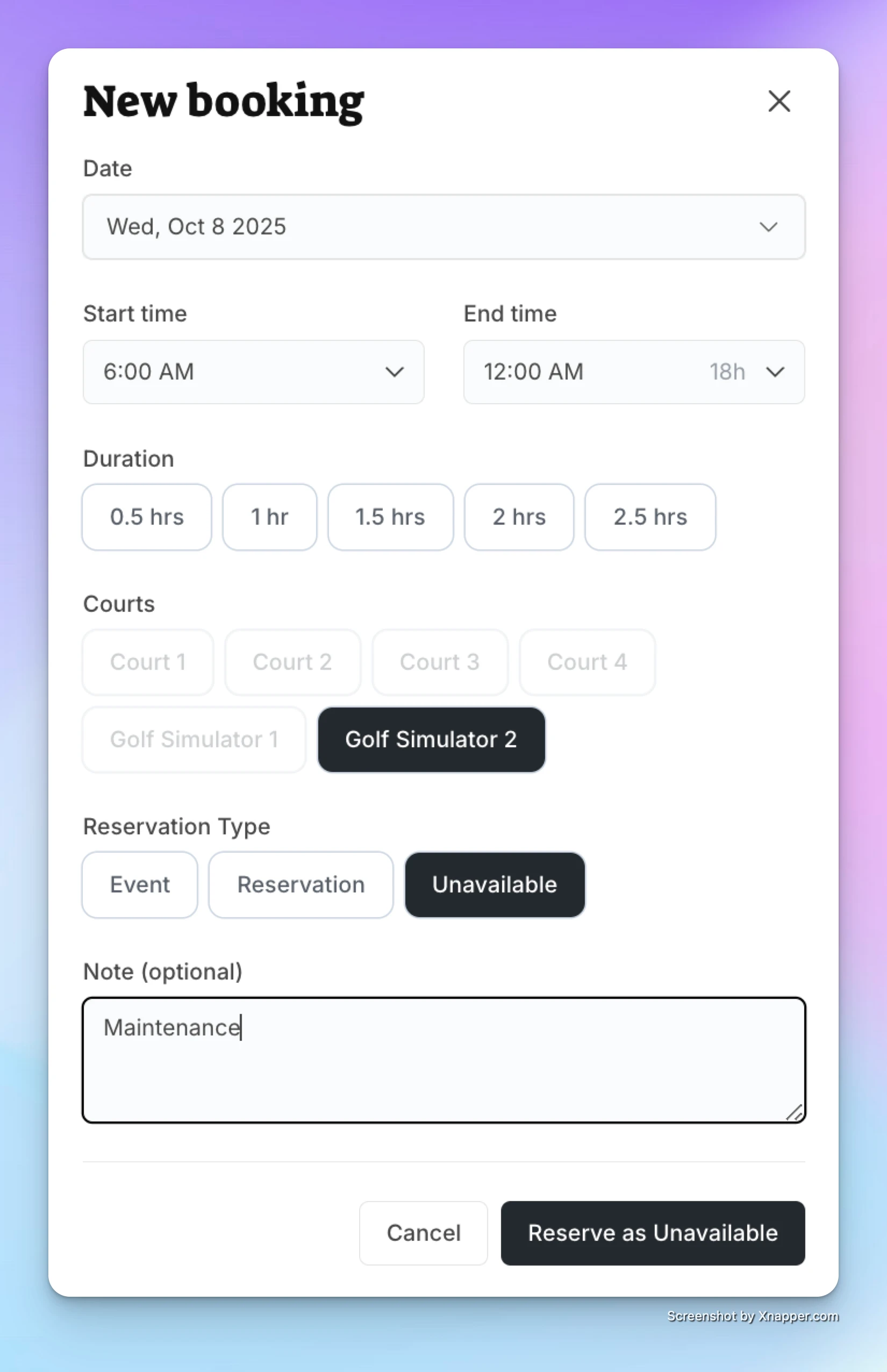
-
(Optional) Add a short note (e.g., Maintenance, Reserved for Club Use).
-
Click Save.
What Players See
-
The blocked time appears grayed out on the schedule.
-
Players cannot book or view details for that time.
-
If you added a note (like Maintenance), they’ll see that label.
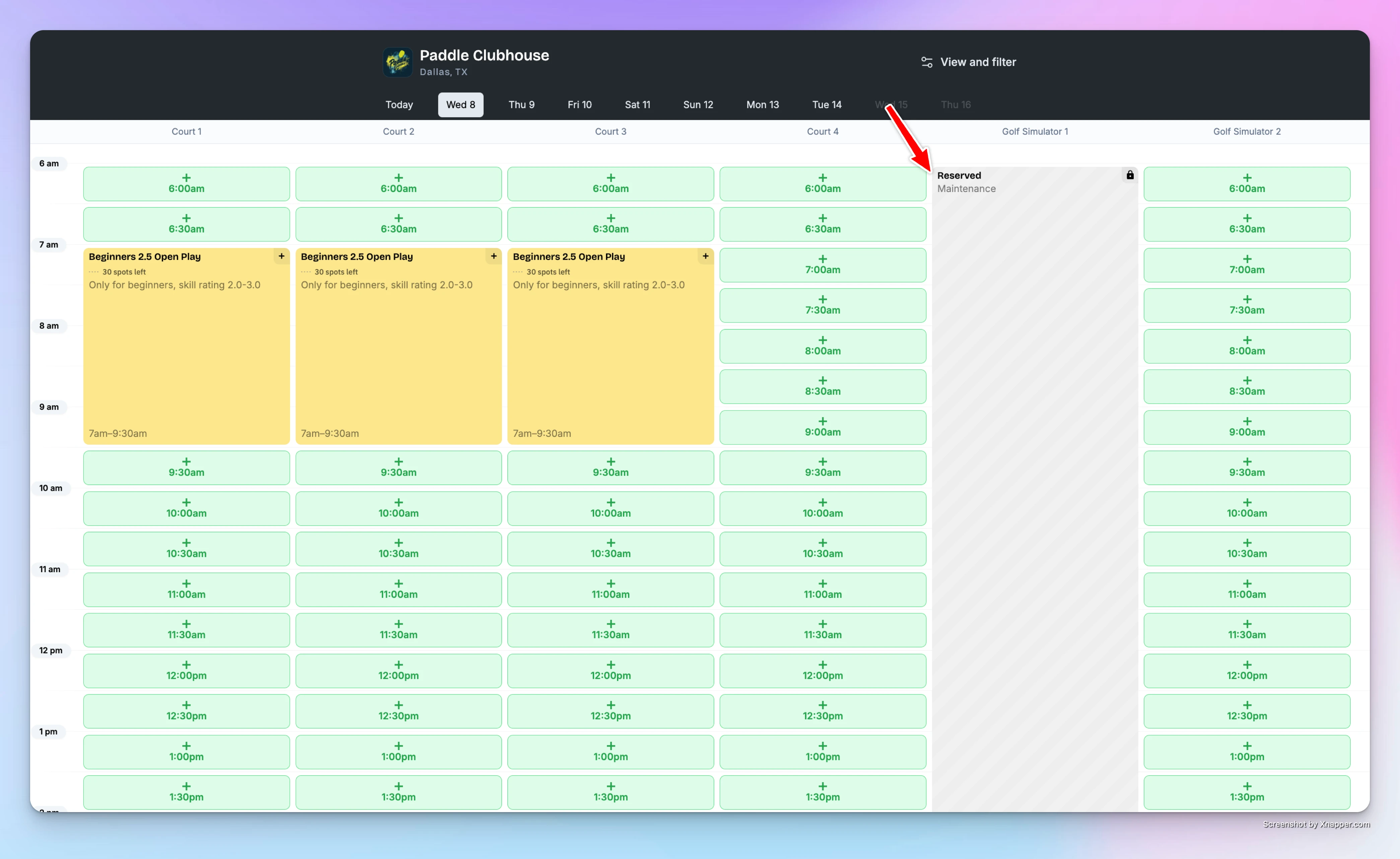
✅ That’s it! The court will stay unavailable for the selected time — keeping your schedule organized and avoiding accidental bookings.
Set your space word, sales tax and card rule for free bookings
Choose what customers call your spaces, set your sales tax rates, and ask for a card when a booking is free — all in Settings → General.
Dependent Spaces
Dependent spaces let you link courts or spaces that share a physical footprint — like a full tennis court that can also be split into two pickleball courts. When one space is booked, OpenCourt automatically blocks off the others in the same time window, across reservations, events, programs, and coach lessons. No more double-bookings or manual coordination. Just set up the rules once and OpenCourt handles the rest.