

Repeat a reservation for a customer
Book the same time and court for one customer on many dates at once: every day, or every 1 to 4 weeks, up to 52 reservations.
Book the same time and court for one customer on many dates in one go, for example a standing Tuesday 6 PM court for the whole season. (About 2 minutes. You need the customer's account and one free first date.)
How a repeated reservation works
Repeat turns one new reservation into several. Each date becomes its own ordinary reservation for the same customer, at the same time, on the same court.
After you book them, nothing links the reservations. You change, cancel, or charge each one on its own, the same way as a reservation you create one at a time. There is no "cancel all" for the group.
Before you begin
- The customer has an account at your club. If not, add the customer first.
- You know the first date, the start time, the length, and the court.
- If your rule sets limit how many reservations a customer can hold, read Check your booking limits first. A repeat can fill a limit for weeks.
Steps
-
Start a new reservation, from the Schedule or from Reservations → New Reservation. See Creating a reservation.
-
In the Host card, choose the customer the reservations are for.
-
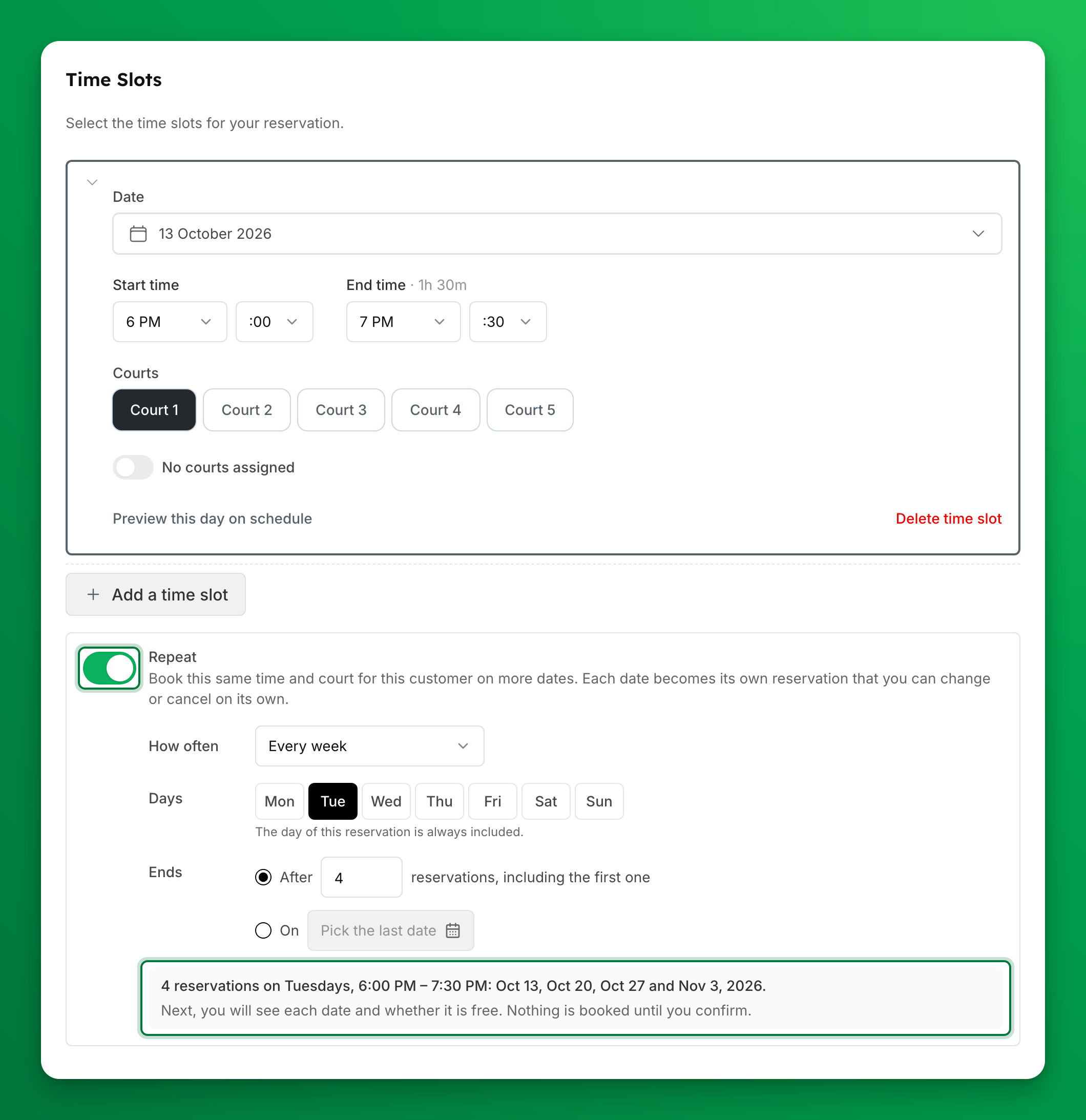
In the Time Slots card, set the first reservation: date, time, court, and duration. Use one time slot only.
-
Under the time slot, turn on Repeat.
-
In How often, pick Every day, Every week, Every 2 weeks, Every 3 weeks, or Every 4 weeks.
-
For a weekly repeat, in Days, turn on any other days of the week you want. The day of the first reservation is always on.
-
In Ends, choose one:
- After a number of reservations, including the first one.
- On a last date.
-
Read the summary under the fields. It lists every date, for example "4 reservations on Tuesdays, 6:00 PM – 7:30 PM: Oct 13, Oct 20, Oct 27 and Nov 3, 2026."
-
Click Preview reservations. Nothing is booked yet.
-
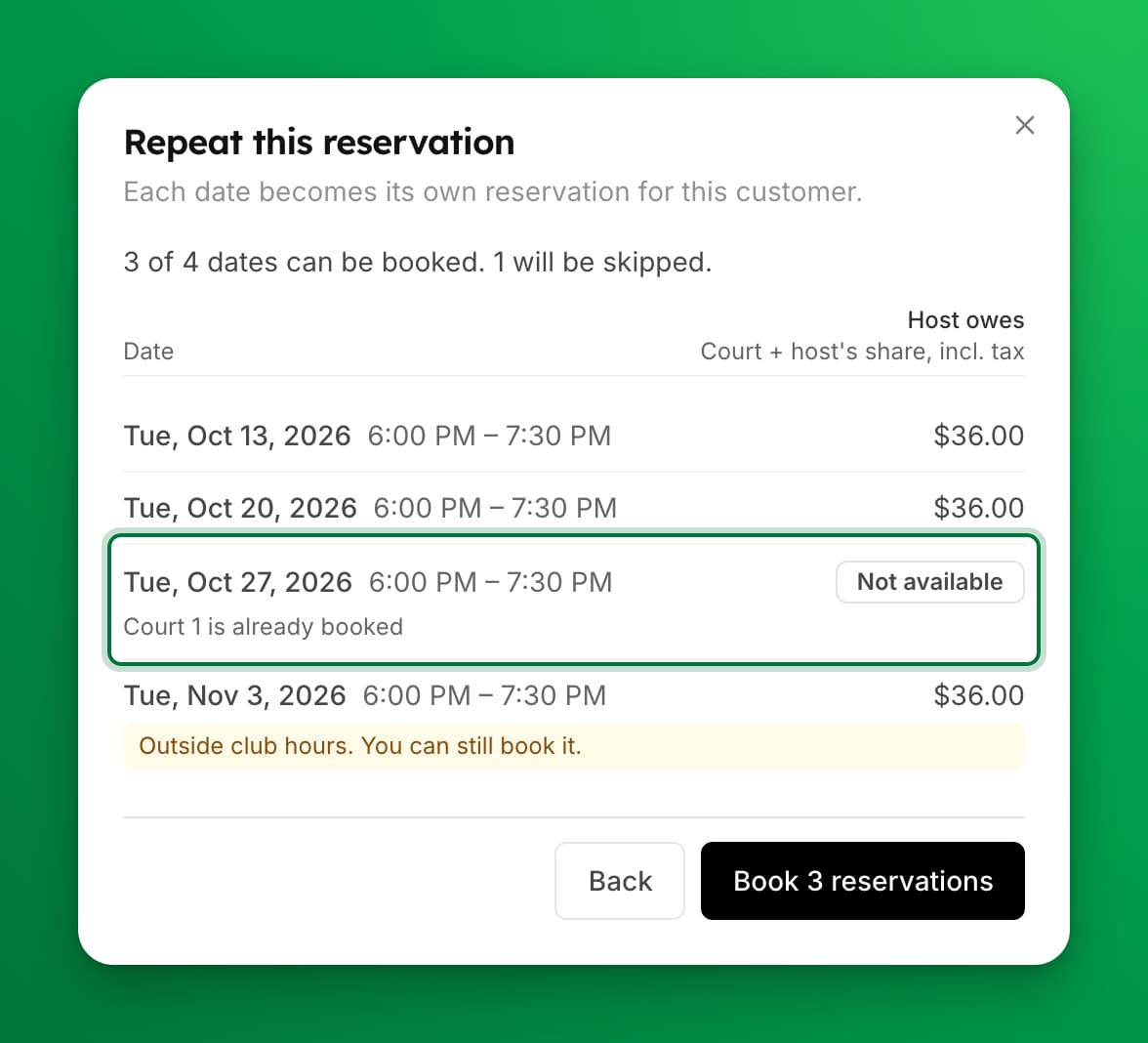
In Repeat this reservation, check each date (see What the preview tells you).
-
Click Book N reservations. Only the dates that can be booked are created.
-
Read the result. It shows how many reservations were created, with a link to each date, and any date that could not be booked, with the reason.
-
Click Done. You go back to the reservations list on the first booked date.
What the preview tells you
The preview lists every date with its time.
- A date you can book shows what the host owes for it. The column is labeled Host owes, with "Court + host's share, incl. tax" under it. Your club's word for a space replaces "Court", for example "Bay". The amount is the court fee, the host's own share for a per-person price, any day fee, and sales tax. It does not include card fees or what other players owe.
- A date marked Not available is skipped. The reason is under the date:
| Reason on screen | What it means |
|---|---|
| This date has already started | The date is in the past. |
| Court is already booked | Another reservation holds the court. |
| Court has an event at this time | An event uses the court. |
| Court is blocked at this time | The court is blocked off. |
| Court is in use, and it shares space with your selection | A linked court is booked. See Dependent Spaces. |
| The selected resource is already booked | The resource you picked (a ball machine, for example) is taken. |
| This start time does not exist on this date because the clocks go forward | The start time falls in the hour skipped when daylight saving time starts. |
Some dates have a yellow note but you can still book them:
- Outside club hours. You can still book it. The date is outside your opening hours. Admins can book outside hours.
- No price: reason You can still book it. A pricing rule does not price this date, or closes it to customers. The reason is your rule's own message. Admins can still book it.
- A booking-limit warning. The customer is already at a limit in one of their rule sets. You can still book.
If none of the dates can be booked, the preview says so. Click Back and change the time, the court, or the dates.
Check your booking limits first
Each reservation counts toward the customer's booking limits, the same as a reservation they made themselves.
A limit with no time period counts every upcoming reservation at once. In the rule set, this is a limit rule set to At a time, for example "1 event(s) At a time". If you repeat 10 weekly reservations for a customer with that limit, the customer cannot book anything else for 10 weeks.
The preview checks each date against the customer's existing bookings only. It cannot warn you about the other dates in the same repeat.
Good to know
- Up to 52 reservations. The last one must be within 12 months of the first. Every day for 52 days is about 7 weeks.
- "Every 2 weeks" skips whole weeks, Monday to Sunday.
- One date does not undo the others. If a date is taken between the preview and the booking, only that date fails. The result lists it.
- No email to the customer. As with any reservation an admin creates, the customer gets no confirmation email. Tell them you booked the dates.
- Nothing is charged when you book. Each reservation is paid the same way as a single reservation you create.
- Points. If your club runs a loyalty program and you tick Award points for this reservation, the customer earns the booking points once for each reservation.
- Invite links. The customer can share each reservation's link. A player who joins with it joins that one date only.
If something goes wrong
- The Repeat switch is greyed out. It says "Repeat works with one time slot. Remove the other time slots to use it." Remove the extra time slots.
- I don't see Repeat at all. Repeat is only on a new reservation. It is not on an event, a program, or a reservation you edit or duplicate.
- "Choose the customer these reservations are for." Pick a host before you click Preview reservations.
- "That is more than 52 reservations or more than 12 months." Lower the number after After, or pick an earlier date in On.
- A date says "This reservation could not be created". Open the schedule for that date to check the court, then book that date on its own.
- The customer cannot book anything else. A repeat may have filled a booking limit with no period. See Check your booking limits first.
- I booked a date by mistake. Open that reservation and cancel it. The other reservations stay.
Related
- Creating a reservation — book one reservation for a customer.
- Reservations vs. Events — for a repeating class or league, use a program instead.
- Creating and Managing Rule Sets — booking limits and their periods.
Creating a reservation
In a vast majority cases, your customers will be making their own court reservations.
Schedule Configuration Customizations
We allow configuring your court sheet schedule in a variety of different ways, including setting up varying schedule time segment durations for the whole day or in different portions of the day.