

Check-In & QR Scanner
Check customers in at the door by scanning their QR code, and see who has arrived on your Today page.
Check customers in at the door by scanning the QR code from their OpenCourt app, and track who has arrived from your Today page.
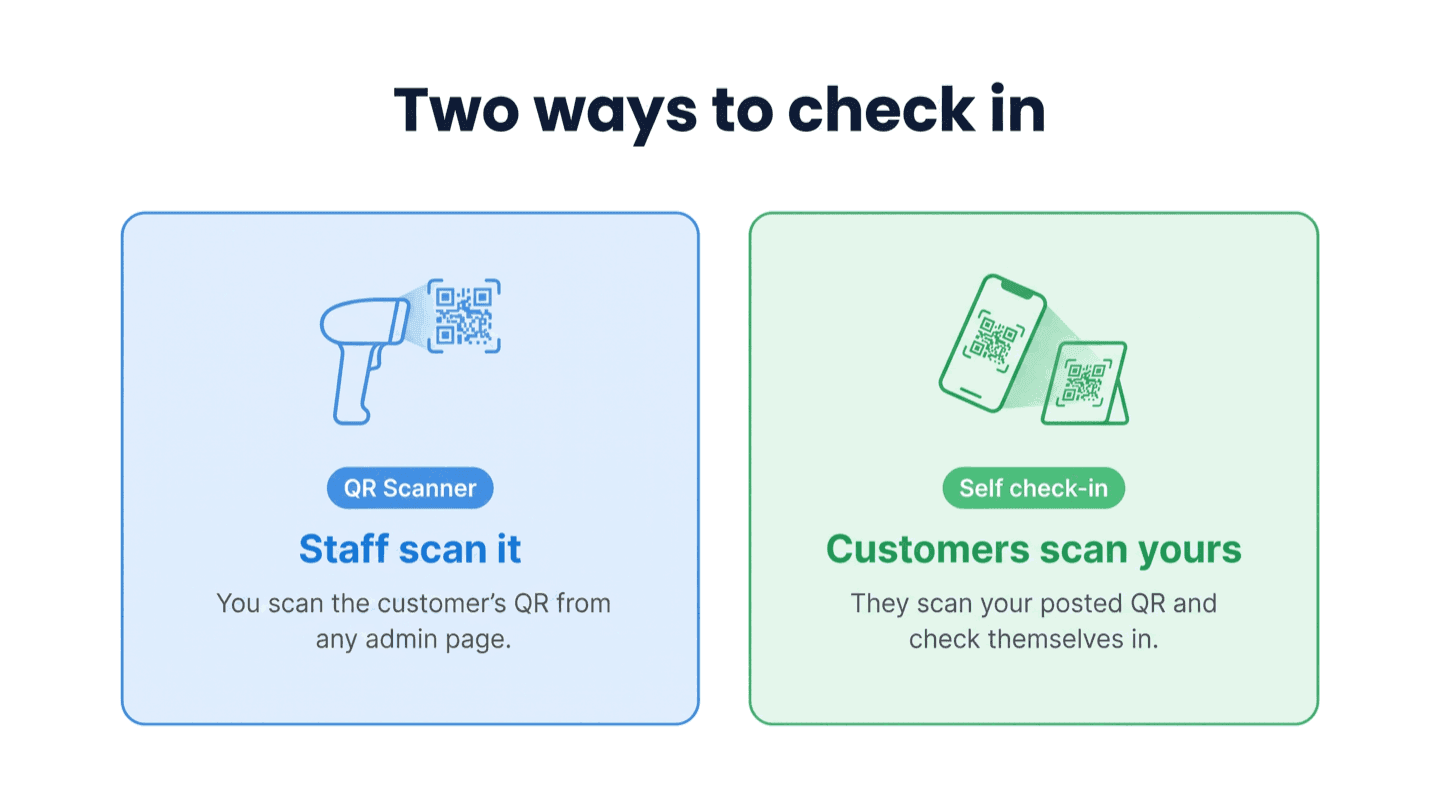
How check-in works
A customer shows their Check-In QR Code (in the OpenCourt app under My Profile). You scan it with a USB QR scanner from anywhere in the admin panel, and OpenCourt decides in about a second whether they are all set:
- All set — a green Checked in confirmation appears briefly and clears itself. They walk through.
- Needs attention — a Scan result window opens with the reason (for example a missing waiver, an unpaid booking, or no booking today) and one-click ways to fix it.
The same check works whether the customer is checking in for a court booking, an event, or a program — and it uses the same rules as self check-in, so the front desk and self-service always agree.
The Check-in panel on Today
Your Today page has a Check-in panel with two lists:
| List | What it shows |
|---|---|
| Needs attention | Customers who scanned but need a hand (missing waiver, payment due, no booking). They stay here until you handle them — click Resolve to reopen, or dismiss the card. |
| Recently checked in | Everyone who has checked in today, newest first, each badged QR scanner, Self check-in, or Staff so you can see how they arrived. |
Set the check-in window
Check-in window controls how early check-in opens before a booking starts, in minutes (the default is 180 — three hours). Change it under Settings → Check-in.
The window is a hard limit for customer self check-in only. At the front desk it governs the automatic part: a scan auto-checks-in only inside the window, and a booking later in the day shows a Starts in [hours and minutes] countdown — but its Check in button works, so you can check an early arrival in whenever you decide.
Articles
- Check a customer in with the QR scanner — scan at the front desk, and handle anyone who needs attention.
- Choose a QR scanner for your front desk — four scanners we recommend, from a budget hands-free stand to a premium handheld, and what to look for.
- Set up the QR scanner at your front desk — plug in a USB scanner and test it in about two minutes.
- Let customers check themselves in with a posted QR code — create a self check-in QR, choose Static or Dynamic, and set the payment and window rules.
- Check-in reasons and troubleshooting — every Needs attention reason, waiver and payment state, status, and source badge, and what to do about each.