

Use the Needs Attention list
One list of the problems your club should act on and the updates it should know about, and how to dismiss and restore them.
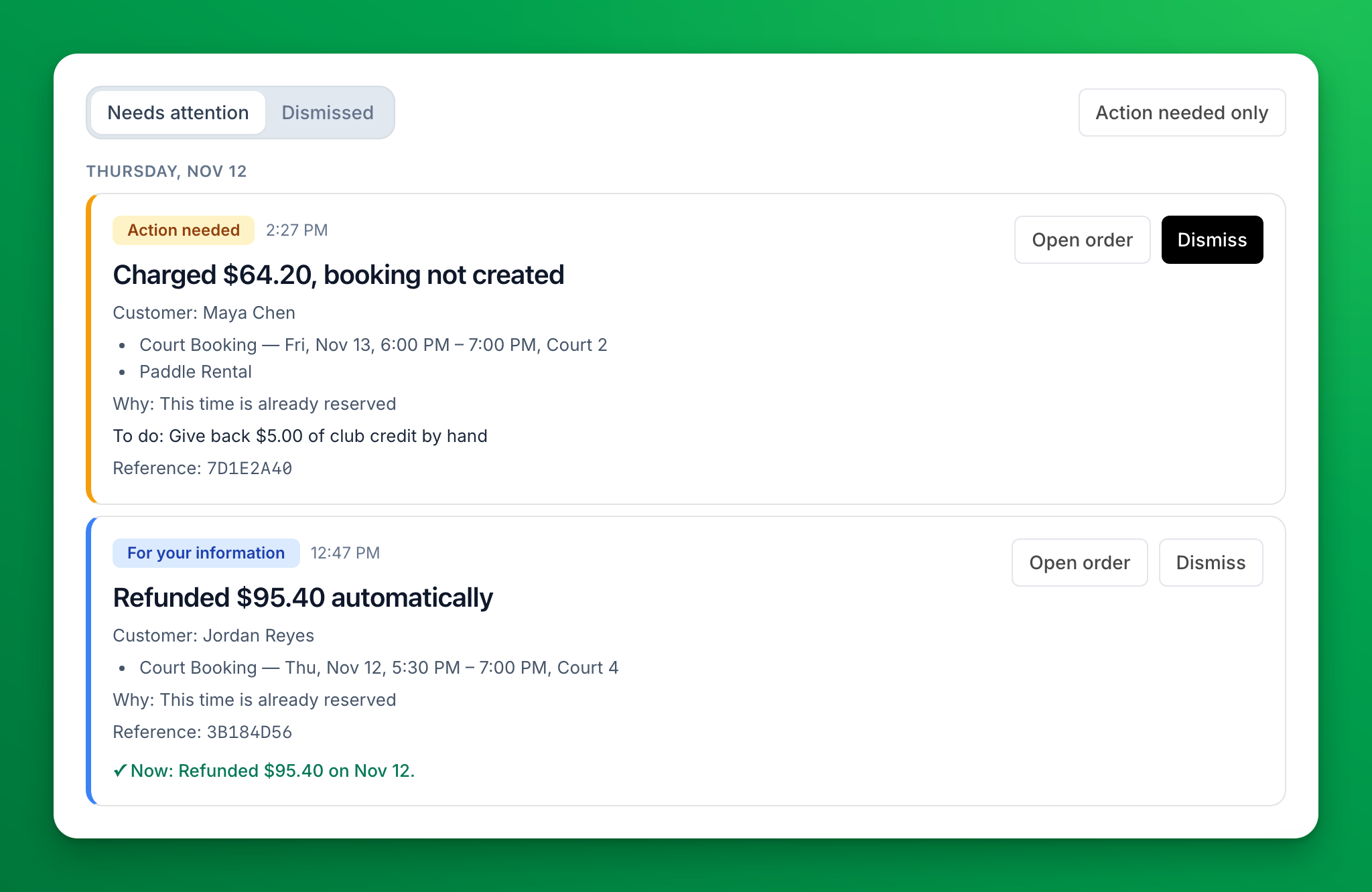
Needs Attention is one list, for your whole club, of things to act on and things to know about. It is in the sidebar, under Today. A red number next to it shows how many items are open.
Today the list shows payments that went through when the booking or purchase could not be created. More kinds of items will come later.
This is not the Needs attention result of a check-in scan. That one is about a customer at the front desk; see Check a customer in.
Who can see it
Admins with full access (the Admin role) see the list. Each item also needs the permission of its area: payment items need the Transactions permission.
The two kinds of item
- Action needed: someone at your club must do something. For example, Charged $64.20, booking not created: the card was charged, the booking was not created, and OpenCourt could not give back all of it by itself. The item says what is left to do.
- For your information: nothing to do. For example, Refunded $95.40 automatically: the booking could not be created, and OpenCourt refunded the card in full.
Each item shows the customer, what they paid for (with the date, time and court), why it went wrong and a reference. The line that starts with Now: shows what is true at this moment, for example Refunded $95.40 on Nov 12., Refund of $95.40 pending. or The order was completed after all. If it says Refund of $95.40 failed. The customer is still owed it., the customer still needs their money back. Read this line before you refund anything, so you never refund twice.
To see only the items that ask for action, click Action needed only.
Handle an item
-
Click Open order to see the order in Orders & Transactions, and refund it there if the item asks you to (see Processing refunds).
-
Click Dismiss.
- For an Action needed item, choose Done (you handled it) or No action needed (for example, it was refunded outside OpenCourt). You can add a note, then click Dismiss.
- A For your information item is dismissed at once.
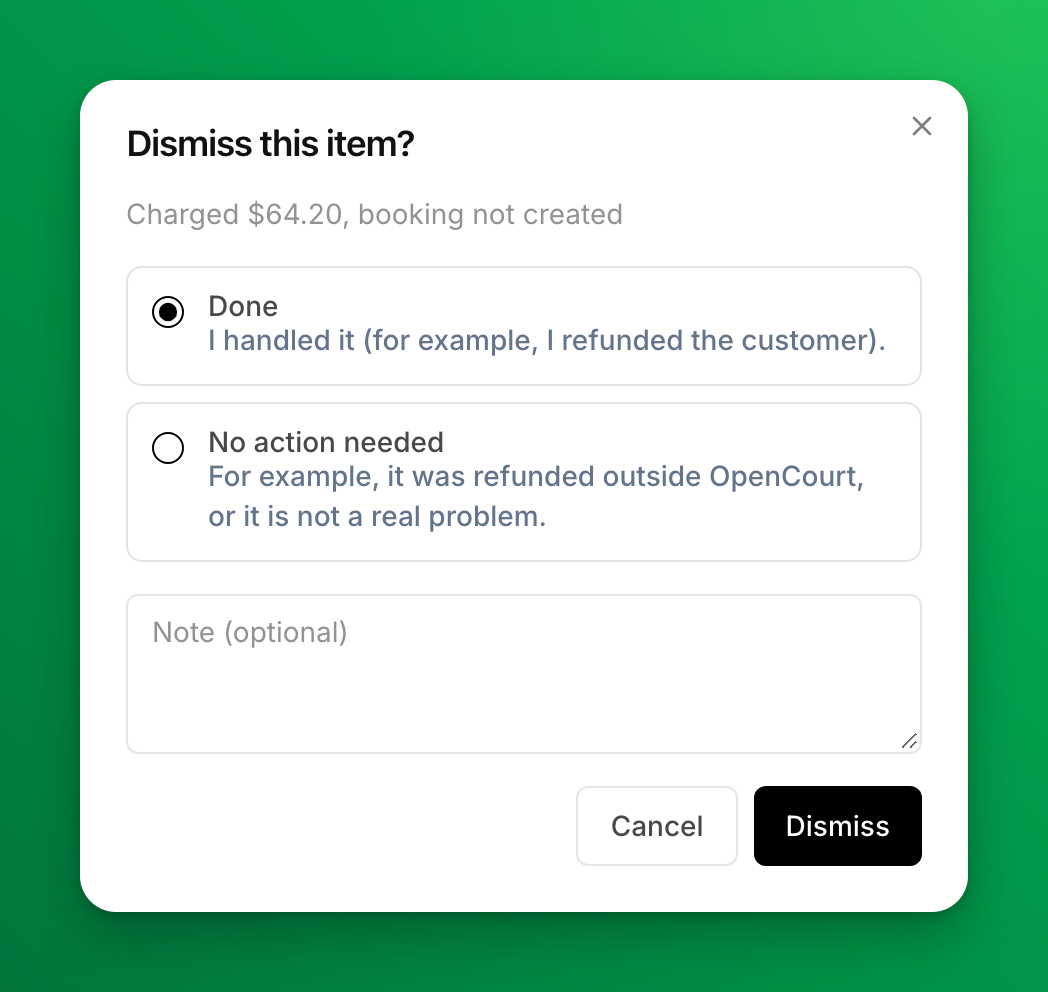
A dismissed item is gone for all your staff, not only for you.
See or bring back a dismissed item
Click the Dismissed tab. Each item shows who dismissed it, when, how, and the note. To put an item back on the list, click Restore.
Good to know
- One problem is one item: if the same problem is found again while its item is on the list, you still see one item. If it comes back after you dismissed it, it shows as a new item.
- Your club also gets an email for each payment item, at the addresses for Successful Payments under Settings → Admin Team → Notifications, or at your club's contact email if none is set.
Why Do I See "Incomplete" Payments in My Stripe Dashboard?
If you've noticed a number of payments marked as "Incomplete" in your Stripe dashboard, don't worry — this is completely normal and does not indicate any issue with your account, your customers, or OpenCourt.
Reports
The revenue, itemized and event participation reports, and bookkeeping.