

Understanding the Stripe balance report
Your Stripe balance like a bank statement: the starting balance, what came in and went out, what Stripe paid to your bank, and the ending balance.
The Stripe balance report shows your Stripe balance like a bank statement: the balance at the start of a period, everything that changed it, what Stripe paid to your bank, and the balance at the end. It works for every club with a Stripe account, and it is the report to use when you pay out from Stripe by hand.
What the report shows
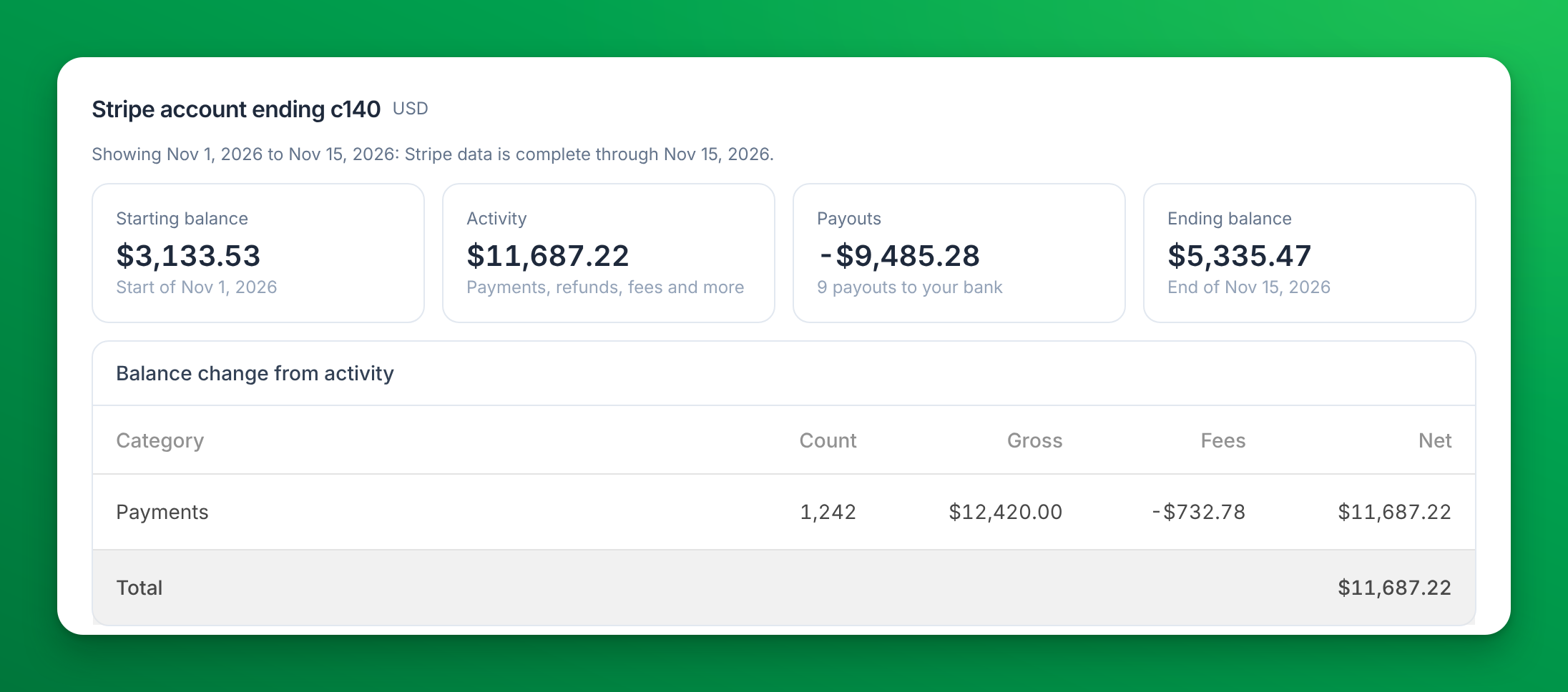
Pick the dates at the top. For each Stripe account of your club, the report shows:
| Part | What it is |
|---|---|
| Starting balance | Your Stripe balance at the start of the first day you picked. |
| Activity | Everything that changed the balance, except payouts: payments, refunds, Stripe fees, disputes and more. |
| Payouts | What Stripe sent to your bank in the period, as a negative amount. A payout that failed and came back shows here too. |
| Ending balance | Your Stripe balance at the end of the last day you picked: starting balance + activity + payouts. |
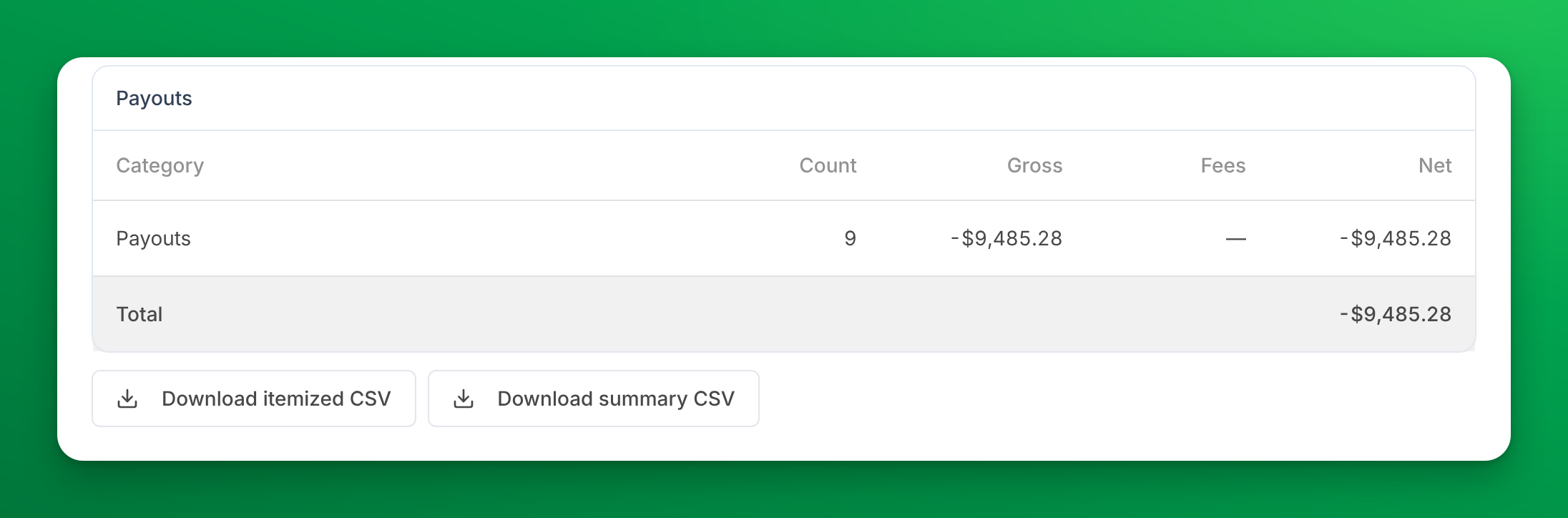
Below the totals, Balance change from activity lists each kind of activity with its count, gross amount, fees and net amount, and Payouts lists the payouts the same way. On a phone the tables show the count and the net amount; the CSV has every column.
The figures are Stripe's own, as in the Balance report in your Stripe Dashboard. Each item counts on the day it happened in your club's timezone. An automatic payout counts on the day it arrives at your bank, as Stripe counts it.
When should I use this report instead of Payouts?
Stripe lists the payments inside a payout only for automatic payouts. If you send payouts from your Stripe Dashboard yourself (manual payouts), no list connects a deposit to the payments it came from. Stripe's own advice for that case is a balance statement: check that the starting balance, plus activity, minus payouts, equals the ending balance, and match each payout to the deposit in your bank by its amount and date. This report gives you exactly that.
Why doesn't the report include today?
Stripe data reaches OpenCourt once a day, and OpenCourt shows a day only after it has checked it against Stripe, so the report usually ends yesterday or the day before. The note above the figures says which day the data is complete through. For your balance right now, open Balances in your Stripe Dashboard, or Settings → Payment Gateway if your role includes it.
Export to your bookkeeping
Two buttons under the figures download a CSV file:
- Download summary CSV — the starting balance, each kind of activity, the payouts and the ending balance.
- Download itemized CSV — one line for every item that changed your Stripe balance: the date, the kind, the gross amount, the fee, the net amount, and for a payment or refund made through OpenCourt, the customer, what they bought and the OpenCourt order. Through OpenCourt is No for a payment you took outside OpenCourt, for example in your Stripe Dashboard.
Why does an account say "Not available yet"?
OpenCourt shows the figures of a Stripe account only after it has checked them against the balance Stripe reports. Until then you see Not available yet, and a link to Stripe's Balance report, which has the same figures.
- Right after your club starts using the report, the check needs up to two days.
- If the check does not match, OpenCourt does not show figures that could be wrong. Use Stripe's Balance report in the meantime, and contact support if the message stays for more than a few days.
If you have more than one Stripe account
The report shows each Stripe account of your club on its own, named by the last four characters of its Stripe account ID. An account your club no longer uses is marked No longer used. Its history stays in the report. OpenCourt checks an account against Stripe only while it is in use, so an account no longer used can show Not available; Stripe's Balance report has its figures.
If something goes wrong
- The report shows fewer days than you picked — the note above the figures names the reason: the data is complete only through yesterday or the day before, or your club's Stripe history in OpenCourt starts later than the first day you picked. For earlier dates, use Stripe's Balance report.
- A payment has no customer in the itemized CSV — it was not taken through OpenCourt (for example, a charge made in your Stripe Dashboard). Its amount is still in the totals.
- The ending balance differs from the balance in your Stripe Dashboard — the Dashboard shows the balance right now, and this report ends with the last complete day. Pick the same day in Stripe's Balance report to compare.
Related
Financial Reports and Bookkeeping
This article covers important context for facility owners and bookkeepers who use OpenCourt's financial reports for accounting and reconciliation purposes.
How OpenCourt calculates your sales numbers
The rules behind Net Sales, Net Collected and the dashboard's net sales figure: which day a sale counts on, what is left out, and how club credit, gift cards, passes and refunds are treated.