

Manage API keys, webhooks and API versions
Create an API key for a system that reads your club's data, send your club's updates to a webhook, and move a key or webhook to the newest API version.
Give another system — your CRM, a spreadsheet tool, a door system, Zapier — controlled access to your club's data, and keep it on the newest version of the OpenCourt API. (About 5 minutes. You need the OpenCourt API page in your settings.)
Before you begin
- Know which system you are connecting and what it needs to read. Give a key only the access that system needs.
- If the page shows OpenCourt has a public API and an Ask about API access button, your club does not have API access yet. Click Ask about API access to request it.
- A developer who builds the integration reads the developer documentation for the technical details.
Create an API key
An API key is a password that lets one system read your club's data. Each key belongs to your club only.
- Go to Settings → OpenCourt API → Keys.
- Click Create API key.
- Type a name you will recognize later, for example Zapier or Front desk display.
- Under What this key may read, tick only what the system needs. Each row says in plain words what it gives access to — for example, Customers gives names, email addresses, phone numbers and membership status.
- If you are asked, tick the box that says you understand the API shares your club's customer data and that you are authorized to allow it.
- Click Create key.
- Copy the key from API key created and paste it into the other system now. Click Done.
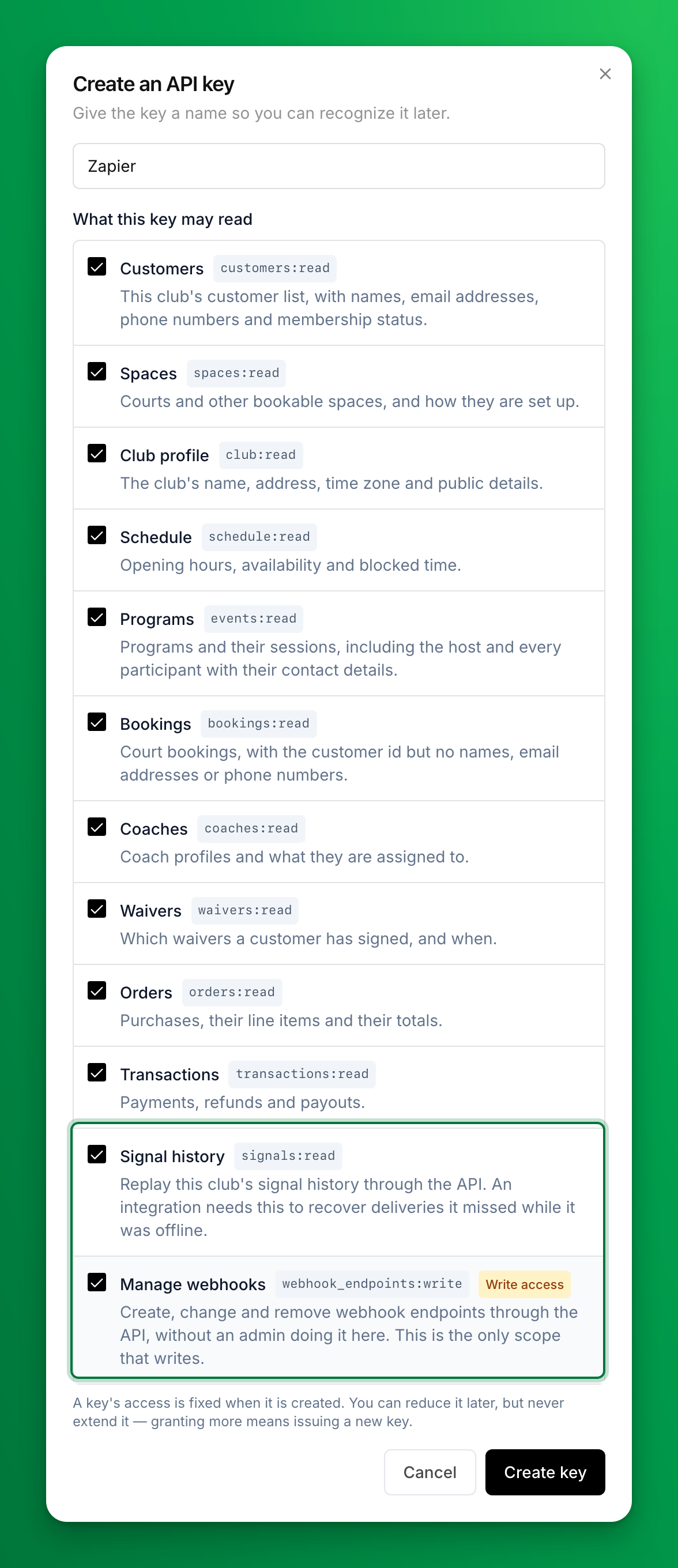
Which access is "write" access?
Every option reads data, except Manage webhooks, which carries a Write access label. It lets the system add, change and remove webhooks for your club. Tools such as Zapier need it to send themselves your club's updates.
Send your club's updates to a webhook
A webhook is an address on another system that OpenCourt sends a message to the moment something happens — a new customer, a booking, a paid order. Tools such as Zapier create their own webhooks; you only add one by hand when a developer gives you an address.
- Go to Settings → OpenCourt API → Webhooks.
- Click Add endpoint.
- Paste the address into Endpoint URL. It must start with
https://. - Under Signals to send, tick the updates the system wants.
- Under What this endpoint may see, tick the matching access.
- Click Add endpoint.
Deliveries shows each message OpenCourt sent to the address and whether it arrived.
Keep a key or webhook on the newest API version
OpenCourt improves its API often. When a change would break a system that is already connected, it ships as a new API version, and every key and webhook stays on the version it was created with until you move it. The API version column in Keys and in Webhooks shows where each one stands:
| You see | What it means |
|---|---|
| Latest | It uses the newest version. Nothing to do. |
| A newer version is available | It works, on an older version. Upgrade when the system is ready. |
| Retired — every request is refused (key) or Retired — nothing is delivered (webhook) | Its version is no longer served. Upgrade it now. |
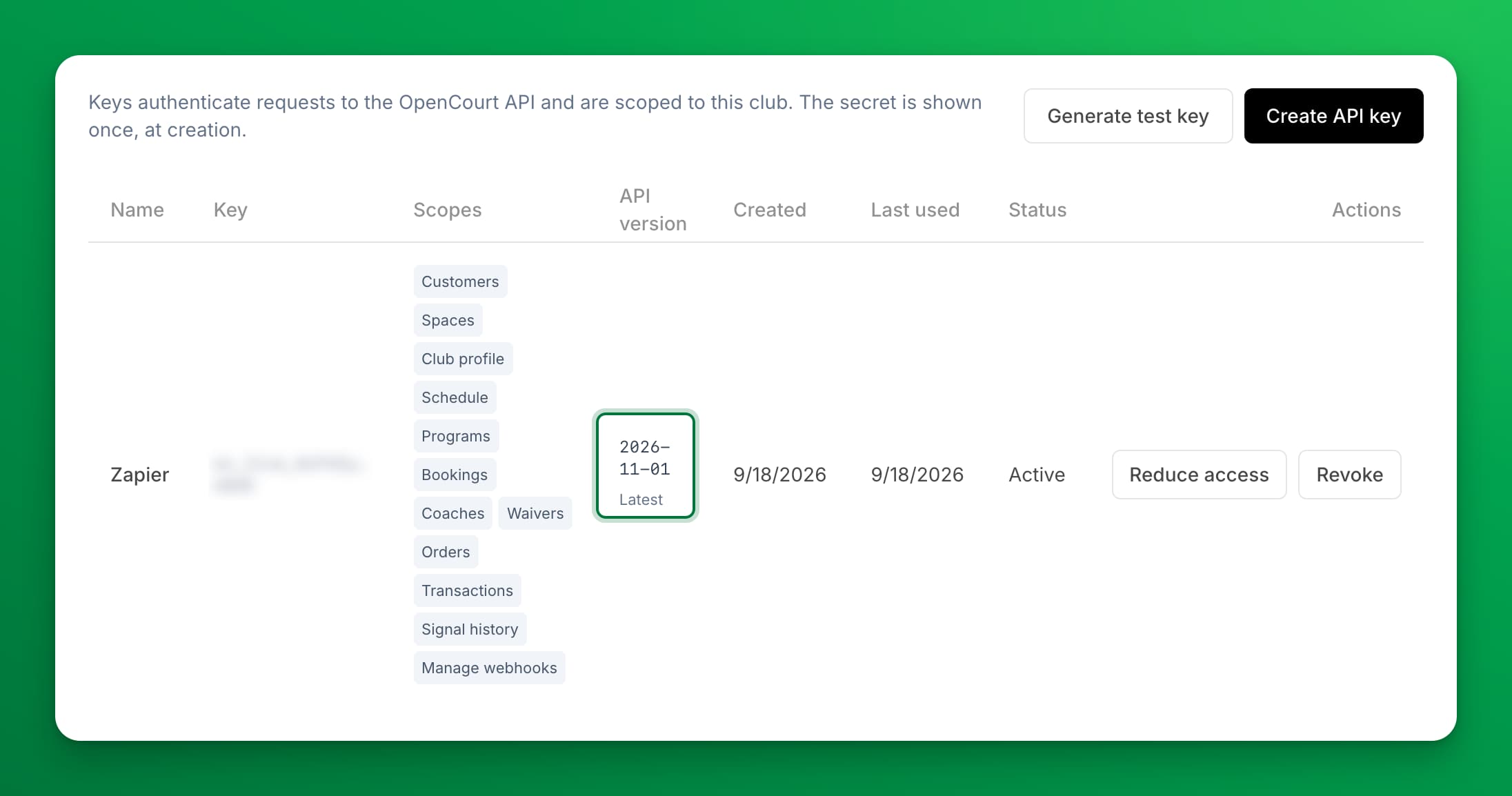
To move one to the newest version:
- Ask whoever built the integration to check the API changelog. It lists what each version changed.
- In the API version column, click Upgrade to and the version number.
- Read Upgrade to API version …? and click Upgrade.
The key's next request, or the webhook's next message, uses the new version. It does not move back by itself. Each upgrade is recorded in the Activity Log with who made it and the version it came from.
The Zapier app picks its own version, so a Zapier connection keeps working whatever version its key shows. More about versions for developers: Versioning.
If something goes wrong
The other system says the key is not accepted. The key was copied wrong or revoked. Create a new key and paste it again.
The other system says the key is missing access. A key's access cannot grow. Create a new key with the access the system names, then revoke the old one.
A key shows "Retired — every request is refused". Upgrade it, as above. Until you do, the system it belongs to cannot read anything.
Messages are not reaching a webhook. Open Deliveries to see the answer the other system gave. If it shows errors, give that information to whoever runs the system.
Connecting Zapier? Follow Connect OpenCourt to Zapier instead. It covers the key Zapier needs.
Set up a TV schedule display for your lobby
Mount a TV in your lobby or pro shop and show a live, full-screen view of every court — reservations, classes, and events — updating itself all day.
Connect OpenCourt to Zapier
Send new customers, memberships, bookings, signups, payments and refunds from OpenCourt to Google Sheets, your CRM, email tools and thousands of other apps with Zapier.