

Set up BayControl in the admin panel
Choose which spaces are simulator bays, set the lock screen and your session rules, set the Manager PIN and Staff PIN, and issue a pairing code for each bay — the admin-panel half of BayControl setup.
By the end of this you will have told OpenCourt which of your spaces are simulator bays, chosen what their lock screen shows, set the session rules every bay follows, set the two PINs your team uses at a bay, and issued a pairing code for each bay. (About 10 minutes. Do this before you touch any bay PC.)
Before you begin
- BayControl is switched on for your club. OpenCourt turns it on club by club. If BayControl is not in your admin panel, ask us — there is nothing you can toggle yourself.
- Your simulator bays already exist as spaces in OpenCourt, and customers book them there.
- Decide the two PINs before you start, and who gets each. The Manager PIN turns a bay's lock off and is for managers and installers only; the Staff PIN opens a bay for play and is for everyone on shift. They must be different numbers.
- Someone is available to work at the bay PCs afterwards. A pairing code is only useful in front of the machine it pairs.
Steps
-
Go to BayControl in the admin panel, then open the Configuration tab.
-
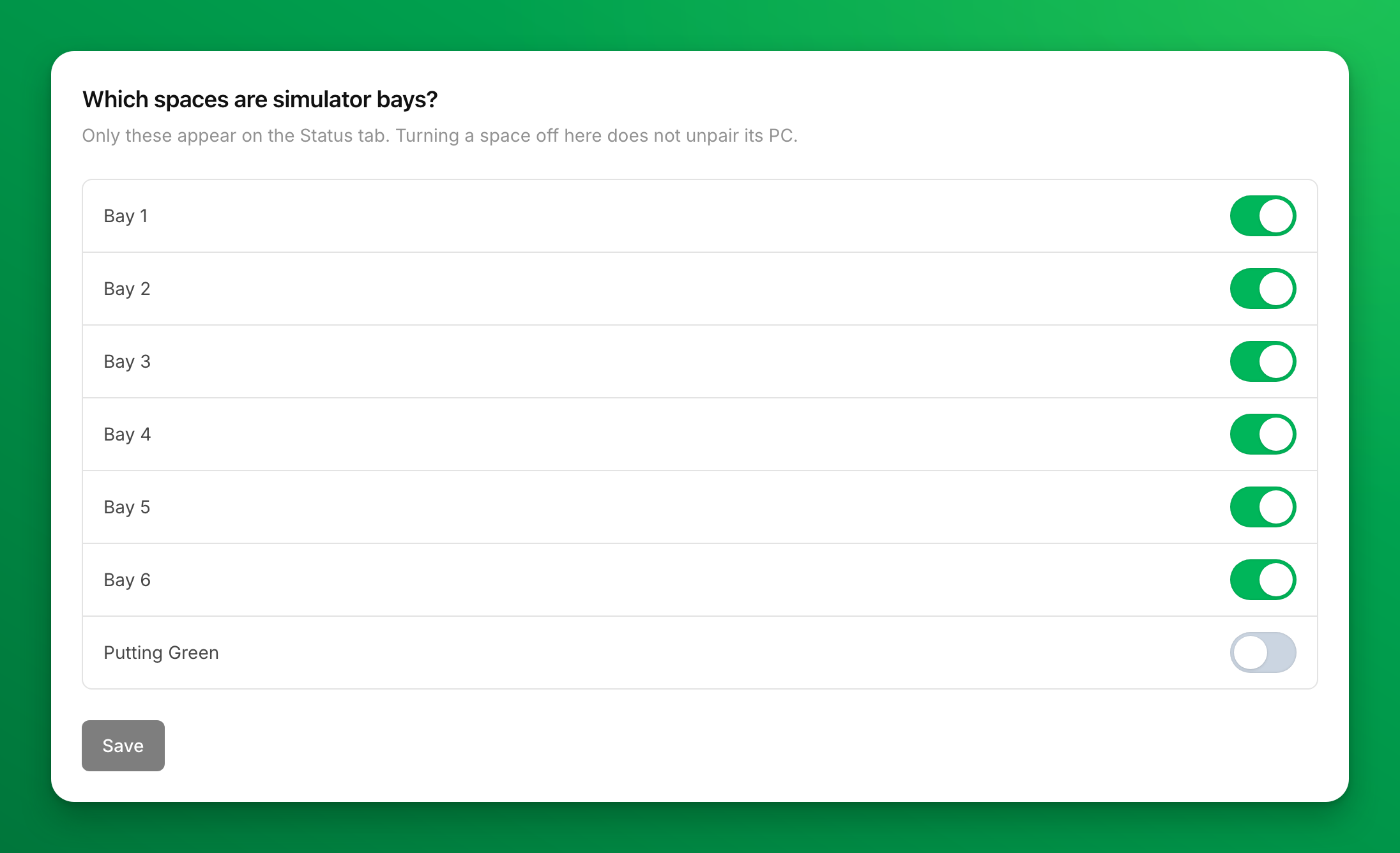
Under Which spaces are simulator bays?, turn on the switch beside each space that is a simulator bay. Leave your courts and other spaces off — only the spaces you turn on appear on the Status tab.
-
Click Save. A Bays updated message confirms it.
Turning a space off here later does not unpair its PC — it only removes the bay from the Status tab.
-
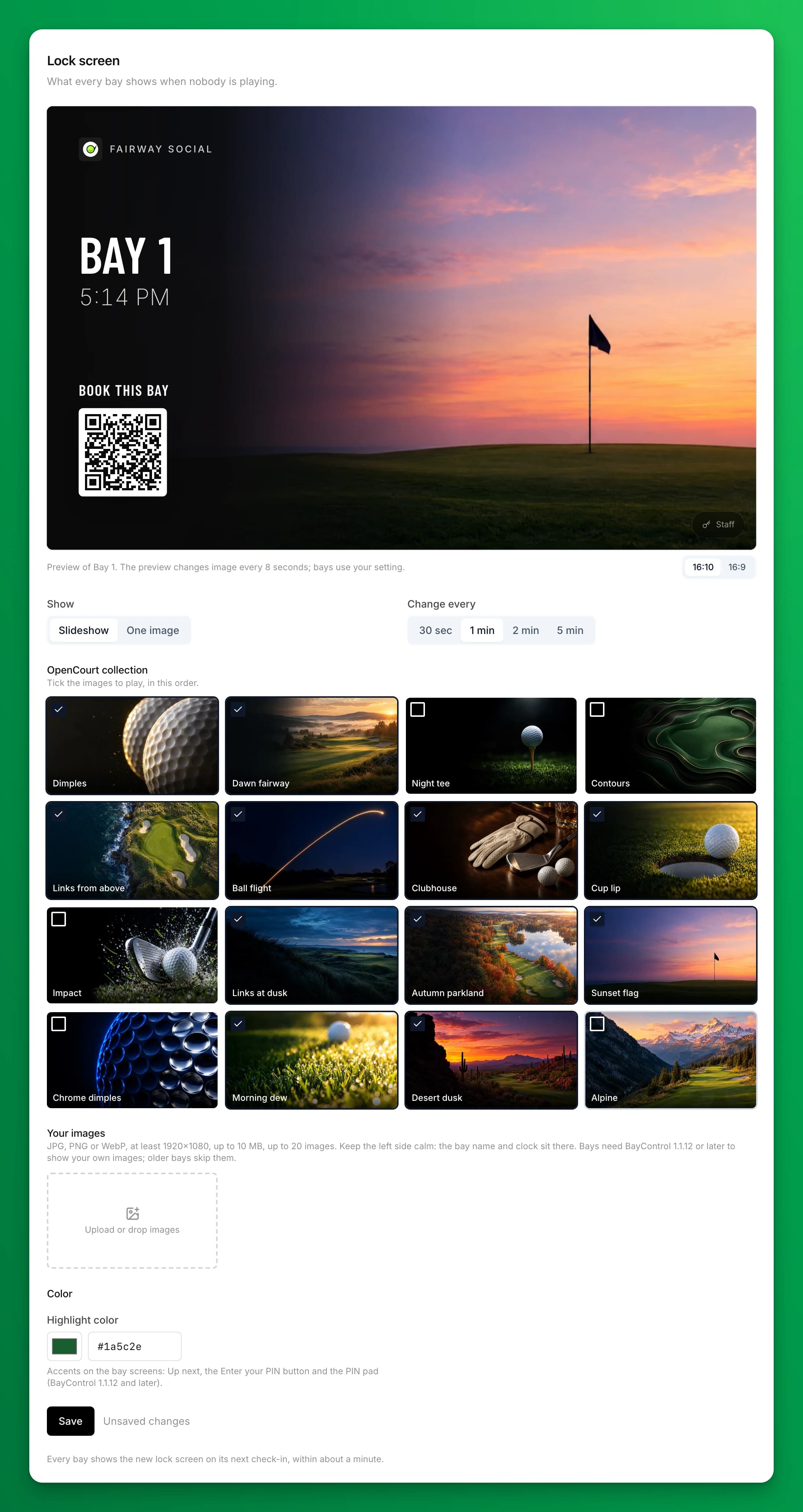
Scroll to Lock screen, directly below. It is what every bay shows when nobody is playing. The preview at the top plays it the way your first bay shows it; switch between 16:10 and 16:9 to see both screen shapes. Choose what to show, then click Save. You will see Lock screen saved. Bays pick it up within a minute.
- Show — Slideshow plays several images in turn; One image keeps one image on every bay.
- Change every — how long each slideshow image stays: 30 sec, 1 min, 2 min or 5 min. It shows only for a slideshow.
- OpenCourt collection — 16 golf images. For a slideshow, tick the images to play; they play in the order shown. For one image, click the one you want.
- Your images — your own photos, next to ours. See Put your own photos on the lock screen.
- Color — Highlight color is the accent on the bay screens: Up next, the Enter your PIN button and the PIN pad. The background under the bay name is always dark, so the white text stays easy to read.
If you change nothing, every bay plays a slideshow of the whole OpenCourt collection, one image a minute, and each bay starts on a different image.
-
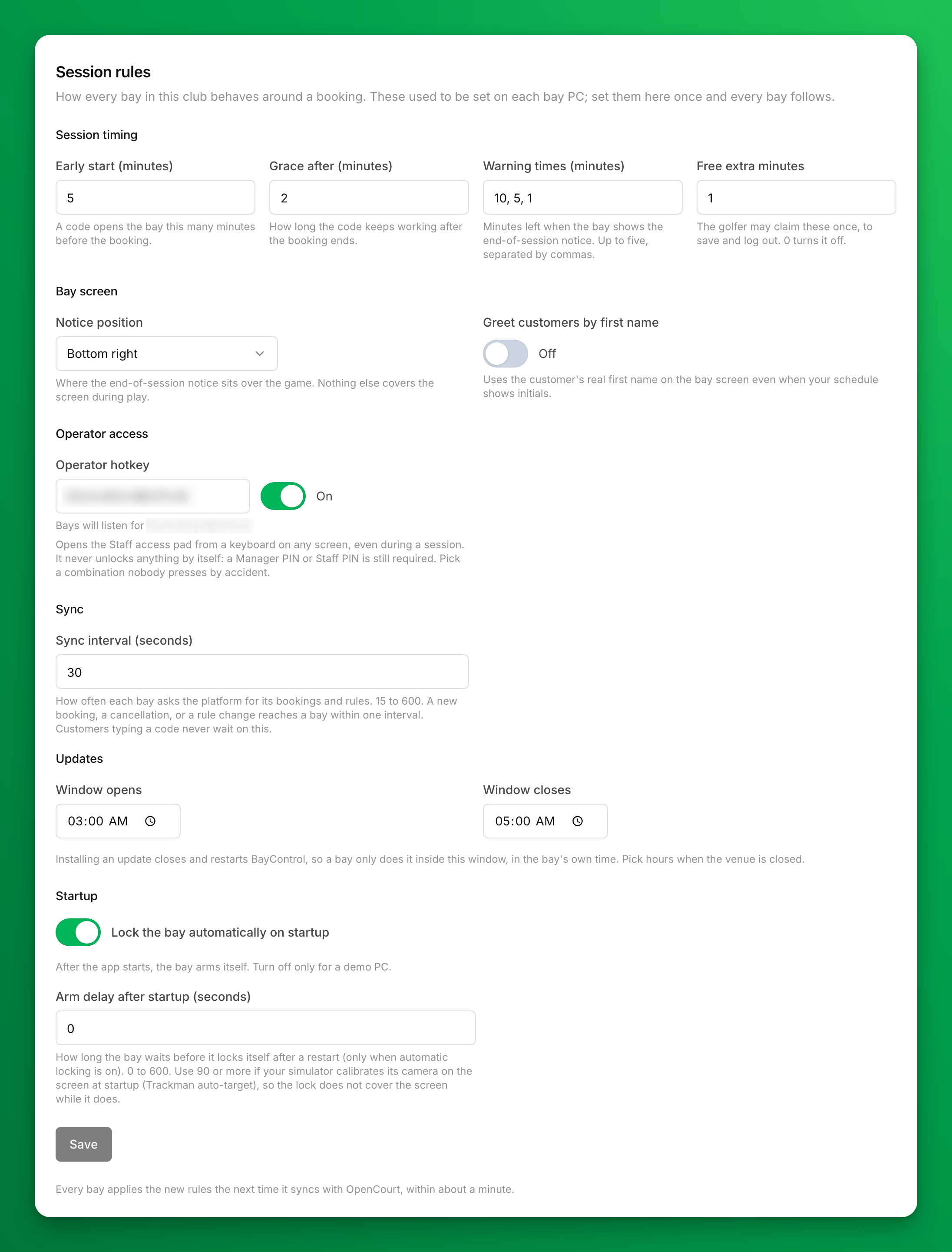
Scroll to Session rules and check the rules every bay will follow. The defaults suit most venues, so change only what you need, then click Save. You will see Session rules saved. Bays pick them up within a minute.
- Session timing — Early start (minutes) is how early a code opens the bay before the booking
(default 5). Grace after (minutes) is how long the code keeps working once the booking ends
(default 2). Warning times (minutes) are the minutes left when the bay shows its end-of-session
notice — up to five, separated by commas (default
10, 5, 1). Free extra minutes is what the golfer may claim once, to save and log out (default 1; 0 turns it off). - Bay screen — Notice position is the corner that notice sits in over the game. Pick one your simulator leaves clear. Greet customers by first name is described in Bay codes and your customers.
- Operator access — the Operator hotkey, a key combination that opens a bay's Staff access pad from a keyboard. A PIN is still needed. Keep the combination to your staff.
- Updates — the hours a bay may install an update in. Installing restarts BayControl, so pick hours when the venue is closed (default 03:00 to 05:00, in your club's time zone).
- Startup — Lock the bay automatically on startup should stay on. It is what makes a bay come back locked after a reboot without anyone typing a PIN. Turn it off only for a demo PC. Arm delay after startup (seconds) makes a bay wait before that automatic lock (default 0), for a simulator that calibrates on the screen when it starts. Use 90 or more for a simulator that calibrates at startup.
A change also applies to the codes your customers already hold, so a code issued yesterday follows the rule you save today.
- Session timing — Early start (minutes) is how early a code opens the bay before the booking
(default 5). Grace after (minutes) is how long the code keeps working once the booking ends
(default 2). Warning times (minutes) are the minutes left when the bay shows its end-of-session
notice — up to five, separated by commas (default
-
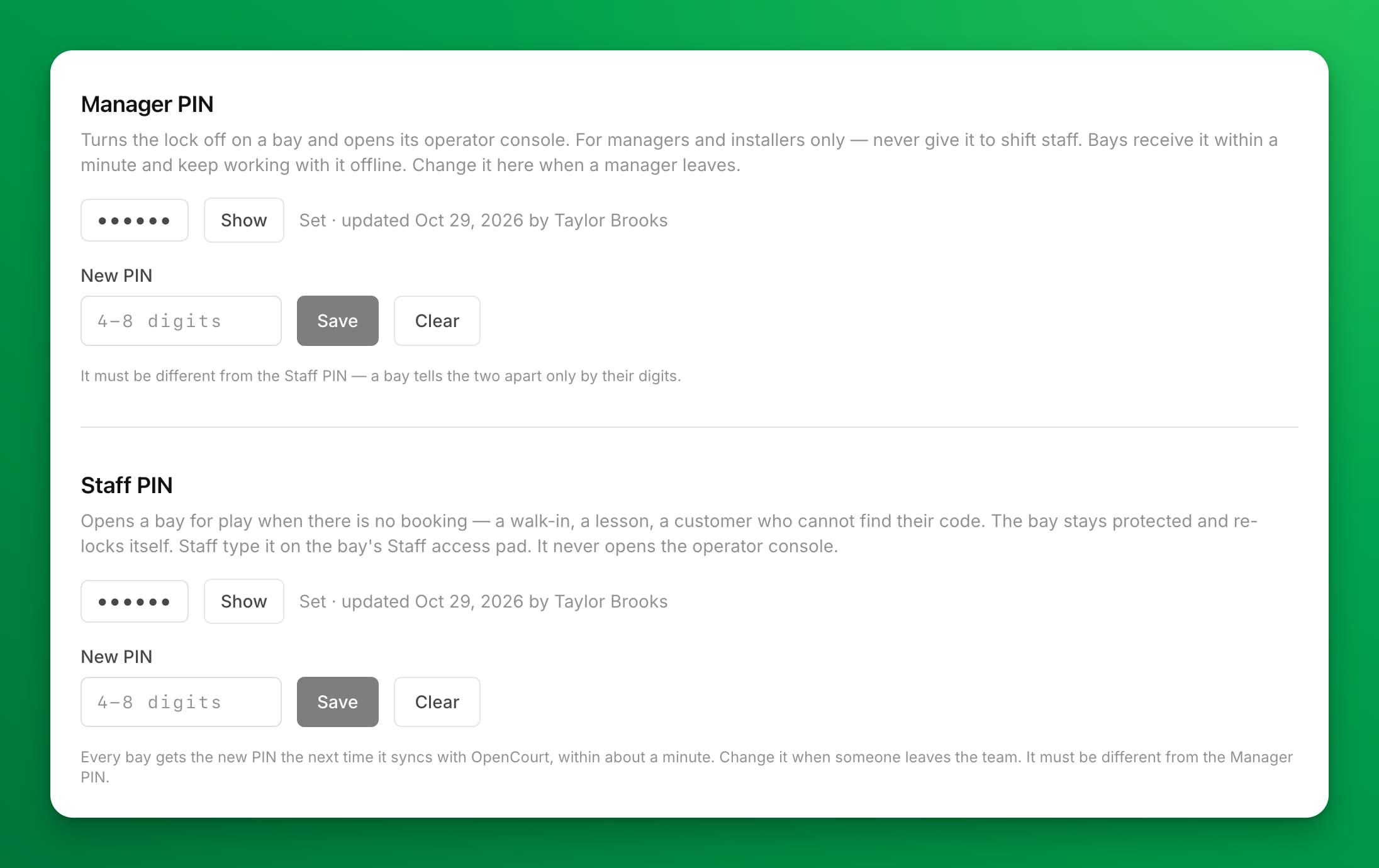
Scroll to Manager PIN, type a PIN of 4 to 8 digits in the PIN field, and click Save. It must be different from the Staff PIN you are about to set.
This is the PIN that turns a bay's lock off, so a manager or an installer can work on the bay PC. Every bay in the club uses the same one, and each picks it up within about a minute.
-
Scroll to Staff PIN, directly below, and type a PIN of 4 to 8 digits in the PIN field, then click Save. You will see Staff PIN saved. Bays pick it up within a minute.
This is the PIN your shift uses to open a bay for play when there is no booking — a walk-in, a lesson, a customer who cannot find their code. It does not turn the lock off: the bay stays armed, and stays open until someone taps Re-lock. It still works when the venue's internet is down.
-
Open the Status tab. Each bay you chose is listed with Never paired beside it.
-
On the row for the first bay, click Issue pairing code.
-
Copy the code with Copy code, or click Print for a one-page BayControl install card — the code, the exact time it expires, the three Install steps, and a Before you type the code checklist to work through at the bay. Hand the printout to whoever is doing the install.
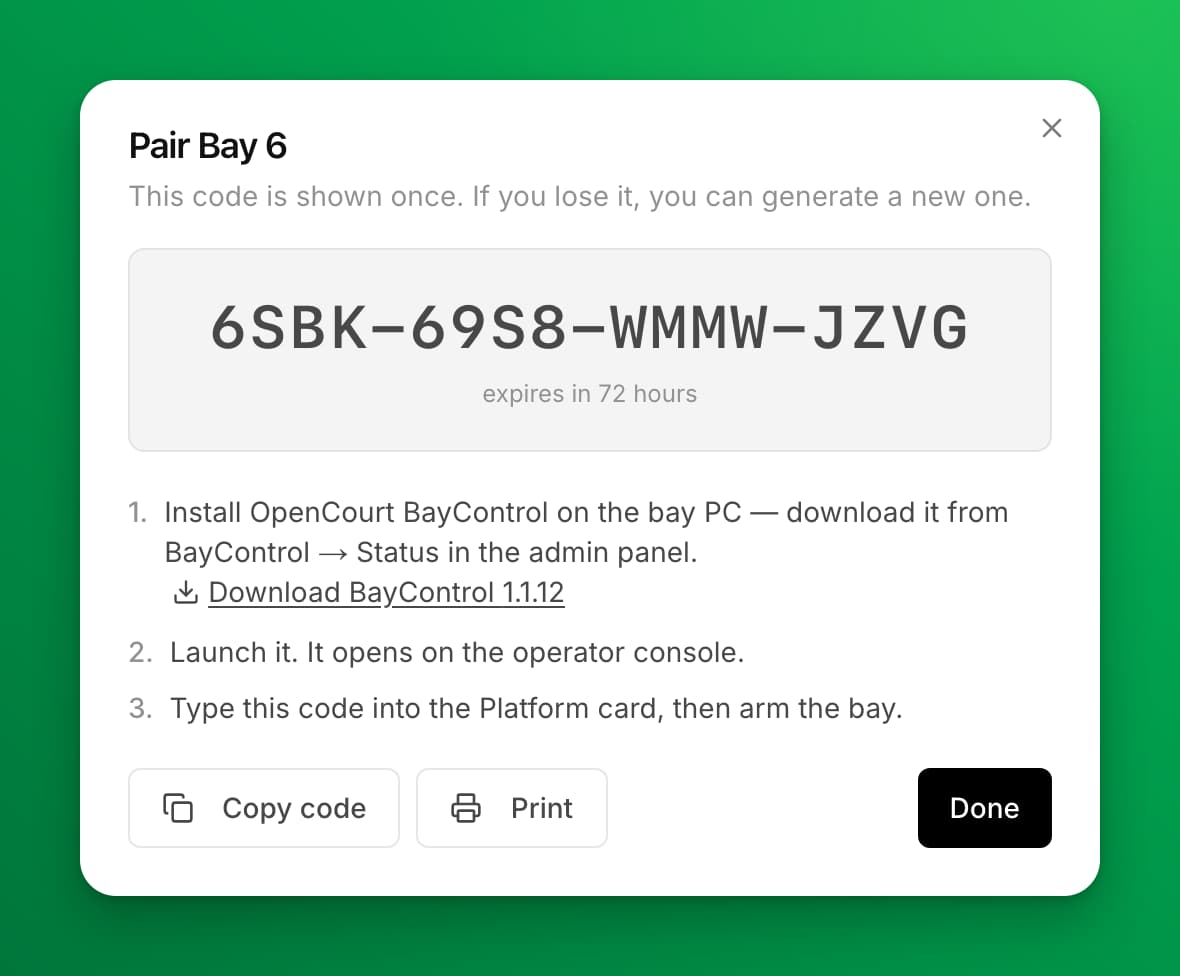
- Repeat steps 9 and 10 for every bay. Each bay needs its own code — a code pairs one PC to one bay.
What happens next
The code is shown once and expires on its own. Take it (or the printout) to the bay PC and follow Install BayControl on a bay PC (a guide for clubs that use BayControl, opened with the help password OpenCourt gave your club). When the PC pairs, the dialog switches to {Bay name} paired and tells you to arm it on the operator console; the Status tab picks the bay up within a few seconds.
Losing a code costs nothing — issue another from the same button and use the new one.
Put your own photos on the lock screen
Your bays can show your own photos — your venue, your bays, your events — in place of the OpenCourt collection or next to it. You do this on the Lock screen card at BayControl → Configuration.
-
Under Your images, click Upload or drop images, or drag photos onto it. Use JPG, PNG or WebP files of at least 1920×1080 and up to 10 MB each. You can keep up to 20 images.
-
In Set the subject, click the part of the photo that must stay on screen, then click Save subject. A screen of another shape crops the photo around this point.
If the left side of the photo is very bright, a warning tells you the bay name and clock may be hard to read, because they sit there in white. Pick a photo that is darker on the left.
-
Click Save at the bottom of the card. A new photo is already ticked for a slideshow, or chosen for One image, but no bay shows it until you save.
To move a photo's subject later, click Subject under it. To take a photo off, click Remove, then Remove image. Removing takes effect at once on every bay, without Save, and cannot be undone.
If something goes wrong
- There is no BayControl section in the admin panel — either your club does not have the feature switched on yet, or your admin account lacks the BayControl permission. Check the permission first; if it is there, ask OpenCourt to enable the feature for your club.
- Issue pairing code says "Set a Manager PIN on the Configuration tab before pairing a bay." — no Manager PIN is set yet. Set one in step 6 and try again.
- A PIN will not save — the message under the field names the reason, for example a PIN that is not 4 to 8 digits, or one that matches the club's other PIN.
- The Status tab says "No bays yet" — you have not designated any spaces. Use the Choose bays button on that screen; it takes you to the Configuration tab.
- A photo will not upload — the message names the file and the reason: it is not a JPG, PNG or WebP, it is larger than 10 MB, or it is smaller than 1920×1080. Export a larger copy from the original photo, not a screenshot of it. At 20 images the upload tile is full; remove one to add another.
- Your own photo does not show on a bay — check that you clicked Save after the upload. If you did, the bay runs a BayControl version older than 1.1.12, which plays OpenCourt images in place of yours until it updates.
- The pairing dialog says the server did not answer in time — a code may already have been created. Issue another and use the new one; the unused one expires by itself.
- The bay PC says "This bay is already paired to another PC" — a different machine holds this bay. Open the bay's Details on the Status tab and use Revoke this device, then issue a fresh code. Issuing more codes will not fix this.
- The bay PC says the code is not valid, or was already used — issue a new code. A code pairs one machine and is then spent.
Related
- How BayControl runs your simulator bays
- Install BayControl on a bay PC — for clubs that use BayControl
- Bay codes and your customers
- Monitor and run your bays day to day
How BayControl runs your simulator bays
BayControl runs every golf simulator bay from one screen: it locks a bay nobody has booked, opens it for the customer who did, and shows you the live state and history of every bay — so you can sell a 9pm Saturday slot with nobody on site.
Install BayControl on a bay PC
Next Page