

Monitor and run your bays day to day
Monitor every bay on the BayControl Status tab, read a bay's health and history, open a bay for a walk-in, end a session, replace a bay PC, and answer the calls that come in when a code does not work.
Your bays are paired and armed. This is the running of them: what the Status tab is telling you, how to open a bay for someone with no booking, how to end a session, how to swap a PC out, and what to do when the phone rings. (For admins and front desk. No setup needed.)
Before you begin
- Your bays are set up and paired — see Set up BayControl in the admin panel and Install BayControl on a bay PC.
- A Staff PIN is set, so your shift can open a bay at the bay itself when the internet is down.
- The Manager PIN is in the club's password manager and known to managers only. It is not a front-desk PIN.
Which code does what
| Code | Who uses it | What it does |
|---|---|---|
| Booking code | The customer | Opens their own bay for their own session. It is on their booking as Bay unlock code. |
| Staff PIN | Everyone on shift | Opens a bay for play with no booking. The bay stays armed, and stays open until someone taps Re-lock. |
| Manager PIN | Managers and installers | Turns the lock off and opens the bay PC's operator console. Not for seating a walk-in. |
Both PINs are set on BayControl → Configuration and reach every bay within about a minute.
Read the Status tab in ten seconds
The line above the table is the whole fleet in one glance — for example 4 bays · 3 online · 1 not reporting · 1 not armed. The counts you want at zero are not reporting and not armed. The page refreshes itself and says how fresh it is (updated 3s ago).
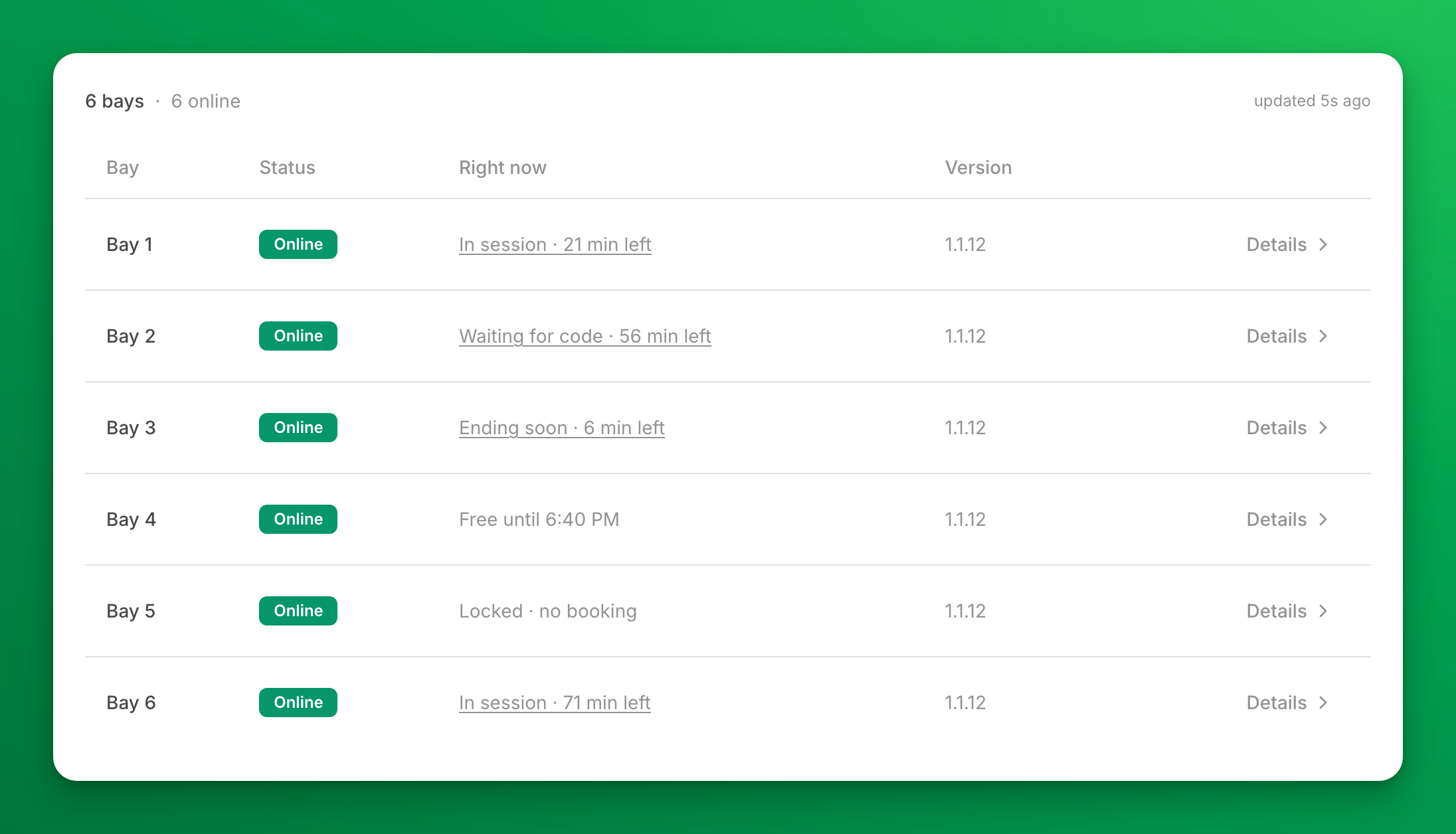
The Status column
| Chip | What it means | What to do |
|---|---|---|
| Online | The bay is reporting normally. | Nothing. |
| No signal 4m | Nothing heard for a few minutes. Often a brief network drop. | Watch it. It usually clears itself. |
| Offline 40m | Nothing heard for a longer time. The PC is off, off the network, or BayControl is not running. | Go and look at the bay PC. |
| Awaiting first report | A PC paired to this bay but has never synced with OpenCourt. | Check the bay PC. Do not issue another pairing code — it cannot help. |
| Never paired | No PC has ever paired to this bay. | Issue a pairing code and install BayControl on it. |
An Offline bay still protects itself and still lets booked customers in. What you lose is the view: you cannot see it or send it commands until it reconnects.
The "Right now" column
This is the bay's own report of what it is doing.
| What you see | What is happening |
|---|---|
| Not armed (amber) | The bay PC is on and not protecting the bay. Arm it as soon as you can. |
| Free until 5:30 PM | Locked, with the next booking at that time. A booking further out names the day — Free until tomorrow 9:00 AM, Free until Tue 9:00 AM. |
| Locked · no booking | Locked, with nothing else on the schedule. |
| Locked · booking started · 42 min left | The booking has begun but the customer has not opened the bay yet. |
| Waiting for code · 42 min left | The bay is showing the Welcome screen and waiting for the customer's PIN. |
| In session · 42 min left | Someone is playing. |
| Ending soon · 3 min left | The end-of-session notice is up. |
| Session finished | Time is up; the completion screen is showing before the lock returns. |
| Staff unlock · until 6:15 PM (amber) | Staff opened the bay from the admin panel without a booking. It re-locks itself at that time. |
| Staff unlock (amber) | Staff opened the bay with the Staff PIN. It stays open until someone taps Re-lock on the bay, or you lock it from here. |
When a booking is running, the Right now cell links straight to that booking — one click from "who is in Bay 3" to their booking and their code.
Look inside one bay
Click anywhere on a bay's row. The panel that opens answers "why is this bay behaving like this?".
At the top:
- Armed since … or, in red, Not armed since … — whether the bay is protecting itself right now, and since when. If Auto-arm is off in Configuration, a warning says so: after its next restart the bay stays open until someone arms it by hand.
- PC restarted … and BayControl running since … — when the bay PC and the app last started.
- Now and Next — the booking in progress and the next one, each linked to the booking, with the window when its code works.
- Unlocks today, Wrong codes today and Extensions today, and for the last 7 days the number of restarts, outages and crashes.
Technical details (closed until you open it) holds what OpenCourt support may ask for: last heartbeat, reported state, clock, app version, whether the bay has your latest settings, displays, free memory, the PC's name and Windows version, and when it was paired. A Clock warning means the PC's clock is wrong — fix it, or the bay opens and locks at the wrong times.
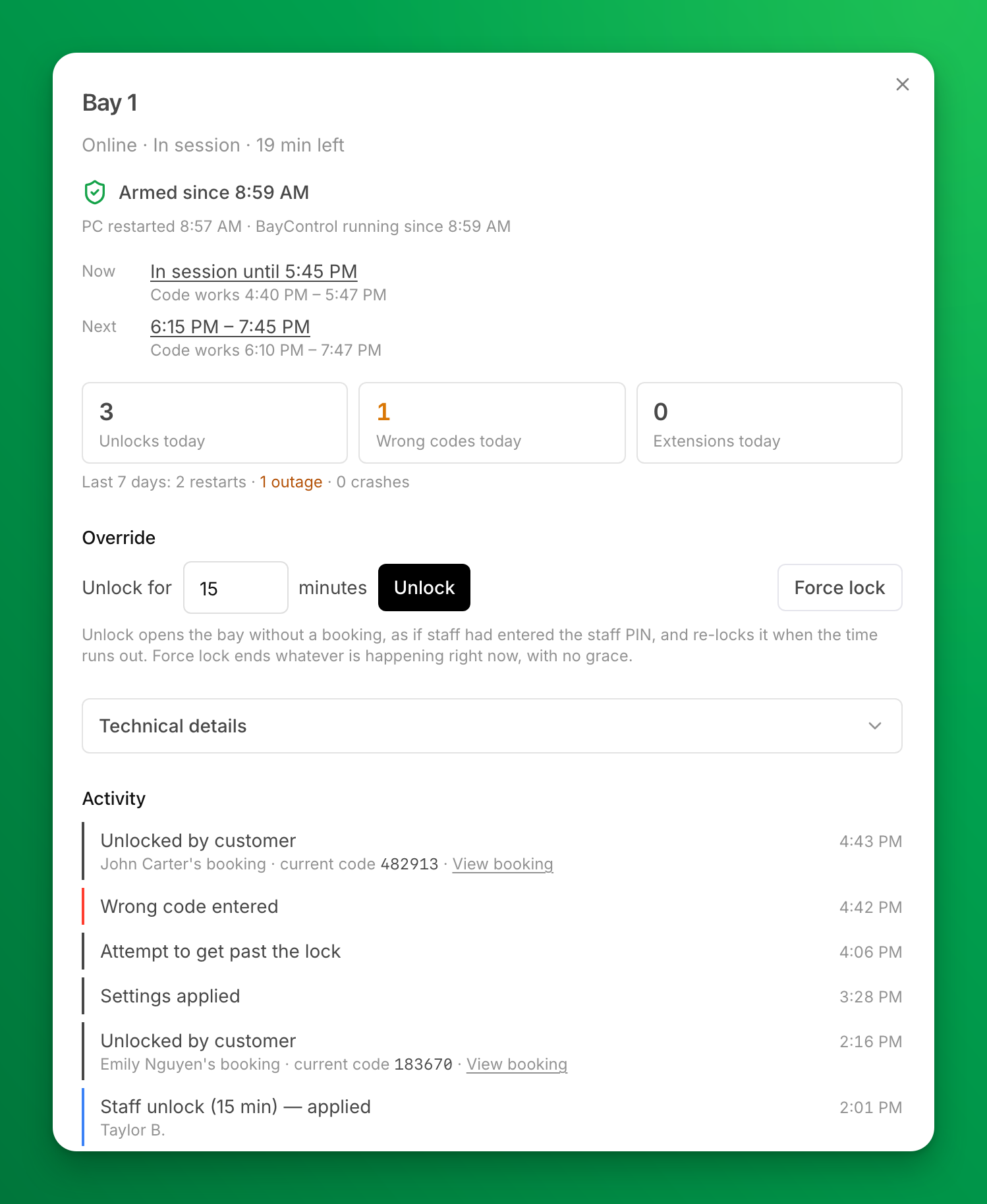
Below that, Activity is one timeline for this bay: every command someone sent and what the bay said back, every pairing and revoke, and what the bay itself did, each with the time in your club's time zone. A customer unlock shows whose booking it was, the booking's code and a link to the booking. The timeline belongs to the bay rather than to the PC, so swapping a machine out reads as one continuous history. Load more goes further back.
When the bay logs the same routine entry several times in a row, the timeline shows it once, with a count and the time range, for example Restored start-with-Windows ×12. Click Show all 12 to see each one. Attempt to get past the lock means someone or something tried to reach the PC behind the lock screen, and the lock put itself back in front. Many of these in a row are worth a look at the bay.
Open a bay for someone with no booking
A walk-in, a lesson, a customer who cannot find their code.
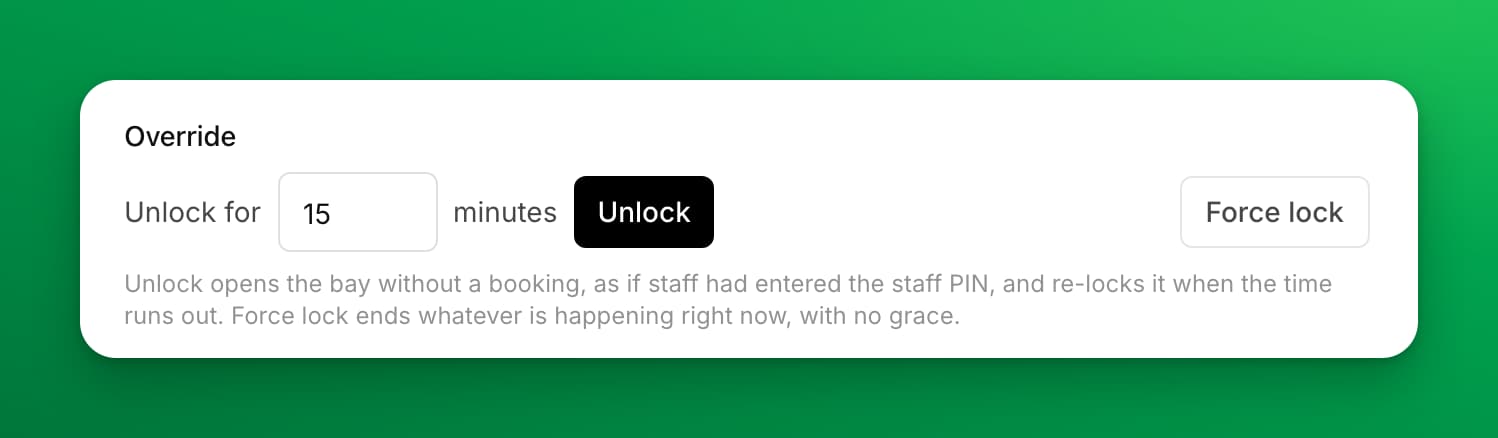
From the admin panel — the everyday way. Open the bay's Details, set Unlock for N minutes, and click Unlock. You will see Sent. The bay picks it up within a minute, the next time it syncs with OpenCourt. When the minutes run out the bay re-locks itself, so a forgotten override cannot leave a bay open all night. Use this first: it works from any device at the desk, and the Activity timeline records who opened the bay and for how long.
To end it early, use Re-lock now in the same panel.
At the bay with the Staff PIN — the fallback. Reach for this when the venue's internet is down, or nobody has a laptop or phone open. Open the bay's Staff access pad and type the club's Staff PIN. While the bay is open this way, a small Staff unlock pill sits in the corner with a Re-lock button, and the bay stays armed — it is open for play, not unlocked for good.
Two ways to the pad, whichever is handier: tap the Staff button in the bottom-right corner of the lock screen, or press your club's operator hotkey on a keyboard at the bay. The hotkey also works during a session, when the simulator covers the Staff button. Your club's combination is on BayControl → Configuration → Operator access.
End a session immediately
Force lock, in the same Details panel, ends whatever is happening right now with no warning and no grace period. The confirmation names the bay and says whether a session is in progress.
Use it when you have to clear a bay — never as a routine way to finish a booking. To end a session with the normal warnings, shorten the booking on the schedule instead.
Replace a bay PC
- Open the bay's Details and click Revoke this device, then confirm. The old PC stops unlocking for customers within a minute.
- Back on the Status tab, click Issue pairing code on that bay's row.
- Install and pair the new PC — see Install BayControl on a bay PC.
Revoke first. A bay accepts one PC at a time, and a second machine trying to pair is told This bay is already paired to another PC.
What to check every morning
- The Status tab shows every bay Online, and nothing reads Not armed.
- Any bay whose PC restarted overnight is Online and armed again. A bay comes back locked by itself after a restart as long as Lock the bay automatically on startup is on in your session rules.
- Nothing in the Version column carries an update flag you have not asked us about.
If something goes wrong
- "My code doesn't work" — check three things in order. Is the bay's Right now column showing Waiting for code? If it shows Free until…, the customer is early or at the wrong bay. Is it inside the code's window (by default 5 minutes before the start to 2 minutes after the end, or whatever you set in Session rules)? Then read the code back from the booking — Schedule → the booking → the Bay code row. See Bay codes and your customers.
- A bay shows Offline — the PC is off, off the network, or BayControl is not running. Go to the bay: wake the PC, sign in to Windows if it is waiting at the sign-in screen, confirm it has internet, and start BayControl again if it is closed. If BayControl is still running on an offline bay, customers who already had a booking can still get in.
- A bay shows Not armed — somebody turned the lock off with the Manager PIN and left the PC on the operator console, or the PC restarted while Auto-arm was off. Click Arm Lock Mode on that PC. Until then the bay is unprotected. The bay's details panel says which it was: Not armed since a restart means turn Auto-arm back on in Configuration.
- A bay shows "Awaiting first report" — the PC paired but has never synced with OpenCourt. Look at the machine; do not issue another pairing code.
- The screen locked in the middle of a booking — check Details → Clock. A wrong PC clock shows a warning there: Large enough to unlock at the wrong time. Check the PC clock. Fix the PC's clock and time zone.
- A command is stuck on "Waiting for the bay to report back" — the bay has not picked it up yet. A bay that is offline never receives it: the command is cancelled rather than carried out later, so a staff unlock cannot open a bay hours after you sent it. Check the bay is Online and send it again.
- A PIN change has not reached the bays — every bay picks up a new Staff PIN or Manager PIN within about a minute. If one bay has not, it is offline: check its Status.
- Nobody knows the Manager PIN — set a new one on BayControl → Configuration. Every online bay accepts it within about a minute; a bay that is offline takes it when it reconnects.
Related
- How BayControl runs your simulator bays
- Bay codes and your customers
- Set up BayControl in the admin panel
- Install BayControl on a bay PC — for clubs that use BayControl
Bay codes and your customers
Where a customer finds their booking code, exactly when it works, what the bay screen shows them, and what happens when a booking moves or is cancelled.
Check-In & QR Scanner
Check customers in at the door by scanning their QR code, and see who has arrived on your Today page.