

Bay codes and your customers
Where a customer finds their booking code, exactly when it works, what the bay screen shows them, and what happens when a booking moves or is cancelled.
Every booking on a simulator bay gets one booking code — six digits the customer types on the bay screen to start playing. Nobody hands it out: it reaches the customer with their booking. On the booking itself the row is labelled Bay unlock code, and emails print it on a Bay Code: line. This page is what the front desk needs when someone asks about theirs.
One code per booking, not per person
The code belongs to the booking. Everyone on it uses the same six digits, so nobody is stuck outside because they were not the one who paid.
| Situation | Code |
|---|---|
| One customer books one bay | One code |
| A group books one bay | One code, shared by everyone on the booking |
| One booking covering two bays | One code that opens both |
| Two separate bookings on two bays | Two different codes |
| An admin block taking a bay out of service | No code — there is no customer, and the bay stays locked |
Where the customer finds it
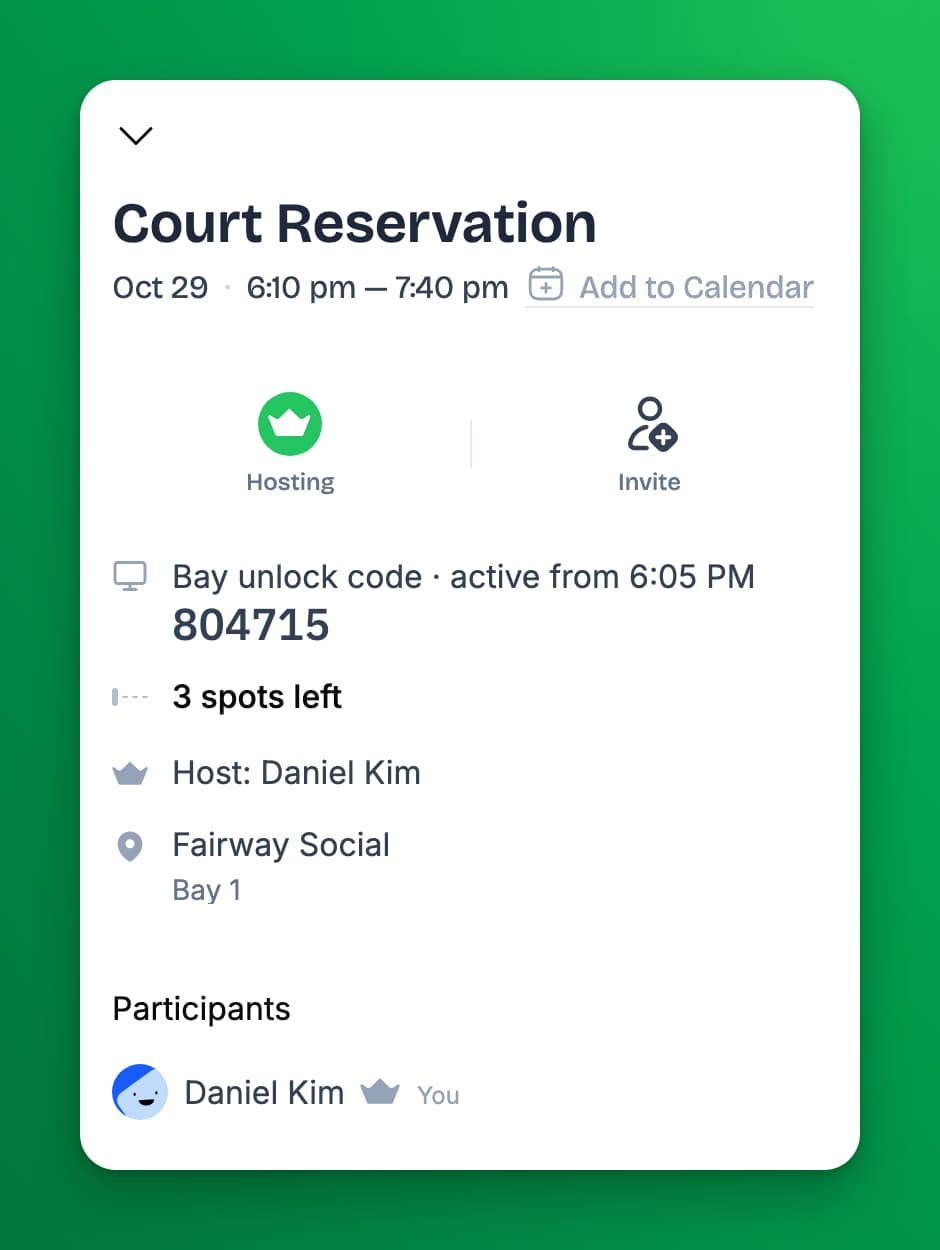
- In the OpenCourt app, on the booking's details, as a row labelled Bay unlock code with a screen icon. Before the code's window opens the row reads Bay unlock code · active from 5:55 PM, so an early customer can see the code and when it starts working.
- In their booking confirmation email, on a line reading Bay Code:.
- In their reminder email before the booking, on the same Bay Code: line. This is the one that matters most for a late-night unstaffed slot — it lands shortly before they drive over.
Bay codes appear on the booking in the OpenCourt app and in the confirmation and reminder emails. No SMS is sent.
When the code works
By default a booking code is live from 5 minutes before the booking starts until 2 minutes after it ends. Outside that window the bay screen refuses it.
Both numbers are yours to change: they are Early start (minutes) and Grace after (minutes) on BayControl → Configuration, in the Session rules card. Change them and the codes your customers already hold move with them, so a code emailed yesterday honours the window you save today. See Set up BayControl in the admin panel.
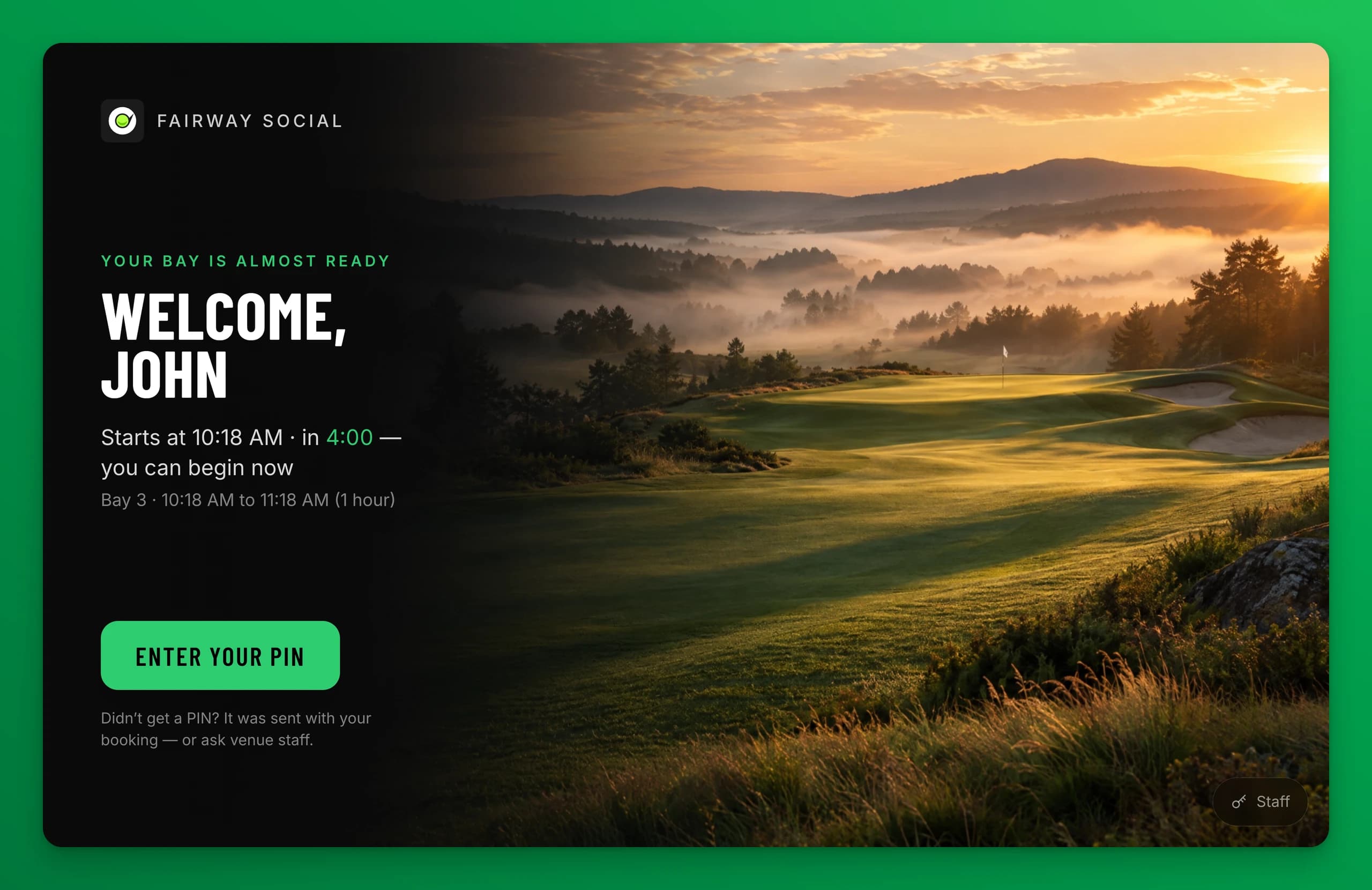
That early window is deliberate: a customer who arrives a few minutes early can start playing straight away. The bay screen tells them so — Your session starts at 5:30 PM in 4:12 — enter your PIN to begin now.
Greet customers by first name
The bay screen says Welcome, {first name}! — and by default that name follows the same privacy rule as your schedule. A club set to show initials therefore greets the golfer as Welcome, M.!
Turn on Greet customers by first name on BayControl → Configuration, in the Session rules card, and the bay uses the customer's real first name instead: Welcome, Michael! It changes the greeting on the bay screen only. Your schedule, your public pages and the customer name on the bay's booking list all keep showing initials.
A bay screen is read by the one person standing at it, so most simulator venues turn this on.
What the customer sees at the bay
-
Before their window the bay shows the lock screen: golf artwork behind a panel with the club's logo and name, the bay's name, a clock, and a QR code under Book this bay. A later booking shows as one quiet line, such as Next booking · 4:30 PM. In the 30 minutes before a booking, that line becomes an Up next block that greets the customer: Welcome, {first name}, the start time, and how many minutes are left, such as in 12 min.
-
Once their window opens the screen greets them: Your bay is almost ready (Your bay is ready from the start time), Welcome, {first name}, the start time with a countdown, and one button, Enter your PIN.
-
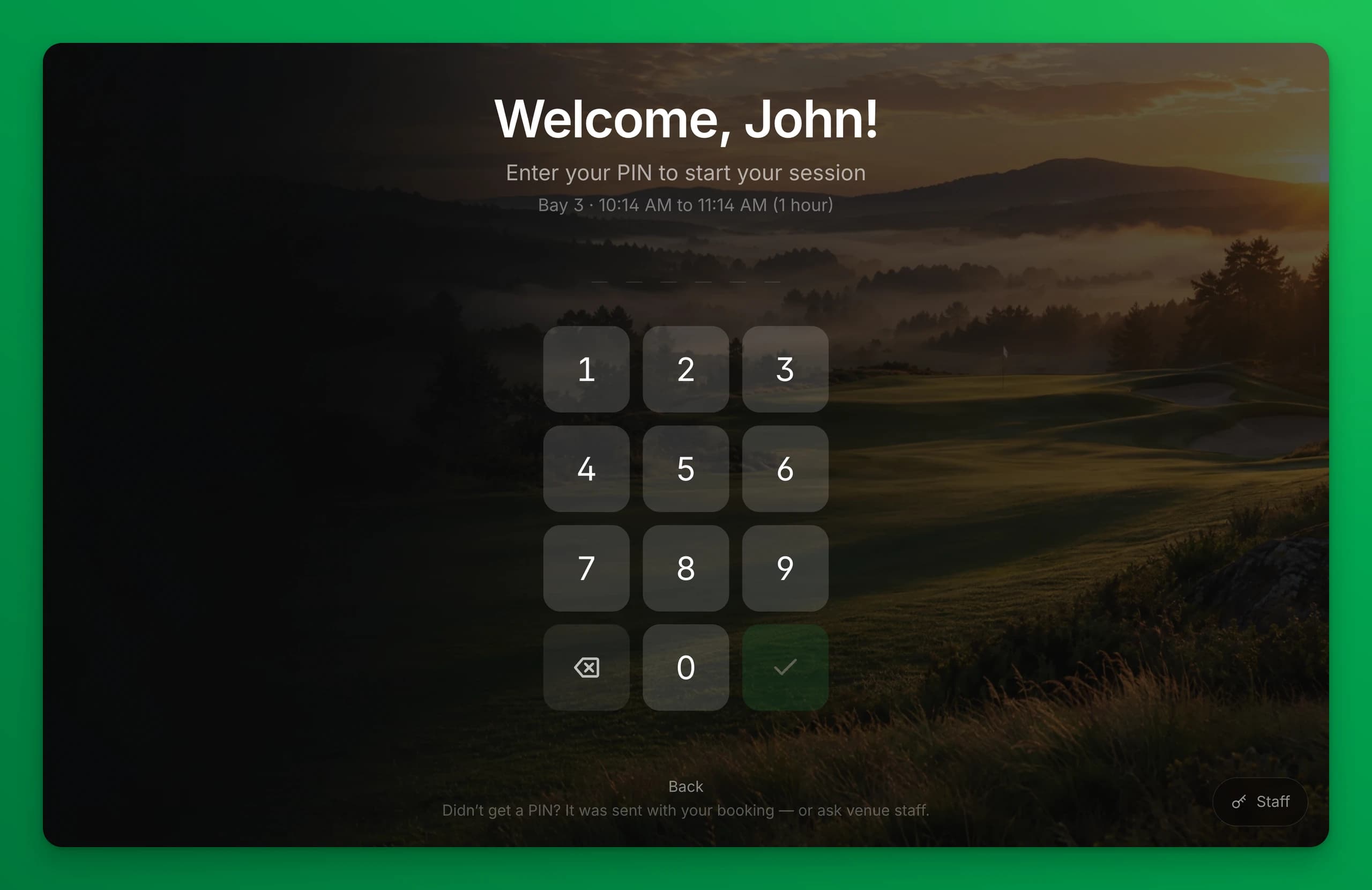
Enter your PIN opens the keypad, and so does typing a digit on a keyboard. The keypad reads Enter your PIN to start your session, with the bay name and session times. Back closes it, and it closes by itself if nobody touches it.
-
A wrong code gives Incorrect PIN — please try again.
-
A correct code clears the lock screens off every display and the sim software is theirs.
-
Near the end a small notice appears in a corner of the screen at 10, 5 and 1 minutes remaining. The game is never covered. You choose the times and the corner in Session rules on Configuration.
-
At the end the screen reads Thanks, {first name}! Session complete. with an offer of one free extra minute to save and log out, and then the bay locks itself for the next booking. That free minute is your Free extra minutes rule.
Under the Enter your PIN button and at the bottom of the keypad, the bay tells a stuck customer what to do: Didn't get a PIN? It was sent with your booking — or ask venue staff.
Reading a customer's code out to them
This is the most common BayControl support call, and it takes about fifteen seconds.
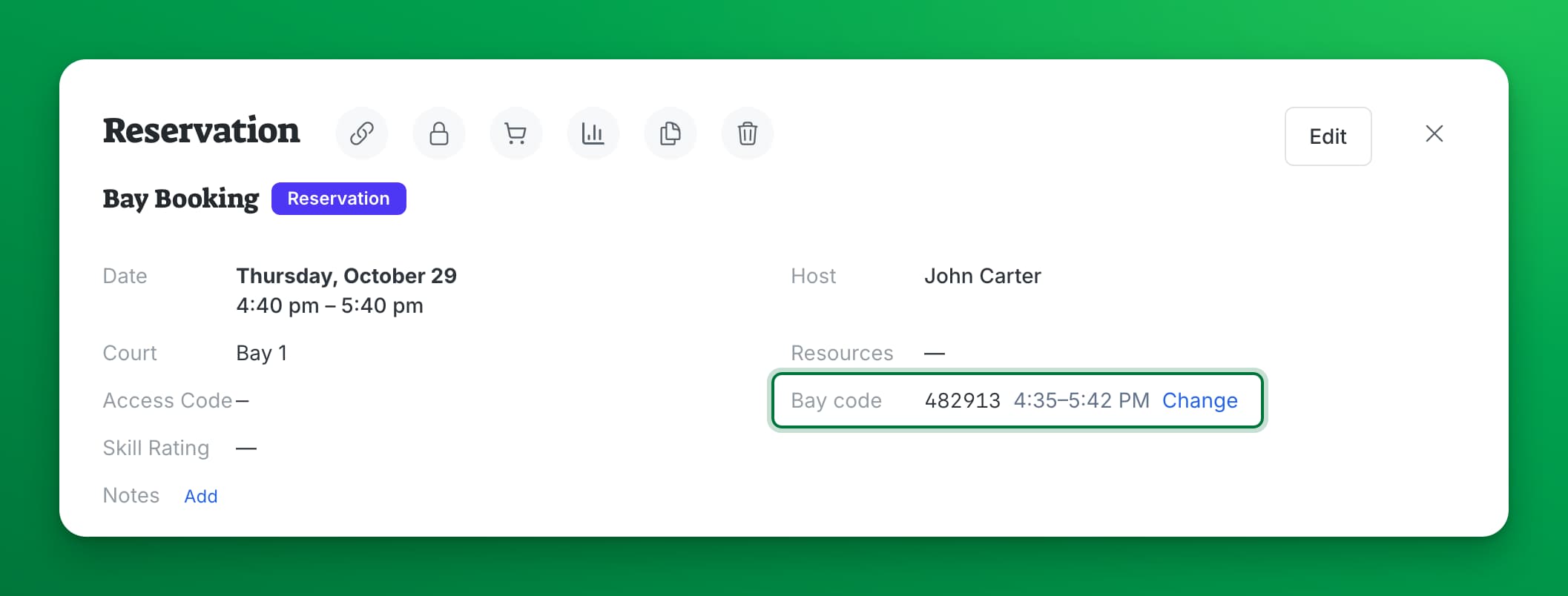
- Open Schedule in the admin panel and click the customer's booking.
- Read the Bay code row next to Access Code: the six digits, then when the code works, such as 5:55–7:02 PM. Read the time out too, because "your code is right, come back in four minutes" is usually the real answer. Hold the pointer on the time to see both dates in full.
What happens when a booking changes
| Change | What happens to the code |
|---|---|
| Rescheduled to a new time | Same six digits. The window moves with the booking, so the code the customer already has keeps working at the new time. |
| Moved onto a bay from a non-bay space | A code is created for it. |
| Cancelled | The code stops working and disappears from the booking and from any later email. |
| A booking made before you designated the space a bay | A code appears once that bay is paired and running. Until then the customer sees no code. |
The digits never change once a customer has them, so a code in an old email still works — unless your staff change the code (below).
Give a booking a code, or change it
Open the booking from Schedule. Beside Bay code you see one of two links:
- Generate — the booking is on a bay and has no code. The bay accepts the new code within a minute.
- Change — the booking gets new digits, and the old code stops working within a minute.
Leave Email the people on this booking the new bay code ticked to send everyone on the booking the new code; untick it to tell them yourself. Anyone who can manage the schedule can do this. The booking's Activity Log records who did it and whether the customer was emailed.
Walk-ins, lessons, and customers with no code
None of these need a booking code. Staff open the bay instead, and the bay stays protected either way.
- From the admin panel — do this first. Open the bay's Details on the Status tab and use Unlock for N minutes. It works from the desk on any device, it is recorded against the bay, and the bay re-locks itself when the minutes run out.
- At the bay, as the fallback — when the internet is down, or nobody has a laptop or a phone open. Tap the Staff button in the bottom-right corner of the lock screen to open the Staff access pad and type the club's Staff PIN. A small Staff unlock pill with a Re-lock button sits in the corner while the bay is open that way.
The Manager PIN is not for this. It turns the bay's lock off entirely, which is a job for managers and installers — never the way to seat a walk-in. Both routes are covered in Monitor and run your bays day to day.