

Send customers a sign-in link
Add a customer's email address to a link to your club page, so the page opens with the sign-in window and their email already filled in.
Add #email= and a customer's email address to the end of any link to your club's OpenCourt pages. When the customer opens the link, the page opens and the sign-in window appears with their email already filled in. (About 5 minutes. You need the address of the club page and the customer's email.)
Before you begin
- The address of the page you want to send customers to. Your club home page is
https://app.getopencourt.com/club/your_club_id. See Embedding OpenCourt into your website for your club's other page addresses. - The customer's email address.
Build the link
-
Open the club page in your browser and copy its address. Good choices:
- The club home page:
https://app.getopencourt.com/club/your_club_id - The Book page:
https://app.getopencourt.com/club/your_club_id/book - One booking option on the Book page: open it and copy the address, for example
https://app.getopencourt.com/club/your_club_id/book/pickleball
- The club home page:
-
Add
#email=to the end of the address. -
Add the customer's email address after it. Write
@as%40, and+as%2B:https://app.getopencourt.com/club/your_club_id/book/pickleball#email=jane%40example.com -
Send the link to the customer.
If another system builds the links for you, ask it to URL-encode the email address and to put it after #, not after ?.
What the customer sees
-
The page opens as usual.
-
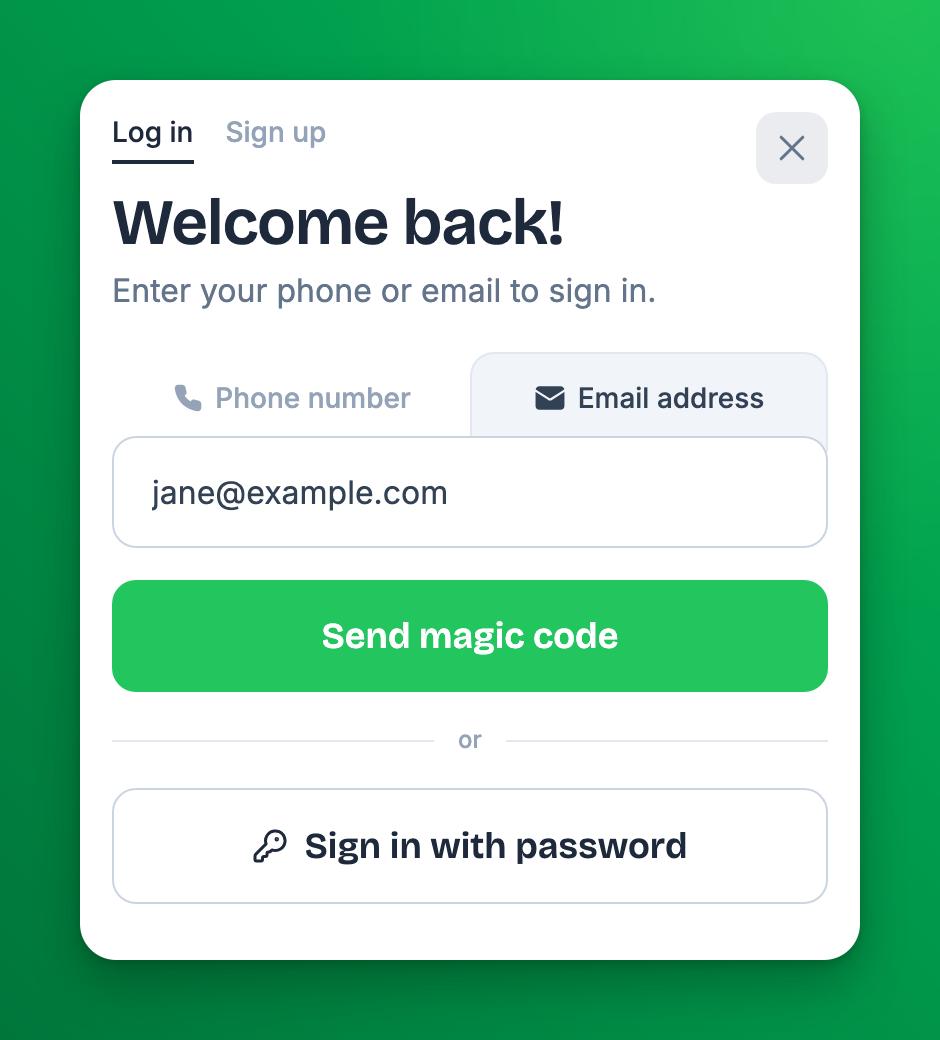
The sign-in window opens on the Email address tab, with the email from the link in the field.
-
The customer taps Send magic code and enters the code from their email.
-
The window closes. The customer stays on the same page, now signed in.
Some things to know:
- The link does not sign anyone in. OpenCourt sends no code until the customer taps Send magic code, and the customer can change the email first.
- The email leaves the address bar. The page removes the email from the address as soon as it opens. A customer who copies the address from their browser does not share their email.
- Spaces and capital letters are fine. OpenCourt removes spaces at the start and end and uses lowercase letters.
- A closed window keeps the email. If the customer closes the window and later taps Log in on the same page, the email is still filled in.
- A customer who is already signed in sees the page with no sign-in window.
- In the OpenCourt phone app, the link opens the app's own sign-in screen. Depending on the app version, the customer may have to type the email.
Link to a booking option for members only
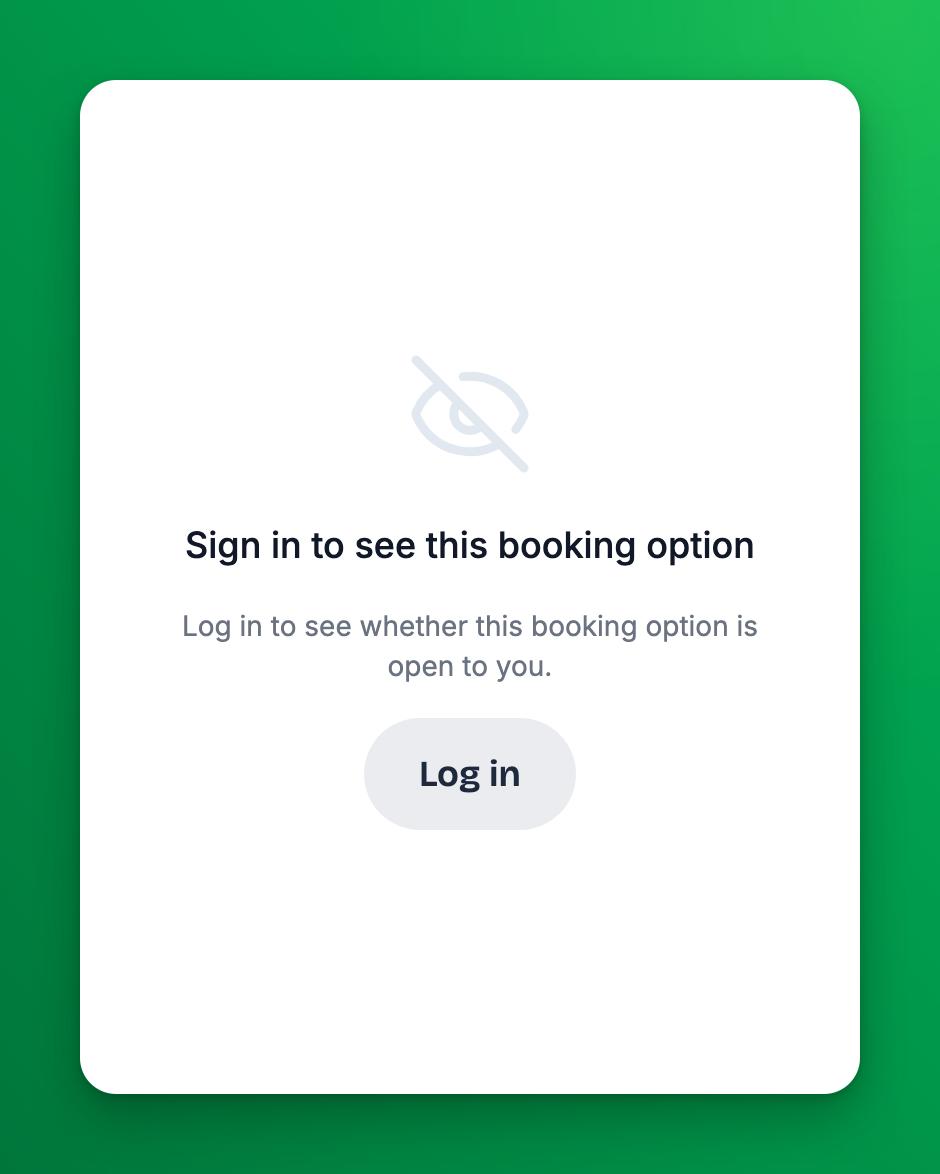
A booking option can be hidden from non-members (Rule Set Visibility on the booking option). A signed-out customer who opens a link to it sees Sign in to see this booking option and a Log in button, with no times or prices.
After the customer signs in:
- A customer whose rule set can see the booking option sees it, with its times and prices.
- A customer whose rule set cannot see it gets a page that says it was not found.
If something goes wrong
- The sign-in window opens, but the email field is empty — the text after
#email=is not a complete email address. Check the link for a typo or a missing part of the address. - No sign-in window opens — the customer is already signed in, or the link has
?email=instead of#email=. Correct the link and open it again. - No sign-in window opens on your own website — the page is shown inside another website, for example in an iframe. Send customers to the OpenCourt page address itself, not to a page of your website.
- A customer sees "not found" after signing in — their rule set cannot see that booking option. Go to Settings → Booking Modules, open the booking option and check Rule Set Visibility. If you cannot open Booking Modules, contact support.
Related
Embedding OpenCourt into your website
There are several ways you can link to or embed OpenCourt on your website to give your visitors direct access to your club’s schedule and events.
Set up a TV schedule display for your lobby
Mount a TV in your lobby or pro shop and show a live, full-screen view of every court — reservations, classes, and events — updating itself all day.