

Setting up Court Restrictions & Priority
By default, the system auto-assigns any available court for a lesson. You can restrict which courts are used and set a priority order.
Club-Level (All Coaches)
In Settings → Coach Lessons, configure:
- Allowed courts — Only these courts will be used for lessons
- Priority order — When multiple courts are available, the highest-priority one is assigned first
Per-Coach Override
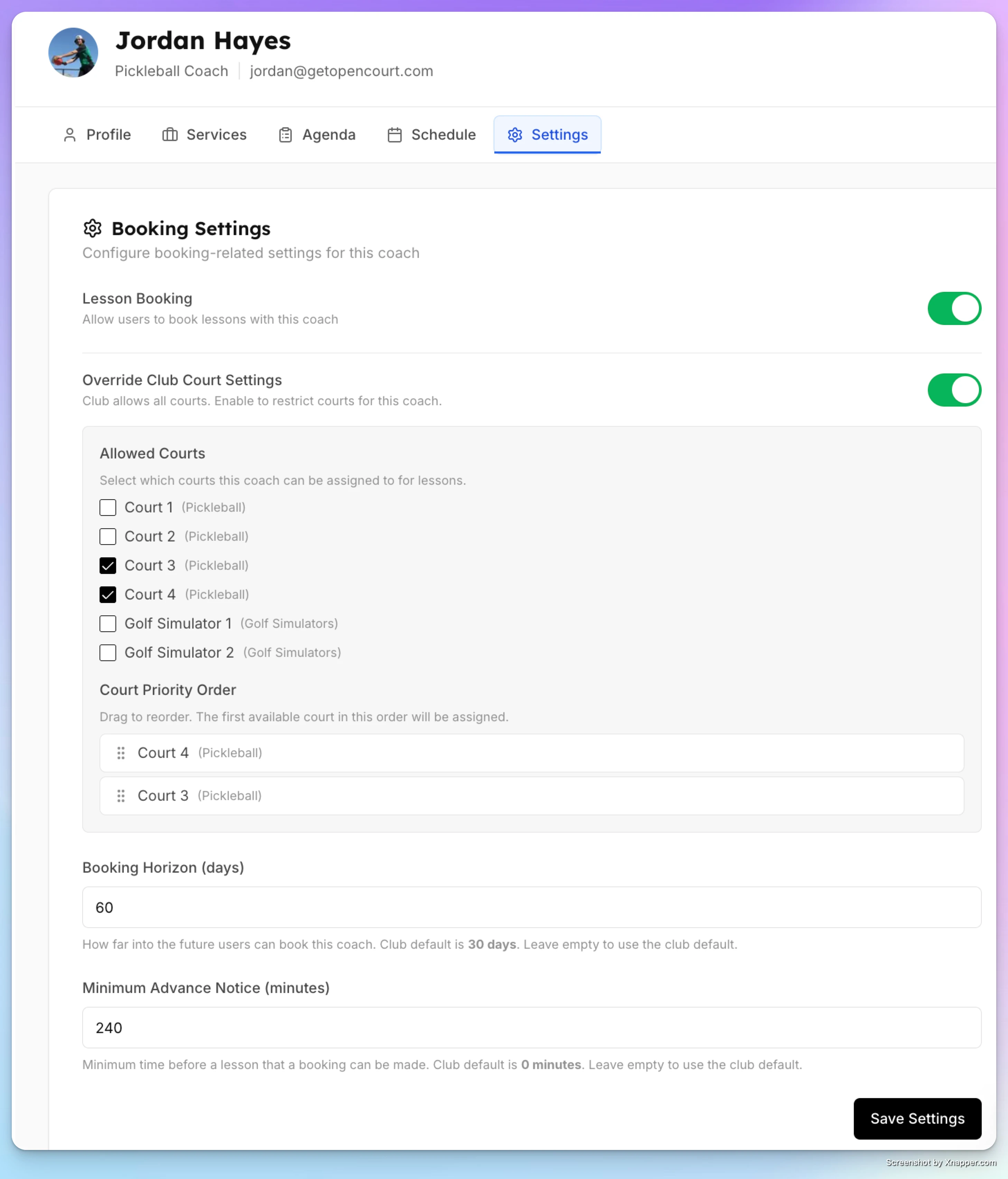
- Go to Coaches → [Coach Name] → Settings tab
- Toggle Override Club Court Settings
- Select which courts this specific coach can use
- Drag to set the priority order
This is useful for dedicating specific courts to specific coaches, or allowing a coach to use a hidden "teaching court" that doesn't appear on the public schedule.
Setting Up Private & Group Lessons
Learn how to configure a coach’s availability, create lesson types, and control pricing. Set weekly schedules with date exceptions, define private, semi-private, or group services, and customize pricing per participant or membership role — all while ensuring lessons are bookable only when both the coach and a court are available.
How Members Book a Lesson
See the full booking experience from the member’s perspective — from browsing coach profiles and selecting a service to choosing a date, adding participants, and completing payment. This guide walks through each step so you understand exactly how lessons appear and how bookings are confirmed in the app.