

Create a group or announcement channel
Create a discussion group or an announcement channel for your club, choose who can find it, and show your groups on your home page.
Create a discussion group where customers chat, or an announcement channel where only your club posts. (About 2 minutes. You need the Community permission.)
Before you begin
- Chat Groups shows in your admin menu. If it does not, see How chat groups work.
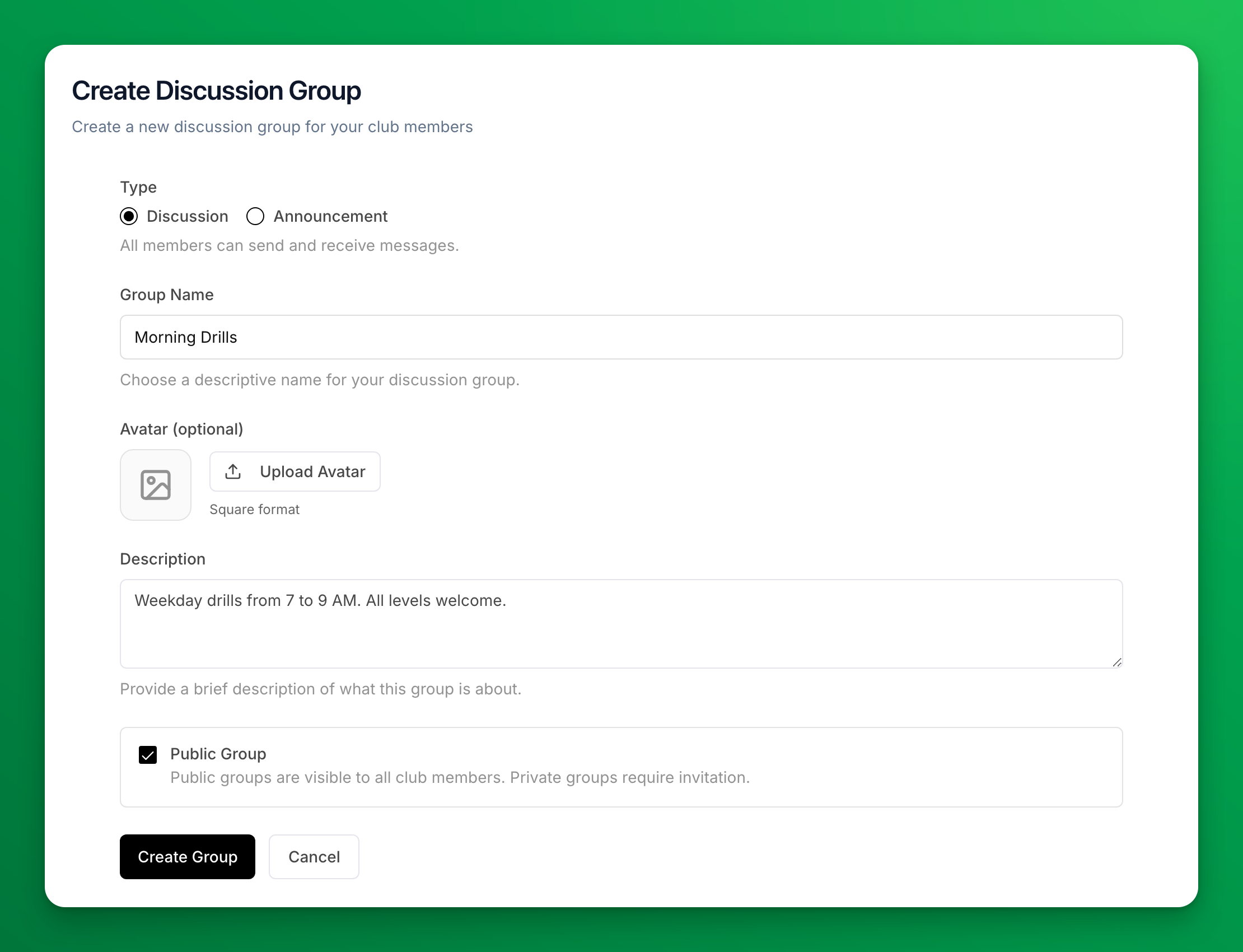
- Decide on the type. You cannot change it after you create the group:
- Discussion — all members can send and receive messages. Use it for a league, a clinic, or players at one level.
- Announcement — only your club posts. Members read and react but cannot reply. Use it for club news and closures.
- Optional: a square image for the group avatar.
Create the group
- In your admin menu, click Chat Groups.
- Click Create Group.
- Under Type, choose Discussion or Announcement.
- Enter the Group Name (or Channel Name).
- Optional: click Upload Avatar and pick a square image.
- Optional: enter a Description. Customers see it on the group card and the group's details screen.
- Leave Public Group on to list the group for all customers. Turn it off to make a private group that customers join with a code. Public Group is on when the form opens.
- Click Create Group (or Create Channel).
The group appears in your Community Groups list with its Invite Code. Click the group name to open it.
Get customers into the group
- Public group: customers find it on your club's Community Groups page in the app and tap Join.
- Private group: send customers the code from the Invite Code column. Customers can also share the invite link or QR code from the group's details screen in the app.
- Any group: add customers yourself. See Manage group members.
Show your groups on your home page
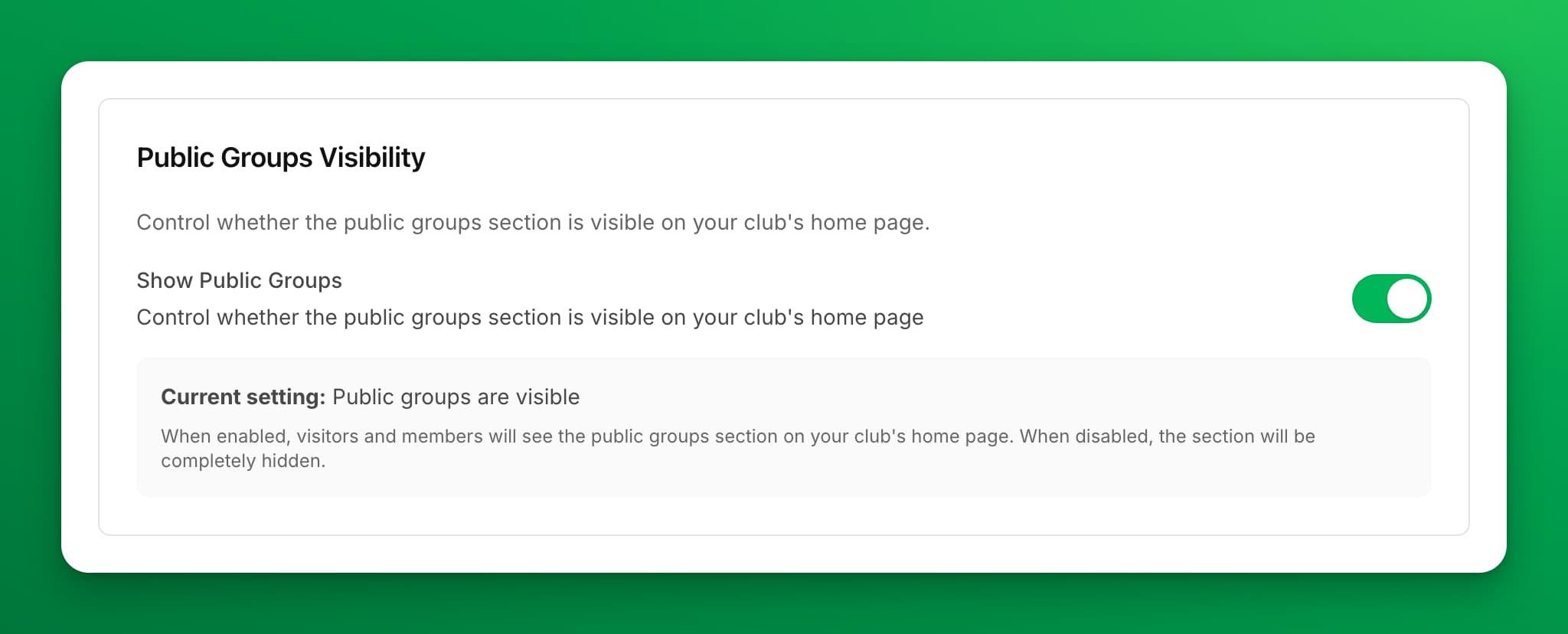
Your home page can show a Community Groups card that opens the list of your public groups.
- Go to Settings → Home Page Settings.
- Find Public Groups Visibility.
- Turn on Show Public Groups. The change saves at once.
Change the order customers see
The app lists your groups in the order of your Community Groups list. Drag a row by the handle at its left edge to move it. The new order shows on the Community Groups page in the app and on the home page card.
Edit or delete a group
- Edit: click the pencil icon in the group's row, or Edit Group on the group's page. You can change the name, avatar, description and Public Group. Click Update Group to save.
- Delete: click the trash icon in the group's row, then Delete. This removes the group and its messages for every member, and you cannot undo it.
If something goes wrong
- Customers cannot find the group. It is private, or Public Group is off. Turn on Public Group in Edit Group, or send them the code.
- The Community Groups card is not on the home page. Turn on Show Public Groups in Settings → Home Page Settings.
- I picked the wrong type. The type is fixed. Create a new group with the right type, then delete the old one.
Related
How chat groups work
The kinds of chat groups in OpenCourt, who can see and join each one, and the settings that shape what your customers see.
Chat with a group as your club
Post messages and photos to a group or announcement channel as your club, mention customers, and remove messages from the admin panel.