

Community
Chat with a group as your club
Post messages and photos to a group or announcement channel as your club, mention customers, and remove messages from the admin panel.
Read a group's conversation and post to it as your club, with text, a photo, or both. (Under a minute. You need the Community permission.)
Before you begin
- The group exists. See Create a group or announcement channel.
- You do not need to be a member of the group to post as your club.
Send a message
- In your admin menu, click Chat Groups.
- Click the group's name.
- Click the Chat tab.
- Type your message in the box at the bottom. The line above the box shows Posting as your club (Announcing as in an announcement channel).
- Press Enter, or click the send button. Press Shift+Enter to start a new line.
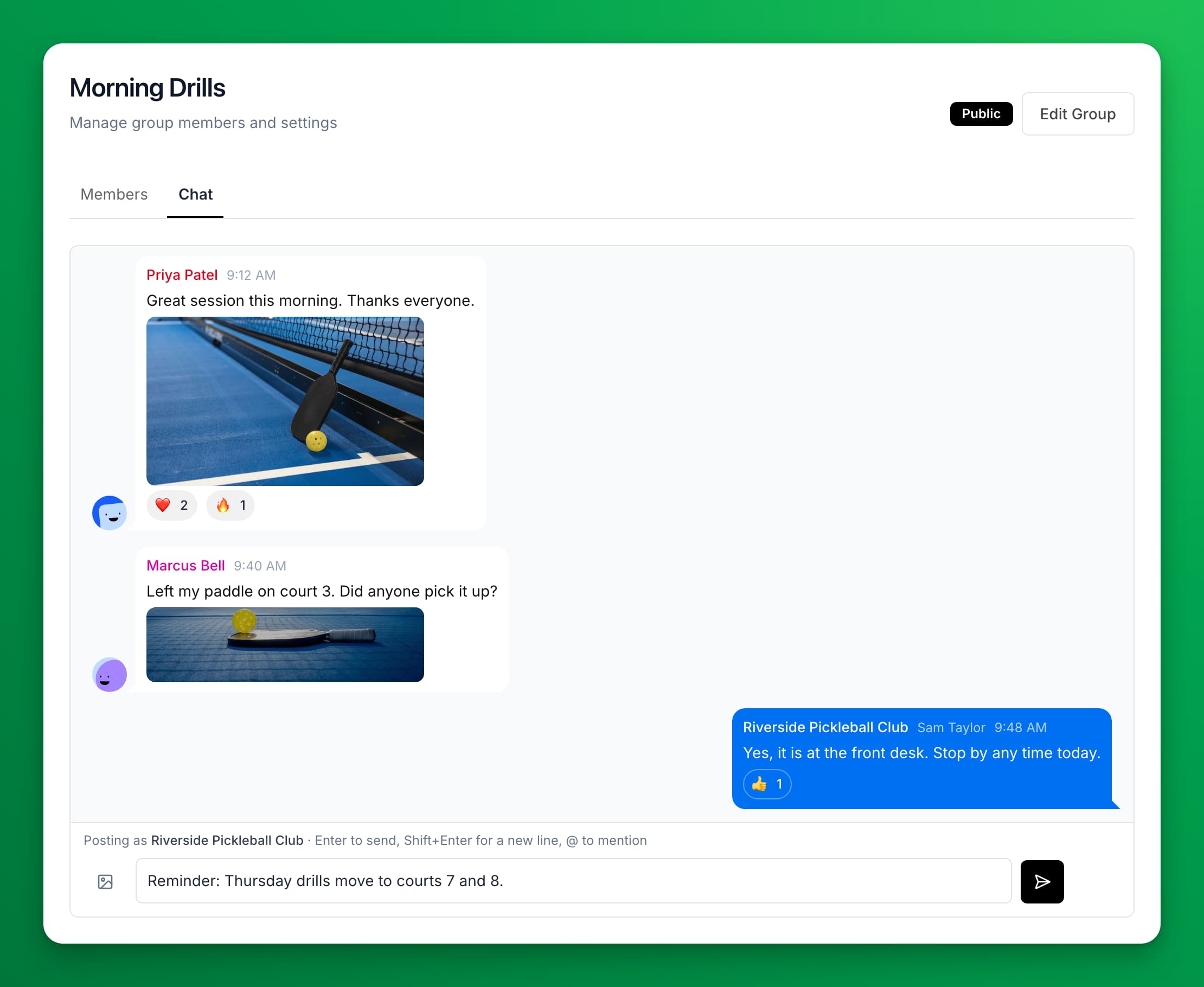
Your message shows at once at the bottom of the chat, and members get a push notification.
Add a photo
- Click the image icon to the left of the message box and pick a photo.
- Or paste a photo into the message box, or drag it onto the message area at the bottom.
You can send one photo per message, up to 20 MB. A message can be a photo with no text. A preview shows above the box until you send it; click the × on the preview to remove it.
Mention a customer or the whole group
- Type @ and the start of a member's name, then pick them from the list. They get a notification that they were mentioned.
- Type @all to notify every member of the group.
Copy, look up, or delete a message
Point at a message and click the ⋯ button next to it. On a phone, the button always shows.
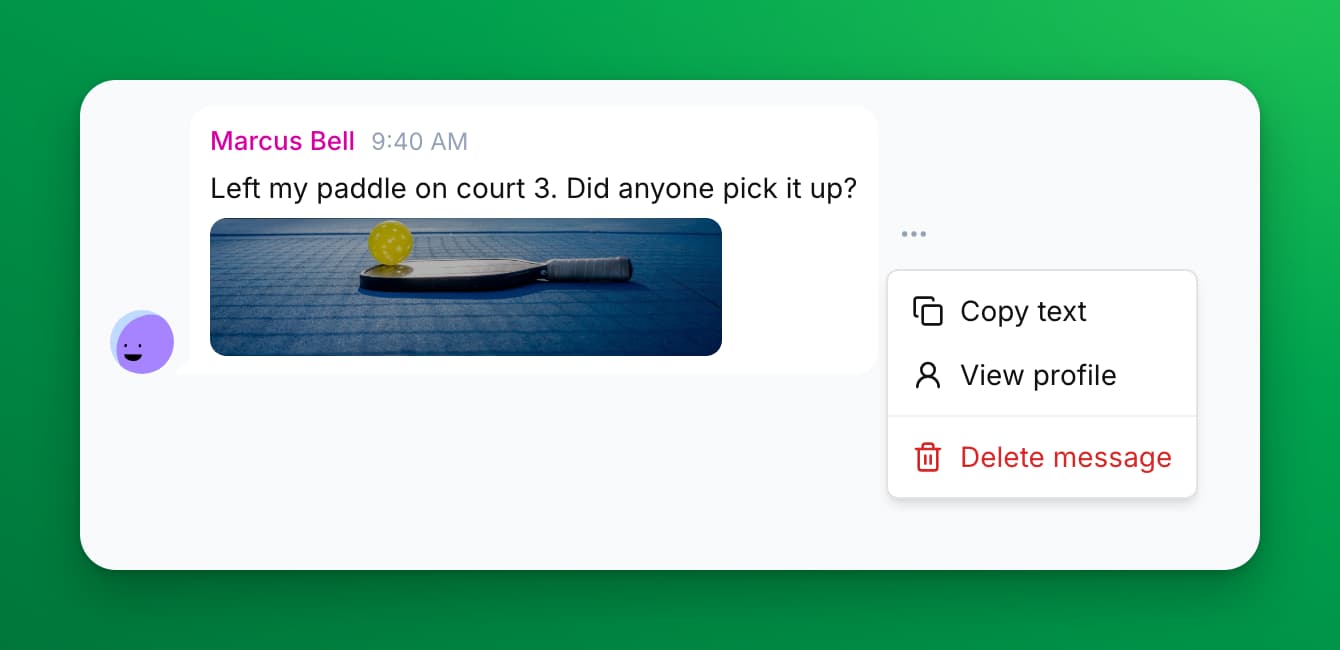
- Copy text copies the message.
- View profile opens the customer's profile in your admin panel. On a club message, View sender opens the profile of the staff member who sent it.
- Delete message removes the message for every member. Click Delete to confirm. You cannot undo this.
What customers see
- Club messages carry your club's name and logo.
- In a discussion group, customers reply in the chat. In an announcement channel, customers cannot reply, but they can react with an emoji.
- Customers see photos full size when they tap them.
If something goes wrong
- A message shows "Not delivered." The message did not reach the server, often because of a dropped connection. Click Retry under the message. A photo you attached is sent again with it.
- "Image must be under 20 MB" — pick a smaller photo, or take a screenshot of it.
- "Please select an image file" — only photos can be attached. To share a document, post a link to it.
- New messages from customers do not appear. Reload the page. New messages usually show without a reload.