

Manage group members
Add customers to a chat group, remove them, or block them so they cannot rejoin, from the group's Members tab.
Add customers to a group yourself, remove someone, or block a person so they cannot come back. (Under a minute per person. You need the Community permission.)
Before you begin
- The group exists. See Create a group or announcement channel.
- The person you add must be a customer of your club.
Open the member list
- In your admin menu, click Chat Groups.
- Click the group's name. The Members tab opens.
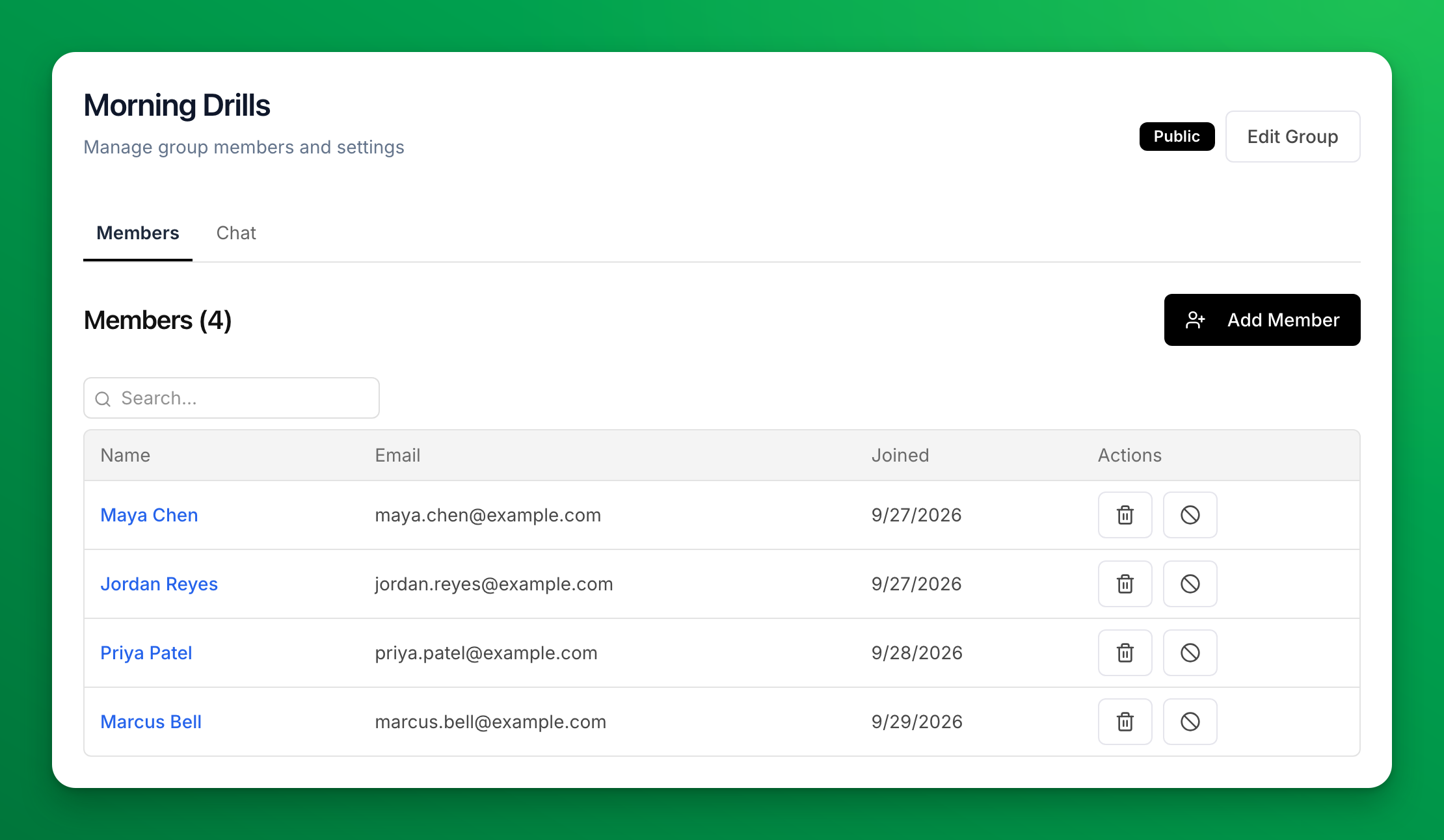
Add a customer
- Click Add Member.
- Type the customer's name or email, then pick them from the list.
- Click Add Member.
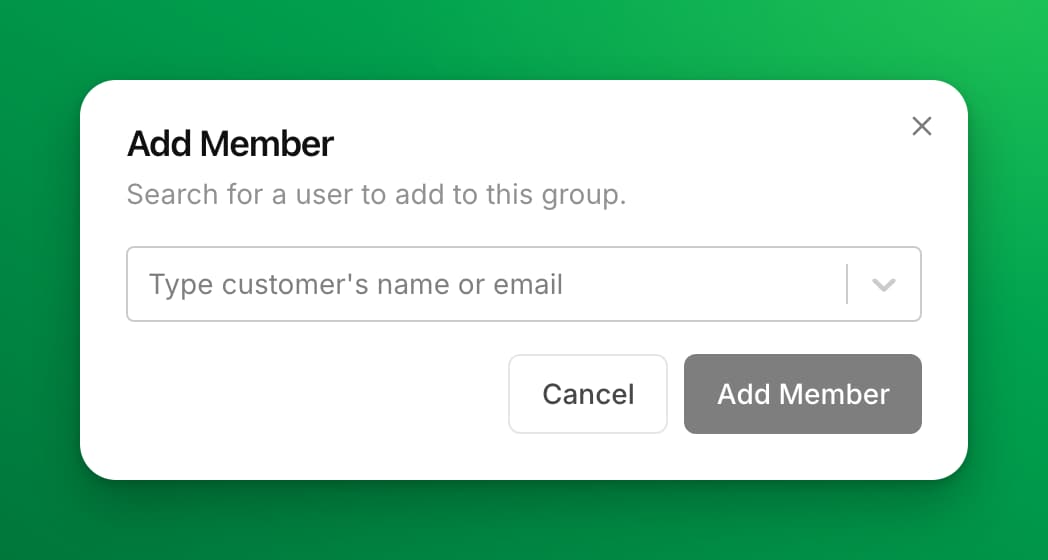
The customer is in the group at once. The group shows in their Groups tab in the app. Adding a customer works for public and private groups.
Remove a member
- In the member's row, click the trash icon (Remove from group).
- Click Remove to confirm.
The person leaves the group. They can join again: from your Community Groups page in the app if the group is public, or with the code if it is private.
Block a member
Block someone when they must not come back to the group.
- In the member's row, click the block icon (Block from group).
- Click Block to confirm.
The person leaves the group and cannot rejoin, even with the code. They show under Blocked Users below the member list.
To let them back, click Unblock in their row under Blocked Users, then Unblock to confirm. They can then join again, but you are not adding them back. Use Add Member if you want them in the group now.
Moderate from the app
When you are signed in to the OpenCourt app as an admin of your club, you can also act inside a group's chat. Tap a member in the group's details to remove or block them. Press and hold a message to delete it (on a computer, use the menu next to the message). Any admin can delete their own message; to delete another person's message, you need the Community permission.
If something goes wrong
- The customer is not in the search list. They are not a customer of your club yet, or they are already in the group. Customers who have booked, bought or signed up at your club are in the list.
- The block icon is gray for one row. That row is you. You cannot block yourself.
Related
Chat with a group as your club
Post messages and photos to a group or announcement channel as your club, mention customers, and remove messages from the admin panel.
Review requests to make a customer group official
Approve or deny a customer's request to hand the group they created to your club, so it becomes a club-managed group.