

Community
Review requests to make a customer group official
Approve or deny a customer's request to hand the group they created to your club, so it becomes a club-managed group.
Customers can create their own groups in the app. When the creator of a group asks your club to take it over, you approve or deny the request. (Under a minute. You need the Community permission.)
What approval changes
| Before approval | After approval | |
|---|---|---|
| Who manages it | The customer who made it | Your club, from Chat Groups |
| In your admin panel | Not listed | Listed as a Discussion group |
| Who can find it | People with the code only | Public or private, as you choose when you approve |
| Members and messages | — | Stay as they are |
You cannot undo an approval. The group stays a club group.
Find the requests
- In your admin menu, click Chat Groups.
- Open requests show in the Promotion Requests box at the top of the page, with the group name, who asked, the number of members, and the date.
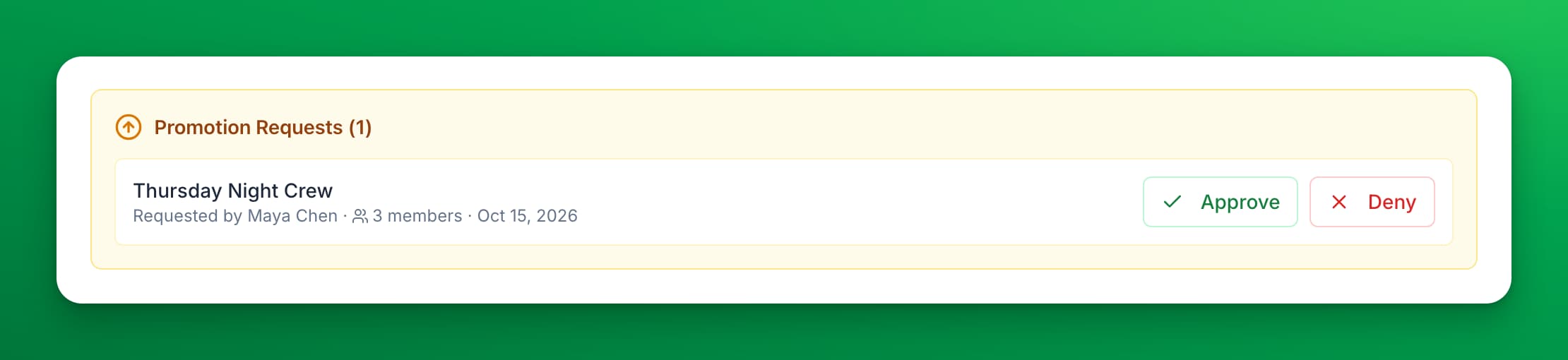
If the box is not on the page, there are no open requests.
Approve a request
- Click Approve.
- Choose the options:
- Make group public (discoverable by all members) — the group shows to all your customers. Leave it off to keep the group private.
- Join this group as admin — adds you to the group, so you see it in your own Groups tab in the app.
- Click Approve.
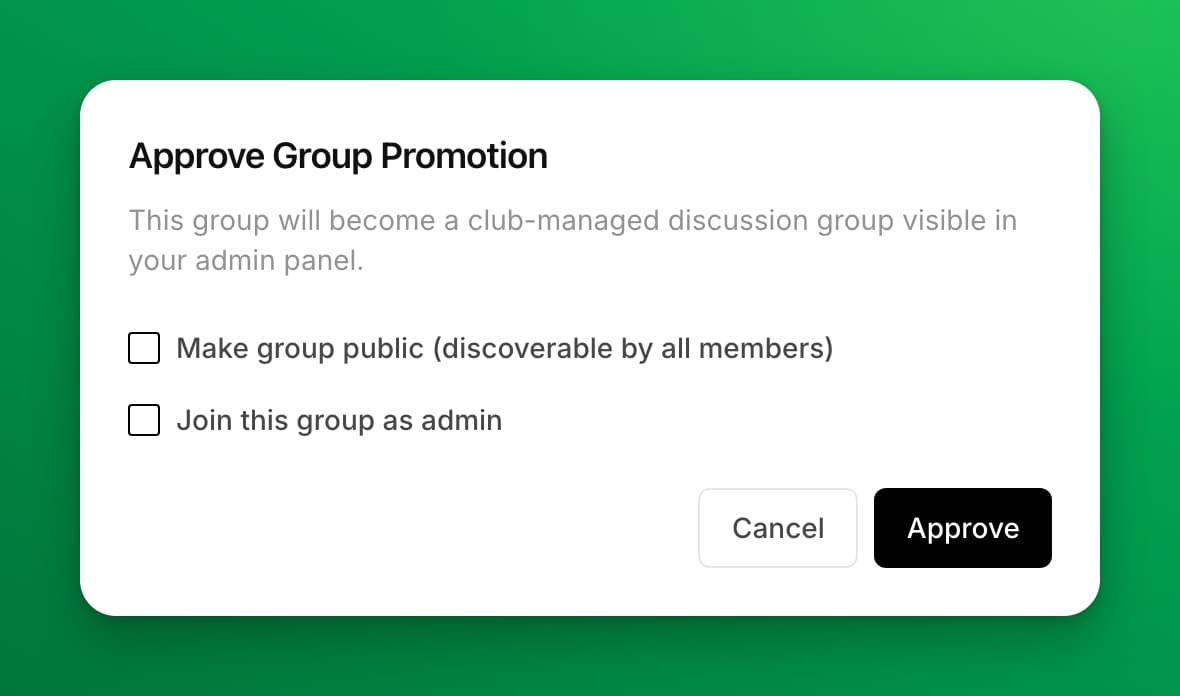
The group moves into your Community Groups list. Members see a note in the chat that the group is now managed by your club.
Deny a request
- Click Deny.
- Optional: enter a Reason. The customer sees it with the request in the app.
- Click Deny.
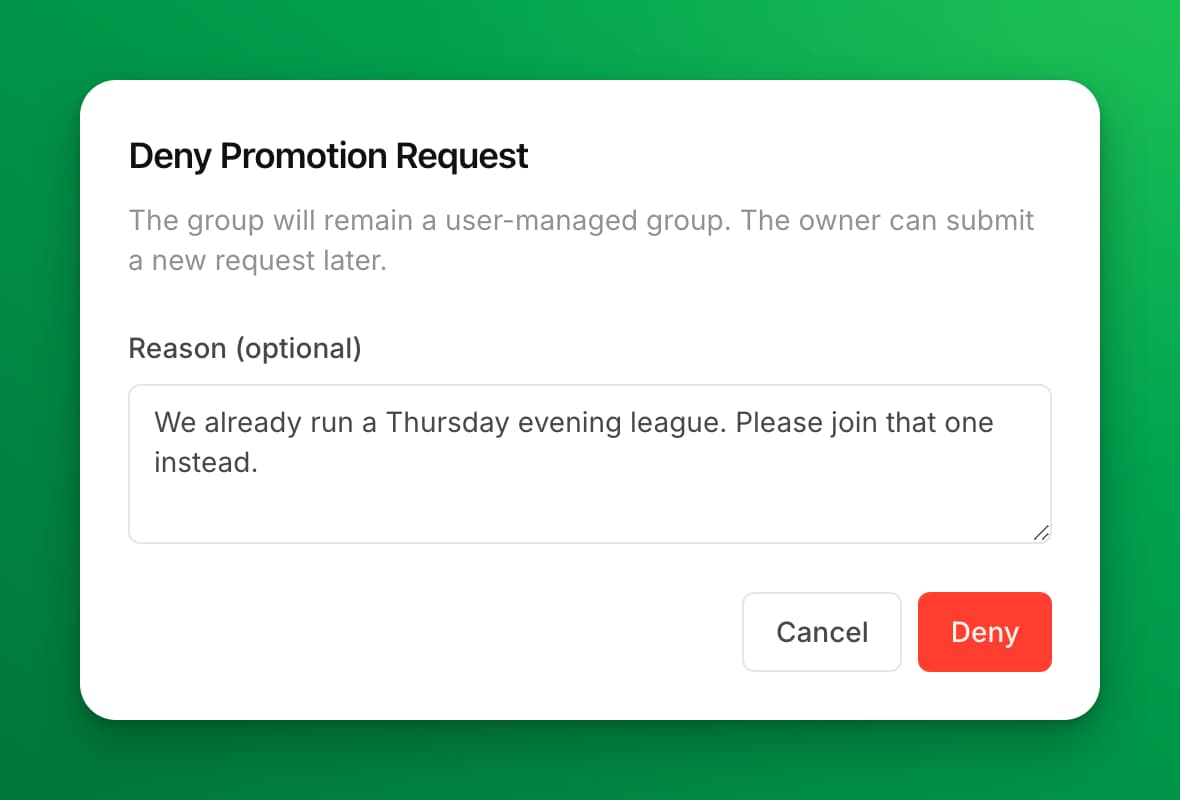
The group stays the customer's group. The customer can send a new request later.
If something goes wrong
- "Pending promotion request not found" — the customer canceled the request, or another admin answered it first. Reload the page.
- "Group has been deleted" — the customer deleted the group before you answered. There is nothing to approve.