

How chat groups work
The kinds of chat groups in OpenCourt, who can see and join each one, and the settings that shape what your customers see.
Chat groups let your customers talk to each other and to your club inside the OpenCourt app. This page explains the kinds of groups, who can see each one, and the settings you control. For the steps, see Create a group or announcement channel.
The kinds of groups
| Kind | Who makes it | Who can post | Where you manage it |
|---|---|---|---|
| Discussion group | Your club | Every member of the group | Chat Groups |
| Announcement channel | Your club | Only your club. Customers read and react. | Chat Groups |
| Customer group | A customer, in the app | Every member of the group | Not in your admin panel, until you approve a request to make it official |
| Direct message | A customer, in the app | The two people in the conversation | Not in your admin panel |
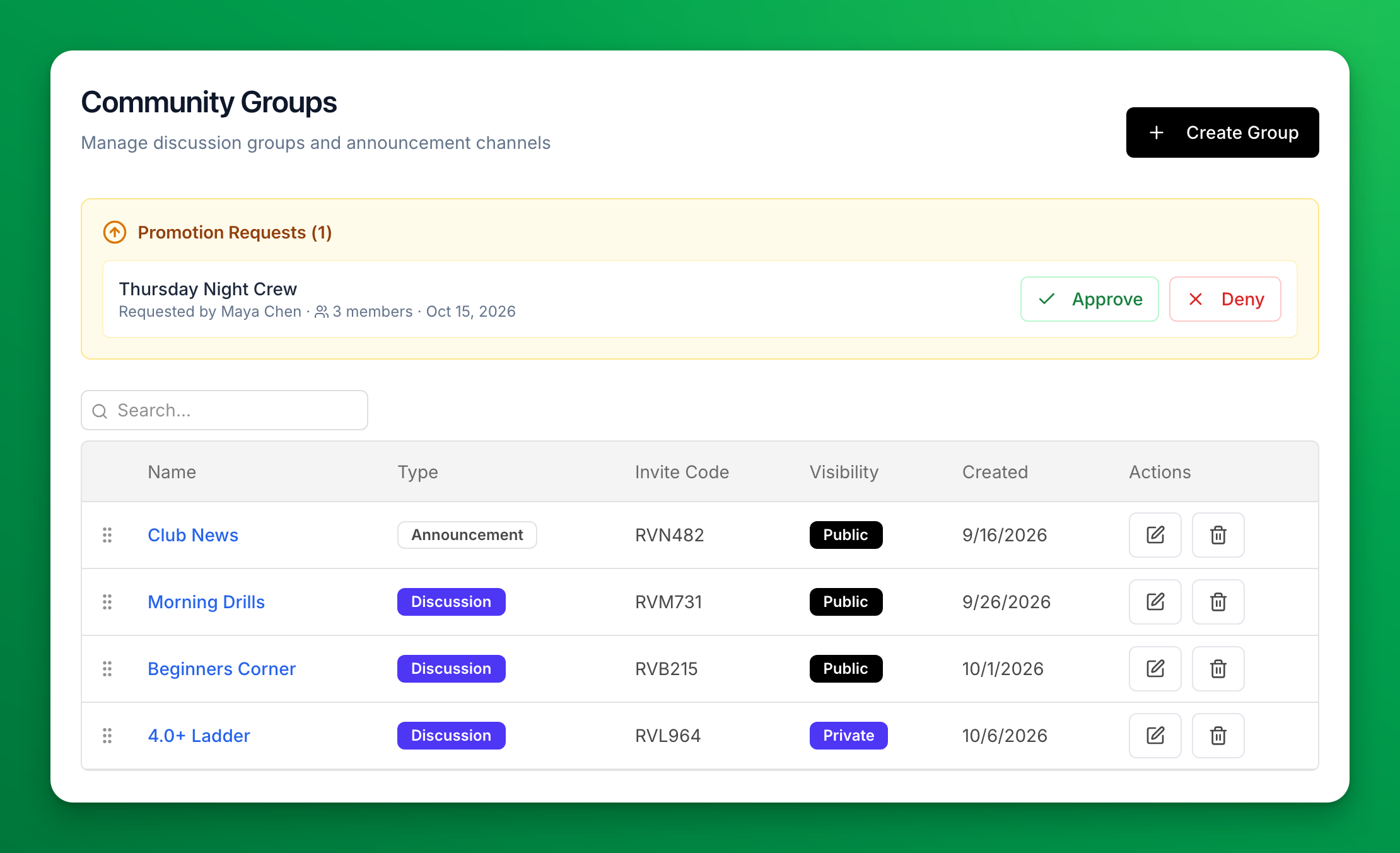
When a customer asks to hand their own group to your club, the request shows in Promotion Requests at the top of the Community Groups page. See Review requests to make a customer group official.
Public and private groups
- A public group shows to all customers on your club's Community Groups page in the app. Any customer can join it.
- A private group is hidden. A customer joins with the group's six-character code, the invite link, or the QR code. You can also add customers yourself from the group's Members tab.
Each group's code is in the Invite Code column of your list. Customers find the same code, link and QR code on the group's details screen in the app.
Where your customers find groups
- The Groups tab in the app's bottom bar lists every group a customer belongs to, at every club. At some clubs this tab has a different name.
- The Community Groups card on your club's home page opens the list of your public groups. The card shows when Show Public Groups is on in Settings → Home Page Settings.
- Customers can also create their own groups and message each other directly.
The order of your groups in the app follows the order of your Community Groups list. Drag a row by its handle to move it. Customers see the new order on the Community Groups page and the home page card.
What members get
- Members get a push notification for new messages, unless they mute the group.
- A member whose name is mentioned with @ gets a notification that names the group.
- Only your club's admins can mention everyone in a group with @all.
How customer names show in groups
You choose how customer names appear to other customers in member lists and on messages. Go to Settings → General → Customer name display and set Groups & chat to one of these:
- First & last name
- First name + last initial
- First name only
- Initials only