

Arrange products on the POS
Choose the order of the products inside each category on the POS, so staff find items faster at checkout.
Put the products of a category in the order your staff look for them, for example all the balls together and the best seller first. (About a minute per category. You need products in a category.)
Before you begin
- Your products are in categories. See Managing Categories.
- Until you arrange a category, the POS shows its products from A to Z.
Arrange a category from the POS
-
Open POS from the admin menu.
-
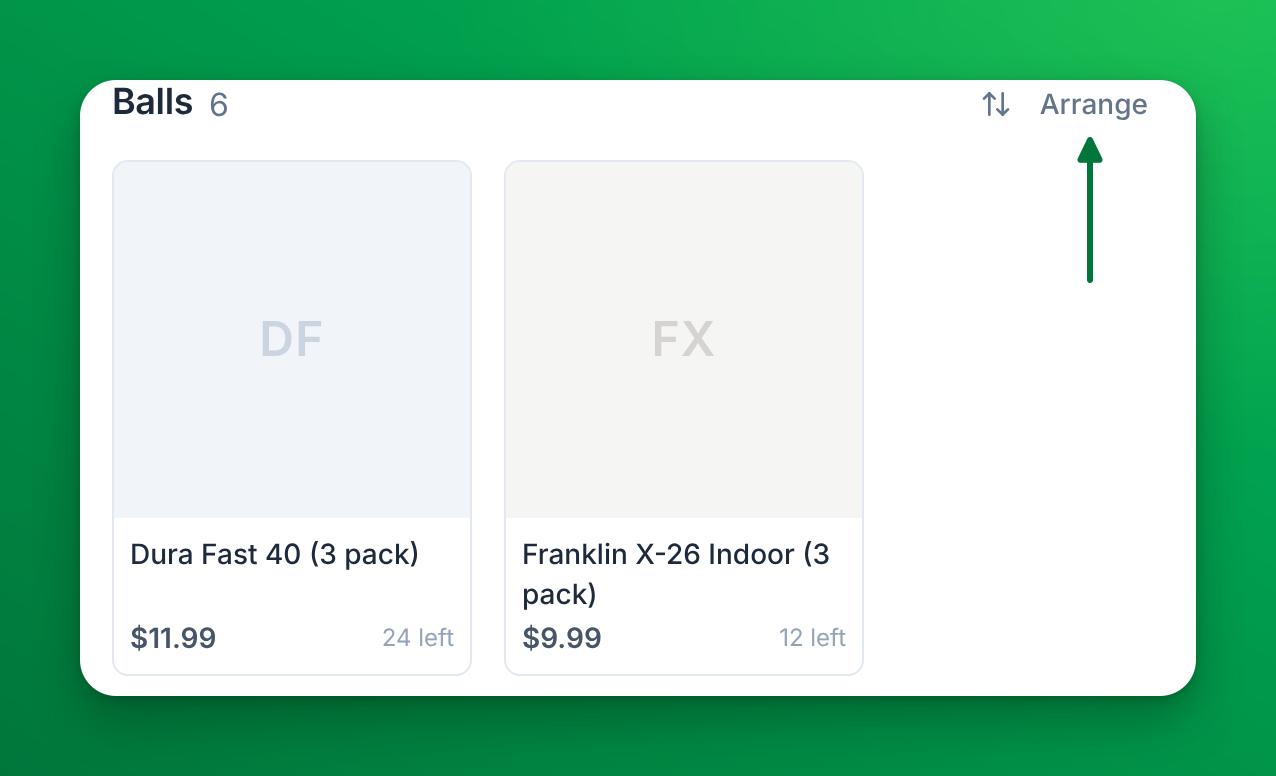
Find the category, and click Arrange at the right of its name.
-
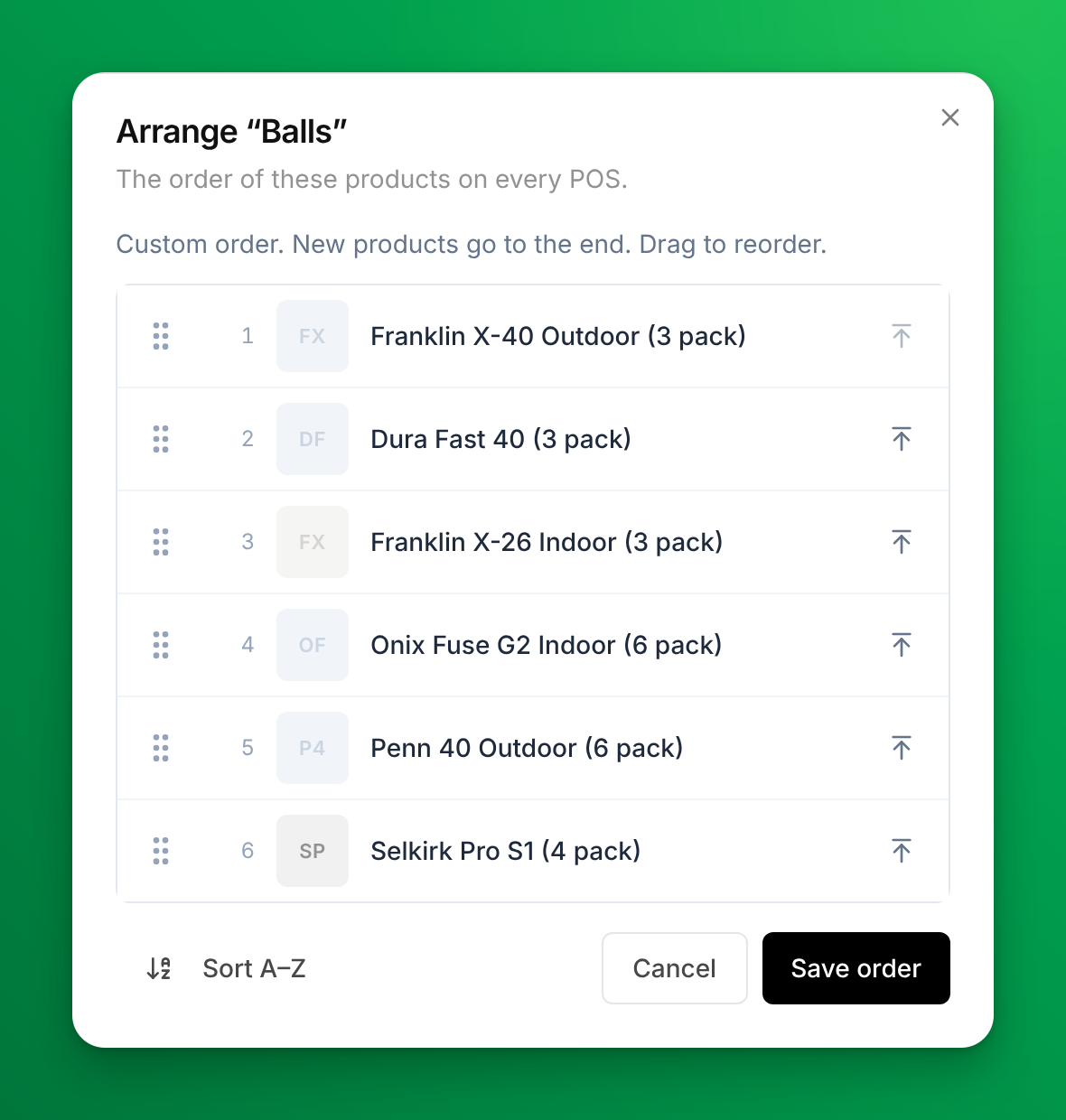
Put the products in order. You can drag a product by its handle at the left, or click the arrow at the right of a product to move it to the top.
-
Click Save order. The POS shows the new order at once, and you see Product order saved.
To leave without changes, click Cancel.
Arrange a category from Products
-
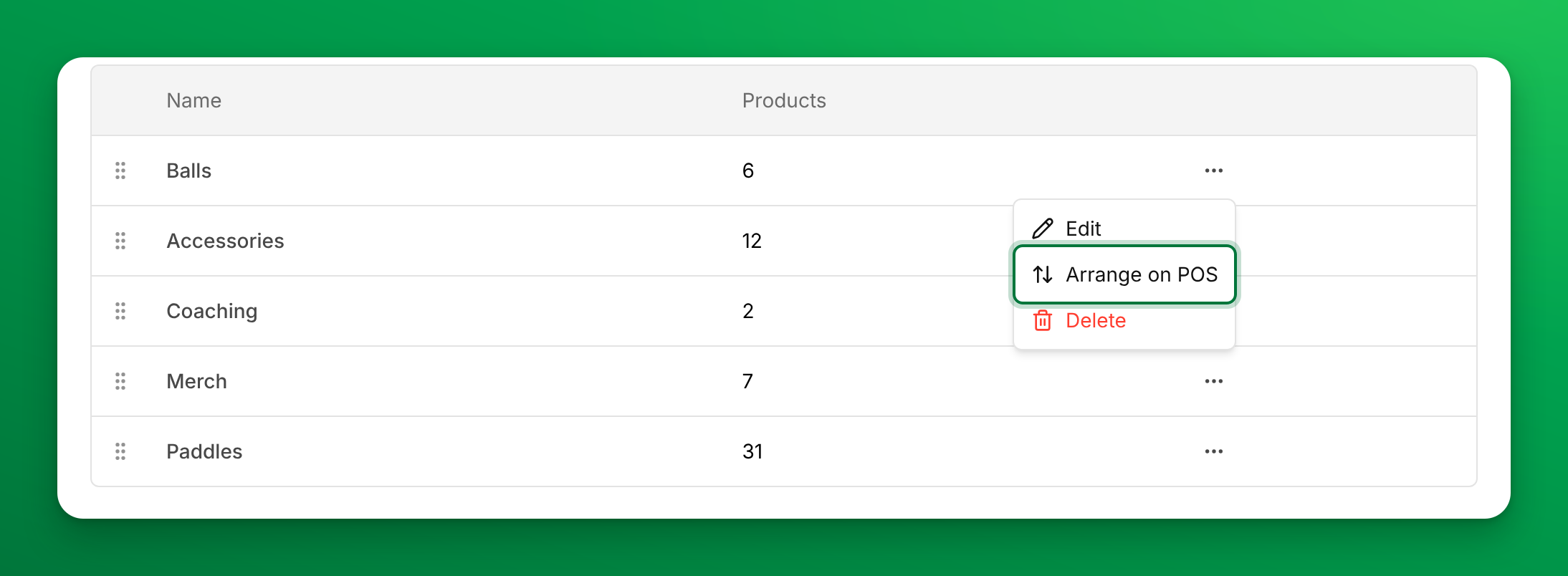
Go to Products, then the Manage categories tab.
-
Click the ⋯ menu of the category, then Arrange on POS.
-
Put the products in order, then click Save order.
Products that are not in a category show under Uncategorized on the POS. Arrange them from the POS: click Arrange next to Uncategorized.
Go back to A–Z order
- Open the category's Arrange window.
- Click Sort A–Z, then Save order. You see Order reset to A–Z.
The category is automatic again: new products take their A–Z place.
What happens to new and moved products
- A new product goes to the end of an arranged category. In a category you never arranged, it takes its A–Z place.
- A product you move to another category goes to the end of its new category.
- To place them, open Arrange again.
The window tells you which mode a category is in: Automatic order: A–Z or Custom order. New products go to the end.
Where else this order shows
- Every POS. A POS that was already open shows the new order after its next sale, or when you reload the page.
- Adding products to a booking. The products list of a booking's payment window uses the same order inside each category. See Add products to a booking.
- Not the online store. Your online store keeps its own order: go to Online Store and click Reorder.
If something goes wrong
- You don't see Arrange — your admin role does not have the Products & POS permission. Ask a club admin to add it.
- Another device still shows the old order — finish the sale on that device, or reload the page.
- A product is missing from the Arrange window — the window lists the products sold on the POS. Check that the product is on sale at the POS and in this category. See Adding products.
Related
Managing Categories
You can easily organize your products in OpenCourt by creating categories such as Beverages, Merch, or Gear. Here’s how to add a new category and assign products to it.
Sell and manage gift cards
Set up digital gift cards, sell them online and at the front desk, give free ones, and fix a card that went wrong.