

Add products to a booking when you take payment
Sell paddle rentals, drinks or any front-desk product as part of a reservation or event, so everything the customer bought is on the booking and on one receipt.
Add products to a reservation or an event from its payment window, so the customer pays for the court and the extras together. The products show on the booking and on the same receipt. (About a minute. You need products set up in Products.)
Before you begin
- The products you sell are set up in Products and are on sale at the front desk (POS). See Adding products.
- Optional: to suggest some products on every booking, and give them a booking price (for example, per hour), set them up in Settings → Booking Add-Ons/Upsells. See Booking Upsells.
Add products to a booking
-
Open the reservation or event on the Schedule.
-
Click the cart icon, Create a payment. On a phone, open the menu next to the booking's title, then tap Create a payment. You can also click Pay on a participant's row.
-
In the Shopping cart, click + Products.
-
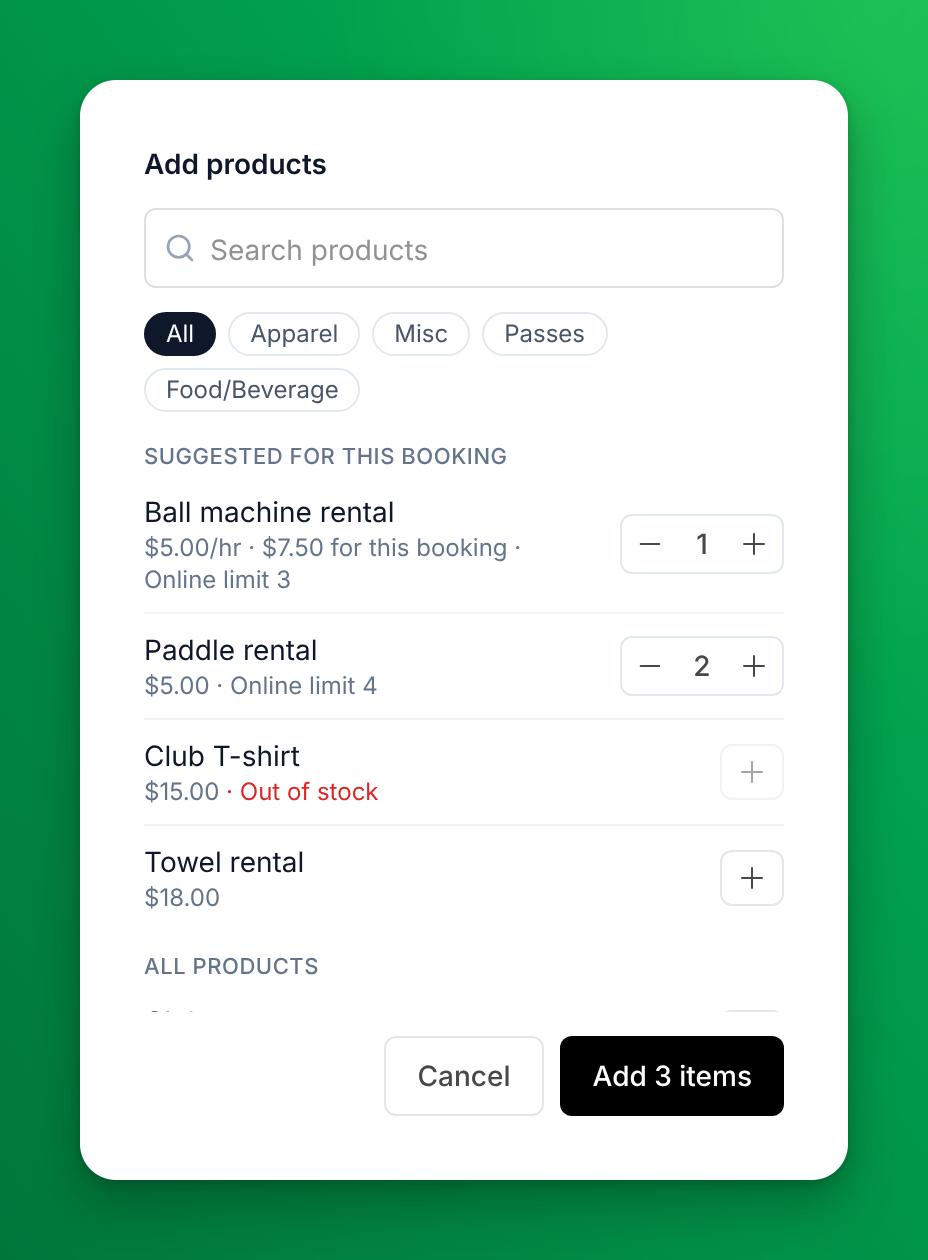
Pick what the customer takes. Use + and − to set each quantity. Search by name, or filter by category.
- Suggested for this booking lists your booking add-ons for this kind of booking, at their add-on price. A per-hour add-on shows the price for this booking's length.
- All products lists everything else on sale at the front desk.
-
Click Add 3 items (the button counts what you picked).
-
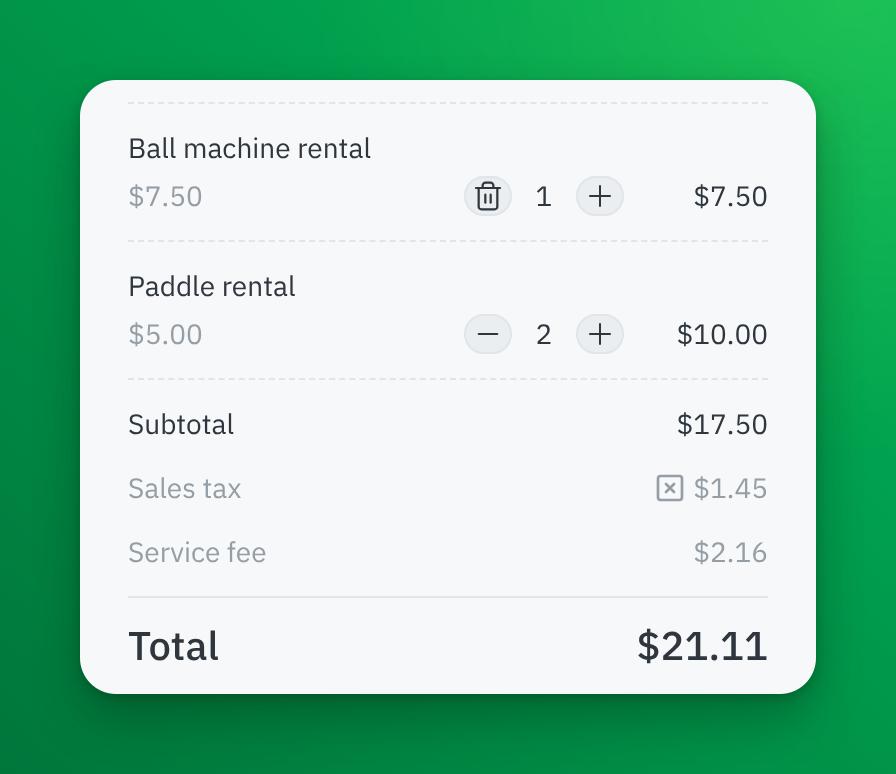
Check the cart. Change a quantity with + and −, or remove a product with the trash icon.
-
Click Checkout and take payment as usual.
What happens next
- The products are part of the booking. They show in the booking's Add-ons, with who bought them.
- The customer sees them on their booking under Additional services, and on their receipt.
- Stock goes down for products that track inventory.
- A promo code discounts these products only if it applies to products. A promo code for bookings discounts the booking and your booking add-ons, not other products.
- If you move the booking to another time, its products move with it. Nobody is charged or refunded for them.
- If you cancel the booking and refund it, the products are refunded with it.
If something goes wrong
- The Products button is missing. You need the Products & POS permission. The button also does not show when you collect a balance after a booking move: that payment is taken on its own.
- A product shows "Out of stock" and you can't add it. Update its stock in Products, then open + Products again.
- A product you expect is not in the list. It is archived, not on sale at the front desk, or a gift card or pass package. Gift cards and pass packages are sold from the POS.
- A promo code "can't be applied to the items in your cart". The cart holds only products, and the code is for bookings. Use a code that applies to products.
- "… left in stock, … in the cart" when you check out. Someone sold the last units meanwhile. Lower the quantity, or remove the product.
Related
Repeat a reservation for a customer
Book the same time and court for one customer on many dates at once: every day, or every 1 to 4 weeks, up to 52 reservations.
Move a paid booking to another time or court
Move a customer's paid court booking, decide what happens to any price difference, choose whether the customer gets an email, and undo a waived charge.