

Sell and manage gift cards
Set up digital gift cards, sell them online and at the front desk, give free ones, and fix a card that went wrong.
Customers buy a gift card for someone else, online or at your front desk. When the recipient redeems it, the full value goes into their club credit, which they spend at your club. (About 10 minutes to set up. OpenCourt turns gift cards on for your club first.)
How gift cards work
- Customers pay by card online. At the front desk, you take card or cash.
- The recipient gets an email with a link and a code.
- When the recipient claims the card, the whole value goes into their club credit at your club. They spend it on bookings, events or products.
- A claimed card is used up. No balance stays on the card.
- A card works only at the club that sold it.
- Customers can't buy a gift card with club credit.
Before you begin
- Ask OpenCourt support to turn on gift cards for your club. Until then, the Gift cards menu item doesn't appear.
- Connect Stripe so you can take card payments. See Payments & Payouts.
- If you want cards to expire, check your local rules first.
Set up your gift cards
-
Go to Gift cards and open the Settings tab.
-
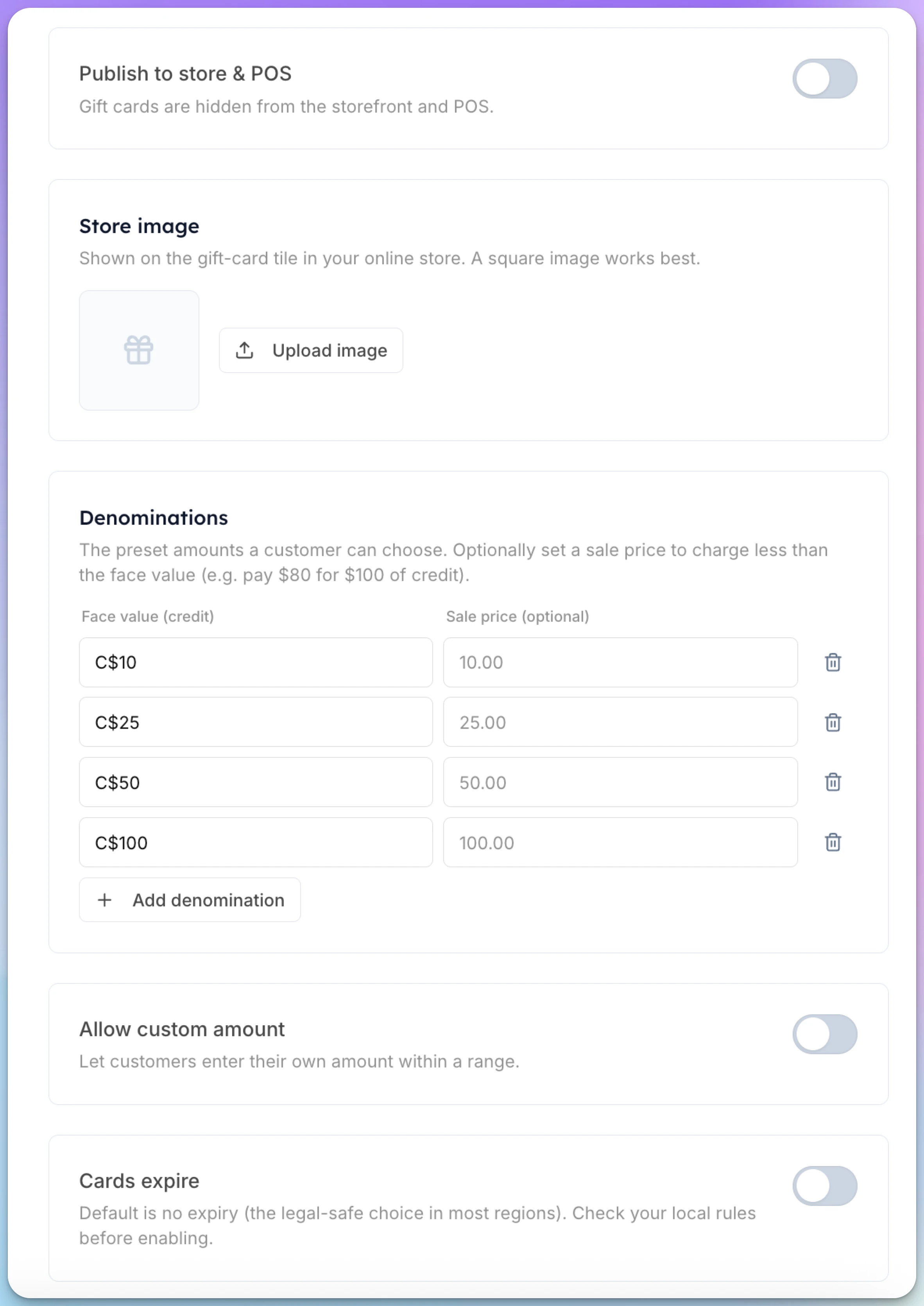
Under Denominations, enter the amounts a customer can choose in the Face value (credit) column — for example $25, $50 and $100. Click Add denomination to add more.
-
Optional: enter a Sale price to charge less than the face value. For example, the customer pays $80 for $100 of credit. Leave it blank to charge the face value.
-
Optional: turn on Allow custom amount to let customers type their own amount. Set a Minimum and a Maximum.
-
Optional: turn on Cards expire and enter the Days until expiry. By default, cards never expire.
-
Optional: under Store image, click Upload image to set the picture on the gift card tile in your online store. A square image works best.
-
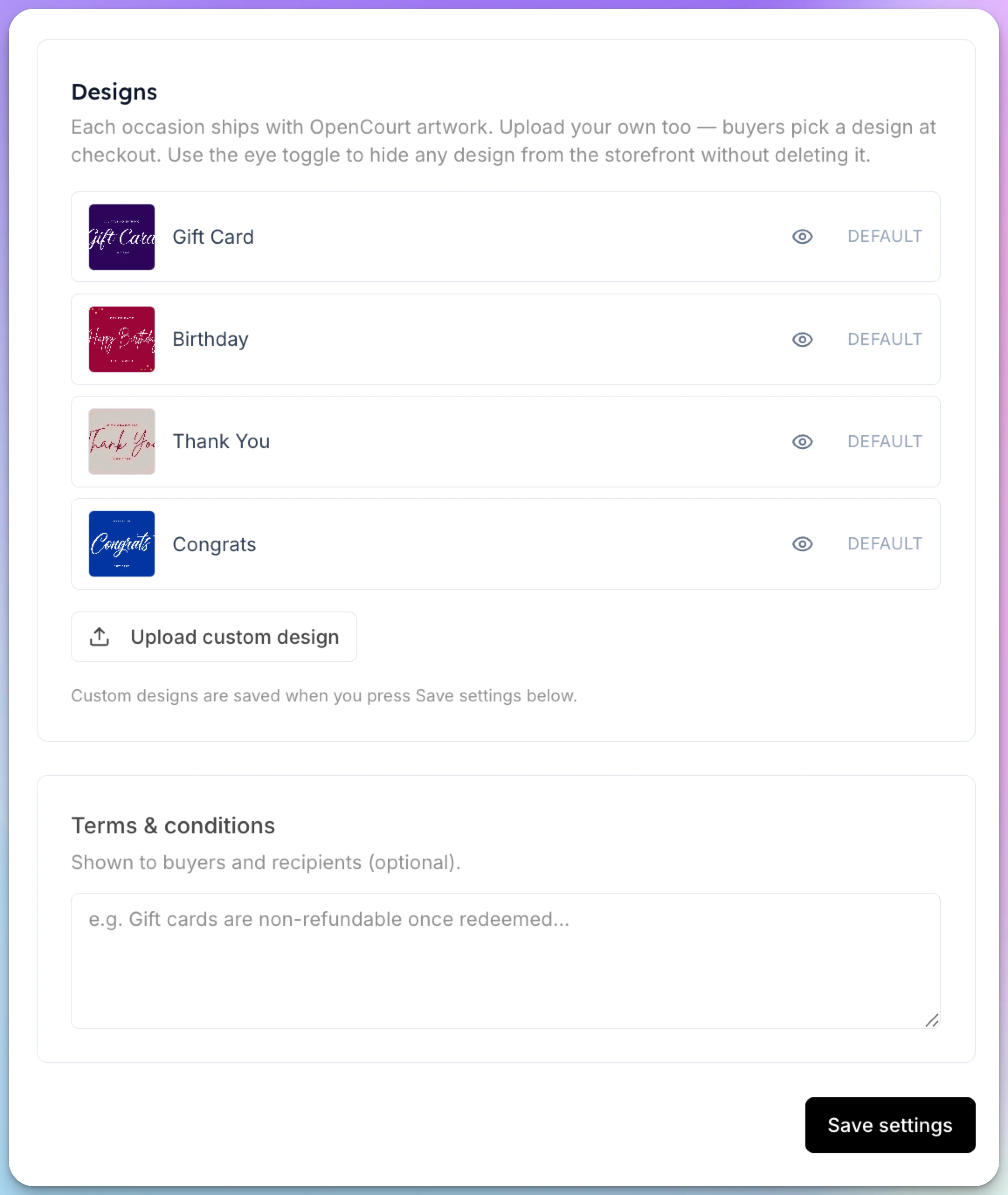
Under Designs, choose the artwork buyers can pick. OpenCourt includes Gift Card, Birthday, Thank You and Congrats. Click Upload custom design to add your own. Click the eye icon to hide a design without deleting it.
-
Optional: add Terms & conditions. Buyers and recipients see them.
-
Click Save settings.
-
When you are ready to sell, turn on Publish to store & POS at the top of the page.
How customers buy a gift card online
After you publish, a gift card tile appears in your online store with the price Choose amount. The customer:
- Picks an amount and a design.
- Enters the recipient's name and email, or turns on Send to myself.
- Adds an optional message.
- Clicks Continue to payment and pays by card.
The recipient gets the email after the payment goes through. The buyer can see and resend the cards they sent under My Profile → Club Credit.
Sell a gift card at the front desk
-
Open the POS.
-
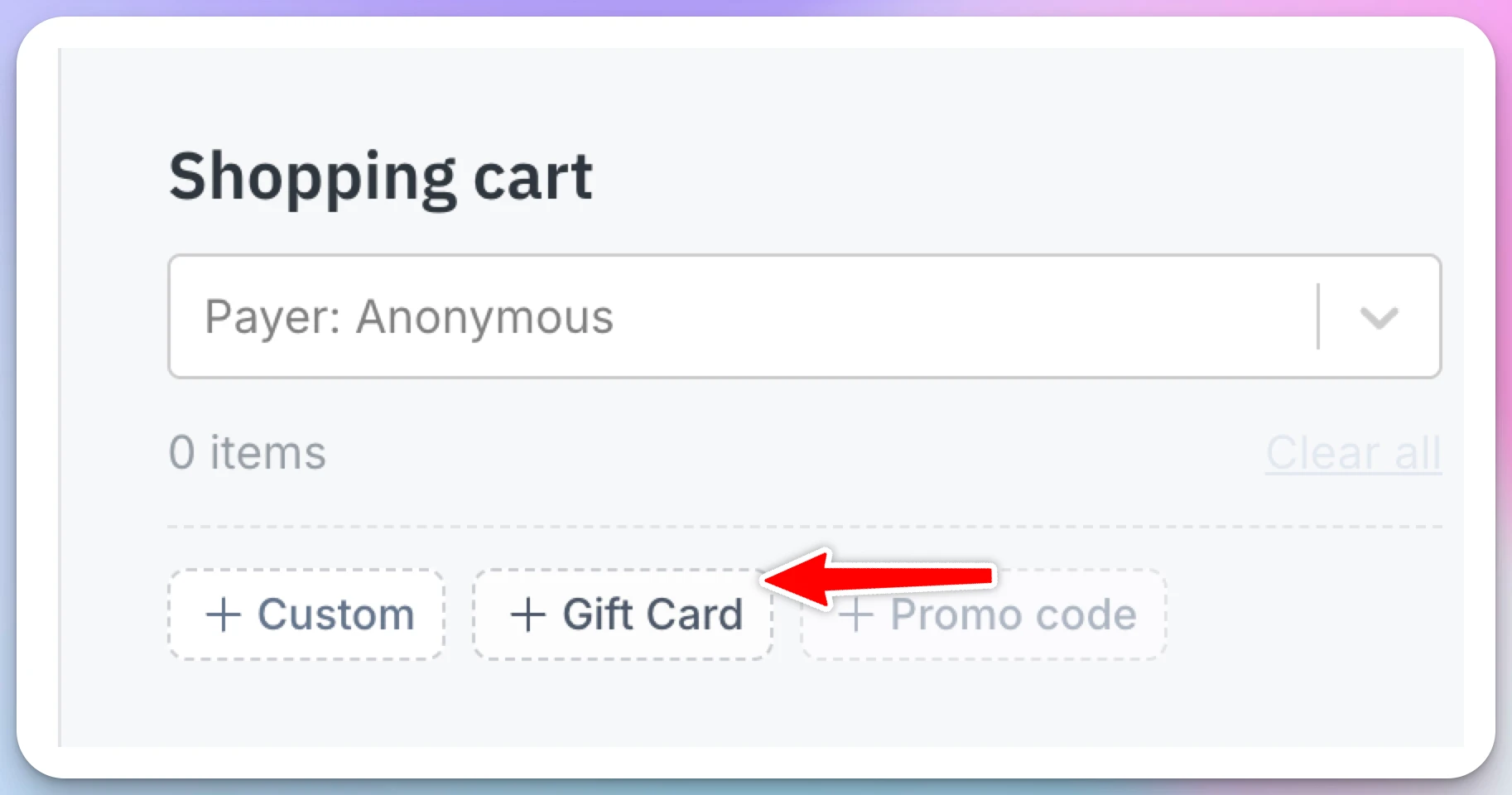
In the Shopping cart, click + Gift Card.
-
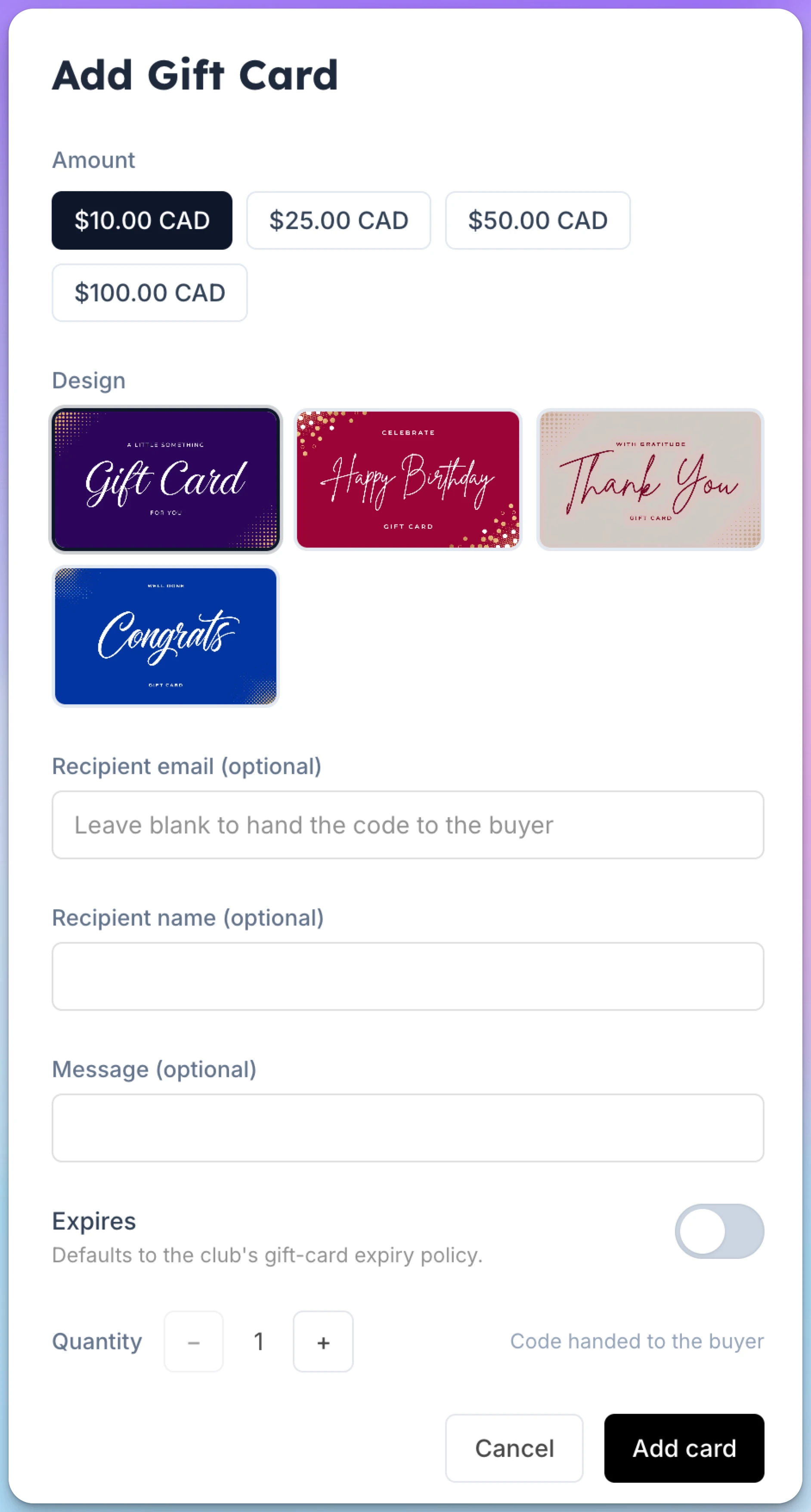
Pick an Amount and a Design.
-
Enter a Recipient email to email the card to the recipient. Leave it blank to give the code to the buyer yourself.
-
Optional: add a Recipient name and a Message.
-
Optional: turn on Expires to change the expiry for this card. It starts with your club's expiry setting.
-
Set the Quantity to sell several identical cards at once.
-
Click Add card, then take payment as usual.
If you left the recipient email blank, find the card on the Cards tab under Gift cards and give the buyer the value in the Code column.
Give a free gift card
Use this to make up for a problem, run a giveaway or donate a card. Nobody is charged.
- Go to Gift cards and open the Cards tab.
- Click Issue gift card.
- Pick an amount, or type any amount.
- Optional: choose a design.
- Enter a Recipient name and Recipient email. Leave the email blank to give out the code yourself.
- Optional: add a message and change the expiry.
- Click Issue card.
You don't need to publish gift cards to give free ones.
What the recipient does
The email links to a page that shows the value and the code. The recipient clicks Claim your gift and signs in if asked. The value goes into their club credit at once.
They can also enter the code under My Profile → Club Credit → Have a gift card? and click Redeem.
Manage your gift cards
The Cards tab lists every card with its code, amount, status, recipient and buyer. Filter by status or by source (purchased, comped for free cards, or refund).
| Action | Shows when | What it does |
|---|---|---|
| Edit recipient (pencil) | The card is active | Changes the recipient's name or email. |
| Resend | The card is active and has a recipient email | Sends the gift card email again. |
| Void | The card is active | Makes the card unusable. You can't undo this. |
| Reverse | The card is redeemed | Takes the club credit back and lets the card be claimed again. |
| View history (clock) | Always | Shows everything that happened to the card. |
Fix a card claimed by the wrong person
- On the Cards tab, find the card. Its status is redeemed.
- Click Reverse, then Reverse redemption.
- Send the code to the right person so they can claim it.
If the customer already spent some of the credit, you see Allow a negative balance? Click Reverse and allow negative to continue. Their club credit goes below zero.
Refund a gift card
Refund the order as you refund any other order. OpenCourt voids the card so nobody can claim it.
You can't refund a card after it is claimed. Reverse the redemption first.
See gift card sales
The Report tab shows cards sold, cards redeemed, and the value of cards not yet claimed. For how gift cards appear in your other sales reports, see Financial reports and bookkeeping.
If something goes wrong
- You can't see Gift cards in the menu — Gift cards are off for your club, or you don't have the Gift Cards permission. → Contact OpenCourt support, or ask an admin to give you the permission.
- Customers can't find gift cards, or the POS has no + Gift Card button — Publish to store & POS is off. → Turn it on under Gift cards → Settings.
- The recipient didn't get the email — The address may be wrong, or the email is in spam. → Click Edit recipient, fix the email, then click Resend.
- There is no Resend button — The card has no recipient email. → Click Edit recipient and add one.
- "This gift card has already been claimed." — Someone already claimed it. → Click View history to see who. If it was the wrong person, reverse the redemption.
- The refund is blocked because the card was redeemed — The value is already the recipient's club credit. → Reverse the redemption, then refund the order.
Related
- Club Credit — how customers spend the value of a gift card.
- Creating and managing promo codes — promo codes never apply to gift cards.
- POS & Products
Managing Categories
You can easily organize your products in OpenCourt by creating categories such as Beverages, Merch, or Gear. Here’s how to add a new category and assign products to it.
Ad and conversion tracking in OpenCourt (overview)
Report real bookings and purchases to your ad platforms so campaigns optimize toward revenue, not clicks — with Meta, Google Analytics 4, and Google Ads.