

Move a lesson to another time
Move one coach lesson session to a new date and time from the admin panel. The coach, lesson type, length and payment stay the same, and the student and coach get a Lesson moved email.
You move a booked coach lesson to a new date and time, and OpenCourt tells the student and the coach. (About 1 minute. You need the lesson to be in the future.)
Before you begin
- The lesson has at least one session that has not started yet. A past, started or deleted session cannot move.
- Know the new date and time. The coach, the lesson type and the length do not change. Only the date, the time and sometimes the court change.
Move a lesson
-
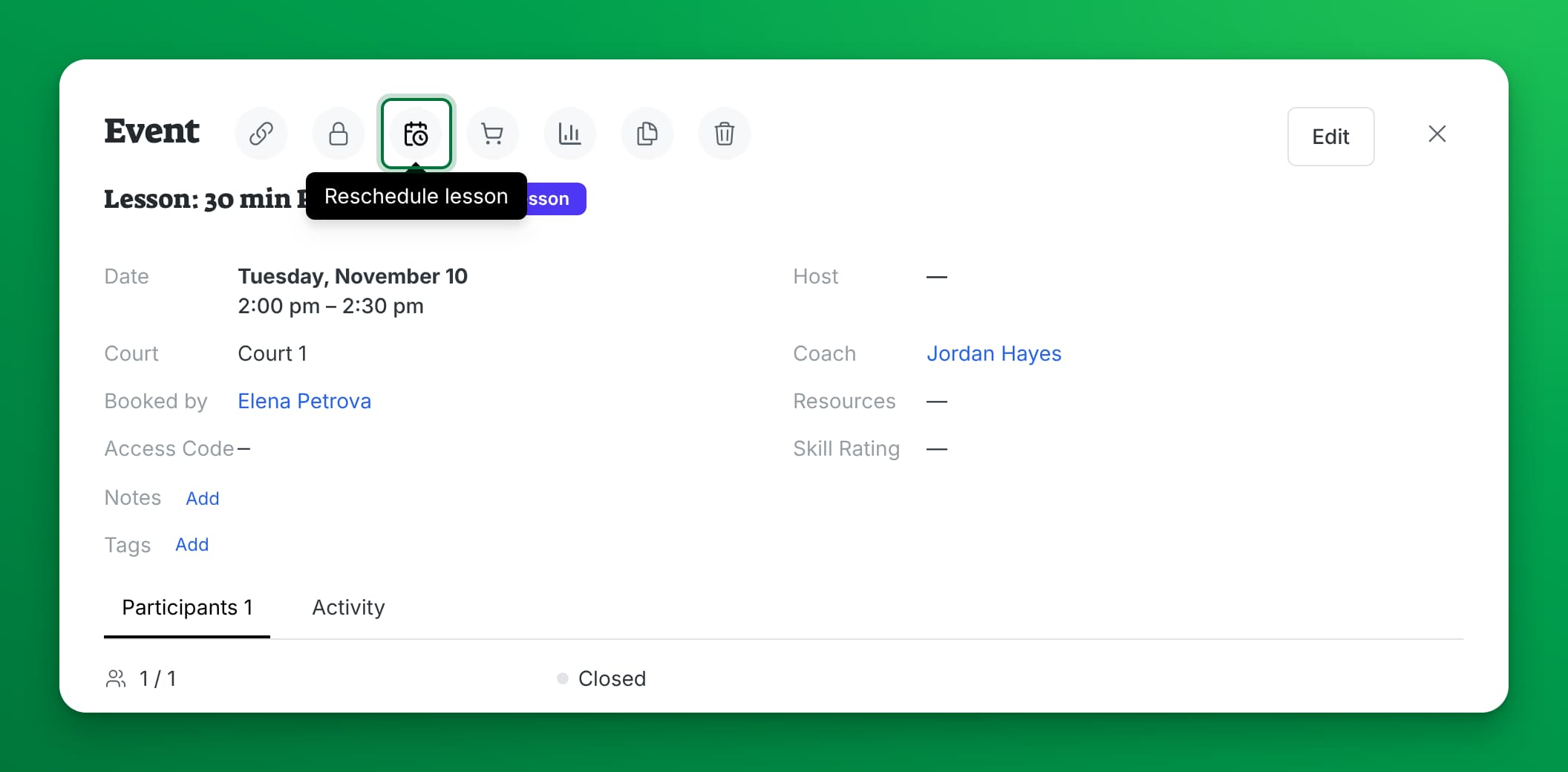
Open the lesson. Click it on the schedule, or go to Coaches → [Coach Name] → Agenda and click it.
-
In the lesson details, click the Reschedule lesson button (the calendar-and-clock icon at the top). On a phone, tap the ⋮ menu, then Reschedule lesson.
-
If the lesson has more than one future session (a lesson package), pick the session you want to move.
-
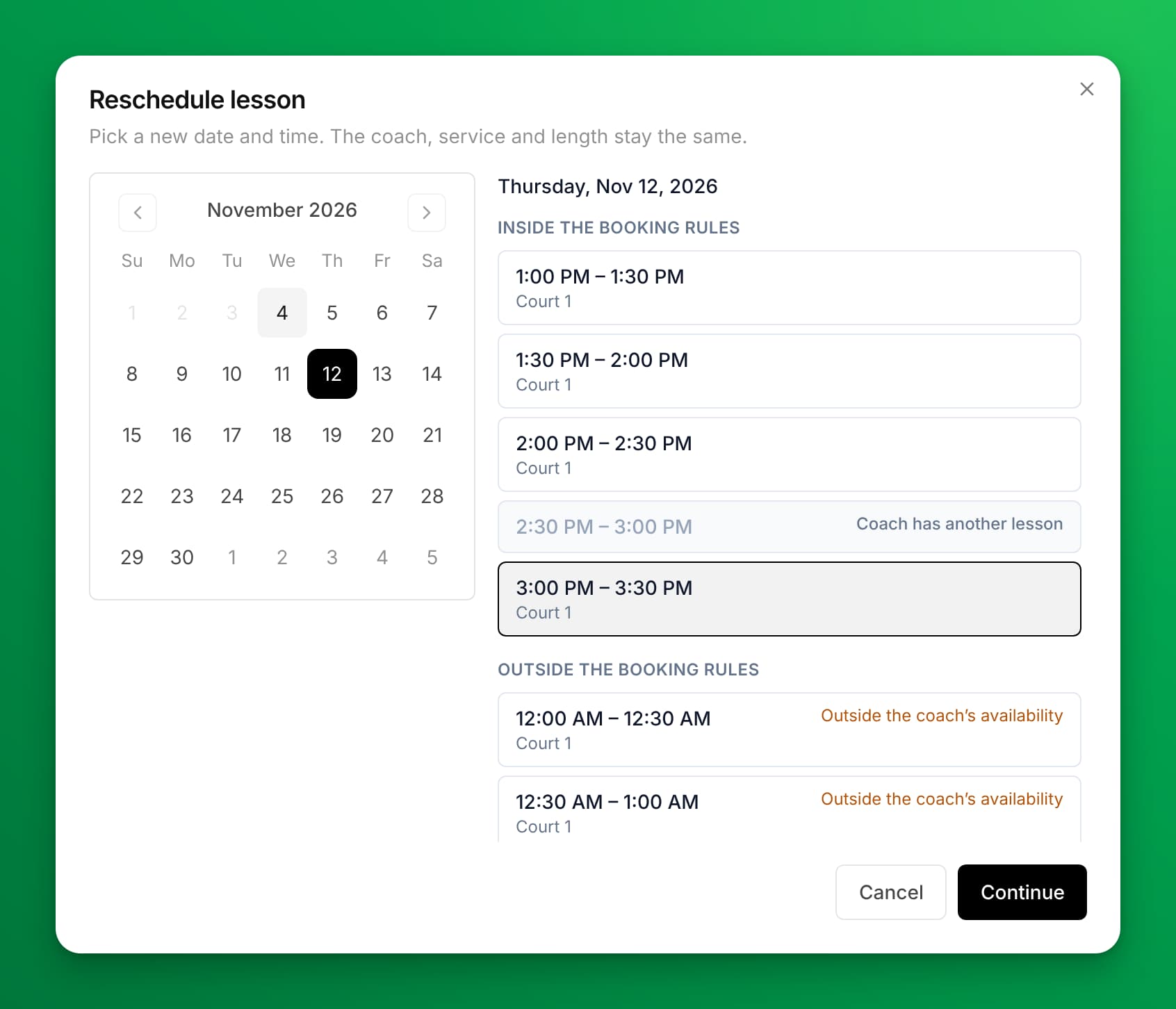
Pick the new date in the calendar. Past days are not available.
-
Pick a time in the list. Times are in two groups:
- Inside the booking rules — the coach is free, a court is free, and the time follows the lesson rules.
- Outside the booking rules — the time is possible, but it breaks a rule. The reason shows next to the time, for example Outside the coach's availability.
Grey times cannot be picked. They show why: Coach has another lesson, No court is free, Time has passed, or Current time.
-
Click Continue.
-
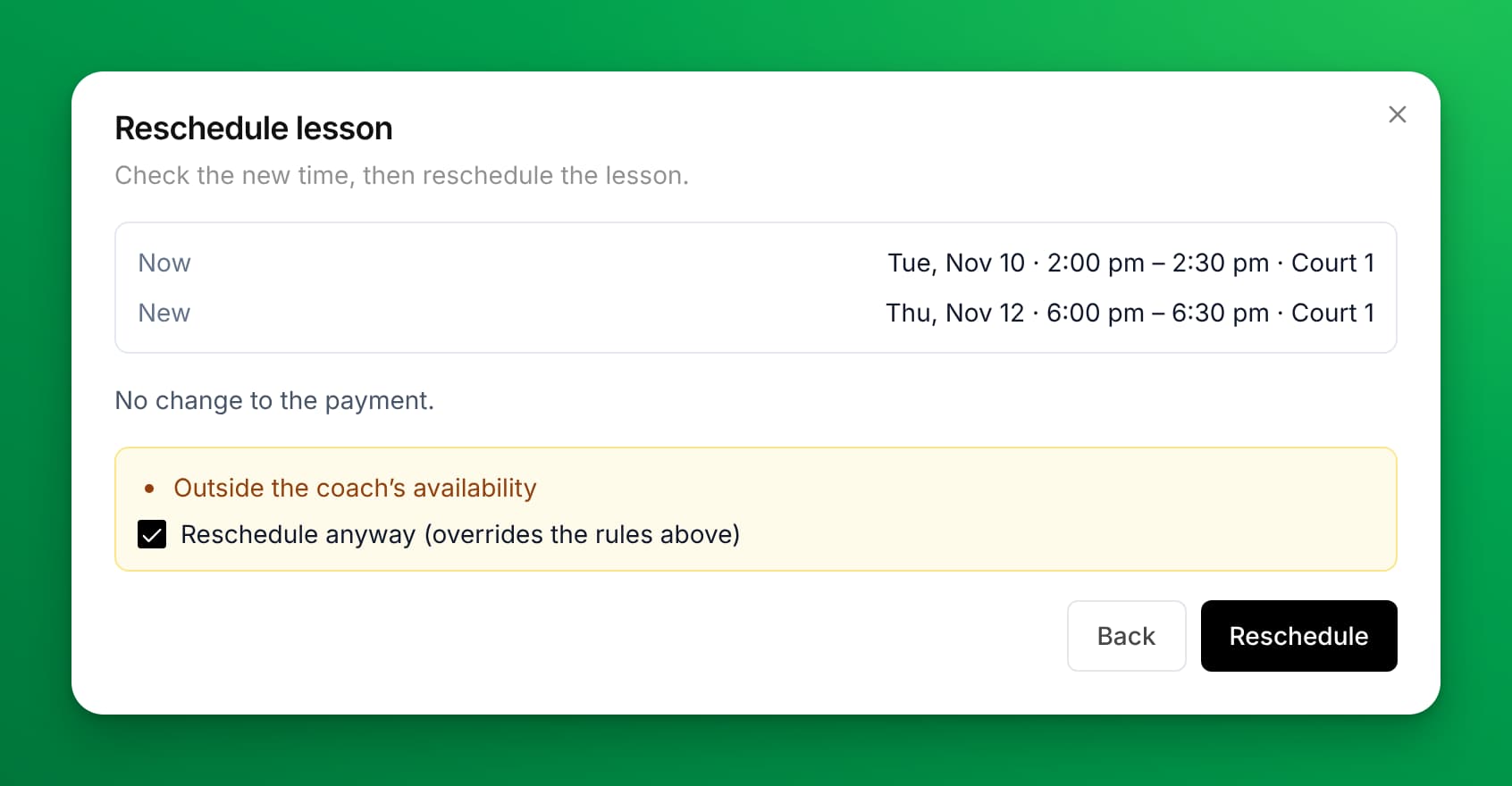
Check the Now and New times, and the line No change to the payment.
-
If the new time is outside the booking rules, tick Reschedule anyway (overrides the rules above). The Reschedule button stays off until you tick it.
-
Click Reschedule. You see Lesson moved.
Which rules can you override?
| Rule | What it means | Can staff override it? |
|---|---|---|
| Outside the coach's availability | The time is outside the hours the coach set. | Yes, with Reschedule anyway |
| Outside the service's hours | The time is outside the hours set for this lesson type. | Yes, with Reschedule anyway |
| Beyond the booking horizon | The date is further ahead than customers can book. | Yes, with Reschedule anyway |
| Less than the minimum notice | The time is sooner than customers can book. | Yes, with Reschedule anyway |
| Coach has another lesson | The coach is already booked. | No |
| No court is free | No court that lessons can use is free. | No |
Every move goes into the lesson's Activity tab, with the old and new time and who moved it. A move with Reschedule anyway also shows (staff override: …) and the rules you overrode.
What happens to the payment?
Nothing. Moving a lesson does not charge, refund or credit anything. The price, the payment status and any pass the customer used stay the same.
If the new time would change the price (for example, a promo code or pass that does not cover the new time), OpenCourt does not move the lesson. Pick another time, or change the lesson in the event editor.
Who is told about the move?
- Every student on the lesson gets a Lesson moved email with the old and new time and court. Their calendar invite updates.
- The coach gets a Lesson moved email.
- A parent who booked the lesson for a child also gets a Lesson moved email.
Change a lesson's time in the event editor
You can also change a session's time in the event editor (Edit in the lesson details). Use Reschedule lesson when you can: it checks the coach's hours and the courts for you, and it always sends the Lesson moved emails. The event editor emails the student and coach only when the lesson's first session changes.
If the coach already has a lesson or event at the new time, the editor asks Coach already booked: [Coach] already has a lesson or event at this time. Save anyway? Click Save anyway to book the coach twice on purpose, or Cancel to go back and change the time.
Let customers reschedule their own lessons
Customers can also move their own lessons from the app. OpenCourt turns this on for each club. To turn it on, contact support@getopencourt.com.
When it is on, you set how close to the start a customer can still move a lesson: go to Settings → Coach Lessons and set Reschedule Window (hours). The default is 24 hours. After the window closes, the customer is asked to contact their coach. Staff can move a lesson at any time. Customers see the steps in the guide Reschedule a lesson in the players' help.
If something goes wrong
- There is no Reschedule lesson button — The lesson has no future session, or it was deleted. A lesson that has started or ended cannot move.
- The Reschedule button is grey on the confirm step — The new time breaks a booking rule. Tick Reschedule anyway (overrides the rules above).
- "The coach now has another lesson at this time." or "No court is free at this time any more." — Someone booked that time while you were choosing. Pick another time.
- "This lesson was changed by someone else. Check its time and pick again." — Another staff member or the customer moved the lesson at the same time. Check the new time, then pick again.
- "This time would change the price of the lesson." — The lesson's promo code or pass does not cover the new time. Pick another time.
- "A customer paid a day fee for the day this session is on now…" — Move the lesson in the event editor, which moves the day fee too, or pick a time on the same day.
Related
Managing Lessons as an Admin
Learn how to use the Coach Agenda to view and manage all booked lessons and assigned events in one place. This guide explains how to review participant details, monitor payment status (paid, pending, cancelled, refunded), and collect payments for deferred bookings directly from the admin panel.
Assigning Coaches to Events
Beyond private lessons, you can assign coaches to any event — clinics, group classes, drills, camps, or any other event type. This lets members see who's teaching before they sign up, and gives coaches visibility into their full schedule.